Are you tired of slow, unreliable Wi-Fi when you travel? A travel router can change the way you connect on the go, giving you faster speeds and better security.
But setting it up might seem tricky if you’re not tech-savvy. Don’t worry—this guide will walk you through each step in simple language. By the end, you’ll know exactly how to configure your travel router so you can enjoy seamless internet wherever you are.
Ready to take control of your connection? Let’s get started.
Choosing The Right Travel Router
Choosing the right travel router sets the foundation for smooth internet access during your trips. It affects how well you connect your devices and the convenience of carrying the device. A good travel router balances features, compatibility, and portability.
Key Features To Look For
- Strong Wi-Fi signal with good range
- Easy setup with clear instructions
- Security options like WPA3 encryption
- Multiple connection modes (router, repeater, hotspot)
- Guest network support for extra safety
- USB ports for file sharing or charging
Compatibility With Devices
Check if the router supports your devices. It should work with laptops, smartphones, tablets, and other gadgets. Look for compatibility with common operating systems like Windows, macOS, Android, and iOS. Make sure it can handle multiple devices at once without slowing down.
Portability And Battery Life
Travel routers need to be small and light. They should fit easily in your bag or pocket. Battery life matters if you travel to places without power outlets. Choose routers with long-lasting batteries or options to connect to power banks. Quick charging features are a plus for busy travelers.

Credit: reloot.net
Setting Up The Travel Router
Setting up your travel router correctly is the key to having reliable internet access wherever you go. It might seem technical at first, but breaking it down into simple steps makes the process manageable. You’ll be online faster than you think, ready to stream, work, or stay connected on the road.
Connecting To Power And Initial Boot
Begin by plugging your travel router into a power source. Many models support USB power banks, which means you can power it even without a wall outlet—great for remote locations.
Once connected, turn on the device. Watch for indicator lights; they usually show when the router is booting up and ready. If the lights blink or stay solid, check your manual to understand what they mean.
Accessing The Router Interface
After the router boots, connect your laptop or smartphone to its default Wi-Fi network. The network name (SSID) and password are often printed on the router or included in the packaging.
Open a web browser and enter the router’s IP address, commonly something like 192.168.0.1or 192.168.1.1. This opens the admin panel where you control settings.
If this is your first time accessing it, you might be asked to create a new admin password. Choose something secure but easy for you to remember—this protects your router from unauthorized changes.
Updating Firmware
Firmware updates are crucial for security and performance. Check the router’s menu for an option like “Firmware Update” or “System Upgrade.”
Download the latest firmware from the manufacturer’s website if automatic updates are not available. Upload the file through the interface and wait patiently as the router installs it.
During this process, do not unplug the router or close your browser. Interruptions can cause serious issues, sometimes bricking the device.
Configuring Network Settings
Configuring the network settings on your travel router is key to creating a secure and efficient connection wherever you go. These settings control how your devices connect and share data, so getting them right can improve your online experience dramatically. Let’s look at some essential network options you should adjust before hitting the road.
Setting Ssid And Password
The SSID is the name of your Wi-Fi network that shows up on your device list. Choose a name that’s easy to recognize but doesn’t reveal personal information. This helps you quickly spot your network in crowded places like hotels or airports.
For the password, use a strong combination of letters, numbers, and symbols. Avoid simple or common passwords to keep your connection safe from unauthorized access. Remember, a secure password protects not just your devices but also your private data during travel.
Selecting Wi-fi Bands
Most travel routers support both 2.4 GHz and 5 GHz bands. The 2.4 GHz band covers a wider area and works better through walls, but it’s often crowded and slower. The 5 GHz band is faster and less congested but has a shorter range.
Think about where you’ll be using the router. In a large hotel room, 2.4 GHz might be more reliable. In a small apartment or cafe, 5 GHz could give you better speed. Some routers allow you to broadcast both bands, letting your devices choose the best one automatically.
Enabling Guest Networks
A guest network lets visitors connect to the internet without accessing your main devices. This is useful if you’re traveling with friends or colleagues and want to keep your data private. Enabling this feature adds a layer of security and convenience.
You can set a different password for the guest network and limit its access to certain resources. This way, guests can surf the web without risking your personal files or connected devices. Have you ever shared a Wi-Fi password and later regretted it? A guest network solves that problem easily.

Credit: www.youtube.com
Enhancing Security
Enhancing security is vital when configuring a travel router. It protects your data from hackers and keeps your online activities private. Strong security settings reduce risks on public or shared networks.
Travel routers often connect to various networks. Each new connection can expose your device to threats. Taking extra steps to secure your router ensures safer internet use wherever you go.
Choosing Strong Encryption Methods
Encryption scrambles your data to stop others from reading it. Choose the strongest encryption your travel router supports.
- Use WPA3 if available. It offers the best protection.
- WPA2 is the next best choice. Avoid older options like WEP.
- Set a complex password with letters, numbers, and symbols.
Strong encryption keeps your wireless network safe from intruders. It prevents unauthorized access to your personal information.
Disabling Wps And Upnp
WPS (Wi-Fi Protected Setup) can make connecting easier. But it has security flaws that hackers exploit.
UPnP (Universal Plug and Play) helps devices communicate automatically. It can also open security holes.
- Turn off WPS to avoid easy hacking.
- Disable UPnP unless you need it for specific devices.
- Check your router’s settings to find these options.
Turning off these features adds a strong layer of defense. It reduces chances of attacks on your travel router.
Setting Up A Vpn
A VPN (Virtual Private Network) hides your real IP address. It encrypts all internet traffic through a secure tunnel.
Use a trusted VPN service to protect your online privacy. Many travel routers support VPN setup directly.
- Install VPN software on your router for full protection.
- Choose servers close to your location for better speed.
- Always connect to the VPN before browsing or using apps.
VPNs shield your data from spying on public Wi-Fi. They help keep your identity and information safe.
Advanced Features To Enable
Enable features like VPN support and firewall protection to secure your travel router. Adjust settings for guest networks and bandwidth control to improve connectivity. These options enhance safety and performance during your travels.
Configuring a travel router can enhance your internet experience while on the move. Beyond basic settings, advanced features provide extra control and security. These features help manage internet use and protect your devices. Enabling them ensures your network runs smoothly and safely. Let’s explore some key advanced features you might want to enable.Parental Controls
Parental controls help manage what your children access online. They allow you to block inappropriate websites. You can also set limits on internet usage time. This keeps your children safe while browsing. Configure these settings through the router’s control panel. Look for options related to filtering and scheduling. This feature is crucial for families who travel frequently.Device Prioritization
Device prioritization ensures important gadgets get the best connection. You can select which devices need faster internet speeds. This is useful for video calls or streaming. To set this up, access your router’s settings. Find the section labeled Quality of Service (QoS). From there, assign priority to your devices. This feature helps avoid lag and buffering issues.Firewall Settings
Firewalls protect your network from unwanted access. They act as a barrier between your devices and potential threats. Adjusting firewall settings can enhance security. Ensure the firewall is active on your travel router. You might find options for blocking suspicious connections. Regularly check and update these settings for optimal safety. This keeps your data secure while traveling.Troubleshooting Common Issues
Troubleshooting common problems with your travel router can save time and stress. Simple fixes often restore your connection quickly. Understanding these issues helps keep your device working smoothly.
Resolving Connection Drops
Connection drops happen often due to interference or weak signals. Move the router to a central location free from walls and metal objects. Check for other wireless devices that may cause interference.
Restart the router to refresh the connection. Update the router’s firmware to fix bugs and improve stability. Use a wired connection if possible for a steady link.
Resetting To Factory Settings
Resetting the router clears all custom settings. Use this if the router behaves oddly or won’t connect. Find the reset button, usually a small hole, and press it with a pin for 10 seconds.
After reset, reconfigure your router using the setup guide. Keep your login details and network info handy. This step often fixes deep software issues.
Improving Signal Strength
Weak signals cause slow internet and dropped connections. Raise the router off the ground and place it near open space. Avoid placing it near microwaves or cordless phones.
Change the wireless channel in settings to avoid crowded frequencies. Consider using a Wi-Fi extender or a travel router with better antennas. Strong signals ensure better internet performance.
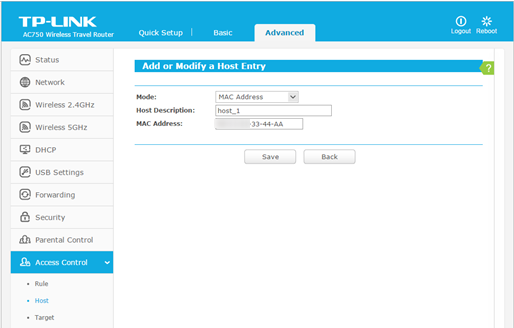
Credit: www.tp-link.com
Frequently Asked Questions
What Is A Travel Router And Why Use It?
A travel router is a compact device that creates a secure Wi-Fi network. It helps you share internet safely while traveling. It boosts connectivity, protects your data, and allows multiple devices to connect. It’s essential for reliable internet access on the go.
How Do I Set Up A Travel Router Step-by-step?
To set up, power on the router and connect to its network. Access the router’s admin page via a browser. Enter your ISP details or connect to existing Wi-Fi. Customize settings like SSID and password. Save changes and restart for proper connection.
Can A Travel Router Improve Wi-fi Speed And Security?
Yes, travel routers optimize Wi-Fi speed by reducing interference and managing bandwidth. They also enhance security by encrypting connections and isolating devices. This protects your data from hackers on public networks, ensuring safer browsing and faster internet access during travel.
What Are Common Issues When Configuring Travel Routers?
Common issues include incorrect login credentials, incompatible firmware, and weak signal. Sometimes the router won’t connect to the existing Wi-Fi or ISP. Resetting the router or updating firmware often resolves these problems. Always double-check settings and compatibility before setup.
Conclusion
Configuring a travel router helps you stay connected anywhere. It keeps your devices safe on public Wi-Fi. Setup is simple and takes just a few steps. You can enjoy faster internet and better security. Carrying a travel router makes trips easier and more fun.
Try these tips to get started right away. Safe and steady internet is always within reach.