Want to use your phone with a portable router but don’t know where to start? Connecting your phone to a portable router can boost your internet speed, save your data, and keep you online wherever you go.
In this guide, you’ll learn simple, step-by-step ways to make the connection fast and hassle-free. By the end, you’ll have the power to stay connected anytime, anywhere—without confusion or frustration. Ready to take control of your internet? Let’s dive in.

Credit: www.youtube.com
Choose The Right Portable Router
Choosing the right portable router is crucial for a smooth internet connection on the go. The right device matches your needs and ensures fast, stable access. Consider factors like connection type, battery life, and device compatibility. This helps you stay connected anywhere, anytime without trouble.
Types Of Portable Routers
Different portable routers serve different purposes. Some use a SIM card to access mobile networks. Others connect to an existing Wi-Fi network and share it with your devices. A few models combine both features for flexibility. Battery-powered routers offer true portability. USB-powered ones need a power source but can be lighter. Choose a type that suits your travel or daily routine.
Key Features To Look For
- Battery Life:Longer battery means extended use without charging.
- Speed:Check the router supports fast internet standards like 4G or 5G.
- Device Support:Select a router that can connect multiple devices simultaneously.
- Security:Look for routers with strong encryption and password protection.
- Portability:Size and weight matter if you carry it daily.
- Ease of Use:Simple setup and user-friendly controls are helpful.
Prepare Your Phone And Router
Preparing your phone and portable router properly ensures a smooth connection. It helps avoid interruptions and boosts performance. Before you connect, take some time to get both devices ready.
Charge Devices Fully
Make sure both your phone and portable router have enough battery. A full charge prevents sudden shutdowns during setup or use. Carrying a power bank is a good backup plan for long trips.
Update Firmware And Software
Check for the latest updates on your router’s firmware. Updated firmware improves security and device compatibility. On your phone, update the operating system and network apps. This step helps fix bugs and supports better connection stability.
Connect Via Wi-fi
Connecting your phone to a portable router via Wi-Fi is one of the simplest ways to get online without using mobile data. It allows you to share a single internet connection with multiple devices effortlessly. Plus, Wi-Fi connections are generally fast and stable, making your browsing or streaming experience smooth.
Turn On Router And Enable Wi-fi
Start by powering on your portable router. Most routers have a dedicated power button—press it until the indicator lights up.
Next, ensure the Wi-Fi feature on the router is active. Some models have a physical Wi-Fi switch, while others enable it automatically once powered on. Check the router’s display or status lights to confirm Wi-Fi is broadcasting.
Find And Select Router Network On Phone
Open the Wi-Fi settings on your phone. Your phone will scan and display a list of available networks nearby.
Look for your portable router’s network name (SSID). It might be printed on the router or in its manual, often something like “PortableRouter_1234.” Tap the network name to select it.
Enter Password And Connect
Once you select the network, your phone will ask for a password. This password is usually on a sticker attached to the router or included in the documentation.
Type the password carefully—Wi-Fi passwords are case-sensitive. After entering it, tap “Connect” and wait a few moments.
Does your connection feel sluggish or unstable? Sometimes changing the router’s location or restarting it can improve the Wi-Fi signal strength and speed.
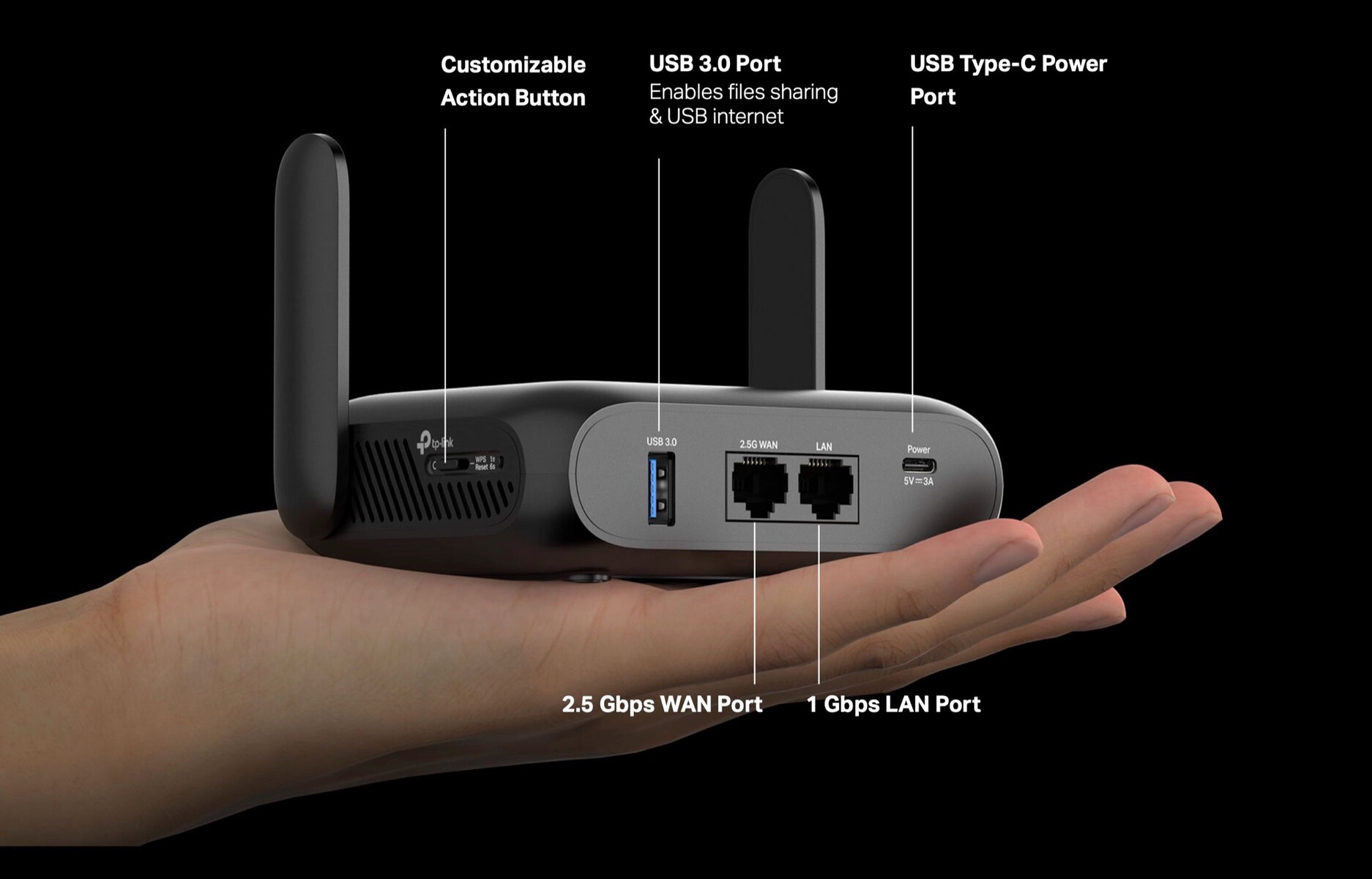
Credit: www.notebookcheck.net
Connect Via Usb Tethering
Connecting your phone to a portable router via USB tethering is a straightforward way to share your mobile internet with other devices. This method offers a stable and fast connection compared to wireless options, especially in areas with spotty Wi-Fi. Let’s break down what you need to do to get started.
Use Compatible Usb Cable
Not all USB cables are created equal. You’ll need a cable that supports data transfer, not just charging. Look for cables labeled as “data transfer” or use the original cable that came with your phone to avoid connection issues.
Using a poor-quality cable often results in intermittent connections or failure to detect the phone. If you’ve ever tried to tether and your router didn’t recognize your phone, checking the cable is a smart first step.
Enable Usb Tethering On Phone
On your phone, go to the Settingsmenu and find the Network & Internetor Connectionssection. Look for the USB Tetheringoption and toggle it on once your phone is connected to the router via USB.
Be aware that some phones may disable USB tethering automatically if the cable isn’t recognized properly. If you don’t see the option, try reconnecting the cable or restarting your phone to refresh the connection.
Verify Connection On Router
After enabling USB tethering, check your portable router’s interface or app to confirm the phone is connected. Most routers will display the connected device’s name or IP address under the USB or tethering settings.
If the connection doesn’t appear, unplug and reconnect the USB cable, or restart the router. Sometimes, routers need a moment to detect new devices, so patience is key.
Troubleshoot Common Issues
Check the router’s power and signal before connecting your phone. Restart both devices if the connection fails. Make sure Wi-Fi is on and the password is correct.
Connecting your phone to a portable router can feel like magic until it doesn’t work as expected. Troubleshooting common issues can save you from endless frustration and make your connectivity experience seamless. Let’s delve into some common hiccups you might encounter and how to resolve them effectively.Connection Drops
Your connection might drop due to several reasons, including interference or weak signal. Ensure your portable router is placed in a central location to minimize obstacles. Avoid placing it near electronic devices that might cause interference, like microwaves or cordless phones. If the problem persists, restarting both your phone and the router can often restore a stable connection.Slow Internet Speed
Slow internet can be a real buzzkill when you’re trying to get things done. First, check if you’ve hit your data cap; many portable routers throttle speed after a certain usage. If not, try disconnecting other devices to see if that boosts your speed. Updating the router’s firmware might also help as manufacturers often release updates to improve performance.Forgotten Password
Forgetting your password is more common than you’d think, and it can be a real roadblock. Most portable routers have a reset button that can restore factory settings. Press and hold this button for about 10 seconds, and the router will reset, allowing you to set a new password. Remember to keep a note of your new password somewhere safe to avoid repeating this process. — Have you experienced any of these issues before? How did you resolve them? Share your insights below!Optimize Connection Settings
Optimizing your connection settings is key to getting the best performance from your phone when connected to a portable router. Small tweaks can reduce interference, boost speed, and protect your data. These settings often go unnoticed but have a huge impact on your online experience.
Change Wi-fi Channels
Wi-Fi signals often overlap, especially in crowded areas like apartments or offices. This overlap causes slow speeds and dropped connections. Changing the Wi-Fi channel on your portable router helps avoid interference from neighboring networks.
Most routers allow you to switch channels through the admin interface. Channels 1, 6, and 11 are usually the best options for 2.4 GHz networks because they don’t overlap. For 5 GHz networks, you have more channel options, so you can pick one with less traffic.
Try testing different channels to see which gives your phone the strongest and most stable connection. Have you noticed your connection speed jump after switching channels? That’s the kind of difference this setting can make.
Set Up Security Protocols
Securing your portable router is not just about safety—it also affects your connection quality. Weak security protocols can let unauthorized devices slow down your network or expose your data.
Use WPA3 if your router and phone support it. It’s the most secure and efficient protocol available. If not, WPA2 is a solid alternative. Avoid outdated protocols like WEP, which are easily cracked.
Changing your Wi-Fi password regularly keeps unwanted users away and maintains your connection speed. Have you checked your router’s security settings lately? A quick update could protect your data and improve your connection at the same time.
Credit: huasifei-link.com
Frequently Asked Questions
How Do I Connect My Phone To A Portable Router?
To connect, turn on the portable router and enable Wi-Fi on your phone. Find the router’s network name (SSID) in your phone’s Wi-Fi settings, then select it and enter the password provided with the router.
Can I Use A Portable Router With Any Phone?
Yes, portable routers support most smartphones with Wi-Fi capability. Both Android and iPhone devices can connect seamlessly to portable routers for internet access.
What Is The Benefit Of Using A Portable Router For Phone?
A portable router offers secure, private internet access anywhere. It improves connection speed, supports multiple devices, and protects your phone from public Wi-Fi risks.
Do I Need An Internet Sim Card For Portable Routers?
Most portable routers require a SIM card with an internet plan. Insert the SIM card to activate mobile data, enabling your phone to access the internet via the router.
Conclusion
Connecting your phone to a portable router is simple and fast. Just follow the steps carefully. This helps you stay online wherever you go. No need to rely on public Wi-Fi anymore. A portable router offers better security and speed.
Keep your devices connected easily and safely. Enjoy browsing, streaming, and working without interruptions. Try it yourself and see the difference. Staying connected has never been this easy.