Are you struggling with a weak 5GHz signal on your dual band router? You’re not alone.
Many people find that their faster, less crowded 5GHz band doesn’t always reach every corner of their home. But don’t worry—there are simple, effective ways to boost your 5GHz signal and enjoy faster, more reliable Wi-Fi. You’ll discover easy tips and tricks that anyone can use to improve their connection.
Ready to get the most out of your router? Let’s dive in.
Credit: www.signalbooster.com
Check Router Placement
Checking your router placement is key to boosting the 5GHz signal strength. The 5GHz band offers faster speeds but shorter range. Proper placement helps reduce signal loss and interference. Small changes in location can improve coverage and speed.
Avoid Obstacles And Interference
Keep the router away from thick walls and large metal objects. These block the 5GHz signal easily. Avoid placing the router near microwaves, cordless phones, and baby monitors. These devices cause interference that weakens the signal.
Elevate Your Router
Place the router on a higher surface like a shelf or table. Signals spread out better from an elevated position. Avoid placing the router on the floor or inside cabinets. Elevation helps the signal reach further and clearer.
Centralize Router Location
Put the router near the center of your home or office. This placement allows the signal to cover most areas evenly. Avoid corners or rooms far from where you use the internet most. Central placement reduces dead spots and improves connection quality.
Credit: www.signalbooster.com
Optimize Router Settings
Optimizing your router settings can significantly boost your 5GHz signal strength and speed. Many people overlook the power of simple adjustments that can reduce interference and improve connectivity. Tweaking these settings is often easier than you think, and the results can be noticeable almost immediately.
Select The Best Channel
Choosing the right channel for your 5GHz band is crucial. Many routers default to automatic channel selection, but this doesn’t always pick the clearest option. Use a WiFi analyzer app to scan for less crowded channels around you.
Channels 36, 40, 44, and 48 are common, but sometimes higher channels like 149 or 153 work better in your environment. Changing to a less congested channel reduces interference from neighbors’ routers and other devices.
Adjust Transmit Power
Transmit power controls how strong your router’s signal is broadcasted. Increasing it can extend your coverage, but too high might cause interference or overheating. Check your router’s settings to find the transmit power option and try boosting it incrementally.
Some routers allow you to set power levels in percentages or decibels. Start with about 80% power and test your signal strength in different rooms. If the signal improves without drops or instability, keep it there.
Enable 5ghz Band Exclusively
If your router supports dual-band operation, it often runs both 2.4GHz and 5GHz bands simultaneously. Sometimes, devices automatically connect to the 2.4GHz band even when 5GHz is available, which can slow speeds. You can force your router to broadcast only the 5GHz band.
This setting is usually found under wireless or band settings. By enabling 5GHz exclusively, you encourage your devices to use the faster band, reducing congestion and improving performance.
Have you noticed some devices sticking to the slower band even though your router supports 5GHz? Try this setting to see if it changes your connection experience.
Update Router Firmware
Keeping your router’s firmware updated is one of the easiest ways to enhance your 5GHz signal strength. Firmware updates often include bug fixes, security patches, and performance improvements that can boost your router’s overall efficiency. If you’ve noticed your 5GHz connection is weaker or less stable, updating the firmware might be the solution you’ve overlooked.
How To Check For Firmware Updates
Start by logging into your router’s admin panel. This is usually done by typing the router’s IP address into your web browser—common addresses are 192.168.1.1 or 192.168.0.1.
Once logged in, look for a section labeled “Firmware Update,” “Router Upgrade,” or something similar. This area will tell you if your router has the latest firmware or if an update is available.
Downloading And Installing The Update
Before downloading, make sure your device is connected to a stable internet connection. Some routers allow you to update directly through the admin panel with a single click.
If not, visit the manufacturer’s website to download the latest firmware manually. Always download firmware only from official sources to avoid security risks.
After downloading, upload the file via the router’s update page and follow the prompts. Avoid turning off your router during the update process to prevent corruption.
Benefits Of Regular Firmware Updates
- Improved Signal Strength:Updates can optimize wireless performance, enhancing your 5GHz signal range and stability.
- Enhanced Security:Firmware patches fix vulnerabilities, protecting your network from hackers.
- Bug Fixes:Updates address known issues that might cause slow speeds or frequent disconnections.
What To Do If Your Router Doesn’t Support Updates
Some older routers no longer receive firmware updates. If this is your case, consider upgrading to a newer model designed for better 5GHz performance.
Alternatively, look for community-supported firmware like DD-WRT or OpenWrt, but only if you feel comfortable with advanced setups. These can unlock hidden features and boost your router’s capabilities.
Use Wi-fi Extenders And Mesh Systems
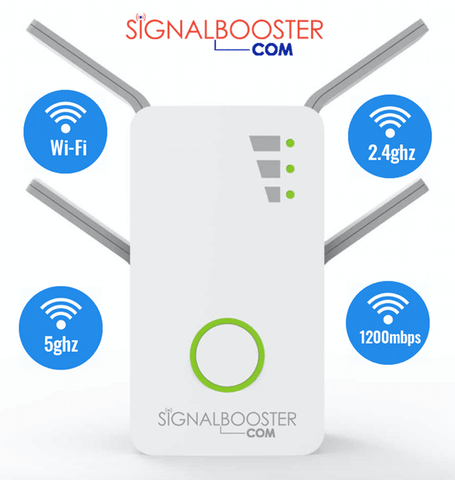
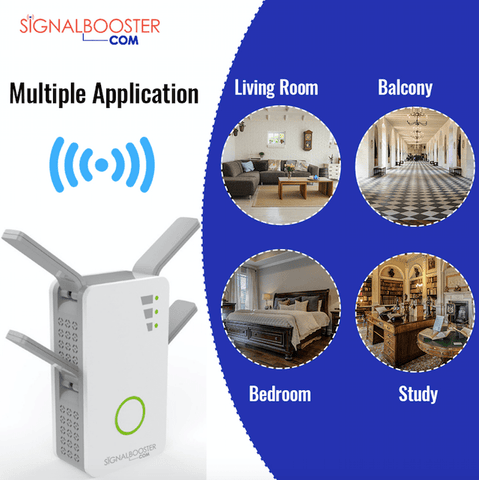
Wi-Fi extenders and mesh systems spread your 5GHz signal across larger areas. They reduce dead zones and keep your connection strong. This helps devices stay connected with better speed and stability.
Improving the 5GHz signal on a dual-band router can enhance your wireless experience. One effective way is using Wi-Fi extenders and mesh systems. These tools can help broaden your network’s reach, providing a stronger signal throughout your home. Let’s explore how they work and how you can use them to boost your 5GHz signal.Add Wi-fi Extenders
Wi-Fi extenders are devices that amplify your existing router’s signal. Place them halfway between your router and the dead zones. This helps extend the 5GHz signal to areas with weak connectivity. Ensure the extender is compatible with your router for best results. Many extenders are plug-and-play, making setup easy.Set Up A Mesh Network
Mesh networks consist of multiple nodes placed around your home. Each node communicates with the others, creating a seamless network. This setup ensures a strong 5GHz signal in every room. Mesh systems are easy to install and manage via a smartphone app. Choose a system that matches your home’s size and your internet needs.Reduce Signal Interference
Reducing signal interference is key to boosting your 5GHz Wi-Fi performance. Interference can come from many sources, and it often weakens your connection without you realizing it. Knowing how to minimize these disruptions can make a noticeable difference in your internet speed and reliability.
Limit Electronic Device Interference
Many everyday devices emit signals that interfere with your 5GHz network. Microwaves, cordless phones, baby monitors, and even Bluetooth gadgets can disrupt your Wi-Fi. Try moving your router away from these electronics to create a clearer signal path.
Think about where you place your router. Is it near a TV or a wireless speaker? Shifting it to a more open area often helps. Also, turning off unused devices that operate on similar frequencies can reduce noise and improve your Wi-Fi quality.
Change Wireless Mode
Your router supports different wireless modes, like 802.11ac, 802.11n, or mixed mode. Some modes are better at handling interference and providing faster speeds on the 5GHz band. Access your router’s settings and try switching to a mode optimized for 5GHz performance.
For example, setting your router to use only 802.11ac can improve speed and reduce interference from older devices. Have you checked if your router is stuck on a legacy mode? Updating this setting could give your 5GHz signal the boost it needs.
Upgrade Router Hardware
Upgrading your router hardware can significantly boost your 5GHz signal strength and overall Wi-Fi performance. Older routers often struggle to provide stable and fast connections on the 5GHz band due to weaker antennas and outdated technology. Investing in better hardware ensures your network can handle more devices with less interference.
Choose A Router With Better Antennas
Antennas play a crucial role in how well your router broadcasts the 5GHz signal. Routers with high-gain external antennas tend to cover larger areas and penetrate walls more effectively than those with small internal antennas.
You might notice a big difference simply by switching to a router that allows antenna upgrades or has multiple adjustable antennas. This flexibility lets you position antennas for optimal coverage in your home or office.
Have you ever tested signal strength before and after adjusting antenna angles? Small changes can sometimes make a big impact on your 5GHz Wi-Fi reach and speed.
Consider A New Dual Band Router
If your current router is several years old, it probably lacks the latest Wi-Fi standards that improve 5GHz performance, like Wi-Fi 6 or Wi-Fi 6E. Newer dual band routers come with advanced features such as beamforming and MU-MIMO, which focus the signal directly to your devices.
Upgrading to a modern dual band router can reduce dead zones and increase overall network stability. When shopping, look for routers with strong reviews specifically praising their 5GHz capabilities.
Think about how much time you spend troubleshooting slow connections. Could investing in a newer router save you hours of frustration while improving your daily internet experience?
Manage Connected Devices
Managing connected devices is key to improving your 5GHz signal on a dual-band router. Each device uses part of the bandwidth, which can slow down the network. Controlling how devices share the signal keeps the connection faster and more stable. This makes sure the devices that need the most speed get it.
Prioritize Devices With Qos
Quality of Service (QoS) lets you prioritize devices on your network. You can give more bandwidth to important devices like laptops or smart TVs. This helps reduce lag during video calls or streaming. Prioritizing devices ensures critical tasks get enough speed. It also stops less important devices from slowing down the network.
Limit Bandwidth-hogging Applications
Some apps use a lot of bandwidth and slow down your 5GHz signal. Streaming, gaming, or large downloads can take up most of the signal. You can limit these apps in your router settings. This keeps the network fast for all connected devices. Controlling heavy apps avoids network congestion and signal drops.

Credit: www.amazon.com
Frequently Asked Questions
How Can I Boost 5ghz Signal On A Dual Band Router?
Place your router centrally and away from obstacles. Use a high-gain antenna and update firmware. Select a less crowded channel and reduce interference from other devices for optimal 5GHz signal strength.
Why Is My 5ghz Wi-fi Signal Weak Indoors?
5GHz signals have shorter range and poor wall penetration. Thick walls and furniture block signals. Position the router in open areas for better indoor coverage and fewer dead zones.
Does Changing The 5ghz Channel Improve Signal Quality?
Yes, switching to a less congested 5GHz channel reduces interference. Use tools to find the least crowded channel for a stronger, faster connection on your dual band router.
How Far Does The 5ghz Wi-fi Signal Reach Effectively?
5GHz typically covers 30-50 feet indoors with obstacles. Outdoors, it can reach up to 150 feet. Range varies based on router power and environmental factors.
Conclusion
Improving your 5GHz signal helps your internet work faster and smoother. Place your router in a high, open spot. Keep it away from walls and metal objects. Change the channel to avoid interference from other devices. Use a strong password to keep your network safe.
Restart your router regularly to keep it fresh. These simple steps can boost your Wi-Fi signal at home. Enjoy better streaming, gaming, and browsing with a stronger 5GHz connection. Small changes can make a big difference. Try them today and see the improvement yourself.