Are you tired of lag ruining your gaming sessions? Knowing how to check latency on your gaming router is the key to smoother gameplay and faster response times.
Imagine cutting down those frustrating delays and finally getting the edge you deserve. You’ll discover simple steps to measure your router’s latency, understand what the numbers mean, and improve your connection right away. Keep reading to take control of your gaming experience and say goodbye to lag for good.
Latency And Gaming Performance
Latency plays a crucial role in your gaming experience. It directly impacts how quickly your commands register and how smoothly the game responds. Understanding latency can help you improve your setup and get the edge you need in competitive play.
What Latency Means For Gamers
Latency is the time it takes for data to travel from your device to the game server and back. It’s measured in milliseconds (ms), and lower numbers are better. Even a slight delay can mean the difference between landing a critical hit or missing your shot.
Imagine you’re in a fast-paced shooter. Your character shoots, but the game only registers that action a fraction of a second later. That delay is latency at work. It’s not just about speed; it’s about precision and timing.
How Latency Affects Gameplay
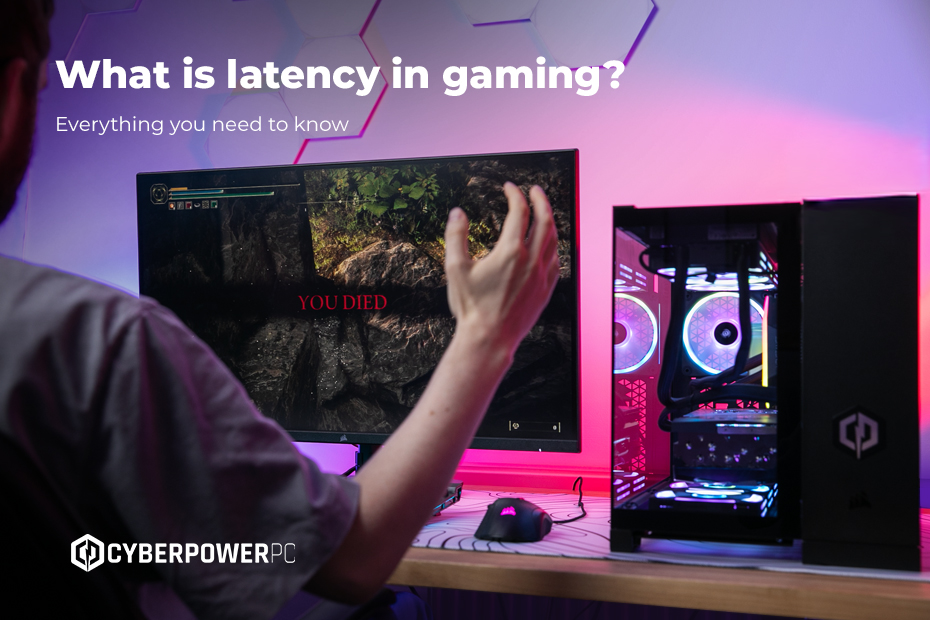
High latency causes lag, making your game feel sluggish or choppy. You might notice your character teleporting or actions not responding instantly. This can be frustrating and costly, especially in multiplayer games where every millisecond counts.
Low latency ensures smoother gameplay and more accurate controls. It helps maintain your focus and confidence because what you see matches your input almost instantly. Have you ever lost a match because your commands were delayed? That’s latency interfering with your performance.
- Latency spikes can cause sudden freezes or rubberbanding.
- Consistent low latency helps you react faster to opponents.
- Game modes like real-time strategy and first-person shooters demand the lowest latency possible.
Credit: www.cyberpowersystem.co.uk
Preparing Your Gaming Router
Preparing your gaming router is essential for checking latency accurately. A well-prepared router ensures stable connections and better performance. This preparation involves updating its software, placing it correctly, and connecting devices properly. These steps help reduce lag and deliver smoother gameplay.
Updating Firmware
Firmware controls your router’s functions. Keeping it updated fixes bugs and improves speed. Access the router’s settings through its IP address. Look for the firmware update section and follow instructions. Regular updates keep your router running efficiently.
Optimizing Router Placement
Place your router in an open, central area of your home. Avoid walls, metal objects, and electronic devices nearby. Higher positions reduce signal interference. Proper placement strengthens the Wi-Fi signal and lowers latency. Clear space around the router helps maintain strong connections.
Connecting Devices Properly
Use Ethernet cables for devices where possible. Wired connections offer lower latency than Wi-Fi. When using Wi-Fi, connect to the 5 GHz band for faster speeds. Limit the number of devices connected at the same time. This reduces network traffic and keeps latency low.
Tools To Measure Latency
Understanding the tools available to measure latency on your gaming router can make a big difference in improving your gaming experience. Latency, or ping, affects how quickly your commands register in the game. Knowing how to check it accurately helps you spot issues before they ruin your match.
Built-in Router Features
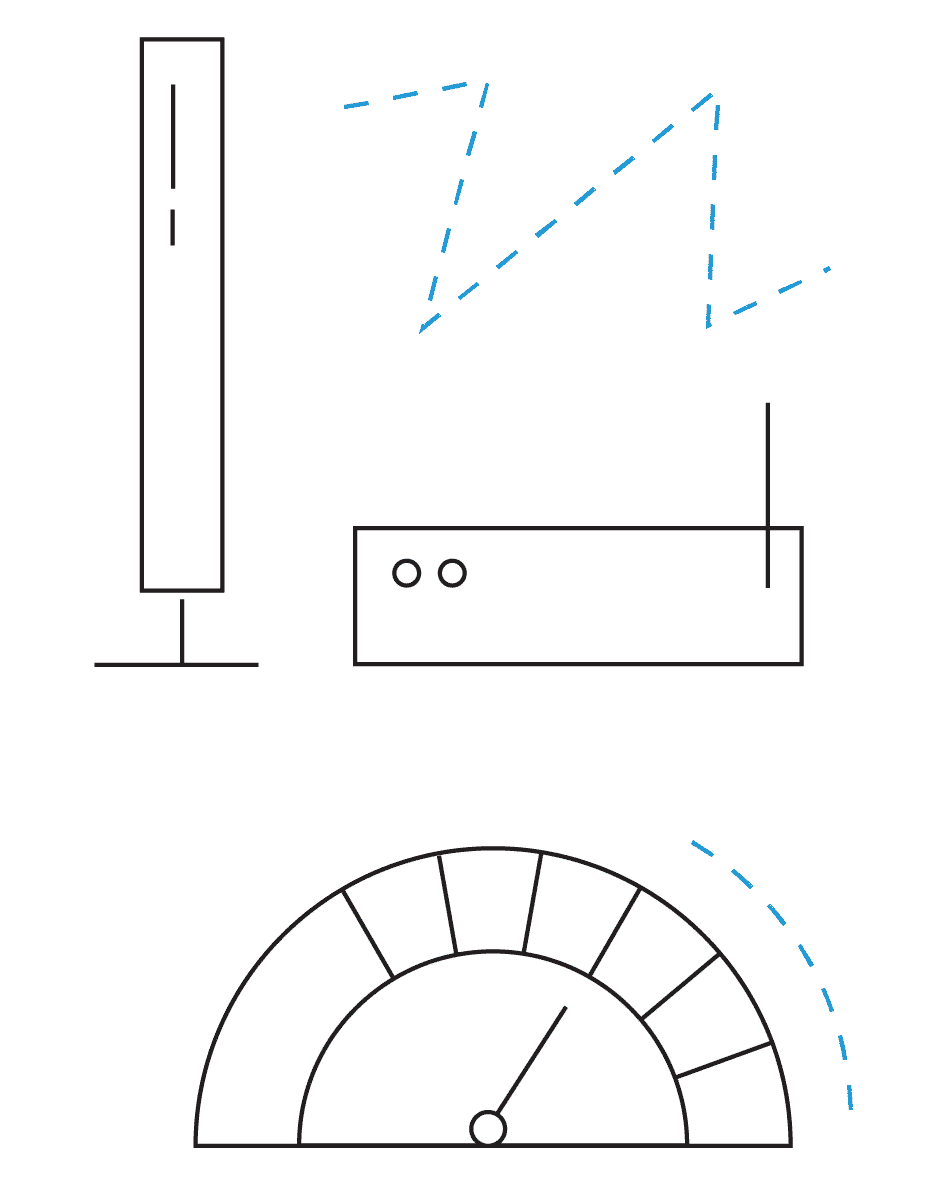
Many modern gaming routers come with built-in tools designed to test latency right from their control panel. These features often include real-time ping tests and traffic monitoring, letting you see how your connection performs under different loads.
Accessing these tools usually involves logging into your router’s web interface. Some brands like ASUS and Netgear provide straightforward dashboards where you can run latency tests without extra software. Have you checked if your router already has this feature before downloading anything?
Third-party Software Options
If your router lacks built-in tools, third-party software can fill the gap. Programs like PingPlotter and NetSpot offer detailed latency analysis and visualization, helping you pinpoint where delays occur between your device and the game server.
These tools often come with user-friendly interfaces and additional features like packet loss detection. They can be especially useful if you want to monitor latency over time or compare different network setups. What patterns might you discover about your connection by tracking latency with these apps?
Using Command Line Utilities
For a quick and direct check, command line utilities like ping and tracert (or traceroute) are reliable options. They send test packets to a target server and report the round-trip time, offering a basic but effective latency measurement.
Running these commands is simple and doesn’t require installing anything new. If you notice high ping values or inconsistent times, it’s a clear sign to investigate your network or contact your provider. Have you tried these commands to get instant feedback on your gaming connection?
Credit: www.screenbeam.com
Step-by-step Latency Test
Testing the latency on your gaming router can significantly improve your online gaming experience. Knowing how to measure and understand latency can help you identify and fix any issues that cause lag. Let’s explore a step-by-step guide to check latency effectively and get your games running smoothly.
Accessing Router Settings
Start by accessing your router’s settings. Open a web browser and type your router’s IP address into the address bar. This is usually something like 192.168.1.1 or 192.168.0.1. Enter your login credentials. If you haven’t changed them, they might still be ‘admin’ for both username and password. Once logged in, navigate to the section that shows network statistics or diagnostics. Here, you can often find built-in latency testing tools.
Running Ping Tests
Running a ping test is a straightforward way to measure latency. Open the Command Prompt on your computer and type ‘ping’ followed by an external website, like google.com. This command sends packets of data to the website and measures the time it takes to get a response. You can also use third-party software to run more comprehensive tests. Remember, a lower ping indicates better performance.
Interpreting Test Results
Understanding your ping test results is crucial. The time in milliseconds (ms) shows how long it takes for a data packet to travel from your router to the server and back. Aim for a ping of 20ms or lower for optimal gaming. If your ping is high, consider troubleshooting your network or contacting your ISP. Is your gaming experience affected by high latency? Knowing these numbers can help you make informed decisions about your setup.
Improving Latency On Your Router
Improving latency on your gaming router can make your games run smoother. Lower latency means faster responses and less lag. Small changes to your router settings can have a big impact on your gaming experience.
Adjusting Qos Settings
Quality of Service (QoS) helps prioritize gaming traffic on your network. It tells the router to give games higher priority than other activities.
To adjust QoS settings, access your router’s admin panel. Look for the QoS section and enable it. Add your gaming device or game ports to the priority list. This reduces delays caused by other devices using bandwidth.
Reducing Network Traffic
Too many devices using the internet at once can increase latency. Limit background downloads, streaming, or uploads during gaming sessions.
Disconnect devices not in use. Pause large updates or file transfers. These steps free up bandwidth and lower ping times.
Choosing The Right Server
Selecting a game server close to your location reduces travel time for data packets. This lowers latency and improves game response.
Check the server list in your game. Pick servers with the lowest ping or closest geographical location. Sometimes switching servers can drastically improve your connection.
Advanced Tips For Low Latency
Keeping your gaming latency low can dramatically improve your gameplay experience. Beyond basic settings, there are advanced strategies you can use to shave off milliseconds and maintain a steady connection. These tips will help you stay ahead of lag and enjoy smoother, more responsive gaming sessions.
Wired Vs Wireless Connections
Choosing between wired and wireless connections affects your latency significantly. Wired connections, like Ethernet cables, provide stable and consistent speeds with minimal interference. Wireless connections, while convenient, often suffer from signal drops and interference from other devices in your home.
If you’ve ever noticed sudden spikes in ping during a wireless session, that’s likely due to interference or distance from the router. Plugging your gaming device directly into the router with a high-quality Ethernet cable can cut latency by up to 50% compared to Wi-Fi.
Using Gaming Vpns
Gaming VPNs can be a surprising tool for lowering latency, especially if you’re connecting to servers far away. A good gaming VPN routes your traffic through less congested, faster pathways, sometimes reducing the number of hops between you and the game server.
However, not all VPNs are built for gaming. Pick a VPN with servers close to your game’s data centers and low overhead. Test your ping with and without the VPN to see if it actually helps your connection.
Regular Maintenance And Monitoring
Latency can creep up over time due to outdated firmware or network congestion. Regularly updating your router’s firmware ensures it runs efficiently and supports the latest performance improvements. Many gaming routers also offer built-in latency monitoring tools you should check regularly.
Monitoring your network traffic can reveal devices or apps hogging bandwidth and causing lag. Setting up Quality of Service (QoS) rules prioritizes your gaming traffic, keeping latency low even when others are streaming or downloading.
Credit: helpdeskgeek.com
Frequently Asked Questions
How Do I Measure Latency On A Gaming Router?
You can measure latency using built-in router tools or third-party apps. Run a ping test to a gaming server. Lower ping times indicate better latency and smoother gameplay. Check your router’s dashboard or use command prompt tools like “ping” or “tracert.
”
What Causes High Latency On A Gaming Router?
High latency often results from network congestion, poor Wi-Fi signals, or outdated firmware. Background downloads or multiple devices connected can also increase latency. Ensuring your router settings are optimized and updating firmware can help reduce delays and improve gaming performance.
Can Firmware Updates Improve Gaming Router Latency?
Yes, firmware updates often fix bugs and improve network efficiency. Regular updates can enhance router performance and reduce latency. Check the manufacturer’s website or router interface to download and install the latest firmware versions for optimal gaming experiences.
Is Wired Connection Better For Latency Than Wi-fi?
Yes, wired connections typically offer lower latency than Wi-Fi. Ethernet cables provide stable and faster data transmission, reducing lag during gaming. For the best latency results, connect your gaming device directly to the router using an Ethernet cable.
Conclusion
Checking latency on your gaming router helps improve your online play. It shows how fast your connection reacts to data. Lower latency means smoother gameplay and less lag. Use simple tools to test latency regularly. This keeps your gaming experience steady and fun.
Remember, a good connection helps you compete better. Keep an eye on latency to enjoy every game moment. Simple checks can make a big difference. Stay connected, stay ahead.