Are you worried about what your kids are doing online? Setting up parental controls on your Tri Band Router can give you peace of mind and protect your family from unwanted content.
Imagine easily controlling when and how your children access the internet—all from your own device. In this guide, you’ll learn simple steps to take charge of your home network and create a safer online space for everyone. Keep reading to discover how to set up parental controls quickly and effectively.
Choosing The Right Tri Band Router
Choosing the right tri band router sets the foundation for effective parental controls. A good router ensures strong, reliable Wi-Fi across your home. It manages multiple devices without slowing down. This is crucial for families with many gadgets online at once.
The right model offers easy-to-use parental control features. These controls help limit internet access and block harmful content. They provide peace of mind and protect children from unsafe websites. Picking a router with these features saves time and effort later.
Key Features To Look For
- Multiple bands for fast, stable connections on many devices
- Simple parental control options to block websites and limit screen time
- Ability to set different rules for each device or user
- Guest network support to keep children’s devices separate from others
- Easy setup and management via mobile apps or web interface
- Regular firmware updates to keep security strong
Top Models For Parental Control
| Router Model | Parental Control Features | Price Range |
|---|---|---|
| Netgear Nighthawk RAX45 | Content filtering, time schedules, device pause | $$$ |
| Asus RT-AX92U | Safe browsing, usage reports, profile-based controls | $$$ |
| TP-Link Archer AX11000 | Parental control app, time limits, filtering | $$$ |
Credit: www.tp-link.com
Accessing Router Settings
Accessing your tri-band router’s settings is the first crucial step to setting up effective parental controls. Without diving into these settings, you can’t customize or enforce the rules that protect your family’s online experience. Understanding how to access and navigate the router interface ensures you control who sees what and when.
Connecting To The Router Interface
Start by connecting your device—laptop, tablet, or smartphone—to the router’s network. This can be through Wi-Fi or a direct Ethernet cable connection. Once connected, open a web browser and enter your router’s IP address into the address bar. Common IPs include 192.168.1.1or 192.168.0.1, but check your router’s manual if these don’t work.
Did you know some newer routers also allow access via mobile apps? These apps often simplify the process, but the web interface still offers the most detailed control options. If you encounter trouble reaching the interface, double-check your device’s connection or restart the router.
Login Credentials And Security
Once you’ve reached the login screen, enter your router’s username and password. If you haven’t changed these since setup, they’re likely still the default ones—often “admin” for both fields. However, default credentials pose a security risk, so changing them after your first login is essential.
Strong passwords prevent unauthorized access to your router’s settings. Think about using a mix of letters, numbers, and symbols. If you ever forget your credentials, most routers offer a reset button, but this will restore factory settings, wiping out all your custom configurations.
Have you ever wondered who else might be able to access your network without your knowledge? Securing these credentials keeps your parental controls effective and your network safe from unwanted changes.
Enabling Parental Controls
Enabling parental controls on your tri-band router is a powerful way to protect your family online. It allows you to manage what content your children can access and when they can use the internet. Setting this up might seem technical at first, but it’s straightforward once you know where to look and what to configure.
Locating Parental Control Options
Start by logging into your router’s admin panel. You usually do this by typing your router’s IP address into a web browser—common addresses are 192.168.0.1 or 192.168.1.1.
Look for a section labeled “Parental Controls,” “Access Restrictions,” or “Security.” On tri-band routers, it might be under advanced settings due to the extra features available.
If you can’t find it right away, check the router’s manual or support website. Each brand and model organizes settings differently, so a quick search with your model number will help.
Setting Up User Profiles
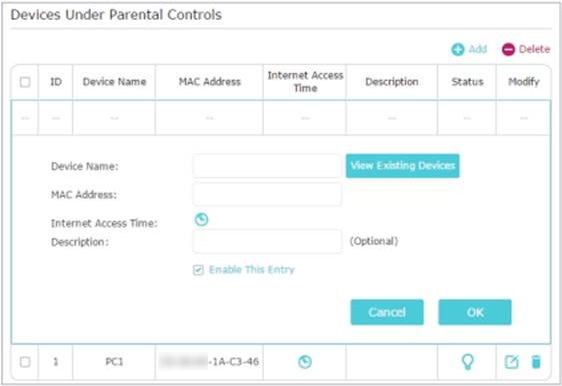
After locating the parental control options, create user profiles for each family member or device you want to control. This lets you customize restrictions based on age or individual needs.
- Assign names to profiles—like “Teenager” or “Child”—to keep things clear.
- Link devices such as phones, tablets, or laptops to these profiles using their MAC addresses or device names.
- Set specific rules for each profile, like allowed access times or blocked websites.
When I set this up for my kids, I found that personalizing profiles made the process easier to manage and adjust later. Have you thought about what limits make sense for each person in your household?

Credit: dev.to
Configuring Website Filters
Website filters on a tri-band router help control what content can be accessed. Setting them up blocks harmful sites and keeps kids safe online. Adjust filter settings easily through the router’s control panel for better internet supervision.
Configuring website filters on your tri-band router is a crucial step in creating a safe online environment for your children. With the internet being a vast ocean of information, not all content is suitable for young eyes. By setting up website filters, you can ensure your kids have access only to age-appropriate content, providing peace of mind as they explore the digital world.Blocking Inappropriate Content
To block inappropriate content, start by accessing your router’s admin panel. Typically, this can be done by entering the router’s IP address into your web browser. Once logged in, navigate to the parental control settings. Look for a section labeled “Website Filters” or similar. Here, you can add keywords or specific URLs that you want to block. For example, entering terms like “violence” or “gambling” will prevent access to any sites containing those keywords. Don’t forget to save your changes. It’s a simple action, but essential to ensure the filters are active. This proactive step can shield your children from unexpected online dangers.Allowing Safe Websites
While blocking is crucial, allowing safe websites is equally important. This ensures your children can access educational and entertaining content without restrictions. In the same parental control settings, you will find an option to create a whitelist. This list allows you to specify websites that are always accessible, regardless of other filters. Consider adding educational platforms, school websites, and kid-friendly entertainment sites. This way, your children can safely enjoy the internet’s benefits without stumbling upon inappropriate content. Have you explored the possibility of involving your kids in this process? Engaging them in the selection of safe websites can empower them to make responsible online choices. Just remember, parental controls are just one tool in your digital parenting arsenal. Open dialogue and supervision remain key to safe internet usage.Setting Time Limits For Devices
Setting time limits for devices on your tri-band router helps control internet use. It prevents overuse and keeps online time balanced. Parents can ensure kids focus on homework or sleep without distractions. This feature boosts healthy online habits and peace of mind.
Scheduling Internet Access
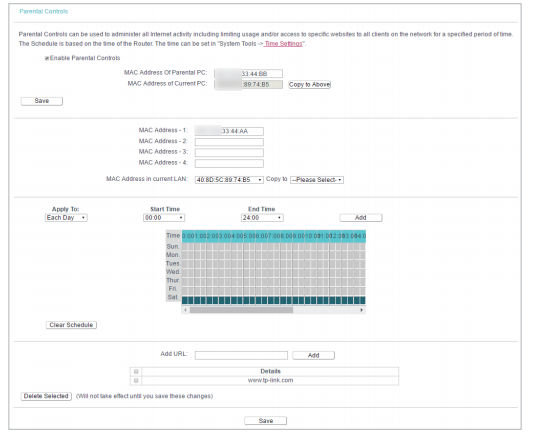
Use the router’s control panel to set specific internet hours. Choose the days and times when devices can connect. For example, block internet during bedtime or study hours. This stops kids from using devices late at night or during school time.
The schedule can be customized for each device. This way, phones, tablets, and computers have different access times. It’s easy to change the schedule anytime from the router’s app or website.
Managing Device Usage
Track how long each device stays online daily. The router shows usage data in simple charts or tables. This helps spot if a device uses too much internet time.
- Set daily limits for each device to control screen time.
- Pause internet access instantly for any device when needed.
- Create alerts to notify you if usage goes beyond limits.
Managing device usage supports better internet habits. It encourages breaks and less screen fatigue for children.
Credit: www.tp-link.com
Monitoring Network Activity
Monitoring network activity is key to managing your tri band router’s parental controls. It lets you see how devices use the internet. This insight helps keep your home network safe and balanced. Knowing what sites are visited and when helps guide healthy internet habits.
Regularly checking network activity allows quick action against unwanted content. You can spot unusual behavior or high usage early. This helps prevent overuse and keeps your children focused on their tasks. Let’s explore how to view and adjust these settings effectively.
Viewing Usage Reports
Your router provides detailed usage reports for each device. These reports show:
- Time spent online
- Websites visited
- Data consumed
Access these reports through your router’s control panel. Look for sections named “Parental Controls” or “Activity Logs.” Some routers offer daily, weekly, or monthly summaries. Use this data to understand your child’s internet habits clearly.
Adjusting Controls Based On Activity
Use the data from usage reports to refine your controls. If a child visits sites too often, block or limit those sites. Set time limits for online access during homework or bedtime. Create rules that fit each child’s needs and your family’s schedule.
Many tri band routers let you adjust settings remotely. This feature helps manage controls without being home. Keep reviewing reports and update restrictions to maintain a safe online space.
Troubleshooting Common Issues
Setting up parental controls on your tri-band router can sometimes lead to unexpected issues. Knowing how to quickly identify and fix these common problems saves you time and keeps your network secure. Let’s dive into some typical challenges and how to handle them effectively.
Connectivity Problems
One of the most frustrating issues is when devices suddenly lose internet access after parental controls are activated. This often happens because certain websites or apps are mistakenly blocked or restricted. Check the blacklist and whitelist settings to ensure essential services aren’t accidentally restricted.
Another cause could be firmware glitches. Make sure your router’s firmware is up to date. Manufacturers regularly release updates that fix bugs affecting connectivity and parental controls.
If devices still can’t connect, try rebooting the router. Sometimes, a simple restart refreshes the network and resolves temporary glitches. Also, verify that the device’s network settings are correct and that it’s connected to the right Wi-Fi band.
Control Settings Not Applying
Have you ever set restrictions, only to find that they don’t take effect? This usually means the parental control rules haven’t synced properly with your router. Check if your router requires saving and applying settings explicitly after changes.
Another common pitfall is user profile misconfiguration. Make sure the device you want to control is properly assigned to the right user profile or device group in the router’s settings. Otherwise, restrictions won’t apply as expected.
Also, consider the router’s cache or memory. Sometimes, clearing the cache or rebooting the device helps the new settings take hold. If you’re managing controls through a mobile app, ensure the app is updated and synchronized with the router.
Frequently Asked Questions
How Do I Enable Parental Controls On A Tri-band Router?
Access your router’s web interface via its IP address. Locate the parental control settings. Enable them and customize restrictions as needed to manage device access and content filtering effectively.
Can I Set Different Controls For Each Wi-fi Band?
Yes, tri-band routers allow separate control for each band. You can assign specific parental rules to 2. 4 GHz and both 5 GHz bands individually.
What Content Can I Block Using Parental Controls?
You can block websites, apps, and inappropriate content categories. Some routers also offer time limits and usage monitoring features for better control.
How Do I Manage Parental Controls Remotely?
Many tri-band routers support remote management via mobile apps. Use the app to adjust settings, monitor usage, and update controls from anywhere.
Conclusion
Setting up parental controls on your tri-band router keeps your family safe online. You control which sites your children can visit. You decide when and how long they use the internet. The process is simple and quick to follow. Protect your kids from harmful content and distractions.
Stay in charge of your home network easily. Use these steps to create a safer internet space. Peace of mind is just a few clicks away.