Are you struggling to get your travel router connected to your TV? You’re not alone.
Whether you want to stream your favorite shows on a hotel TV or share content from your devices, knowing how to link your travel router to your TV can make a huge difference. This simple setup can unlock a world of entertainment and convenience, even when you’re away from home.
Keep reading, and you’ll learn the easy steps to get your travel router and TV working perfectly together—no tech headaches, just smooth streaming.
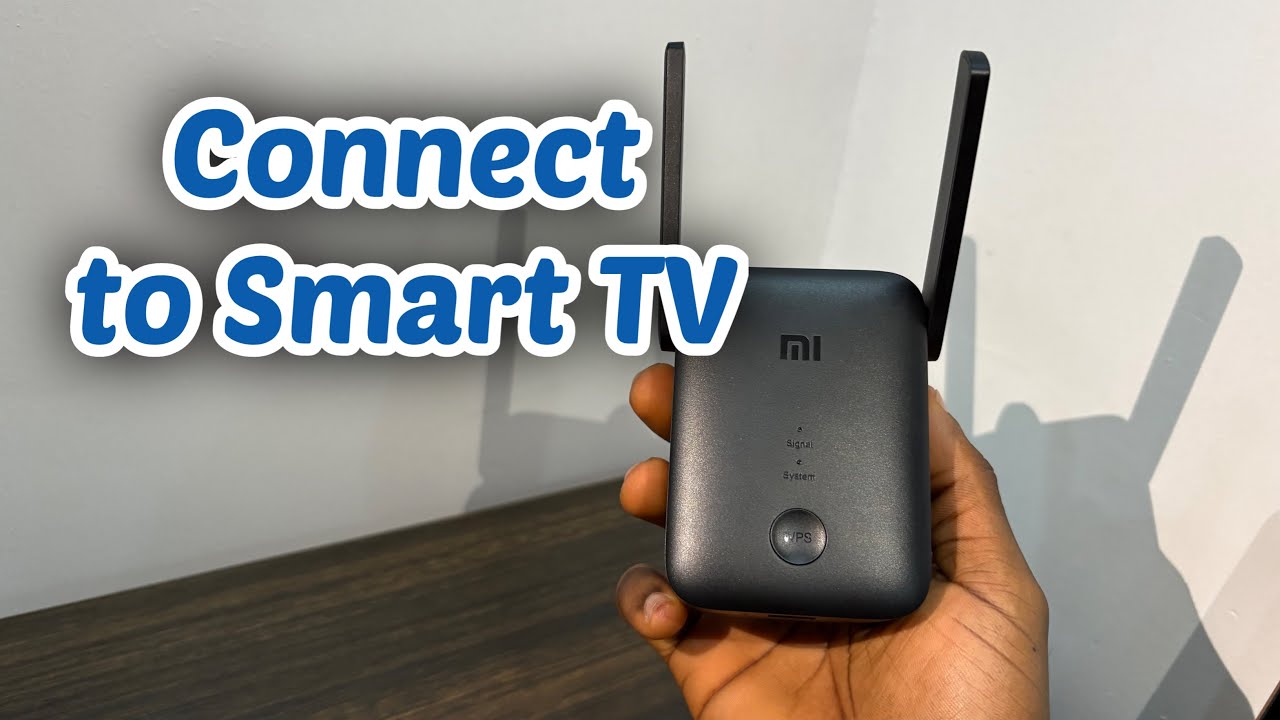
Credit: www.youtube.com
Choose The Right Travel Router
Choosing the right travel router is essential for a smooth connection between your travel router and TV. Not all routers are designed with travel or streaming in mind. Picking one that fits your specific needs can save you time and frustration on the road.
Types Of Travel Routers
Travel routers come in different shapes and sizes, each serving unique purposes. Some are compact and battery-powered, perfect for quick setups in hotels or cafes. Others offer more advanced features like Ethernet ports and dual-band Wi-Fi, which can boost your streaming experience.
- Portable Battery-Powered Routers:Great for short trips and places without reliable power.
- Plug-in Travel Routers:Require a power source but usually provide stronger signals.
- Multi-Function Routers:Combine hotspot, repeater, and router features for versatile use.
Think about how often you’ll use your travel router and under what conditions. Do you need something lightweight or a device that offers more connectivity options?
Key Features To Look For
Once you know the type, focus on features that directly impact your TV connection. Speed and compatibility are at the top of the list. A router with dual-band Wi-Fi (2.4 GHz and 5 GHz) ensures faster, more stable streaming on your TV.
| Feature | Why It Matters |
|---|---|
| Dual-Band Wi-Fi | Reduces interference, enhances streaming quality |
| Ethernet Port | Provides wired connection option for stable TV link |
| Compact Size | Easy to carry, fits in travel bags |
| Easy Setup Interface | Saves time, less technical hassle |
| Security Features | Protects your data on public networks |
Have you ever struggled with slow streaming because of poor Wi-Fi? Choosing a travel router with these features can make your TV viewing experience much better. Ask yourself: Is the router easy to set up and secure enough for public Wi-Fi spots?

Credit: www.wikihow.com
Prepare Your Tv For Connection
Preparing your TV for connection to a travel router ensures smooth streaming and internet access. This step involves checking your TV’s network features and activating its WiFi options. Proper setup avoids connection errors and saves time during the linking process.
Check Tv Network Compatibility
Start by confirming that your TV supports WiFi or Ethernet connections. Most smart TVs have built-in WiFi, but some older models may need a network adapter. Look for your TV’s network specs in the user manual or settings menu.
- Verify WiFi standards supported (e.g., 802.11n, 802.11ac).
- Check if Ethernet port is available for wired connection.
- Confirm TV can connect to external routers or hotspots.
Knowing your TV’s network capabilities helps choose the right connection method.
Enable Wifi Settings
Access your TV’s settings menu to turn on the WiFi feature. This option is often found under “Network” or “Internet” settings. Switch the WiFi from “Off” to “On” to start scanning for available networks.
- Navigate to Network Settings on your TV.
- Select WiFi and enable it.
- Wait for the TV to detect nearby networks.
After enabling WiFi, your TV will be ready to connect to the travel router’s network.
Set Up Your Travel Router
Setting up your travel router is the crucial first step to enjoy seamless internet on your TV, no matter where you are. This process might seem technical, but with a clear approach, you can have it ready in minutes. Let’s break down how to get your travel router powered on and connected to an internet source effectively.
Powering On And Initial Setup
Start by plugging your travel router into a power source using the provided adapter or a USB port. Most travel routers have an LED indicator—wait until it lights up to confirm it’s powered on.
Next, connect your laptop or smartphone to the router’s default Wi-Fi network. This network name and password are usually printed on a label under the device or in the manual.
Once connected, open a web browser and enter the router’s IP address, often something like 192.168.0.1or 192.168.1.1. This brings up the router’s admin panel where you’ll set your preferences.
- Change the default admin username and password to secure your network.
- Set a new Wi-Fi network name (SSID) and password to easily recognize your router.
- Save these settings before moving on to the next step.
Connecting To Internet Source
Your travel router can connect to the internet through various sources, such as Ethernet, Wi-Fi, or a mobile hotspot. Decide which method fits your current setup.
If you have a wired Ethernet connection, plug the cable into the router’s WAN port. The router will automatically detect the internet and share it through your new Wi-Fi network.
For Wi-Fi internet, use the admin panel to scan and connect to an existing wireless network. Enter the network password when prompted.
Have you tried connecting your router to a mobile hotspot? This is handy during travel when no fixed internet line is available. Just select the hotspot’s SSID and enter its password through the router’s interface.
After connecting, test the internet by browsing on your phone or laptop. Once confirmed, you’re ready to link your TV to this new Wi-Fi network and enjoy streaming without interruption.
Connect Tv To Travel Router Wifi
Connecting a travel router to your TV allows seamless WiFi access on the big screen. Simply link the TV’s WiFi settings to the travel router network for smooth streaming. This setup works well for hotels or remote locations with limited internet options.
Connecting your TV to a travel router WiFi can enhance your streaming experience. It offers a stable internet connection, especially in places with weak WiFi. This setup is perfect for hotel stays or travel accommodations. Follow these simple steps to connect your TV to a travel router WiFi.Scan For Available Networks
First, turn on your TV and navigate to the settings menu. Look for the network settings option. Select it to access WiFi settings. Your TV will start scanning for available networks. Wait for a list of networks to appear on the screen. Identify your travel router’s WiFi network from the list.Enter Network Credentials
Select your travel router’s network from the list. A prompt will appear to enter the WiFi password. Use your TV remote to input the correct network credentials. Double-check the password for any typing errors. Once entered, confirm the input. Your TV will attempt to connect to the network. Wait for a successful connection message. Your TV is now connected to the travel router WiFi. Enjoy streaming your favorite content seamlessly.Troubleshoot Common Issues
Connecting your travel router to your TV should be smooth, but sometimes issues pop up. Troubleshooting these common problems helps you enjoy uninterrupted streaming and better performance. Let’s tackle some typical challenges you might face.
Connection Drops
Connection drops can be frustrating, especially during your favorite show. Check the distance between your travel router and TV first. Walls or objects can weaken signals.
Try moving the router closer to the TV or removing obstacles. Also, verify if the router firmware is up to date; outdated software often causes instability. Restarting both devices can clear temporary glitches too.
Are you using multiple devices on the same network? Too many connected devices can overload your travel router, causing frequent drops. Limiting the number of active connections might improve stability.
Slow Speeds
Slow internet speeds ruin the viewing experience. Begin by testing your internet speed on another device to see if the problem is with the router or the connection itself.
If the travel router is the culprit, changing the WiFi channel might help. Congested channels from nearby networks can slow you down. Access your router settings and switch to a less crowded channel.
Also, check your router’s placement. Avoid hiding it inside cabinets or behind furniture. A clear line of sight often boosts signal strength and speed.
Device Not Detecting Wifi
Your TV not detecting the travel router’s WiFi can be puzzling. First, ensure the travel router is powered on and broadcasting its network. Sometimes the SSID (network name) is hidden in settings, so make sure it’s visible.
Double-check that your TV supports the WiFi frequency band your router uses (2.4 GHz or 5 GHz). Some older TVs only detect 2.4 GHz networks.
Resetting the network settings on your TV can also clear cached data that blocks new connections. If all else fails, reboot both the router and TV to refresh their connection attempts.
Optimize Wifi Performance
Optimizing WiFi performance is crucial for a smooth connection between your travel router and TV. A strong WiFi signal ensures better streaming quality and fewer interruptions. Small adjustments can greatly enhance the connection speed and stability.
Best Router Placement
Place the travel router in an open area, free from walls and large objects. Avoid hiding it inside cabinets or behind furniture. The higher the router, the better the signal spreads. Keep the router close to your TV but not too close to other electronic devices. Distance from interference sources like microwaves or cordless phones helps maintain signal strength.
Adjusting Router Settings
Access your router’s settings through its web interface. Change the WiFi channel to one with less traffic. Channels 1, 6, and 11 are common choices for 2.4 GHz networks. Set your router to use the 5 GHz band if your TV supports it; it usually offers faster speeds and less interference. Enable Quality of Service (QoS) to prioritize streaming traffic. This reduces buffering and lag during video playback.

Credit: whatthetech.tv
Frequently Asked Questions
How Do I Connect A Travel Router To My Tv?
First, power on your travel router and TV. Use an Ethernet cable to connect the router’s LAN port to the TV’s Ethernet port. Alternatively, connect your TV to the travel router’s Wi-Fi network via the TV’s network settings menu.
Can I Use Wi-fi Instead Of Ethernet For Travel Router?
Yes, most smart TVs support Wi-Fi connections. Simply select your travel router’s Wi-Fi network on your TV and enter the password. This method offers more flexibility and avoids cable clutter.
What Settings Are Needed On The Travel Router For Tv?
Ensure the travel router is set to DHCP mode to assign IP addresses automatically. No special configuration is usually required. Verify the router’s internet connection is active for TV streaming.
Will Travel Routers Improve Tv Streaming Speed?
Travel routers can enhance streaming if the hotel Wi-Fi is weak. They create a private network, reducing interference and improving signal strength for your TV.
Conclusion
Connecting a travel router to your TV is simple and useful. It helps you stream shows without interruption. Just follow the steps carefully, and you will be online in no time. Make sure your devices are compatible and settings are correct.
Enjoy smooth internet access wherever you go. This setup saves data and improves connection speed. Try it on your next trip for better entertainment. Easy, quick, and practical.