Your dual band router is the gateway to your home’s internet, but is it truly secure? If someone cracks your router password, they could access your personal data or slow down your connection.
You might think your password is strong enough, but small mistakes can leave you vulnerable. You’ll discover simple yet powerful tips to boost your dual band router password security. By following these steps, you’ll protect your network and enjoy peace of mind.
Keep reading—you’ll be glad you did.
Choosing Strong Passwords
Choosing a strong password for your dual band router is one of the simplest yet most effective ways to protect your network from unauthorized access. A robust password acts like a barrier, stopping hackers from sneaking into your internet connection and accessing your personal information. The key is to create a password that is difficult to guess but easy for you to remember.
Combining Letters, Numbers, And Symbols
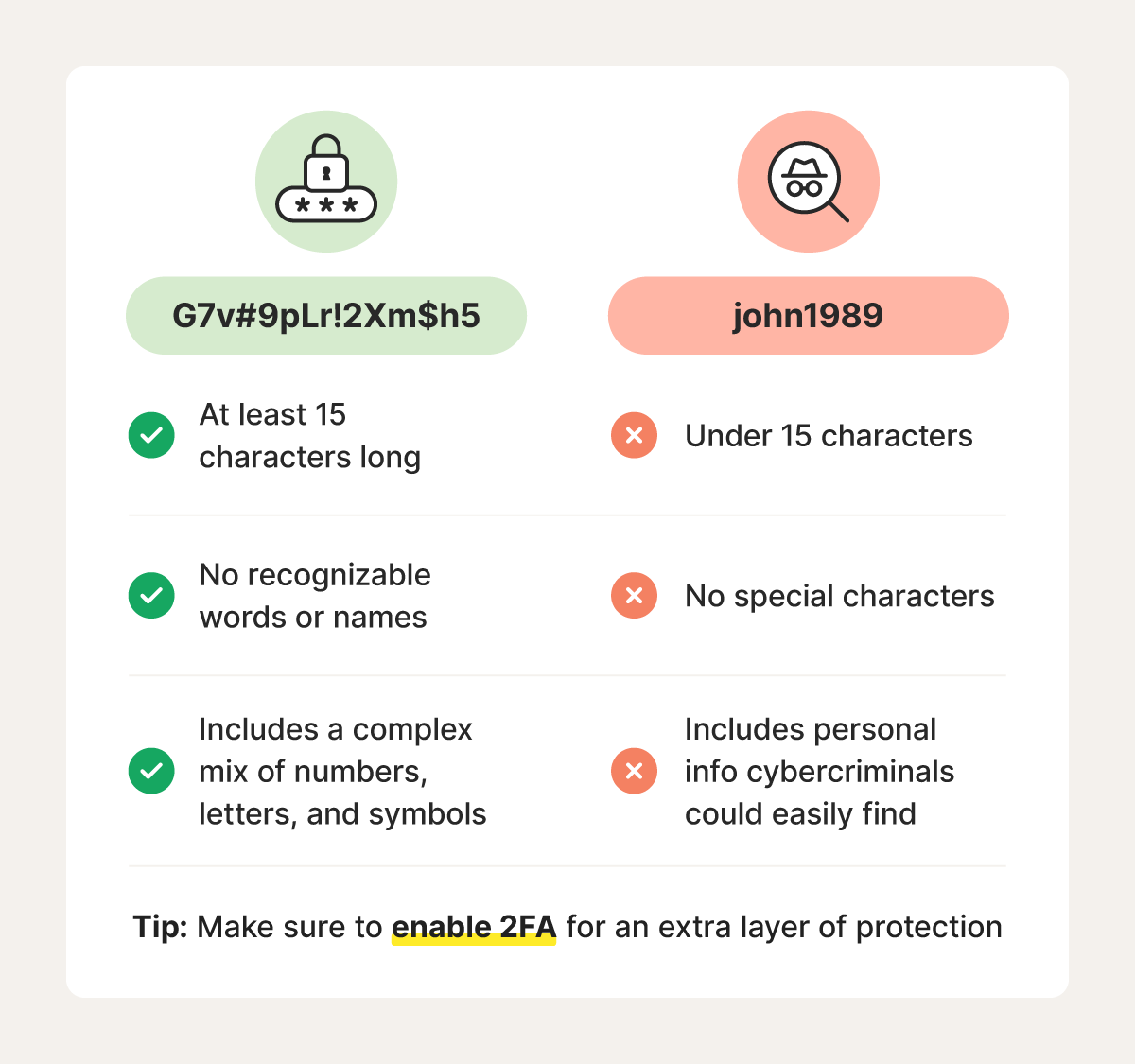
Using a mix of uppercase and lowercase letters, numbers, and special symbols can dramatically increase your password’s strength. Think of it as building a complex code that’s hard to crack. For example, a password like R0ut3rSecure!is far stronger than just “router123.”
Try to avoid using predictable sequences like “123” or “abc.” Instead, mix characters randomly. This combination adds layers of security that slow down or stop hacking attempts.
Avoiding Common Passwords
Many people still use passwords like “password,” “admin,” or “123456,” which are the first guesses hackers try. Using these makes your network an easy target. Ask yourself, would you leave your front door unlocked because it’s convenient?
Check lists of the most common passwords online and make sure yours isn’t on them. Even slight changes, such as replacing “password” with “P@ssw0rd!” won’t be enough if the base word is too common.
Using Passphrases For Better Security
A passphrase is a sequence of words or a sentence that’s easy for you to remember but hard for others to guess. Instead of struggling with random characters, you can use something like SunnyDay$In2024!or BlueCarrotsAreTasty7.
This approach makes passwords longer and more secure without being a hassle. Can you think of a favorite phrase or a combination of words that feels unique to you? Turning that into a passphrase could be your best defense.
Changing Default Credentials
Changing default credentials on your dual band router is crucial for network safety. Default usernames and passwords are easy targets for hackers. Updating these details helps protect your personal data and devices connected to the network.
Why Default Passwords Are Risky
Default passwords are public knowledge. Manufacturers use the same password for many devices. Hackers use lists of these passwords to break into routers. Once inside, they can steal information or control your network. Leaving default credentials makes your router vulnerable to attacks.
Steps To Update Router Credentials
Access your router’s admin page by typing its IP address in a browser. Common addresses are 192.168.0.1 or 192.168.1.1. Enter the default username and password found in the router manual or on the device label.
- Find the section for account settings or administration.
- Change the username to something unique but easy to remember.
- Create a strong password with letters, numbers, and symbols.
- Save the changes and log out of the admin page.
Regularly update your credentials to maintain strong security. Avoid using simple or repeated passwords across devices.
Enabling Wpa3 Encryption
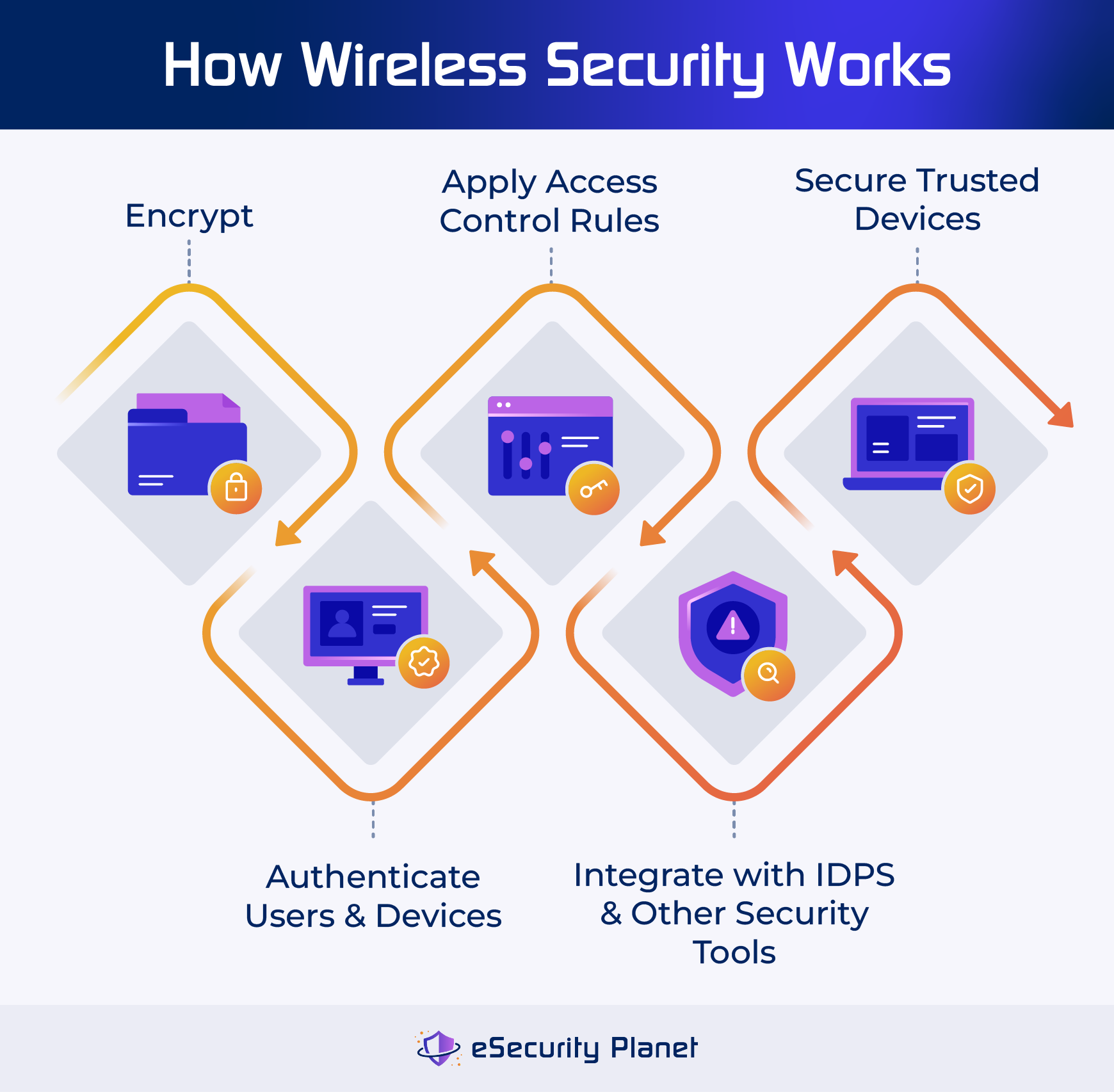
Enabling WPA3 encryption on your dual band router significantly improves your network’s security. This latest Wi-Fi security protocol offers stronger protection against hacking attempts. It’s a crucial step to keep your personal data and devices safe from unauthorized access.
Benefits Of Wpa3 Over Older Protocols
WPA3 provides stronger encryption than WPA2, which many routers still use. It uses a more secure handshake process that prevents attackers from guessing your password, even if they try repeatedly.
Another advantage is improved protection on public Wi-Fi networks. WPA3 encrypts data even when users connect without a password, reducing risks in places like cafes or airports.
It also supports forward secrecy, meaning past data stays safe even if your password is later compromised. This feature is essential if you want to keep your previous internet activities private.
How To Activate Wpa3 On Your Router
First, check if your router supports WPA3. You can find this information in the router’s manual or the manufacturer’s website. Older models may need a firmware update or replacement.
To enable WPA3, log in to your router’s admin panel using its IP address, usually something like 192.168.1.1. Enter your username and password to access the settings.
Look for the wireless security or Wi-Fi settings section. Select WPA3 or WPA3/WPA2 mixed mode if available. This option ensures compatibility with devices that don’t support WPA3 yet.
Save your changes and reboot the router if necessary. After that, reconnect your devices using the updated security settings to enjoy enhanced protection.

Credit: www.esecurityplanet.com
Regular Firmware Updates
Regular firmware updates enhance dual band router password security. They fix vulnerabilities and improve performance. Keep your router secure by consistently updating to the latest firmware version.
Regular firmware updates are crucial for maintaining router security. They help protect your dual-band router from vulnerabilities. Manufacturers release updates to fix security issues. Ignoring these updates can leave your network open to attacks. Keeping your router’s firmware current is a simple yet vital step.Importance Of Firmware Updates
Firmware updates improve your router’s performance. They patch security holes that hackers exploit. Regular updates ensure your network is safe from threats. They can also enhance features and improve stability. Staying updated helps your router function optimally.How To Check And Install Updates
Checking for firmware updates is straightforward. First, log into your router’s admin panel. Use a web browser to access it. You might need your router’s IP address. Look for a section labeled “Firmware” or “Update.” Follow these steps:- Log into the router’s web interface.
- Navigate to the “Firmware” section.
- Check for available updates.
- Download and install the update if available.
- Reboot the router if needed.
Disabling Wps Feature
Disabling the WPS (Wi-Fi Protected Setup) feature on your dual band router can significantly boost your network’s security. Although WPS is designed for convenience, allowing quick connections without entering a password, it also opens doors for potential attackers. Understanding why you should turn off WPS will help you protect your personal data and keep your internet safer.
Security Risks Of Wps
WPS was created to simplify connecting devices to your Wi-Fi, but it has a major security flaw. The PIN method used in WPS can be guessed by hackers using brute force attacks in a relatively short time.
This vulnerability means that even if your main Wi-Fi password is strong, an attacker can bypass it through WPS. Would you leave a backdoor open while locking the front door? Disabling WPS closes this backdoor.
Many routers also have no alert system to notify you of repeated WPS attempts, giving hackers an advantage. This silent exposure puts your entire network at risk.
Turning Off Wps On Dual Band Routers
Turning off WPS is usually straightforward but varies by router model. You can start by logging into your router’s admin panel through its IP address, often found on the router label or manual.
Look for the “Wireless” or “Wi-Fi” settings section, then find the WPS option. Here, you should see the ability to disable WPS completely or at least the PIN method.
- After disabling, save your settings.
- Restart the router if needed to apply changes.
- Test your connection by reconnecting devices manually with your Wi-Fi password.
Disabling WPS requires you to enter your Wi-Fi password each time, but this small inconvenience is a powerful step toward securing your home network. Have you checked if your router still has WPS enabled?
Credit: us.norton.com
Using Guest Networks
Using guest networks enhances your router’s security by isolating visitors from your main devices. This practice limits access to sensitive files and keeps your personal network safe. Setting up a guest network is easy and improves control over who connects to your internet.
Separating Guest Access From Main Network
A guest network creates a separate Wi-Fi connection for visitors. It stops guests from reaching your personal devices or shared files. This separation reduces the risk of malware or hacking attempts spreading to your main network.
Most dual band routers allow two different networks at once. One for you, one for guests. This keeps data safe and controls bandwidth usage. You can set limits on guest access to protect your internet speed.
Configuring Guest Network Settings
Configure the guest network with a unique name and strong password. Avoid using the same password as your main network. Change the password regularly to block unauthorized users.
Enable features like:
- Access time limits to disconnect guests after a set period
- Bandwidth limits to prevent slowdowns
- Device restrictions to control which devices can connect
Turn off guest access when not needed to keep your network secure. Check your router’s manual for specific steps to enable these settings.
Monitoring Connected Devices
Monitoring connected devices on your dual band router is essential for strong password security. It helps detect unusual activity and keeps your network safe. Regular checks prevent unauthorized users from accessing your internet. This also ensures your bandwidth is not wasted by unknown devices.
Identifying Unauthorized Access
Check the list of devices connected to your router often. Look for unfamiliar names or devices you do not recognize. Each device usually shows a name, IP address, and MAC address. Keep a record of your known devices to spot new ones quickly.
Unknown devices can indicate a security breach. Act immediately if you find any suspicious connections. Change your router password and update security settings to block them.
Tools For Network Monitoring
Use router apps or software to monitor connected devices easily. Many routers offer built-in tools to show device details and connection times. These tools allow you to block or limit unknown devices.
Third-party apps provide more features like alerts for new connections and traffic monitoring. Choose simple tools that match your skill level to avoid confusion. Regular use helps maintain control over your network security.
Credit: www.esecurityplanet.com
Setting Up Network Firewalls
Setting up network firewalls is a crucial step to protect your dual band router from unauthorized access. Firewalls act as a barrier between your home network and the internet. They monitor incoming and outgoing traffic and block suspicious activity. Proper firewall setup reduces the risk of cyberattacks and keeps your data safe.
Router-based Firewall Features
Many dual band routers come with built-in firewall features. These firewalls filter traffic based on rules set by the user or the manufacturer. Common features include:
- Packet filtering to block harmful data packets.
- Stateful inspection to track active connections.
- IP address blocking to deny certain users access.
- Port forwarding controls to limit open ports.
Access your router’s admin panel to enable and configure these firewall options. Keep the firewall active at all times for continuous protection.
Enhancing Protection With Firewalls
Firewalls alone do not guarantee full security. Combine your router’s firewall with other tools for stronger defense. Consider these tips:
- Use strong, unique passwords for your router login.
- Regularly update your router’s firmware.
- Disable remote management unless necessary.
- Set up guest networks to isolate unknown devices.
These actions work with your firewall to block threats and control network access. Regular checks ensure your firewall settings stay effective over time.
Frequently Asked Questions
How Do I Change My Dual Band Router Password?
Access your router’s admin panel using its IP address. Navigate to the wireless settings section and update the password for both bands. Save changes and reconnect your devices with the new password for improved security.
Why Use Different Passwords For 2.4ghz And 5ghz Bands?
Using separate passwords enhances security by isolating each band. It prevents unauthorized access to one band from affecting the other. This approach also allows better control over device connections and network management.
What Makes A Strong Dual Band Router Password?
A strong password combines uppercase, lowercase letters, numbers, and symbols. It should be at least 12 characters long and avoid common words or sequences. This complexity helps protect your network from brute-force attacks.
How Often Should I Update My Router Password?
Updating your router password every 3 to 6 months improves security. Regular changes reduce the risk of unauthorized access from compromised credentials. Always notify trusted users when you change the password.
Conclusion
Securing your dual band router password protects your network. Use strong, unique passwords for each band. Change passwords regularly to stop unwanted access. Keep your router’s firmware updated to fix security holes. Avoid sharing passwords with too many people. A safe network means safer devices and data.
Simple steps can keep hackers away. Stay alert and keep your internet secure.