Are you looking to get the most out of your tri-band router? Setting up multiple SSIDs can help you organize your network, boost security, and manage devices with ease.
Whether you want separate Wi-Fi for work and guests or prioritize different devices, configuring multiple SSIDs gives you control like never before. In this guide, you’ll discover simple, step-by-step instructions to set up multiple SSIDs on your tri-band router quickly and without hassle.
Ready to unlock the full potential of your Wi-Fi? Let’s dive in!

Credit: dongknows.com
Tri Band Router Basics
Understanding the basics of a tri band router helps in setting up multiple SSIDs effectively. These routers use three different frequency bands to manage wireless traffic. This setup reduces network congestion and increases overall speed.
Configuring multiple SSIDs on a tri band router allows users to separate networks for different purposes. It can improve security and manage device connections better. Knowing the core features of these routers is essential for optimal use.
What Is A Tri Band Router
A tri band router has three separate wireless bands. Usually, it includes one 2.4 GHz band and two 5 GHz bands. Each band can connect to different devices at the same time.
This setup helps avoid slowdowns caused by many devices using the same band. It provides more bandwidth and better performance for streaming, gaming, and browsing.
Benefits Of Multiple Ssids
Multiple SSIDs allow creating different wireless networks on one router. Each SSID can have its own name and password. This setup is useful for:
- Separating work and personal devices
- Giving guests internet access without exposing main network
- Managing network traffic for better speed
- Enhancing security by limiting device access
Using multiple SSIDs on a tri band router maximizes its efficiency. It lets users control who connects to which band and network.
Preparing For Ssid Setup
Preparing for SSID setup on a tri-band router is essential for smooth configuration. This step ensures you can manage multiple network names easily. Proper preparation helps avoid connection issues and saves time. Follow key preparations before starting the SSID setup process.
Accessing Router Settings
Accessing your router settings is the first step to configure multiple SSIDs. Connect your device to the router using Wi-Fi or an Ethernet cable. Open a web browser and enter the router’s IP address. Common addresses include 192.168.0.1 or 192.168.1.1. Use your router’s admin username and password to log in. If you don’t know these, check the router label or manual.
Firmware Update Check
Check your router’s firmware before setting up SSIDs. Updated firmware improves security and adds new features. Find the firmware update section in the router settings menu. Compare the current version with the latest one on the manufacturer’s website. Download and install updates if available. Restart the router after updating to apply changes.
Creating Multiple Ssids
Creating multiple SSIDs on a tri-band router allows you to set up separate wireless networks. Each SSID can serve different users or devices. This setup improves network management and security. It also helps control bandwidth usage across devices.
Enabling Ssid Broadcasting
Start by logging into your router’s admin panel. Find the wireless settings section. Look for options to enable SSID broadcasting for each band. Make sure the broadcasting is turned on for all three bands. This step ensures devices can detect and connect to your networks.
Naming Your Networks
Assign unique names to each SSID. Choose clear and simple names for easy recognition. For example, use names like “Home_2.4G,” “Home_5G_1,” and “Home_5G_2.” Avoid special characters and spaces. Keep names short to prevent connection issues on some devices.
Assigning Bands To Ssids
Tri-band routers offer one 2.4 GHz band and two 5 GHz bands. Assign each SSID to a specific band based on device needs. Use the 2.4 GHz band for devices needing longer range. Use the 5 GHz bands for devices requiring faster speeds. This separation helps balance network traffic and improves performance.
Credit: community.tp-link.com
Securing Your Ssids
Configuring multiple SSIDs on a tri-band router lets you separate networks for guests and devices. Securing each SSID with strong passwords keeps your connections safe. This setup helps control access and improves network organization.
Securing your SSIDs on a tri-band router is crucial to protect your network from unauthorized access and potential data breaches. With multiple SSIDs, you can tailor security settings for each network, ensuring that your personal, work, and guest connections are all safely managed. This section provides practical steps to enhance the security of your SSIDs, making your network a fortress against cyber threats.Choosing Encryption Methods
When configuring your SSIDs, it’s important to select the right encryption method. WPA3 is the latest standard, offering robust security features that are ideal for modern networks. If your router doesn’t support WPA3, WPA2 is still a strong alternative. Avoid outdated options like WEP, which can easily be compromised.Setting Strong Passwords
A strong password is your first line of defense. Use a mix of upper and lowercase letters, numbers, and special characters to create a complex password. Aim for at least 12 characters. Avoid using easily guessed words or sequences like “password123” or “12345678”. Consider using a password manager to keep track of your passwords securely.Guest Network Configuration
Enabling a guest network is a smart way to provide internet access without exposing your main network. Set up a separate SSID specifically for guests and ensure it has its own password. Limit the bandwidth and access time to prevent any misuse. Think about the level of access you want to grant. Should your guests have access to only the internet, or do they need to connect to shared devices like a printer? Adjust the settings accordingly to maintain a balance between convenience and security.Advanced Ssid Configuration
Advanced SSID configuration lets you control your network better. It helps separate traffic, manage speed, and set rules for users. This setup makes your network more secure and efficient. Tri-band routers support multiple SSIDs, allowing more flexibility. Use these features to improve your network’s performance and security.
Vlan Setup For Traffic Segmentation
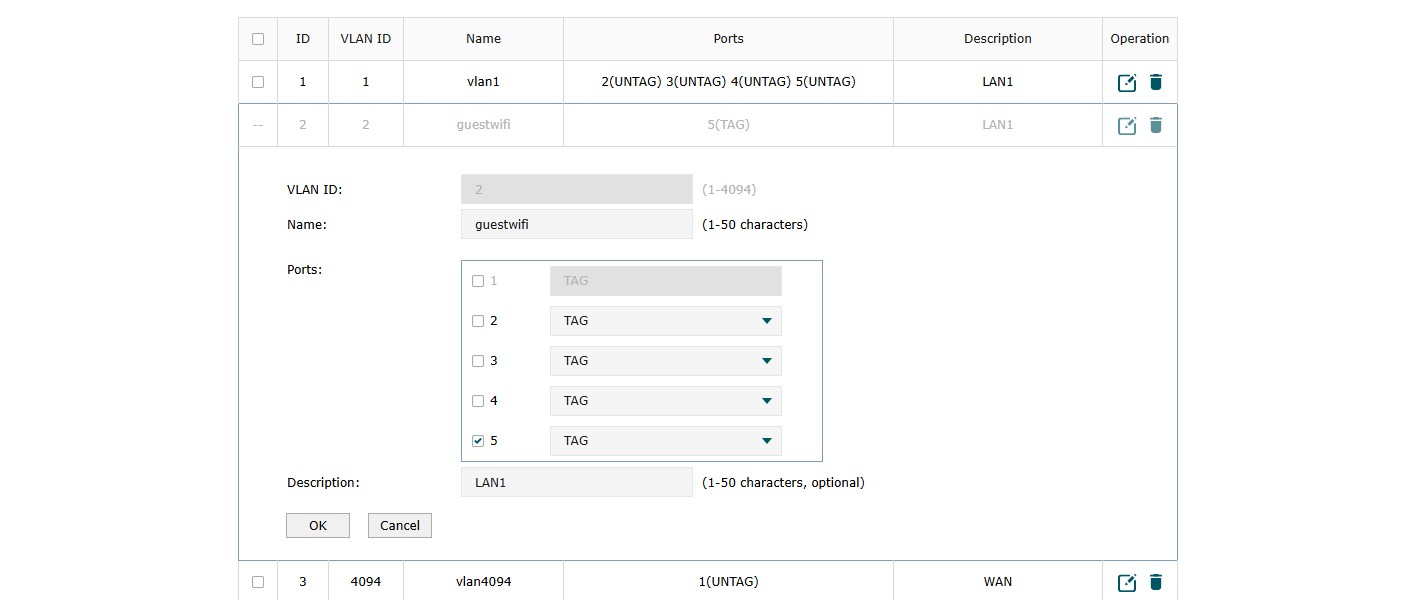
VLANs divide your network into smaller parts. Each SSID can belong to a different VLAN. This keeps traffic separate and secure. For example, guest Wi-Fi can be isolated from your main network. VLANs help prevent unauthorized access between SSIDs. Set VLAN IDs in your router’s SSID settings. This setup improves network management and safety.
Bandwidth Control Per Ssid
Control the internet speed for each SSID. Bandwidth control stops one network from using all resources. You can set limits based on your needs. For example, limit guest Wi-Fi speed to protect work devices. Configure bandwidth limits in the router’s QoS or traffic control section. This helps balance network traffic and improve user experience.
Access Restrictions
Access restrictions limit what devices can do on each SSID. You can block websites or specific services. Restrictions help protect children or guests from harmful content. Set schedules to allow internet access only at certain times. Use MAC address filtering to allow or block devices. These rules keep your network safer and more organized.
Troubleshooting Tips
Setting up multiple SSIDs on a tri-band router can sometimes lead to connection problems. Troubleshooting these issues quickly helps keep your network running smoothly. This section offers simple tips to fix common problems and improve your wireless experience.
Common Connection Issues
Devices may fail to connect to the SSID due to weak signals or incorrect passwords. Some devices might not support certain frequency bands. Network interference from other electronics can cause slow speeds or dropped connections. Check if your router’s placement is optimal and avoid physical barriers. Verify that each SSID has a unique name and password to avoid confusion.
Resetting Ssid Settings
Resetting SSID settings can clear errors and restore default configurations. Access your router’s admin panel and navigate to the wireless settings. Remove the problematic SSID and recreate it with the desired settings. Save changes and restart the router to apply updates. This process can resolve conflicts and refresh network connections.
Firmware Rollback
New firmware updates may introduce bugs affecting SSID functions. Rolling back to a previous stable version can restore performance. Download the earlier firmware from the manufacturer’s website. Use the router’s update tool to install the older version safely. Keep a backup of your current settings before rollback to avoid data loss.
Optimizing Network Performance
Optimizing network performance is key when configuring multiple SSIDs on your tri-band router. It ensures each device gets the best connection without slowing down the whole network. You want to balance speed, coverage, and device demand effectively.
Channel Selection
Choosing the right channel can drastically reduce interference and boost your Wi-Fi speed. Tri-band routers operate on multiple frequencies, so assigning different channels to each band helps avoid overlap.
Use your router’s admin panel or a Wi-Fi analyzer app to scan for less crowded channels around you. For example, if your 5 GHz band is congested on channel 36, switching to channel 44 might improve performance instantly.
Load Balancing Across Bands
Tri-band routers have one 2.4 GHz band and two 5 GHz bands. Distributing devices wisely across these bands prevents overload on a single frequency.
- Connect smart home devices to the 2.4 GHz band for better range but lower bandwidth.
- Assign high-bandwidth devices like gaming consoles or streaming boxes to one 5 GHz band.
- Use the second 5 GHz band for mobile devices and laptops.
Have you noticed your streaming buffering even with strong Wi-Fi? Balancing loads can fix that by making sure no band gets overwhelmed.
Monitoring Network Usage
Regularly check which devices are using the most bandwidth. Many routers offer built-in tools to monitor data usage per SSID and device.
This helps you identify if a device is hogging bandwidth or if an SSID is overcrowded. You can then tweak settings or ask heavy users to switch bands or SSIDs.
Keeping an eye on your network usage helps maintain smooth performance and prevents unexpected slowdowns.

Credit: io.hfcl.com
Frequently Asked Questions
How Do I Set Up Multiple Ssids On A Tri-band Router?
Access your router’s admin panel via its IP address. Locate the wireless settings and enable multiple SSIDs. Assign unique names and passwords for each band. Save changes and reboot the router to activate all SSIDs.
Can Multiple Ssids Improve My Wi-fi Network?
Yes, multiple SSIDs help separate traffic for better management. You can create SSIDs for guests, work, or smart devices. This improves security and optimizes network performance on each band.
Are Multiple Ssids Secure On Tri-band Routers?
Yes, if each SSID has a strong password and encryption. Use WPA3 or WPA2 security settings for each network. Regularly update your router’s firmware to enhance security features.
Does Configuring Multiple Ssids Affect Router Speed?
Configuring multiple SSIDs may slightly reduce total bandwidth. However, it helps manage device connections better and reduces network congestion. Proper setup ensures optimal speed across all SSIDs.
Conclusion
Setting up multiple SSIDs on a tri-band router improves network control. You can separate devices or users for better security and speed. It helps manage bandwidth and keeps your network organized. The steps are simple and easy to follow. With each SSID, you create a clear network path.
This setup fits homes and small offices well. Keep your router updated to ensure smooth performance. Try these tips to get the most from your tri-band router.