Are you tired of slow Wi-Fi or constant connection drops? Knowing if your device supports dual-band Wi-Fi could be the key to a faster, more reliable internet experience.
But how do you find out if your phone, laptop, or tablet can connect to both 2. 4 GHz and 5 GHz networks? You’ll discover simple steps to check your device’s Wi-Fi capabilities. By the end, you’ll have the confidence to unlock better speed and performance for your online activities.
Keep reading to learn how easy it is to know if your device supports dual-band Wi-Fi!

Credit: www.amazon.ca
Dual Band Wifi Basics
Understanding dual band WiFi is essential for better internet use. It helps devices connect faster and with less interruption. Knowing these basics will guide you in checking your device’s WiFi capabilities.
What Is Dual Band Wifi
Dual band WiFi uses two radio frequencies: 2.4 GHz and 5 GHz. The 2.4 GHz band covers longer distances but is slower. The 5 GHz band offers faster speeds but covers a shorter range. Devices with dual band support can switch between these bands.
Benefits Of Dual Band Support
- Better speed for streaming and gaming on 5 GHz.
- Stronger signal over longer distances on 2.4 GHz.
- Less interference from other devices using 5 GHz.
- More stable connections in crowded WiFi areas.
- Flexibility to use the best frequency for each task.
Checking Device Specifications
Checking device specifications helps determine if your device supports dual-band WiFi. This process is simple and reliable. It confirms if your device can connect to both 2.4 GHz and 5 GHz networks. Dual-band support improves speed and reduces interference. Knowing these details avoids connectivity issues and helps you make informed decisions.
Finding Wifi Information On Device
Many devices show WiFi details in the settings menu. Open the WiFi or network settings on your device. Look for terms like “WiFi band,” “frequency,” or “network mode.” Some devices list supported bands as 2.4 GHz, 5 GHz, or dual-band. Check if both bands are mentioned for dual-band support. This method is quick and does not require extra tools.
Using Manufacturer’s Website
Visit the official website of your device’s brand. Find the product page or support section for your model. Look for detailed specifications or tech sheets. Search for “WiFi” or “wireless” features. The site often lists supported WiFi standards like 802.11ac or 802.11ax. These standards usually indicate dual-band capability. This source offers accurate and updated information directly from the maker.
Reading User Manuals
User manuals contain clear technical details about your device. Find the manual online or in the product box. Search for WiFi or wireless network sections. Manuals often explain supported WiFi frequencies. They describe if the device connects to one or both bands. This resource helps understand device capabilities in simple language. Manuals also provide troubleshooting tips for WiFi issues.
Using Device Settings
Using your device settings is a straightforward way to check if it supports dual-band WiFi. Most devices have built-in options that reveal network capabilities. This method does not require extra tools or apps. Just a few taps or clicks and you get the information you need. Follow simple steps to explore your device’s network settings and identify supported WiFi bands.
Accessing Network Settings
Start by opening your device’s settings menu. Look for the section called “Network” or “Connections.” On phones, it often appears as “WiFi” or “Wireless & Networks.” On computers, check the control panel or system preferences. Select the WiFi option to see available networks and connection details. This area usually contains information about your current connection and hardware capabilities.
Identifying Supported Wifi Bands
Within the network settings, locate details about the connected WiFi. Look for terms like “Frequency,” “Band,” or “Network Type.” Dual-band devices show both 2.4 GHz and 5 GHz options. Some devices list supported bands under advanced settings or hardware info. If the settings only show 2.4 GHz, your device may not support dual-band. Confirm by checking the wireless adapter or chipset model in the settings.
Testing Wifi Bands
Check your device’s settings or specifications for mentions of 2. 4 GHz and 5 GHz bands. Devices supporting both can connect to dual band WiFi networks. Testing with a dual band router also reveals compatibility by showing available network options.
Testing Wifi Bands Understanding whether your device supports dual-band WiFi can significantly enhance your internet experience. Testing the WiFi bands your device can connect to is a practical approach to determine compatibility. By experimenting with different networks and utilizing specific apps, you can gain clarity on whether your device supports both 2.4 GHz and 5 GHz bands.Connecting To 2.4 Ghz Network
Start by accessing the list of available WiFi networks on your device. Look for network names that end with “_2.4GHz” or any similar indication. Connect to this network, and ensure that your device maintains a stable connection. If your device connects seamlessly, it likely supports the 2.4 GHz band. This band is known for its broader coverage and better penetration through walls. However, it tends to be slower due to congestion, especially in densely populated areas.Connecting To 5 Ghz Network
Next, search for networks labeled with “_5GHz” or something similar. Try connecting your device to one of these networks. If successful, your device supports the 5 GHz band. The 5 GHz band offers faster speeds and less interference but has a shorter range. It’s ideal for streaming and gaming, providing a smoother online experience. Have you noticed a difference in performance when connected to this band?Using Wifi Analyzer Apps
For a more detailed analysis, consider using WiFi analyzer apps. These apps are available for both Android and iOS devices and can provide insights into the networks around you. A WiFi analyzer can show you the available bands and channels in your vicinity. It can help you identify which band your device is currently using. This tool can be especially useful if you’re in a crowded network environment and want to optimize your connection. These practical steps can help you determine your device’s compatibility with dual-band WiFi. As you explore these options, think about how each band affects your everyday internet activities. Are you making the most of your device’s capabilities?Common Device Types And Dual Band Support
Many devices now support dual band WiFi, but not all. Knowing common device types helps identify dual band support quickly. This section covers smartphones, laptops, and smart home devices.
Smartphones And Tablets
Most modern smartphones and tablets support dual band WiFi. They connect to both 2.4 GHz and 5 GHz networks. Older models may only use 2.4 GHz. Check device specifications to confirm support. Dual band helps improve speed and reduce interference.
Laptops And Pcs
Laptops and desktop PCs often have dual band WiFi adapters. Newer models usually support both bands. Some older PCs might only connect to 2.4 GHz. You can verify this in the network settings or device manager. Dual band improves wireless performance and stability.
Smart Home Devices
Smart home devices vary in WiFi support. Many smart speakers, cameras, and lights use 2.4 GHz only. Some newer smart devices support dual band WiFi for faster connections. Check the product details or manual for band support. Dual band can reduce network congestion in busy homes.
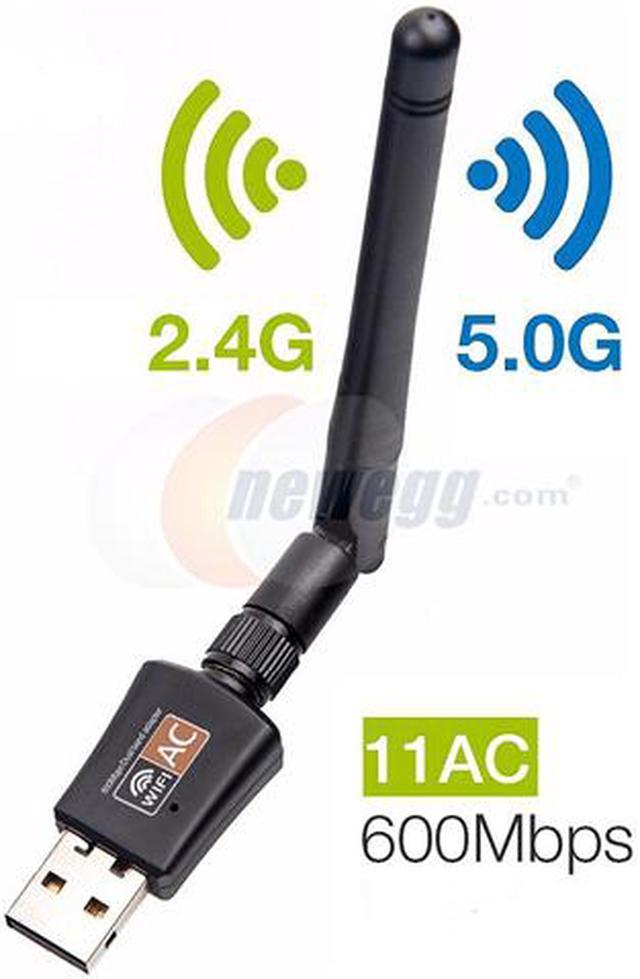
Credit: www.newegg.ca
Troubleshooting Dual Band Connectivity
Troubleshooting dual band connectivity can often feel like solving a puzzle with missing pieces. If your device struggles to switch between 2.4 GHz and 5 GHz bands, or you experience unstable connections, there are a few practical steps you can take. Understanding these issues will help you improve your WiFi experience without unnecessary hassle.
Updating Device Drivers And Firmware
Your device’s drivers and firmware play a crucial role in supporting dual band WiFi. Outdated drivers can cause compatibility problems or slow down your connection.
Check your device manufacturer’s website for the latest driver updates. Sometimes, your router also needs a firmware update to communicate efficiently with your device.
I once ignored a firmware update, assuming my router was fine. After updating, my dual band connection became stable, proving how important this step is.
Router Compatibility Checks
Not all routers support dual band functionality. Even if your device is dual band capable, an older or basic router may only operate on the 2.4 GHz band.
Look for routers labeled as “dual band” or check the specifications for both 2.4 GHz and 5 GHz support. This simple check can save you from endless troubleshooting.
If you’re unsure about your router’s capability, access its settings page via the IP address (usually 192.168.1.1) and review its wireless settings to confirm.
Interference And Range Issues
Dual band WiFi performance can be affected by interference or physical obstacles. The 5 GHz band offers faster speeds but has a shorter range and is more sensitive to walls and furniture.
Try moving closer to your router or reducing the number of obstacles between your device and the router. Also, check for interference from other electronics like microwaves or cordless phones.
Have you noticed your 5 GHz connection dropping when you move to another room? This is a common sign of range limitations and interference affecting your signal.

Credit: www.amazon.com
Frequently Asked Questions
How Can I Check If My Device Supports Dual Band Wifi?
You can check your device’s specifications or user manual. Look for “dual band” or “2. 4GHz and 5GHz” support. Alternatively, check network settings for 5GHz WiFi options.
Why Is Dual Band Wifi Important For My Device?
Dual band WiFi offers better speed and less interference. It connects to both 2. 4GHz and 5GHz bands, improving performance and coverage.
Can My Phone Connect To Both 2.4ghz And 5ghz Wifi?
Most modern smartphones support dual band WiFi. Check your phone’s WiFi settings or specifications to confirm 5GHz band compatibility.
Does My Laptop Support Dual Band Wifi?
Most recent laptops have dual band WiFi adapters. Check your network adapter’s specs or device manager to verify 5GHz support.
Conclusion
Knowing if your device supports dual band WiFi helps improve internet speed. Check the device settings or the product manual for details. Dual band WiFi uses both 2. 4 GHz and 5 GHz frequencies. This means better connection and less interference.
Many modern devices support dual band WiFi, but some older ones do not. Testing your device’s WiFi settings is a quick way to find out. A strong WiFi connection makes streaming, gaming, and browsing easier. Keep this guide handy to ensure your device connects well every time.