Are you worried about who’s using your travel router while you’re on the go? Keeping an eye on the devices connected to your travel router is easier than you think.
Imagine being able to instantly spot any unwanted users or manage your network quickly, no matter where you are. You’ll learn simple and effective ways to monitor every device connected to your travel router, giving you full control and peace of mind.
Ready to take charge of your network? Let’s dive in.
Credit: www.techradar.com
Choosing The Right Travel Router
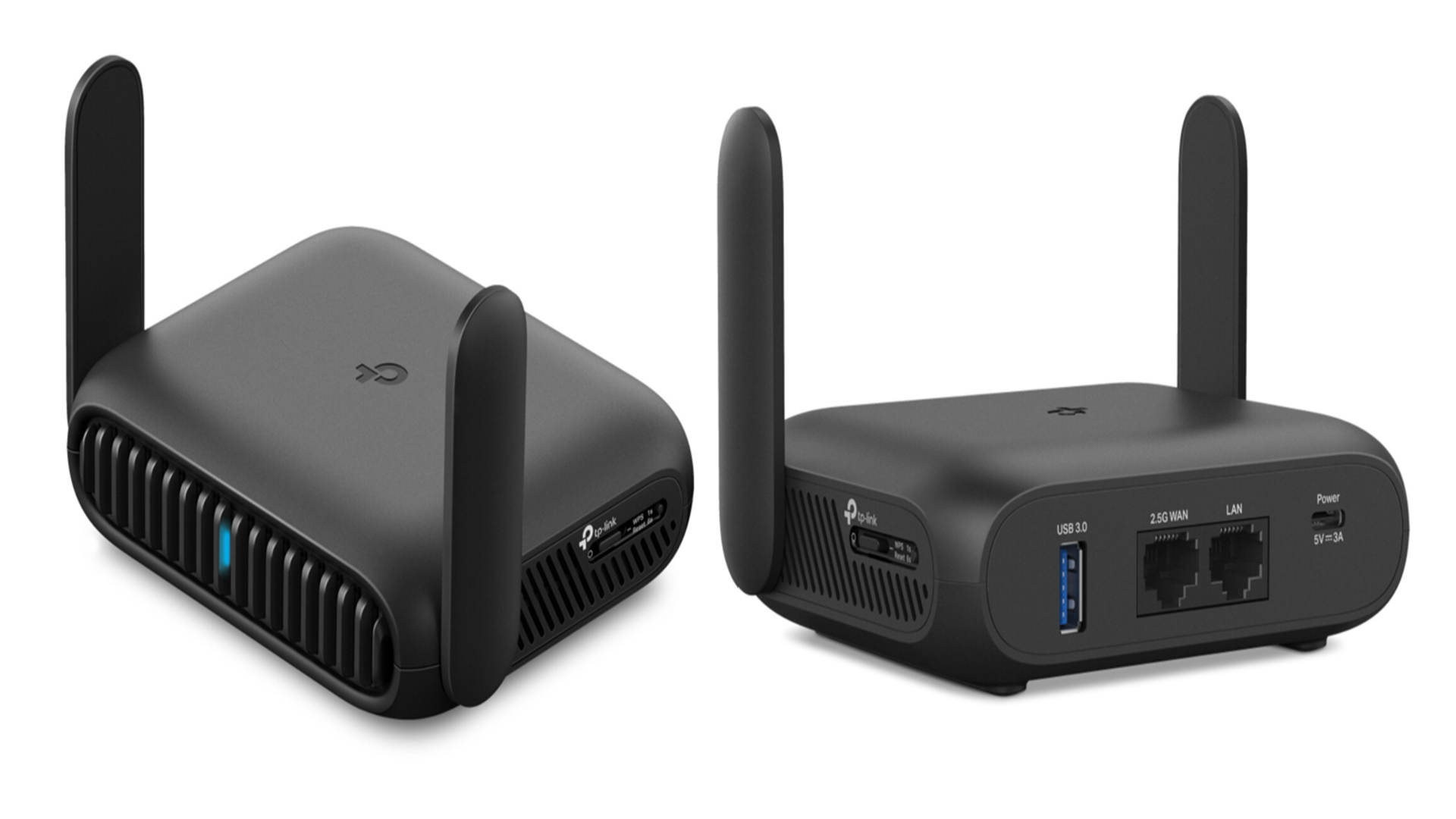
Choosing the right travel router is crucial for effective device monitoring while on the go. The right device not only ensures a stable connection but also gives you control over which devices connect to your network. It can make your travel experience smoother and more secure.
Key Features To Look For
Look for travel routers that offer strong security protocols like WPA3 encryption to keep your network safe. A good router should support multiple connection modes, including client, access point, and repeater modes, to adapt to various network situations.
Consider routers with built-in device monitoring features such as bandwidth control and connection logs. These help you track which devices are connected and manage your network traffic efficiently.
Compatibility With Devices
Ensure the travel router supports a wide range of devices, from smartphones and laptops to smartwatches and cameras. Some routers are optimized for specific operating systems, so check if it works well with your gadgets.
Think about your future needs too. If you plan to connect more devices or use IoT gadgets, pick a router that can handle multiple simultaneous connections without slowing down.
Portability And Battery Life
Your travel router should be lightweight and compact enough to fit easily in your bag or pocket. Portability means you can set up your network anywhere, whether in a hotel room or a café.
Battery life is equally important. A router with a long-lasting battery allows you to monitor devices throughout the day without needing constant recharging. Some models even offer power bank features, letting you charge your phone in emergencies.
Credit: obkio.com
Setting Up Your Travel Router
Setting up your travel router correctly is crucial to ensure smooth device monitoring and secure internet access wherever you go. A proper setup helps you manage connections efficiently and keeps your data safe on unfamiliar networks. Let’s break down the essential steps to get your travel router ready for action.
Initial Configuration Steps
Start by plugging in your travel router and connecting it to a power source. Use a laptop or smartphone to access the router’s default IP address, usually found on the device label or user manual. This opens the router’s setup page where you can begin configuration.
Next, change the default username and password to something strong but memorable. This simple step prevents unauthorized access. Set the router’s region and time zone to match your location for accurate logging and scheduling features.
- Choose a unique SSID (network name) that stands out.
- Set up the Wi-Fi password using WPA3 or WPA2 encryption.
- Configure DHCP settings to manage connected devices automatically.
Have you ever connected to a public network only to find it unsecured? Your travel router setup avoids that risk by creating a personal, secure hotspot wherever you are.
Connecting Devices Securely
Once your router is configured, connect your devices by selecting the SSID and entering your password. Avoid sharing this password openly to keep your network safe from intruders. You can also create a guest network for visitors, isolating their devices from your main network.
Enable MAC address filtering to allow only recognized devices to connect. This adds an extra layer of security by blocking unknown devices automatically. Remember to update your device list regularly to remove unused or suspicious entries.
- Use VPN services on your travel router for encrypted internet traffic.
- Turn on firewall settings to monitor and block unwanted access.
Updating Firmware
Firmware updates are often overlooked but are critical for performance and security. Check the router’s admin page regularly for update notifications. Manufacturers release updates to fix bugs, patch vulnerabilities, and add new features.
Download and install updates promptly to protect your devices from emerging threats. Some travel routers offer automatic updates; if yours does, enable this option to save time. An updated router means a safer and more reliable travel companion.
Have you ever ignored a firmware update only to face connectivity issues later? Staying current can save you from unexpected headaches on the road.
Tools For Device Monitoring
Monitoring devices on your travel router helps keep your network safe. It shows what devices are connected and how much data they use. Several tools make this task easier. These tools range from simple built-in interfaces to powerful third-party apps and network scanners.
Built-in Router Interfaces
Most travel routers have a built-in web interface. This interface lets you see all connected devices. It usually lists device names, IP addresses, and MAC addresses. Some routers also show real-time data usage. Access it by entering the router’s IP in a browser. This tool is easy to use and requires no extra apps.
Third-party Monitoring Apps
Third-party apps provide more features than built-in interfaces. Many apps work on smartphones and computers. They offer alerts for new devices and detailed usage reports. Some apps can block unknown devices from connecting. Popular apps include Fing, NetSpot, and GlassWire. These tools help track network activity on the go.
Using Network Scanners
Network scanners scan your network for all active devices. They identify devices by their IP and MAC addresses. Some scanners also detect device types and manufacturers. Examples include Angry IP Scanner and Advanced IP Scanner. These tools help find hidden or unauthorized devices quickly. They are useful for detailed network analysis.

Credit: www.reddit.com
Tracking Connected Devices
Monitoring devices on a travel router helps keep your network secure and organized. Access the router’s admin panel to see connected devices and manage their access easily. This keeps track of who is using your internet while you travel.
Tracking connected devices on a travel router is crucial for security. It helps manage your network effectively. With a few simple steps, you can oversee which devices are using your router. This ensures you can manage bandwidth and detect unauthorized access.Identifying Device Names And Ips
Start by accessing your router’s admin panel. This is often done through a web browser. Look for the list of connected devices. You’ll see names and IP addresses. The device name helps identify each user. An IP address is like a digital fingerprint. Note these details for future reference.Monitoring Bandwidth Usage
Bandwidth monitoring helps track data usage. Check the router settings for a bandwidth usage feature. This shows which devices consume the most data. Regular checks can prevent slow internet speeds. It also helps manage internet costs.Detecting Unauthorized Access
Unauthorized access can compromise security. Regularly review the list of connected devices. Look for unfamiliar names or IP addresses. If you find any, change your Wi-Fi password immediately. This ensures only trusted devices can connect. Keep your network safe by staying vigilant.Enhancing Security On Travel Routers
Travel routers offer great convenience, but they can also expose your devices to security risks if not properly managed. Enhancing security on your travel router is essential to protect your personal data and prevent unauthorized access. Simple steps can make a big difference in keeping your network safe while on the move.
Setting Strong Passwords
One of the easiest yet most effective ways to secure your travel router is by setting strong passwords. Avoid common or default passwords like “admin” or “12345678” that hackers can guess quickly.
Use a mix of uppercase and lowercase letters, numbers, and special characters to create a password that’s hard to crack. Change this password regularly, especially after traveling through public or shared networks.
Enabling Firewall Features
Your travel router likely comes with a built-in firewall—make sure it’s turned on. Firewalls act as a barrier, blocking unauthorized traffic from entering your network and protecting your devices from potential attacks.
Check your router’s settings to enable the firewall and customize rules if available. This extra layer of defense can stop suspicious connections before they reach your devices.
Using Vpns For Privacy
Using a Virtual Private Network (VPN) with your travel router adds strong privacy protection. A VPN encrypts your internet traffic, making it difficult for anyone on the same network to spy on your activities.
If your travel router supports VPN clients, configure it to connect automatically whenever you use public Wi-Fi. This way, your data stays private without extra steps on your end.
Troubleshooting Common Issues
Travel routers are fantastic tools for managing multiple devices on the go. However, like any tech gadget, they can face hiccups. Understanding how to troubleshoot common issues will save you time and frustration, ensuring your connection stays smooth wherever you are.
Resolving Connection Drops
Connection drops can be maddening, especially when you rely on your travel router for work or streaming. Start by checking the router’s firmware—outdated software often causes instability. Updating it can fix bugs that lead to sudden disconnections.
Another quick fix is to reposition your router. Walls and electronic devices can interfere with signals more than you might expect. Try placing the router in a central, elevated spot to see if the connection improves.
Have you noticed connection drops happen at specific times? It might be due to interference from other Wi-Fi networks or overloaded channels. Use your router’s admin panel to switch to a less crowded channel. This simple step often stabilizes your connection significantly.
Dealing With Slow Speeds
Slow speeds are a common complaint but often have straightforward solutions. First, check how many devices are connected—too many can hog bandwidth and slow down your network. Disconnect devices you aren’t using to free up speed.
Sometimes, the issue isn’t the router but the source internet itself. Test your base connection speed before troubleshooting the router. If your hotel’s Wi-Fi or the source internet is slow, your travel router won’t fix that.
Adjusting Quality of Service (QoS) settings can prioritize important traffic like video calls or work apps. This lets you maintain speed where it matters most, even when other devices are connected. Have you tried tweaking QoS settings yet?
Managing Device Limits
Travel routers usually have a limit on how many devices they can handle simultaneously. Exceeding this limit leads to dropped connections or slowdowns. Check your router’s specifications and keep track of the connected devices through the admin interface.
To avoid hitting the limit, remove inactive devices regularly. Some routers allow you to block or restrict devices, giving you control over who stays connected. This is especially useful in shared accommodations where multiple users join the same network.
Ever found yourself wondering why your device won’t connect despite a strong signal? It could be that the router has reached its maximum device capacity. Managing device limits proactively keeps your travel network reliable and hassle-free.
Best Practices For Continuous Monitoring
Continuous monitoring ensures your travel router stays secure and efficient. It helps detect unusual activities early and keeps network performance stable. Following best practices makes monitoring easier and more effective.
Regularly Checking Device Logs
Device logs record all activities on your travel router. Checking them often helps spot suspicious connections or errors. Look for unknown devices or repeated login attempts. Set a routine to review logs daily or weekly. This habit helps catch problems before they grow.
Scheduling Monitoring Alerts
Alerts notify you instantly about important events. Use your router’s alert system to get warnings on unusual traffic or device access. Schedule alerts to receive emails or push notifications. This keeps you informed even when away from the router. Quick alerts allow fast action to secure your network.
Keeping Software Updated
Firmware updates fix security issues and improve features. Check for updates regularly on your travel router’s website or app. Install updates as soon as they are available. Updated software reduces the risk of attacks and bugs. Set reminders to avoid missing important upgrades.
Frequently Asked Questions
How Do I Access My Travel Router’s Device List?
To access the device list, log into your travel router’s web interface. Enter the router’s IP address in your browser. Use your admin credentials to sign in. Navigate to the “Connected Devices” or “Device List” section to view all connected devices.
Can I Monitor Device Activity On A Travel Router?
Yes, many travel routers offer device monitoring features. These include tracking data usage and connection times. You can often set alerts for unusual activity. Check your router’s manual to enable these features for better security and control.
How To Block Unwanted Devices On A Travel Router?
Log into your travel router’s admin panel. Find the “Access Control” or “MAC Filtering” section. Add the unwanted device’s MAC address to the blacklist. Save settings to prevent that device from connecting to your network.
Is It Possible To See Data Usage Per Device?
Yes, some travel routers provide detailed data usage stats per device. This helps manage bandwidth and avoid overages. Check the router’s dashboard for a “Traffic Meter” or “Usage Stats” option to monitor data consumption effectively.
Conclusion
Monitoring devices on your travel router keeps your network safe and stable. Check device lists often to spot unknown connections. Use simple tools to track data and usage. Stay alert to avoid slow speeds or security risks. Regular checks help you control who uses your internet.
Keep your travel router settings updated for best results. Small steps make a big difference in network safety. Protect your devices while you travel with easy monitoring.