Have you forgotten your portable router password or need to change it for better security? You’re not alone—and resetting it is simpler than you might think.
Knowing how to reset your portable router password gives you full control over your internet connection and keeps your data safe. In this guide, you’ll discover easy steps to reset your password quickly, so you can get back online without hassle.
Keep reading, and you’ll master this essential skill in minutes.
Credit: community.surfboard.com
Why Reset Your Router Password
Resetting your portable router password is important for maintaining control over your network. It protects your personal information and keeps unwanted users out. Regularly changing passwords helps keep your connection safe and reliable.
Common Reasons For Resetting
- Forgotten password that blocks access to settings
- Suspicion of unauthorized access or hacking
- Device sold or given to someone else
- Network performance issues linked to security
- Default password still in use after setup
Security Benefits
Resetting your router password improves your network’s security. It stops hackers from exploiting old or weak passwords. Changing passwords regularly lowers the risk of data theft.
It also helps prevent unauthorized devices from connecting. A strong, new password keeps your internet fast and safe. Protect your router like you protect your personal devices.
Before You Begin
Resetting your portable router password requires some preparation. It helps to get ready before making any changes. This step avoids problems later and saves time.
Taking a moment to prepare ensures a smooth reset process. You can protect your current settings and have the tools needed to complete the task.
Gather Required Tools
Collect all items needed to reset your router. Usually, this includes:
- A small pointed object like a paperclip or pin
- Your portable router device
- Access to a computer or smartphone connected to the router
- Login details for your router’s admin panel (if available)
- Manual or quick start guide of the router (helpful but not required)
Having these ready will help you reset the password without interruptions.
Backup Current Settings
Saving your current router settings is important. A backup lets you restore your network if needed.
Access the router’s admin panel through a browser. Look for options like “Backup” or “Export Settings.” Save the file to your computer.
This backup protects your configurations such as network name, password, and security settings. It avoids losing important data during the reset.
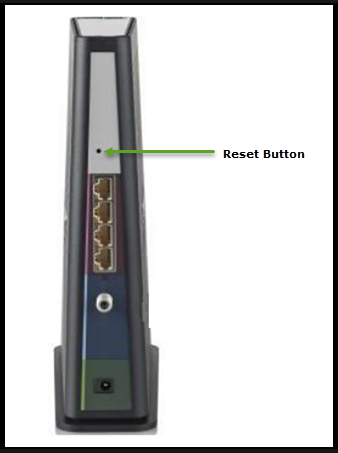
Locate The Reset Button
Finding the reset button on your portable router is the first step to reset its password. This tiny button helps restore the device to factory settings. It clears old passwords and settings, allowing you to set a new password. Understanding where to find it and what type of button it is will make the process easier.
Where To Find It
The reset button is usually on the back or bottom of the router. It might be near the power port or USB slot. Some models place it inside a small hole to avoid accidental resets. Look closely around the edges and corners of your router.
Check for a label or symbol near the button. It often says “Reset” or has a circular arrow icon. If you cannot see a button, consult your router’s manual or the manufacturer’s website for exact location details.
Button Types
Reset buttons come in different forms. Most common is a tiny, recessed button that needs a pointed object to press. Others have a small, raised button that you can press with your finger.
- Recessed Button:Requires a paperclip or pin to press. Prevents accidental resets.
- Raised Button:Easy to press but still small enough to avoid mistakes.
- Combination Buttons:Some routers combine reset with other functions, so check carefully.
Knowing the button type helps you prepare the right tool. Use gentle but firm pressure to avoid damage. Once located, you are ready to reset your portable router password safely.

Credit: www.youtube.com
Step-by-step Reset Process
Find the reset button on your portable router, usually a small hole. Press and hold it for about 10 seconds until the device restarts. After reboot, use default login details to set a new password easily.
Resetting the password of your portable router can be a straightforward process when you know the steps. It’s a common task that can seem daunting at first, but with a little guidance, you’ll have it sorted in no time. Whether you’ve forgotten your password or simply want to update it for security reasons, the following steps will guide you through resetting your portable router password effectively.Using The Reset Button
Most portable routers come with a reset button that makes resetting easy. Locate this button, usually found at the back or bottom of the device. Use a pointed object like a paperclip to press and hold the button for about 10 seconds. This will reset the router to its factory settings. Once the router resets, it will reboot. During this time, the default settings will be restored, including the default password. Keep in mind that this method will erase all your previous settings, so it’s best used when other methods are inaccessible.Accessing Router Settings
You can also reset the password by accessing the router’s settings through a web browser. First, connect your device to the router’s network. Open a browser and type the default IP address, typically something like 192.168.1.1, into the address bar. Log in with the default credentials. These are often printed on a label on the router. Once logged in, navigate to the settings menu and look for options related to password or security settings.Setting A New Password
After accessing the settings, you can set a new password. Go to the security or wireless settings section. Enter your desired password, making sure it’s strong and secure. Consider using a mix of letters, numbers, and symbols to enhance security. Once set, save the changes and reboot the router. Remember, your device will disconnect during the reboot, so reconnect using the new password. Have you ever thought about the security of your network? Regularly updating your router’s password is a simple yet effective way to protect your network from unauthorized access. Be proactive and make it a habit to change your password periodically.Tips For Creating Strong Passwords
Creating a strong password is essential for protecting your portable router. A good password keeps hackers away and secures your internet connection. Follow these tips to create a password that is both safe and easy to remember.
Password Length And Complexity
Choose a password with at least 12 characters. Longer passwords are harder to crack. Use a mix of uppercase letters, lowercase letters, numbers, and symbols. This variety makes the password complex. Avoid simple words or predictable patterns.
Avoiding Common Mistakes
Do not use easy-to-guess passwords like “123456” or “password.” Avoid using personal information such as your name or birthdate. Do not reuse passwords from other accounts. Change your password regularly to maintain security. Use a password manager to keep track of strong passwords safely.
Troubleshooting Common Issues
Troubleshooting common issues helps fix problems quickly. Resetting a portable router password may face unexpected hurdles. Understanding these issues saves time and frustration.
Some resets do not work as expected. The device might not respond or settings stay unchanged. Other times, admin credentials are forgotten. Without these, accessing the router becomes difficult. Clear steps can guide through these challenges.
Reset Not Working
A reset may fail due to several reasons. Check if the reset button is pressed long enough. Usually, it requires holding for 10 to 30 seconds. Ensure the router is powered on during the reset.
Sometimes, the reset button might be stuck or damaged. Try using a pointed object like a pin or paperclip carefully. Confirm the router’s manual for exact reset instructions.
If the reset still fails, power cycle the router. Turn it off, wait 30 seconds, then turn it on again. Attempt the reset once more after reboot.
Firmware issues may block reset processes. Updating the router’s firmware through the manufacturer’s website can help. Follow update steps carefully to avoid further problems.
Forgotten Admin Credentials
Admin credentials are essential to access router settings. If forgotten, a reset usually restores default username and password. These defaults are often printed on the router’s label or in the manual.
Try common default logins such as “admin” for both username and password. If this does not work, perform a hard reset following the router’s instructions.
After reset, log in quickly to change the password to something memorable. Write down new credentials in a safe place. Consider using a password manager for convenience and security.
Contact the router’s support team if none of these steps work. They can provide device-specific advice and solutions.
Maintaining Router Security
Maintaining the security of your portable router is essential to protect your personal data and prevent unauthorized access. A strong and regularly updated password is your first line of defense. Alongside this, keeping your router’s software up to date ensures you benefit from the latest security patches and features.
Regular Password Updates
Changing your router password regularly is a simple yet powerful way to enhance security. You might be surprised how often people forget to update their passwords, leaving their network vulnerable.
Try setting a reminder every few months to change your password. Choose a mix of letters, numbers, and symbols to make it difficult for others to guess. Avoid using obvious details like birthdays or common words.
Have you ever left your password unchanged for over a year? That’s a risk you don’t want to take. Think of your router password as a key to your digital home—don’t let it stay the same forever.
Firmware Updates
Firmware is the software running your router’s hardware. Manufacturers release updates to fix security flaws and improve performance.
Ignoring firmware updates is like leaving your front door unlocked. Check your router’s settings or the manufacturer’s website regularly for available updates.
Many routers offer automatic updates, which can save you time and hassle. If yours doesn’t, make it part of your routine to install these updates manually. This small step can prevent hackers from exploiting known vulnerabilities.

Credit: www.youtube.com
Frequently Asked Questions
How Do I Reset My Portable Router Password?
To reset your portable router password, access the router’s admin page via its IP address. Navigate to wireless settings, find the password field, and enter a new password. Save changes and reconnect devices using the new password.
What Is The Default Password For Portable Routers?
The default password is usually printed on the router label or manual. It often includes a default SSID and password. If you haven’t changed it, use this default to log in and then update your password for security.
Can I Reset My Portable Router Without Losing Settings?
Yes, some routers allow a password reset without factory resetting. Access the admin panel, change the password only, and save. Avoid pressing the physical reset button to prevent losing all customized settings.
How Often Should I Change My Portable Router Password?
It’s recommended to change your router password every 3 to 6 months. Regular changes enhance security and protect against unauthorized access. Always use a strong, unique password to keep your network safe.
Conclusion
Resetting your portable router password is simple and quick. Just follow the steps carefully and stay patient. Keeping your password updated helps protect your internet connection. Remember to write down the new password in a safe place. This small action improves your online security a lot.
Regularly changing passwords keeps your data safe from strangers. Now, you can manage your router settings with confidence. No more worries about unauthorized access. Stay safe and enjoy a better, more secure internet experience.