Are you struggling to get your travel router working when you need it most? It’s frustrating when your device won’t connect, leaving you without reliable internet on the go.
But don’t worry—this guide will help you fix common travel router problems quickly and easily. By following simple steps, you’ll have your router up and running in no time, so you can stay connected wherever you are. Keep reading to discover practical solutions that anyone can use, even if you’re not tech-savvy.
Your smooth, hassle-free travel starts here.
Common Travel Router Issues
Travel routers can be a lifesaver when you’re on the move, but they sometimes throw curveballs that disrupt your connection. Understanding the common issues helps you fix problems quickly without losing precious time or access to the internet. Let’s look at the typical problems you might face and how to identify them.
No Power Or Indicator Lights
If your travel router won’t turn on or the indicator lights stay off, the first thing to check is the power source. Are you using a reliable charger and cable? Sometimes, a loose connection or a faulty power adapter is the culprit.
Try plugging the router into a different outlet or using another charger. If that doesn’t work, the internal battery or hardware could be damaged. Have you ever found your device dead despite being plugged in? It’s often a simple fix like replacing the power cable.
Weak Or No Wi-fi Signal
A weak Wi-Fi signal can ruin your travel plans, especially if you rely on your router for work or entertainment. Walls, interference from other electronics, and distance from the router all impact signal strength.
Position your router in a central, open spot to improve coverage. If you’re in a hotel, ask if they offer wired connections to boost speed. Sometimes, changing the Wi-Fi channel in the router settings can reduce interference—have you ever tried that?
Unable To Connect To Network
When your device can’t connect to the router’s network, it might be due to incorrect password entry or network settings. Double-check your password and ensure the router’s SSID is visible.
Restarting both your router and device often resolves temporary glitches. Also, check if MAC address filtering is enabled on the router, which can block new devices. Have you noticed this blocking yourself before?
Slow Internet Speeds
Slow speeds can be frustrating, especially when you need to stream or download files quickly. The issue may stem from overcrowded networks, limited bandwidth, or the travel router’s hardware limitations.
Try disconnecting unused devices to free up bandwidth. Connecting via Ethernet, if possible, can also boost speed. Consider testing your internet speed to see if the problem lies with the router or the service provider.
Firmware Problems
Outdated or corrupted firmware can cause erratic behavior and security vulnerabilities. Check your router manufacturer’s website regularly for firmware updates.
Updating firmware might seem technical, but many routers offer easy update options through their apps or web interfaces. Have you ever delayed an update only to face connection issues later? Staying updated keeps your device running smoothly and securely.
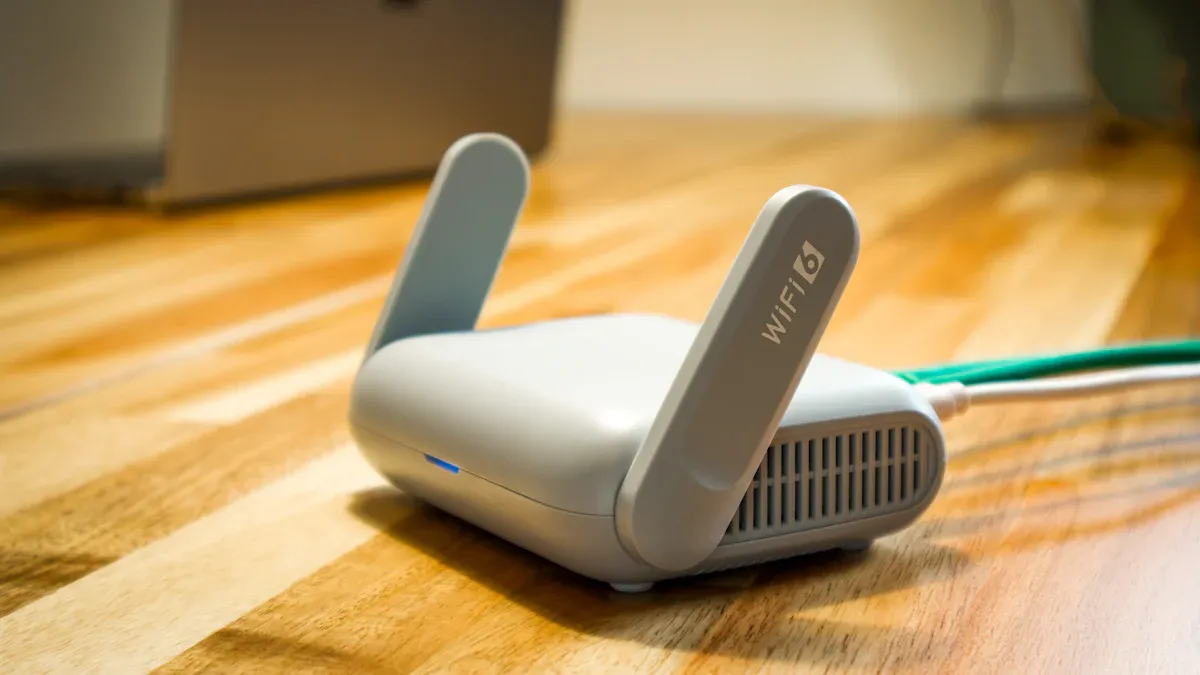
Credit: huasifei-link.com
Basic Troubleshooting Steps
Basic troubleshooting helps find simple issues with your travel router. These easy steps often fix common problems fast. Follow each step carefully for better results.
Check Power Source And Cables
Ensure the router is plugged into a working power outlet. Look for any loose or damaged cables. Use the original power adapter to avoid compatibility issues. A faulty power source can stop the router from turning on.
Restart The Router
Turn off the router and wait for about 30 seconds. Power it back on to refresh the system. Restarting clears temporary errors and resets connections. This step solves many minor glitches quickly.
Verify Network Settings
Check your router’s network settings through the admin panel. Confirm the Wi-Fi name (SSID) and password are correct. Make sure the router is set to the right mode (e.g., router or access point). Incorrect settings can block internet access.
Test With Different Devices
Try connecting other devices to the router’s Wi-Fi. This helps determine if the problem is with the router or a specific device. If multiple devices cannot connect, the issue likely lies with the router or network.
Fixing Wi-fi Signal Problems
Fixing Wi-Fi signal problems with a travel router improves connection speed and stability. Poor signals cause slow internet and dropped connections. Simple changes can boost your router’s performance quickly.
Adjust Router Placement
Place the router in an open, central spot for better coverage. Avoid corners, walls, and metal objects that block signals. Higher positions often provide stronger signals than low or hidden places.
Change Wireless Channel
Wi-Fi signals use channels to send data. Crowded channels cause interference and slow speeds. Choose a less busy channel through the router’s settings to improve performance. Many routers have an auto-scan feature to find the best channel.
Reduce Interference
Other devices can disrupt Wi-Fi signals. Common sources include microwaves, cordless phones, and Bluetooth devices. Keep the router away from these electronics. Turning off unused devices can also reduce interference.
Update Router Firmware
Firmware controls the router’s functions. Manufacturers release updates to fix bugs and improve signal strength. Check the router’s admin page for updates regularly. Installing updates keeps your router running smoothly and securely.
Resolving Connection Issues
Travel routers are great for staying connected during trips. Yet, connection issues can disrupt this convenience. Troubleshooting these problems ensures a smooth internet experience. Addressing common issues can bring your travel router back online swiftly.
Reset Network Settings
Resetting network settings can fix many connection issues. Locate the reset button on your router. Press and hold it for about 10 seconds. This action will restore the router to its default settings. Reconfigure your network settings afterwards.
Forget And Reconnect Wi-fi
Sometimes, simply forgetting and reconnecting to Wi-Fi helps. On your device, navigate to Wi-Fi settings. Select your travel router’s network and tap “Forget.” Then, search for the network and reconnect. Enter the password if prompted.
Check For Ip Conflicts
IP conflicts occur when two devices share the same IP address. This can disrupt connections. To check, access your router’s admin panel. Ensure each device has a unique IP address. Change settings if necessary to resolve conflicts.
Disable Vpn And Firewalls Temporarily
VPNs and firewalls can sometimes block connections. Temporarily disable them to test the network. Access your device’s security settings. Turn off the VPN and firewall options. Check if the router connects better without them.
Improving Internet Speed
Improving internet speed on your travel router can greatly enhance your online experience. Slow connections cause frustration and limit productivity. Small adjustments often lead to better speed and stability. This section shows simple ways to boost your internet performance.
Limit Connected Devices
Too many devices can slow down your network. Each device uses bandwidth and reduces speed for others. Disconnect devices not in use. Prioritize important devices like laptops or work phones. This helps keep the connection stable and faster.
Use Ethernet Connection When Possible
Wired connections offer faster and more reliable speeds than Wi-Fi. Connect your travel router to devices using an Ethernet cable. This reduces interference and signal loss. Ethernet is ideal for streaming, video calls, and large downloads.
Optimize Bandwidth Usage
Some apps use more data than others. Close apps or programs that run in the background. Avoid streaming videos or online games on multiple devices at once. Focus bandwidth on essential tasks to keep the connection smooth.
Upgrade Router Hardware
Older routers may not support higher speeds. Check your travel router’s specifications. Choose one with updated standards like Wi-Fi 5 or Wi-Fi 6 for better performance. Newer models handle multiple devices and provide stronger signals.

Credit: manuals.plus
Advanced Troubleshooting Tips
When basic fixes don’t cut it, advanced troubleshooting can help you dig deeper into your travel router’s issues. These tips are designed to give you more control and insight, so you can identify and solve problems that aren’t obvious at first glance.
Factory Reset The Router
Resetting your router to factory settings wipes out all custom configurations, which often resolves stubborn glitches. Before you press that reset button, back up your current settings if possible. This step can save you from setting up everything from scratch later.
After the reset, watch how the router behaves on default settings. Does it connect faster? Are the drops gone? If performance improves, the issue likely lies in your previous configuration.
Use Diagnostic Tools
Diagnostic tools built into your router or available as apps can reveal hidden network problems. Tools like ping tests, traceroute, and speed tests help you check the connection quality and identify where delays or failures occur.
Try running these tests at different times and locations to see if problems are consistent or intermittent. This data can guide you in adjusting your router’s settings or placement for better performance.
Consult Router Logs
Router logs record detailed information about your device’s activity and errors. Accessing these logs can uncover patterns that explain connection drops or security alerts you might miss otherwise.
Look for repeated error messages or warnings around the times you experienced issues. Sharing these log entries with tech support can speed up troubleshooting significantly.
Contact Manufacturer Support
If you’re stuck despite your efforts, reaching out to the manufacturer’s support team is a smart move. They have specialized tools and knowledge about your specific router model that can diagnose deeper problems.
Prepare to provide them with your router’s model number, firmware version, and any error details you’ve gathered. Clear communication here can lead to faster solutions or even hardware replacements if needed.
Preventive Measures For Smooth Travel Wi-fi
Keeping your travel Wi-Fi running smoothly starts before you even leave home. Taking some simple preventive measures can save you from frustrating connection drops and slow internet during your trip. These steps help you stay prepared, secure, and connected no matter where your journey takes you.
Carry Backup Power Options
Nothing kills your travel Wi-Fi faster than a dead battery. Always pack a portable power bank or extra batteries compatible with your travel router. I once found myself in a remote area with no power outlet, but my power bank kept my router alive for hours, letting me finish urgent work without interruption.
Consider chargers that support fast charging and multiple devices. This way, you can power your router and phone simultaneously. Do you have a reliable backup power plan for your next trip?
Regular Firmware Updates
Manufacturers release firmware updates to fix bugs and improve performance. Updating your travel router’s firmware regularly keeps it running efficiently and guards against security vulnerabilities. I neglected an update once and faced frequent disconnections until I updated the software.
Check the router’s app or website before every trip to download the latest version. It only takes a few minutes but can prevent hours of troubleshooting later.
Secure Your Network
Public Wi-Fi networks can expose your data to hackers. Secure your travel router by setting a strong password and enabling encryption like WPA3 if available. Avoid using default passwords, which are easy targets for cyberattacks.
Also, disable remote management features unless you need them. Protecting your network safeguards your sensitive information and ensures your connection stays stable.
Plan For Alternative Connections
Sometimes, your primary travel router may fail or the local network might be unreliable. Have a backup plan such as a mobile hotspot or SIM card with data ready to go. During one trip, my router stopped working, but switching to my phone’s hotspot kept me connected without skipping a beat.
Knowing your alternatives beforehand reduces stress and keeps you productive. What backup connection options do you have on hand right now?

Credit: www.youtube.com
Frequently Asked Questions
How Do I Reset My Travel Router?
To reset your travel router, locate the reset button, usually a small hole. Use a pin to press and hold it for 10 seconds. This restores factory settings, resolving many common issues quickly.
Why Is My Travel Router Not Connecting To Wi-fi?
Check if your travel router’s firmware is updated and Wi-Fi credentials are correct. Also, ensure you are within range of the source network. Restarting the router often fixes connection issues.
How Can I Improve Travel Router Signal Strength?
Place your travel router in an open, central location. Avoid physical obstructions and interference from other devices. Using an external antenna, if supported, can also boost signal strength.
What Should I Do If Travel Router Ip Conflicts Occur?
Change the router’s default IP address through its admin panel. Ensure no two devices share the same IP on your network. This prevents IP conflict errors and network disruptions.
Conclusion
Troubleshooting a travel router is easier than it seems. Start by checking your connections and settings. Restart the device to fix many common issues. Keep your firmware updated for better performance. Test your internet source to rule out external problems.
Use simple steps to solve most router troubles quickly. Staying calm helps you think clearly and act fast. This way, your travel router will keep you connected everywhere.