Is your tri band router not detecting the 5GHz band? It’s frustrating when your fast Wi-Fi feels slow or unreliable.
You rely on that 5GHz connection for smoother streaming, quicker downloads, and better gaming. When it suddenly disappears, it can leave you confused and stuck. But don’t worry—you’re not alone, and there are simple fixes you can try right now.
Keep reading, and you’ll discover exactly why this happens and how to get your 5GHz band back up and running in no time.
Common Causes Of 5ghz Band Issues
The 5GHz band offers faster speeds and less interference than 2.4GHz. Yet, some tri-band routers fail to detect this band. Several reasons cause this problem. Identifying the cause helps fix the issue quickly and enjoy stable Wi-Fi.
Router Firmware Problems
Outdated firmware can stop the 5GHz band from working. Routers need regular updates to fix bugs and improve performance. Without updates, the router might not broadcast the 5GHz signal properly. Sometimes, firmware glitches cause the band to disappear.
Incorrect Settings
Settings control how the router uses its bands. The 5GHz band may be disabled by mistake. Sometimes, the SSID for 5GHz is hidden, making it invisible to devices. Wrong channel settings can also block the band from showing up. Checking and correcting these settings is crucial.
Interference And Range Limits
The 5GHz band has a shorter range than 2.4GHz. Walls and objects weaken the signal quickly. Other electronics can cause interference too. This results in weak or no detection of the 5GHz band. Placing the router in an open area helps reduce these problems.
Device Compatibility
Not all devices support the 5GHz band. Older gadgets might only connect to 2.4GHz. Some devices need updated drivers to recognize 5GHz networks. Confirming device compatibility ensures they can detect and use the 5GHz band properly.
Checking Router Settings
When your tri band router doesn’t detect the 5GHz band, the first place to look is inside the router settings. Often, the issue lies in simple misconfigurations or disabled options. Taking a few minutes to check these settings can save you hours of frustration.
Accessing The Admin Panel
To start, you need to access your router’s admin panel. This is usually done by typing the router’s IP address into your web browser’s address bar—common addresses are 192.168.0.1or 192.168.1.1. You’ll then enter the username and password, which might be printed on your router or set by you during setup.
If you haven’t changed the default credentials, now is a good time to do so for security reasons. Once logged in, you will find the settings that control your wireless bands.
Verifying 5ghz Band Activation
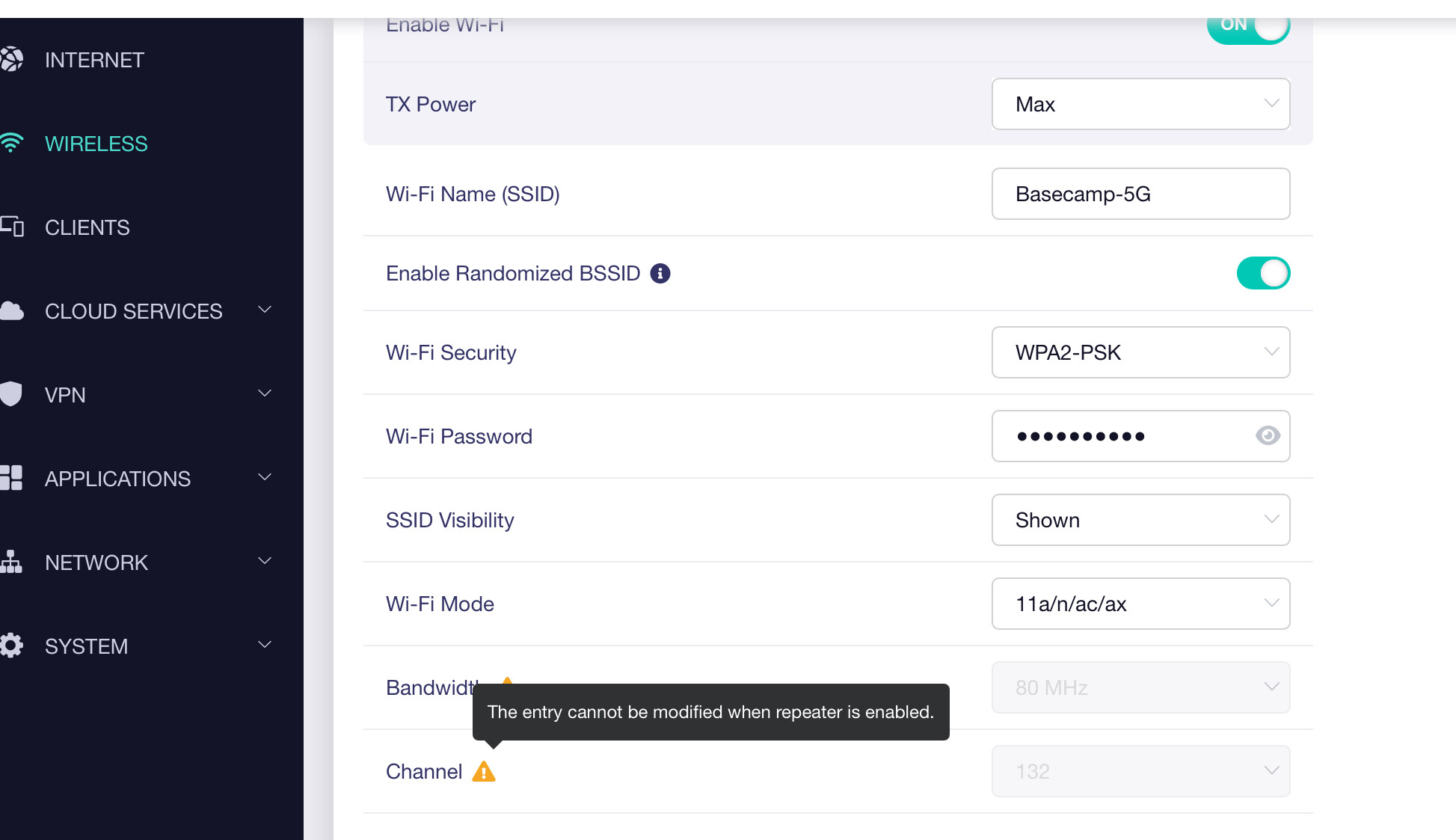
Within the admin panel, look for a section labeled Wireless, Wi-Fi, or something similar. Here, you should see options for 2.4GHz and 5GHz bands. Check if the 5GHz band is enabled—sometimes it’s disabled by default or after a firmware update.
If it’s turned off, switch it on and save your changes. You might need to reboot the router for the settings to take effect. Have you ever overlooked this simple toggle? It’s surprising how often this is the root cause.
Ssid And Security Configurations
Next, review the SSID (network name) and security settings for the 5GHz band. Make sure the SSID is visible; a hidden SSID means your devices won’t see the network. Also, check the security type—WPA2 or WPA3 is preferred for compatibility and security.
Incorrect security settings can prevent devices from connecting even if the band is active. Try setting a simple password temporarily to rule out password complexity issues. Did you know that some devices struggle with certain encryption types?
Firmware Updates And Resets
Firmware updates and resets often fix issues with tri-band routers not detecting the 5GHz band. Firmware controls your router’s internal software. Keeping it current ensures better performance and compatibility.
Resetting the router can clear errors or corrupted settings. This often restores full functionality to all frequency bands, including 5GHz.
Updating Router Firmware
Check your router’s settings page to find the firmware update option. Download the latest firmware from the official website. Install the update carefully to avoid interruptions.
Updating firmware can solve bugs that block the 5GHz band. It also improves security and adds new features.
Factory Reset Procedures
Locate the reset button on your router. Press and hold it for about 10 seconds using a paperclip or pin. The router will restart and return to default settings.
A factory reset removes all custom changes. This can fix misconfigurations that stop the 5GHz band from showing.
Backup And Restore Settings
Before resetting, back up your router settings. Use the backup option in the router’s admin panel. Save the file on your computer.
After the reset, restore your settings from the backup file. This saves time and keeps your network preferences intact.
Credit: forum.gl-inet.com
Optimizing Router Placement
Optimizing router placement can resolve issues with the 5GHz band. Proper placement enhances signal strength and reduces connectivity problems. Follow these tips to optimize your router’s location.
Ideal Location Tips
Place your router in a central area of your home. This ensures even coverage across all rooms. Elevate the router on a shelf or wall for better signal reach. Avoid placing it in a corner or enclosed space.
Reducing Physical Obstructions
Physical barriers can weaken your Wi-Fi signal. Keep the router away from thick walls and large furniture. Avoid metal objects and appliances that block signals. Open spaces help the signal travel further.
Minimizing Interference
Electronic devices can interfere with Wi-Fi signals. Keep the router away from microwaves and cordless phones. Use a different Wi-Fi channel to avoid overlapping signals. Adjust router settings for the least crowded channel.
Device Compatibility And Settings
Device compatibility and settings play a crucial role in connecting to the 5GHz band on a tri-band router. Many devices support only 2.4GHz, so they may not detect the 5GHz network. Checking device specifications helps identify if the device can connect to 5GHz. Sometimes, outdated drivers or incorrect network settings block the connection. Adjusting these can restore access to the faster 5GHz band.
Checking Device Support For 5ghz
Not all devices support 5GHz Wi-Fi. Older devices often only detect 2.4GHz networks. Look for wireless standards such as 802.11ac or 802.11n, which usually support 5GHz. You can check device manuals or specifications online. If the device does not support 5GHz, it will not see the network.
Updating Network Drivers
Outdated or corrupted network drivers can prevent your device from detecting the 5GHz band. Visit the device manufacturer’s website to download the latest drivers. Installing updated drivers improves connection stability and adds support for newer wireless bands. Keep drivers current for the best performance.
Forgetting And Reconnecting To Network
Sometimes, device settings store incorrect network information. Forgetting the 5GHz network and reconnecting can fix this issue. This action clears saved passwords and settings. After forgetting, search for the 5GHz network again and enter the password. This refresh often restores the connection.
Credit: community.surfboard.com
Advanced Troubleshooting Steps
Advanced troubleshooting helps solve issues with the 5GHz band detection. It digs deeper into router settings and network options. These steps can improve connection and reduce interference. Follow each carefully to get the best results.
Changing Wireless Channels
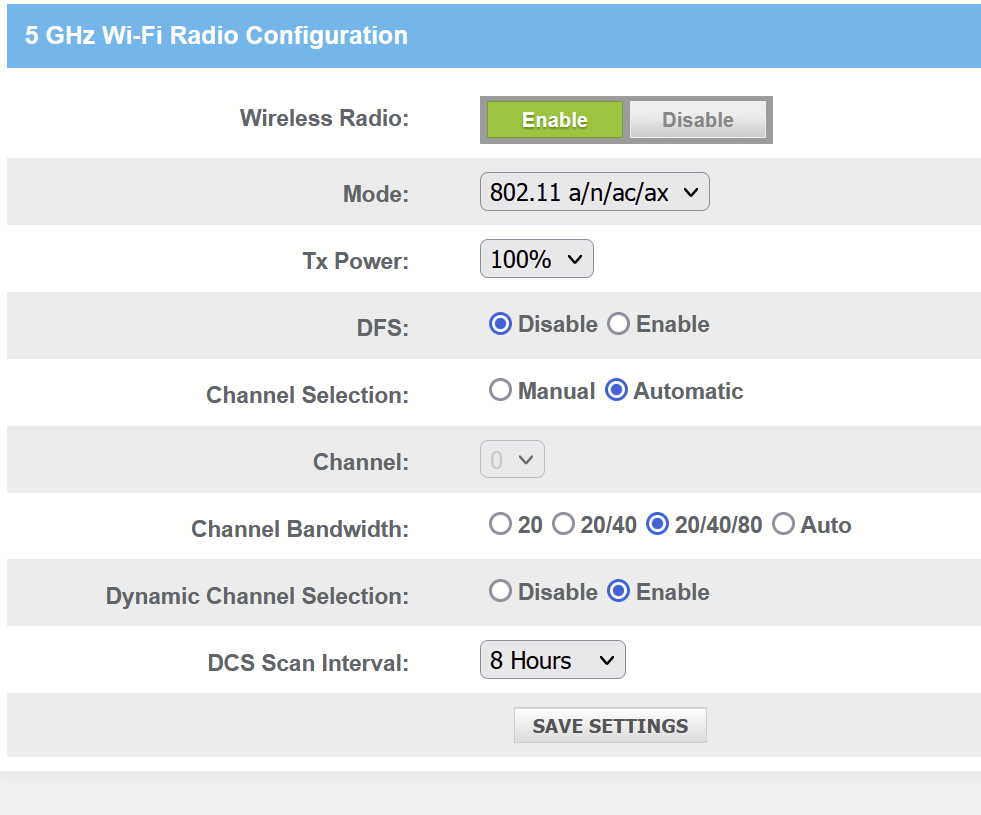
Wireless channels carry signals on the 5GHz band. Some channels may be crowded or blocked by other devices. Changing the channel can clear interference and boost performance.
- Access your router’s admin panel via a browser.
- Find the wireless settings section.
- Look for the 5GHz channel option.
- Try selecting a different channel from the dropdown menu.
- Save changes and restart the router.
- Check if the 5GHz band is detected now.
Adjusting Bandwidth Settings
Bandwidth settings control data flow on the 5GHz band. Incorrect bandwidth can prevent devices from detecting the network.
- Open the router’s wireless settings.
- Find the channel bandwidth option for 5GHz.
- Common values include 20MHz, 40MHz, and 80MHz.
- Try lowering the bandwidth to 20MHz or 40MHz.
- Save and reboot the router.
- See if devices now connect to the 5GHz band.
Using Dual-band Mode
Dual-band mode allows the router to use both 2.4GHz and 5GHz bands. This mode helps devices find the best available signal.
- Go to your router’s wireless settings.
- Look for the band selection or mode option.
- Select dual-band or simultaneous mode.
- Ensure both bands are enabled and have different network names (SSIDs).
- Save changes and reboot the router.
- Check if the 5GHz band shows up on your devices.
When To Contact Support
Knowing the right time to contact support can save time and frustration. Some problems require expert help beyond basic troubleshooting. Recognizing these moments ensures the issue gets fixed correctly and quickly.
Identifying Hardware Failures
Hardware problems often cause the 5GHz band not to show. Signs include no signal despite proper settings or the router overheating. Check if other bands work. If only the 5GHz is missing, hardware might be faulty. Physical damage or unusual noises also point to hardware issues. Support can confirm these problems with tests you cannot perform.
Warranty And Replacement Options
Many routers come with a warranty covering defects. Check your purchase date and warranty terms. Support can guide you through the replacement process. Sometimes, they offer repair services or send a new unit. Do not try to open or fix the router yourself, as this may void the warranty. Contacting support early can protect your rights and save costs.
Professional Assistance
Some issues need a technician’s knowledge. Support staff can walk you through advanced steps or remote diagnostics. They may update firmware or adjust settings not visible to users. Experts know how to handle complex problems safely. They can also provide advice on improving your network setup. Don’t hesitate to reach out if simple fixes fail.

Credit: www.reddit.com
Frequently Asked Questions
Why Is My Tri Band Router Not Detecting 5ghz?
Your router may have firmware issues or incorrect settings. Check if 5GHz is enabled and update firmware. Interference or distance can also cause detection problems.
How To Fix Tri Band Router 5ghz Detection Issue?
Restart the router and device, then check settings. Update router firmware and ensure 5GHz is enabled. Reduce interference by changing channels or moving closer to the router.
Can Outdated Firmware Cause 5ghz Band Detection Failure?
Yes, outdated firmware often causes detection problems. Updating firmware fixes bugs and improves compatibility, ensuring the 5GHz band works properly on your tri band router.
Does Device Compatibility Affect 5ghz Band Detection?
Yes, some devices don’t support 5GHz Wi-Fi. Check if your device supports 5GHz frequency to ensure it can detect and connect to that band.
Conclusion
Troubles with a tri band router not detecting the 5GHz band can be fixed. Check settings, update firmware, and ensure device compatibility. Restarting the router often helps too. Keep the router away from walls and other electronics. A strong 5GHz signal improves speed and connection quality.
Simple steps can save time and frustration. Stay patient and try each solution carefully. Your network will perform better soon.