Are you frustrated because your dual band router keeps dropping the connection or running slow? You’re not alone.
Many people struggle with getting the most out of their 2. 4 GHz and 5 GHz bands. But don’t worry—fixing these issues is easier than you think. You’ll discover simple, effective steps to troubleshoot your dual band router and get your internet running smoothly again.
Keep reading, and you’ll soon enjoy a faster, more reliable connection without the headaches.

Credit: www.reddit.com
Common Causes Of Dual Band Router Issues
Experiencing issues with your dual band router can be frustrating, especially when you rely on a stable connection for work or entertainment. Understanding the common causes behind these problems is the first step toward fixing them efficiently. Let’s break down the most frequent culprits that can disrupt your router’s performance and what you should watch out for.
Interference Between Bands
Dual band routers operate on two frequencies: 2.4 GHz and 5 GHz. Sometimes, these bands can interfere with each other, especially if devices switch frequently between them. This interference can cause slow speeds or dropped connections.
Think about your home environment: are there many wireless devices or neighbors using the same channels? Microwaves, cordless phones, and even Bluetooth gadgets can disrupt the signals. Changing the wireless channel or setting devices to stick to one band can reduce this problem.
Firmware Problems
Firmware acts like the operating system for your router. If it’s outdated or corrupted, your device may behave unpredictably. You might notice random disconnections or poor performance that didn’t happen before.
Checking for updates on your router’s admin page is simple and can solve many issues. Sometimes, a quick firmware upgrade can restore stability and improve speed. Don’t ignore firmware updates—they’re often the fix you need.
Incorrect Settings
Settings like SSID names, passwords, or security protocols can cause connection troubles if not configured correctly. For instance, mixing WPA2 and WPA3 security modes on different devices might confuse your router.
Have you ever changed a setting and suddenly lost connection? Double-checking your router’s configuration can reveal mistakes you didn’t realize you made. Resetting to default settings and then carefully reapplying your preferences can clear hidden errors.
Hardware Faults
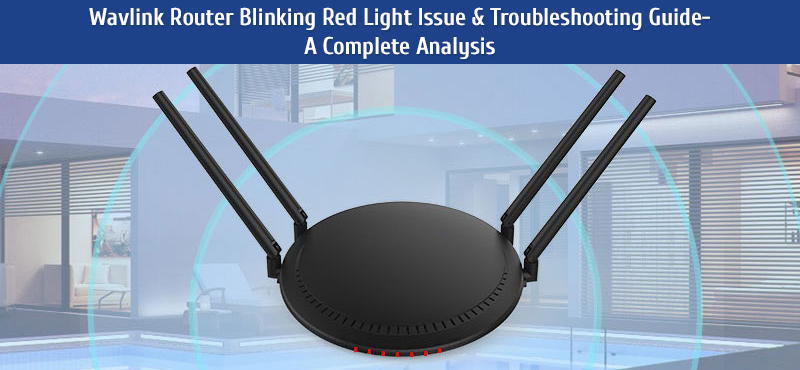
Sometimes, the problem lies in the hardware itself. Faulty antennas, damaged ports, or internal component failures can cause weak signals or complete connection loss.
If your router is old or has been physically stressed, it might be time to inspect or replace it. Have you noticed your device overheating or not powering on consistently? These are strong signs of hardware issues needing attention.
Credit: wifiwavlink.net
Checking Router Placement
Checking your router’s placement is a crucial step in solving dual band router connection issues. The position of your router can directly impact the strength and stability of both the 2.4 GHz and 5 GHz signals. A small change in location can mean the difference between a spotty connection and smooth streaming.
Optimal Location Tips
Place your router in a central area of your home to ensure even coverage. Elevate it on a shelf or table rather than leaving it on the floor where signals can get trapped or weakened.
Think about how your home is laid out. Walls, floors, and furniture can all interfere with the signal. I once moved my router from a corner near the TV to the hallway’s open space, and my connection immediately improved on both bands.
Avoiding Signal Blockers
Keep your router away from metal objects, microwaves, and cordless phones—they often block or interfere with wireless signals. Even large mirrors or thick walls can reduce signal strength.
Have you noticed your Wi-Fi slows down when you’re near the kitchen? That’s likely due to the microwave or other electronic devices in that area. Try relocating your router to avoid these common blockers.
Distance From Devices
While placing your router centrally helps, also consider how far your devices are from it. The 5 GHz band provides faster speeds but covers a smaller area, so devices far from the router might perform better on 2.4 GHz.
Try to minimize the distance between your router and frequently used devices. If you work from a home office, placing the router nearby can reduce connection drops and speed issues.
Restarting And Resetting
Restarting and resetting your dual band router often resolves many common connection issues. These actions clear temporary glitches and refresh the network settings. Knowing when and how to perform these steps can save you time and frustration.
Soft Restart Steps
A soft restart simply means turning your router off and on again without changing any settings. This process can fix minor bugs or slowdowns in your connection.
- Unplug the router’s power cable from the outlet.
- Wait about 30 seconds to 1 minute to allow the device to fully power down.
- Plug the power cable back in and wait for the router to reboot completely.
After rebooting, check if both the 2.4 GHz and 5 GHz bands are functioning properly. Have you noticed that a soft restart often improves your Wi-Fi speed immediately?
Factory Reset Guidelines
A factory reset restores your router to its original settings, erasing all custom configurations. Use this step only if other troubleshooting hasn’t worked, as it requires reconfiguring your network afterward.
- Locate the reset button, usually a small pinhole on the back of the router.
- Use a paperclip or similar object to press and hold the reset button for 10-15 seconds.
- Release the button and wait for the router to restart automatically.
After resetting, you’ll need to log in with default credentials and set up your Wi-Fi bands again. Have you prepared your network details before performing a reset?
When To Reset
Soft restarts should be your first step when facing slow or unstable connections on either band. They are quick and won’t erase your settings.
Consider a factory reset if your router keeps dropping connections, won’t broadcast one of the bands, or if you forgot your login details. Persistent issues often indicate corrupted settings or firmware conflicts that a reset can fix.
Remember, resetting your router erases customized settings like passwords and port forwarding. Are you ready to set everything up again before hitting that reset button?
Updating Firmware And Drivers
Updating firmware and drivers can resolve dual band router connection issues. This ensures your devices work efficiently with the latest improvements. Regular updates reduce connectivity problems and enhance network stability.
Updating your router’s firmware and device network drivers can breathe new life into your dual band router, fixing pesky connection issues and improving overall performance. Ignoring these updates can leave your network vulnerable and sluggish, so it’s crucial to make them a regular part of your maintenance routine. Let’s dive into the steps you need to take to ensure your router and connected devices are running the latest and greatest software.Finding Latest Firmware
First, identify your router’s model number, typically found on the device’s label or in its manual. Visit the manufacturer’s official website and navigate to the support or downloads section. Look for the latest firmware version available for your specific model, ensuring it matches your router’s version and region.Updating Router Software
Access your router’s settings by typing its IP address in a web browser. Log in using your credentials; if you’ve forgotten them, check the default username and password, usually printed on the router. Upload the downloaded firmware update file and follow the on-screen instructions. Remember to back up your settings, just in case.Updating Device Network Drivers
Updating your network drivers on your devices can also resolve connectivity problems. On Windows, access the Device Manager, locate your network adapter under ‘Network adapters’, right-click, and select ‘Update driver’. For Mac users, ensure your OS is up-to-date as this includes the latest drivers. Consider setting a reminder to check for updates regularly to keep your connection smooth. Have you ever been caught off guard by a forgotten update, leading to a day of frustration? Taking these steps can prevent such hiccups and ensure your network is always running efficiently. Don’t delay in making these updates a part of your tech routine.Adjusting Band Settings
Adjusting the band settings on your dual band router can significantly improve your connection quality and reduce interference. Understanding how to manage the 2.4GHz and 5GHz bands allows you to optimize performance based on your environment and device needs. Let’s dive into practical ways to tweak these settings for a smoother internet experience.
Separating 2.4ghz And 5ghz Ssids
Many routers combine the 2.4GHz and 5GHz bands under one network name (SSID). This can confuse devices about which band to use, sometimes causing slower connections or drops.
Try giving each band a unique SSID. For example, name one “HomeWiFi_2.4” and the other “HomeWiFi_5”. This way, you control exactly which band your devices connect to. It’s especially useful if you have older gadgets that only support 2.4GHz or if you want to force high-speed devices onto the 5GHz band.
Choosing Channels Manually
Automatic channel selection might not always pick the best frequency for your environment. Nearby networks or electronic devices can cause interference, especially on the crowded 2.4GHz band.
Use a Wi-Fi analyzer app to scan for the least crowded channels around you. Then manually set your router to those channels to reduce interference and improve stability. For example, channels 1, 6, and 11 are typically the best on 2.4GHz, but the quietest one near you might differ.
Enabling Band Steering
Band steering is a feature that helps your router automatically guide devices to the best frequency band available. It’s handy if you don’t want to manage separate SSIDs.
When enabled, your router pushes compatible devices to the 5GHz band to free up the 2.4GHz band for devices that need it. This can improve speeds and reduce congestion without you lifting a finger. However, not all routers handle band steering equally well, so test your connection after enabling it to ensure it works smoothly.
Optimizing Network Security
Optimizing network security is essential for maintaining a stable and safe dual band router connection. Without proper security measures, your network becomes vulnerable to unauthorized access, slowdowns, and data breaches. Taking control of your router’s security settings can prevent these issues and improve overall performance.
Changing Default Passwords
Many routers come with default usernames and passwords that are easy for hackers to guess. You should change these credentials immediately after setting up your router. Choose a password that combines letters, numbers, and symbols to make it difficult to crack.
Think about the last time you ignored this step—did you notice any unusual activity on your network? Changing default passwords stops outsiders from sneaking into your connection and causing problems.
Using Strong Encryption
Encryption protects the data traveling through your network. Make sure your router uses WPA3 or at least WPA2 encryption. Older encryption methods like WEP are outdated and easy to break.
Access your router settings and select the strongest encryption available. This simple action secures your wireless signals and keeps hackers from spying on your online activities.
Monitoring Connected Devices
Keep an eye on the devices connected to your network regularly. Your router’s admin page usually lists all connected devices, including unknown ones. Spotting unfamiliar devices early helps you block unauthorized users before they cause disruptions.
Have you ever found a device on your network that you didn’t recognize? Monitoring connected devices lets you take control and maintain a fast, secure connection for your trusted gadgets only.
Testing And Monitoring Connection
Testing and monitoring your dual band router connection is vital to fix issues effectively. It helps identify weak spots and recurring problems. Tracking your connection gives clear data on your network’s health. Use tools and apps to measure speed and signal strength. Keep records of connection drops to find patterns. This approach makes troubleshooting simpler and faster.
Speed Test Tools
Speed test tools measure your internet download and upload rates. They show if your connection matches your plan. Use popular sites like Speedtest.net or Fast.com. Run tests on both 2.4 GHz and 5 GHz bands to compare performance. Repeat tests at different times to catch slowdowns. Note results to see if speeds stay consistent.
Signal Strength Apps
Signal strength apps help locate weak Wi-Fi spots in your home. They display signal levels in real-time for each band. Apps like NetSpot or Wi-Fi Analyzer work well on smartphones. Walk around your space while watching the signal meter. Identify areas with poor coverage or interference. Adjust router placement or antennas based on the data.
Logging Connection Drops
Logging connection drops reveals when and how often the Wi-Fi disconnects. Use tools or router logs to record drop times. Note if drops happen on 2.4 GHz, 5 GHz, or both. Keep a simple log with date, time, and duration of disconnections. This helps spot patterns related to devices or environmental factors. Share logs with your ISP or tech support for better help.
Credit: helpdeskgeek.com
When To Contact Support
Knowing when to contact support for your dual band router can save you time and frustration. Not every glitch needs professional help, but some issues signal deeper problems beyond basic troubleshooting. Recognizing these moments helps you get the right assistance quickly.
Identifying Persistent Problems
If your router keeps dropping connection on either the 2.4 GHz or 5 GHz band despite restarting and resetting, it’s a sign of a persistent problem. Watch for issues like frequent disconnects, slow speeds that don’t improve, or devices unable to connect to one band but not the other.
Ask yourself: Have you tried all common fixes, but the problem remains? Persistent issues often indicate hardware faults, firmware bugs, or interference that you can’t resolve alone.
Gathering Diagnostic Information
Before reaching out to support, gather key details about your router’s behavior. Note the error messages, the exact times problems occur, and which devices are affected.
Check your router’s admin panel for logs or status reports. This information helps support understand your issue faster and provide targeted solutions.
- Record the firmware version
- Note the signal strength on both bands
- List troubleshooting steps you’ve already tried
Preparing For Support Calls
Prepare your environment before calling support to make the process smooth. Have your router’s model and serial number handy, along with your internet service provider details.
Be ready to perform tests or changes as guided by the technician. Keep a pen and paper nearby to jot down instructions or case numbers.
Clear communication and organization can turn a frustrating call into a quick fix.
Frequently Asked Questions
How Do I Fix Dual Band Router Connection Drops?
Restart your router to reset connections. Update firmware for improved stability. Check interference from other devices. Switch channels to reduce congestion. Place the router centrally for better signal coverage.
Why Is My 5ghz Band Slower Than 2.4ghz?
5GHz has shorter range and less wall penetration. Ensure you’re close to the router. Avoid interference from other electronics. Update router firmware and network drivers for optimal performance.
How Can I Improve Dual Band Router Signal Strength?
Position your router in an open, elevated space. Avoid physical obstructions like walls and metal objects. Use external antennas if available. Reduce interference by switching to less crowded channels.
What Causes Dual Band Router To Not Connect Devices?
Incorrect Wi-Fi password or network settings cause connection failures. Ensure devices support both bands. Restart router and devices. Update device network drivers and router firmware to fix bugs.
Conclusion
Troubleshooting dual band router issues can be simple with the right steps. Start by checking your connections and settings carefully. Restart your router to clear any temporary problems. Make sure your devices support both frequency bands. Keep your router’s firmware updated for best performance.
Avoid placing the router near walls or electronics that cause interference. Testing each band separately helps find the trouble quickly. Stay patient and methodical during the process. Reliable internet is possible with a little effort and attention.