Have you ever wondered if Quality of Service, or QoS, could be the reason your other devices seem slower? When you set up QoS on your network, the goal is to make sure important tasks get priority.
But does that mean your other gadgets suffer? If you’ve noticed a lag or slowdown and aren’t sure why, this article is for you. Keep reading to find out how QoS really works and what it means for your entire home network.
You might be surprised by what you discover.

Credit: dongknows.com
What Is Qos?
Quality of Service (QoS) is a feature found in many routers and network devices designed to manage and prioritize internet traffic. It ensures that certain types of data get the bandwidth they need, especially when your network is busy. But what exactly does QoS do, and how does it affect the devices connected to your network?
Basic Functionality
QoS works by identifying different types of traffic on your network and assigning priority levels to them. For example, video calls or online gaming may get higher priority over file downloads or background updates. This way, the important traffic gets sent first, reducing delays and interruptions.
Think of it like a traffic controller on a busy road. Without QoS, all data packets compete equally, which can cause congestion. With QoS, critical packets get a green light to go ahead, improving your experience on time-sensitive apps.
Common Uses
- Streaming:Ensures smooth video and music streaming without buffering.
- Online Gaming:Reduces lag by prioritizing game data packets.
- Voice Calls:Maintains clear audio quality during VoIP calls.
- Work from Home:Helps video conferencing apps run without interruptions.
Have you ever noticed your video call freezing while a large download is running on another device? QoS can prevent this by limiting the download’s bandwidth, so the call stays clear. It’s about making your network smarter, not slower.
How Qos Prioritizes Traffic
Quality of Service (QoS) manages internet traffic to keep networks running smoothly. It controls data flow by giving priority to certain types of traffic. This helps important tasks get the bandwidth they need without interruption. Understanding how QoS prioritizes traffic clears up concerns about slowing down other devices.
Traffic Classification
QoS first sorts data into different groups. It identifies traffic by type, like video calls, gaming, or file downloads. Each type gets a tag to mark its priority level. High-priority traffic moves faster through the network. Lower-priority traffic waits its turn. This sorting helps the router know which data is most urgent.
Bandwidth Allocation
After sorting, QoS assigns specific bandwidth amounts to each group. Important tasks get more bandwidth to avoid delays. Less urgent tasks get only what remains. This controlled sharing stops one device from hogging the connection. It balances network use fairly among all devices. The result is smoother performance for everyone.
Impact On Non-prioritized Devices
When you set Quality of Service (QoS) rules on your network, some devices get priority over others. This means devices not prioritized might experience slower speeds or delayed connections. Understanding how this happens can help you manage your network better and avoid frustrating slowdowns on non-prioritized devices.
Potential Slowdowns
Non-prioritized devices may face slower speeds because QoS limits their bandwidth when the network is busy. If your gaming console or work laptop has priority, other devices like smartphones or smart TVs might get less data flow.
Think about a time when you tried to stream a movie while someone else was on a video call prioritized by QoS. You probably noticed the video buffering or dropping in quality. That’s because the network gave more resources to the call, slowing down the streaming.
However, slowdowns only happen if the total network demand exceeds your internet speed. If your network isn’t overloaded, non-prioritized devices often work just fine without noticeable lag.
Factors Influencing Speed
- Network Traffic:More devices actively using data means higher chances non-prioritized devices get slower speeds.
- QoS Settings:How aggressively you assign priorities impacts the leftover bandwidth for other devices.
- Internet Speed:Faster internet can handle more data at once, reducing the slowdown effect.
- Device Usage:What the non-prioritized device is doing matters—a simple email sync won’t slow down much, but HD streaming will.
Are you giving priority to the right devices on your network? Sometimes, adjusting the settings to better fit your daily habits can improve everyone’s experience, even those devices without priority.
Credit: medium.com
Myths About Qos And Speed
Quality of Service (QoS) often causes confusion about internet speed. Many users think QoS slows down other devices on the network. This belief is not always true. QoS manages how bandwidth is shared, not limiting speed randomly. Understanding the myths helps avoid unnecessary worries about your internet performance.
Misconceptions Explained
QoS does not reduce speed for all devices equally. It prioritizes important traffic like video calls and gaming. This means some devices get faster connections during heavy use. Other devices might seem slower but only because the network focuses on critical tasks.
Many think QoS takes bandwidth away from devices. Actually, it only manages bandwidth use to avoid congestion. It prevents one device from hogging all the speed, improving overall experience. QoS is about balance, not cutting speeds.
Real-world Scenarios
- During a video call, QoS ensures smooth streaming by prioritizing this traffic.
- When downloading large files, QoS may slow the download slightly to keep gaming smooth.
- In a home with many devices, QoS helps avoid network crashes by managing traffic smartly.
Users often notice better performance with QoS active. The network feels fairer, not slower. Problems arise only if QoS is set incorrectly. Proper setup means no device loses speed unfairly.
Optimizing Qos Settings
Optimizing Quality of Service (QoS) settings can enhance your network’s performance, especially when multiple devices are competing for bandwidth. While QoS can prioritize important data, improper settings might slow down other devices. Finding the right balance is key to ensuring a smooth online experience for everyone in your home or office.
Best Practices
To effectively optimize your QoS settings, start by identifying which devices and applications need priority. Consider activities like video conferencing or online gaming that require more bandwidth. Assign higher priority to these tasks to ensure they run smoothly.
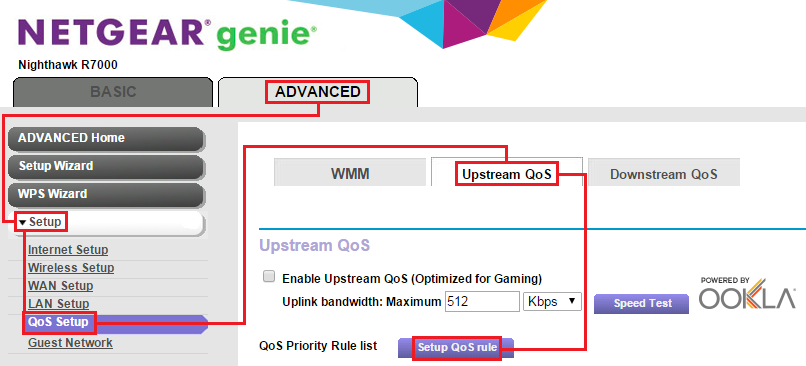
Utilize your router’s QoS settings to allocate bandwidth efficiently. Most routers allow you to set rules based on device type, application, or even specific IP addresses. Regularly review and adjust these settings as your internet usage evolves.
Test your internet speed after adjusting QoS. This helps you understand how your changes impact overall network performance. Using speed test tools can provide insights into whether certain devices are being slowed down.
Avoiding Common Pitfalls
Many users overlook the importance of regularly updating their router’s firmware. Keeping your router updated ensures you have the latest features and security improvements, which can affect QoS efficiency.
Avoid setting all devices to high priority. This defeats the purpose of QoS and can actually slow down your network. Be selective and only prioritize essential devices and applications.
Be cautious of over-complicating your QoS settings. Too many rules can create conflicts and degrade network performance. Simplify your setup by focusing on the most critical priorities.
Have you ever noticed a lag in your online gaming while someone else streams a movie? Adjusting QoS settings could be the solution you need. By optimizing these settings, you can ensure everyone gets a fair share of bandwidth without compromising on performance.

Credit: medium.com
Alternatives To Qos For Network Management
Managing your network effectively doesn’t always mean relying solely on QoS (Quality of Service). While QoS prioritizes certain types of traffic, there are other ways to keep your network running smoothly without potentially slowing down other devices. Exploring alternatives can give you more control and help you tailor your network to your specific needs.
Traffic Shaping
Traffic shaping controls the flow of data by delaying less important packets to ensure critical ones get through first. Unlike QoS, which prioritizes packets, traffic shaping smooths out bursts of traffic, preventing sudden spikes that can clog your network.
Imagine you’re streaming a video and someone else starts a large download. Traffic shaping can slow the download momentarily, so your video doesn’t buffer. This approach balances the load more evenly, which can help prevent any one device from hogging all the bandwidth.
Bandwidth Limiting
Bandwidth limiting sets a maximum speed for each device or application on your network. This can stop heavy users from consuming all the available bandwidth and ensures fair access for everyone connected.
For instance, if you have family members who love downloading games or streaming 4K movies, limiting their bandwidth can prevent your work calls from dropping. It’s a straightforward way to keep your network responsive without complex configurations.
- Set limits based on device or application type
- Adjust limits dynamically during peak hours
- Combine with monitoring tools to identify heavy users
Have you tried setting bandwidth limits before? You might find it surprisingly effective for keeping your network fair and fast.
Frequently Asked Questions
Does Qos Reduce Internet Speed For Other Devices?
QoS prioritizes bandwidth for specific devices or apps. It does not reduce overall internet speed but manages traffic efficiently to avoid congestion.
Can Qos Improve Gaming Without Slowing Others?
Yes, QoS ensures gaming traffic gets priority. This reduces lag without significantly impacting other devices’ performance on the network.
Is Qos Necessary For Home Wi-fi Networks?
QoS is useful if multiple devices compete for bandwidth. It helps maintain smooth performance by prioritizing critical tasks like video calls or streaming.
How Does Qos Affect Streaming Quality On Other Devices?
QoS allocates bandwidth to streaming apps to avoid buffering. Other devices may experience minimal impact, but overall streaming quality improves.
Conclusion
QoS helps manage internet traffic without slowing other devices. It gives priority to important data, so everything runs smoothly. Other devices still get their fair share of bandwidth. Proper setup keeps your network balanced and fair for all users. Understanding QoS clears up worries about slow connections.
Use QoS wisely to improve your online experience. It’s not about slowing devices but sharing the network better. Simple steps can make your Wi-Fi faster for everyone.