Have you ever tweaked your high-end router’s settings and ended up with more problems than solutions? Maybe your internet feels slower, or certain devices can’t connect anymore.
Don’t worry—you’re not alone. Sometimes, the simplest fix is to return your router’s settings to default. It’s easier than you think, and doing this can instantly clear out any glitches or misconfigurations holding your network back. You’ll discover exactly how to reset your high-end router step-by-step, so you can get your internet running smoothly again—fast.
Keep reading, because the solution is just a few clicks away.
Credit: www.tp-link.com
Reasons To Reset Router
Resetting a high-end routercan solve many common problems. It helps fix network issueslike slow speeds or dropped connections. Sometimes, custom settings cause conflicts. Resetting removes these and restores original settings.
Performance often improves after a reset. Routers can get slow due to many changes over time. Resetting clears all these changes and lets the router work like new.
- Fix network problemsquickly and easily
- Remove incorrect or unwanted settings
- Improve router speed and reliability
Backup Current Settings
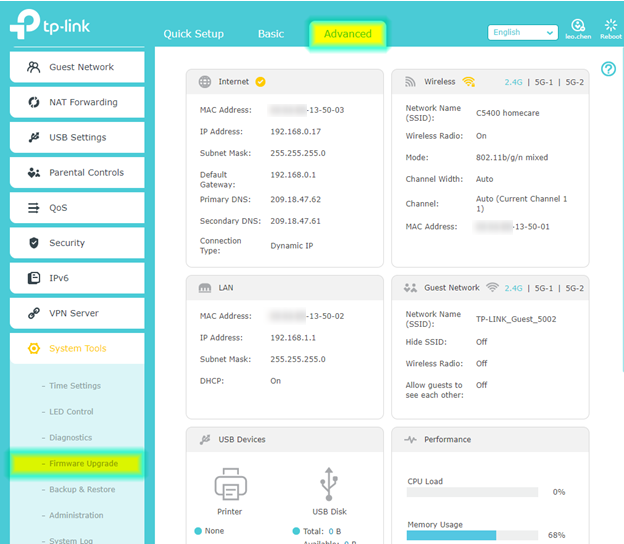
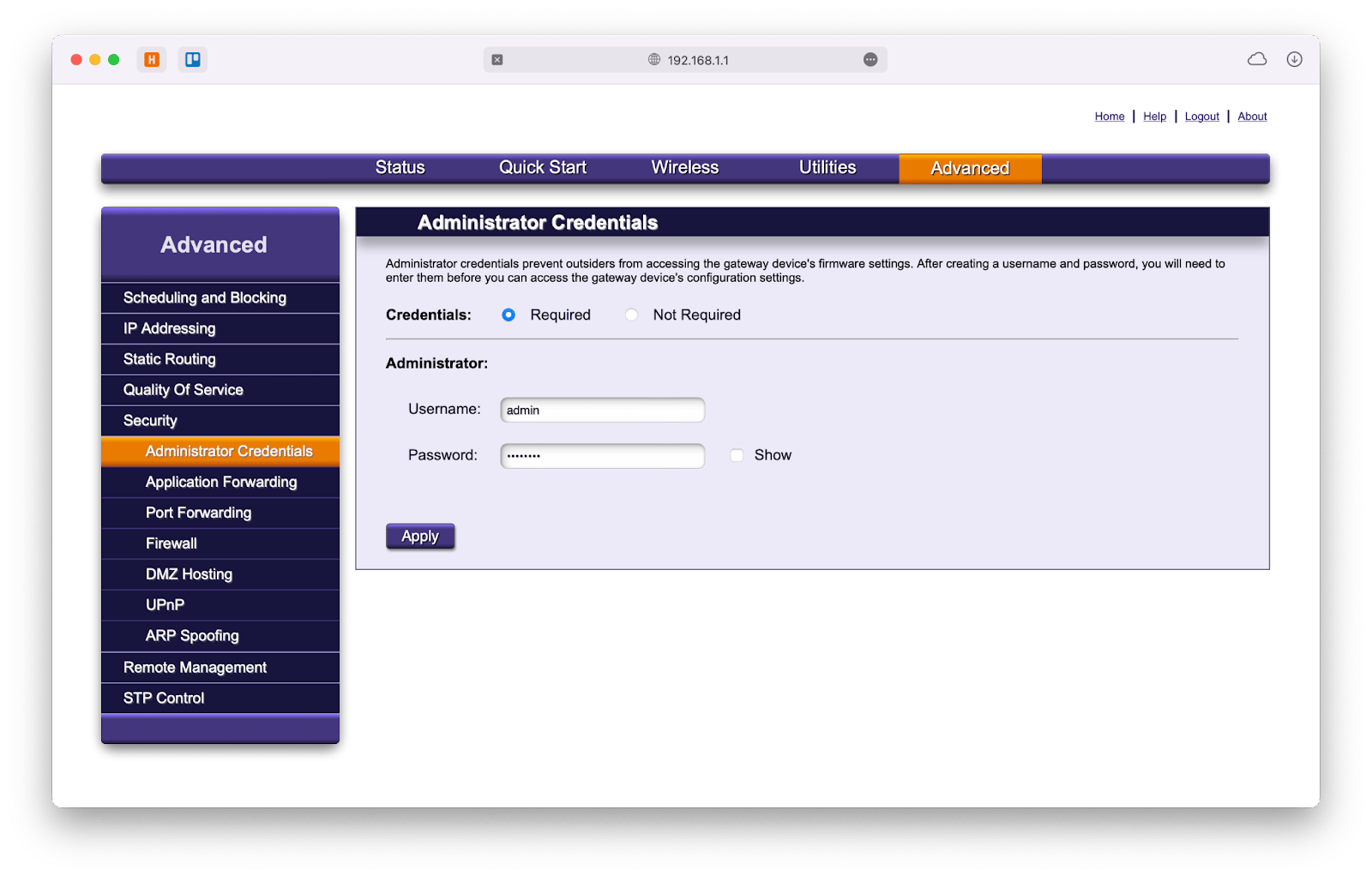
Access the router interface by typing its IP address in a web browser. Common IPs are 192.168.1.1or 192.168.0.1. Enter your usernameand passwordto log in. If you don’t know these, check the router label or manual.
Find the backupor save settingsoption in the menu. Usually under Systemor Administrationsections.
- Click on Exportor Downloadconfiguration file.
- Save this file to your computer or a USB drive.
- This file stores all your current router settings.
This backup helps restore settings if needed after resetting to default.
Reset Methods
Using Reset Buttonlets you quickly restore factory settings. Find a small hole or button on the router’s back. Use a paperclip to press and hold it for about 10 seconds. The router will reboot, and all settings will return to default.
Resetting via Web Interfacerequires logging into the router’s control panel. Enter the router’s IP address in a browser. Use your username and password to sign in. Navigate to the reset or restore section. Click the reset option to start the process. The router will restart automatically.
Reset Through Mobile Appoffers a simple way to reset settings. Open the router’s official app on your phone. Connect to your router via the app. Look for the reset or restore option in settings. Tap it to reset your router remotely. Wait for the router to reboot.
Step-by-step Reset Process
Locate the reset buttonon the back or bottom of the router. It is usually small and may need a paperclip to press.
Press and hold the reset button for about 10-15 seconds. The router will restart automatically. This process is called a hard reset.
Wait for the router lights to return to normal. This means the reset is complete. Your router settings are now back to default.
Post-reset Setup
After resetting your router, reconnect to it using the default Wi-Fi name (SSID)and password. These details are usually on a sticker at the back or bottom of the device. Use a computer or phone to join the network.
Open the router’s web interfaceby entering its default IP addressin a browser. This address is often 192.168.1.1or 192.168.0.1. Log in with the default username and password.
Reconfigure your network settingssuch as:
- Setting a new Wi-Fi nameand password
- Choosing the correct security mode(WPA2 or WPA3)
- Adjusting IP addressand DHCP settings
- Setting up guest networksif needed
Check for any firmware updatesin the router’s interface. Updated firmware can improve securityand performance. Download and install updates as instructed. Restart the router after updating.

Credit: cyberraiden.wordpress.com
Tips To Avoid Future Resets
Keep your router running smoothly by doing regular firmware updates. Updates fix bugs and add new features. This helps avoid unexpected resets. Check your router’s website or app often for updates.
Manage your router’s settings carefully. Avoid changing settings without knowing their effects. Keep a record of your configuration. This makes it easier to restore if needed.
- Save backup profilesof your current settings.
- Store backups on your computer or cloud.
- Use these backups to quickly restore settings after a reset.
Credit: setapp.com
Frequently Asked Questions
How Do I Reset My High-end Router To Factory Settings?
To reset a high-end router, press and hold the reset button for 10 seconds. This restores all settings to default. Use a paperclip if needed to reach the button. Your router will reboot, erasing all custom configurations.
Will Resetting The Router Delete My Saved Wi-fi Password?
Yes, resetting a router deletes all saved passwords and custom settings. You must reconfigure your Wi-Fi network and create a new password after reset. Keep your original network details handy for easy setup.
Can I Reset The Router Remotely To Default Settings?
Some high-end routers allow remote reset via their admin interface. Log into the router’s web portal and find the factory reset option. This requires prior setup of remote management features.
What Should I Do Before Resetting My Router?
Before resetting, back up your router settings through its admin panel. Note down your ISP details and Wi-Fi credentials. This saves time and helps restore your configuration quickly after reset.
Conclusion
Resetting your high-end router can solve many issues. It restores factory settings. Easy and effective for troubleshooting. This process helps improve network performance. Always back up important settings first. Resetting may erase custom configurations. Follow the router manual for guidance.
Each model may have different steps. Use the reset button or web interface. Keep your router’s firmware updated. This ensures optimal performance and security. With these tips, your network runs smoothly. Enjoy a stable and reliable internet connection. Troubleshooting becomes simple and stress-free.
Now, you’re ready to tackle any router issues.