Imagine being able to share your important files quickly and securely without relying on external drives or slow cloud services. If you have a high-end router, you already own a powerful tool that can make this possible.
But how exactly do you unlock this hidden feature? You’ll discover simple, step-by-step methods to share files through your router like a pro. By the end, you’ll save time, boost your network’s efficiency, and impress everyone with your tech-savvy skills.
Ready to take control of your file sharing? Let’s dive in.

Credit: www.expressvpn.com
Choosing The Right Router
Choosing the right router is key for smooth file sharing. Focus on speed, storage options, and security features. A router with USB portsallows direct connection to external drives. Look for models supporting fast Wi-Fi standardslike Wi-Fi 6 or Wi-Fi 6E to handle large files quickly.
Good routers offer easy setupand user-friendly interfacesto manage shared files. Strong encryptionkeeps your data safe from unauthorized access. Also, check for multi-device supportto allow several users to share files simultaneously.
| Router Model | Key Features | Price Range |
|---|---|---|
| ASUS RT-AX88U | Wi-Fi 6, USB 3.0 ports, strong security | High |
| Netgear Nighthawk RAX50 | Fast Wi-Fi 6, easy setup, good range | Medium-High |
| TP-Link Archer AX6000 | Wi-Fi 6, multiple USB ports, solid security | Medium |
| Linksys MR9600 | Wi-Fi 6, mesh support, fast speeds | High |
Setting Up Your Router
Begin by connecting your router to a power source and your modem. Open a web browser and enter the router’s IP address to access its settings page. Use the default username and password given in the manual to log in.
Change the default login details to improve security. Configure the network name (SSID) to something easy to recognize. Set the Wi-Fi password using WPA2 or WPA3 encryption for better protection.
Keep your router’s firmware updated to fix bugs and improve performance. Disable features you do not need, like WPS or remote management, to reduce risks.
- Use a strong, unique password for Wi-Fi and router access.
- Enable network firewall settings.
- Set up guest networks for visitors.
- Limit device access using MAC address filtering.
Enabling File Sharing Options
To share files through a high-end router, start by accessing the router’s settings. Open a web browser and enter the router’s IP address, usually found on the device or in its manual. Log in using your username and password.
Next, find the USB or Network Storagesection in the settings menu. This option allows you to connect a USB drive or enable shared storage over the network.
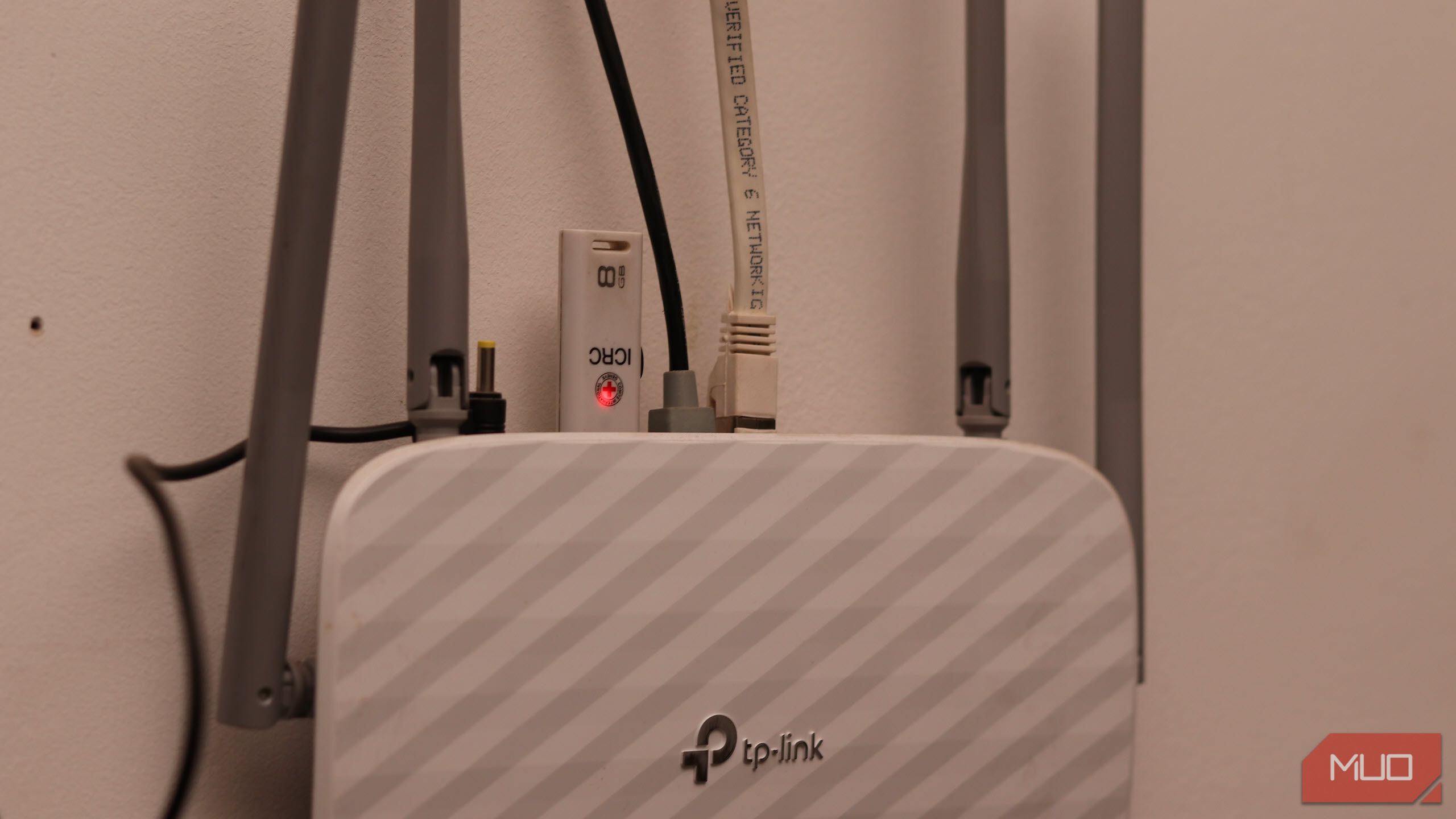
- Plug a USB drive into the router’s USB port.
- Turn on the USB storage sharingor network storageoption.
- Set permissions to control who can access the files.
- Save the settings to activate file sharing.
Once activated, devices on the network can access shared files easily.
Credit: www.makeuseof.com
Connecting Storage Devices
Connecting storage devices to a high-end router helps share files easily within a network. External hard drivescan be plugged into the router’s USB port. This allows all connected devices to access files on the drive. The router acts as a central hub for storage.
USB flash drivesalso work well for quick file sharing. Plug them directly into the router’s USB port. Files saved on the drive become available to all users on the network. This is a simple way to share documents, photos, or videos without using a computer.
| Device | Connection | Benefit |
|---|---|---|
| External Hard Drive | USB port on router | Large storage for many files |
| USB Flash Drive | USB port on router | Portable and easy to share |
Configuring Access Permissions
Creating user accountson your router is essential for controlling file access. Assign each user a unique name and password. This keeps your shared files safe and private.
Set read/write permissionsbased on what users should do:
- Read-only:Users can view and download files but cannot make changes.
- Write:Users can add, delete, or edit files in the shared folders.
Use your router’s interface to assign these permissions. You can limit access to certain folders. This helps protect important data from accidental changes or deletions.
Accessing Shared Files
Access shared files easily by connecting devices through your high-end router’s network. Simply enable file sharing settings to allow quick access from multiple devices. This setup keeps files safe while making sharing fast and simple.
From Windows Devices
Open File Explorer and type the router’s IP address in the address bar. Use \192.168.1.1or your router’s IP. Enter username and password if asked. Look for the shared folderand double-click to open. You can now copy, move, or edit filesas needed.
From Macos And Linux
Open Finder or file manager and select “Connect to Server.” Type smb://192.168.1.1and click connect. Enter your credentials if prompted. The shared folder will appear as a mounted drive. Access files easily by opening this drive.
Using Mobile Devices
- Install a file manager app that supports SMB or FTP.
- Connect to the same Wi-Fi network as the router.
- Enter the router’s IP address and login details in the app.
- Browse and manage files from your phone or tablet.
Troubleshooting Common Issues
Connectivity problems often occur due to weak Wi-Fi signals or wrong settings. Check if the router is on and cables are properly connected. Restarting the router can fix many issues quickly.
Access denied errors happen when users lack permission to see or change files. Confirm that the shared folder permissions allow access for your device or user account.
- Make sure your device is connected to the correct network.
- Verify username and password for network access.
- Check if firewall settings block file sharing.
- Ensure the shared folder is set to “read” or “read/write” for your user.
Optimizing File Transfer Speeds
Optimizing file transfer speedsstarts with the right network setup. Use wired connectionslike Ethernet cables for faster and stable transfers. Set your router’s Quality of Service (QoS)to prioritize file sharing traffic. Keep your router firmware updated to benefit from the latest performance fixes.
Hardware matters. Choose a router with USB 3.0 portsor higher for connecting external drives. Select devices that support gigabit Ethernetto avoid slowdowns. Using a high-speed SSD instead of a traditional hard drive also boosts transfer rates.
| Network Configuration Tips | Hardware Considerations |
|---|---|
|
|

Credit: tech.yahoo.com
Frequently Asked Questions
How Do I Enable File Sharing On A High-end Router?
To enable file sharing, access your router’s admin panel. Locate the USB or storage section. Enable the file sharing or media server option. Connect your external drive to the router’s USB port. Save settings, then access files via network devices.
What File Types Can I Share Through A High-end Router?
Most routers support common file types like documents, photos, videos, and music. Compatibility depends on the router’s firmware. High-end routers usually handle various formats, including PDFs, MP4s, JPEGs, and MP3s, enabling versatile file sharing across devices.
Can I Share Files Securely Using My Router?
Yes, high-end routers offer secure file sharing. Use strong passwords for shared folders. Enable encryption protocols like WPA3. Regularly update router firmware to fix vulnerabilities. These steps help protect your files from unauthorized access.
How Do I Access Shared Files From Different Devices?
Access shared files by connecting to your router’s network. On PCs, use file explorer with the router’s IP address. On smartphones, use dedicated apps or file managers supporting network shares. Ensure devices are on the same network for seamless access.
Conclusion
Sharing files via a high-end router enhances efficiency. It’s simple and secure. With the right steps, you can streamline your file sharing. Set up your router with clear instructions. Ensure your devices connect without hassle. This process saves time and effort.
Plus, it boosts productivity at home or work. Always prioritize security settings to protect data. Explore your router’s features for optimal use. Keep your network updated for best performance. Enjoy seamless sharing with your high-end router.