Imagine losing all your carefully customized router settings in a blink. Frustrating, right?
If you’ve invested in a high-end router, you deserve an easy way to protect your network setup. Backing up your router’s settings isn’t just smart—it’s essential. You’ll learn simple, step-by-step methods to save your configurations. By the end, you’ll have peace of mind knowing your network is safe and easy to restore whenever you need.
Ready to take control of your router like a pro? Let’s dive in.
Credit: www.tomshardware.com
Preparing To Back Up Router Settings
Check if your router supports backup features. Most high-end routers have this option. Find the model number on the device or packaging. Visit the manufacturer’s website to see compatibility details.
Gather tools like a computer, a stable internet connection, and an Ethernet cable. A wired connection is best for stable access to the router.
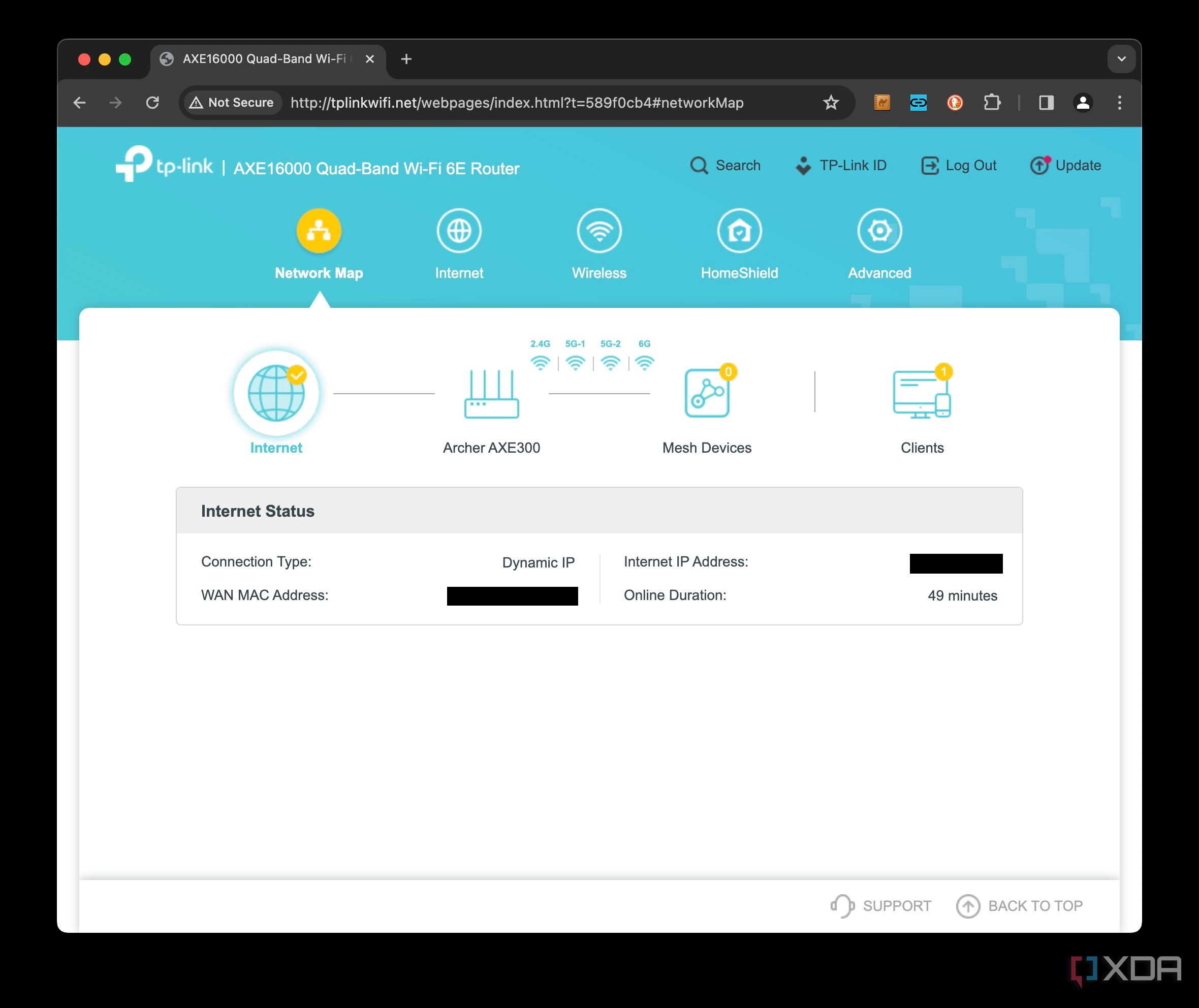
Open a web browser and enter the router’s IP address. Common addresses are 192.168.1.1or 192.168.0.1. Log in with your username and password. These are usually on a sticker on the router or in the manual.
Backing Up Settings Manually
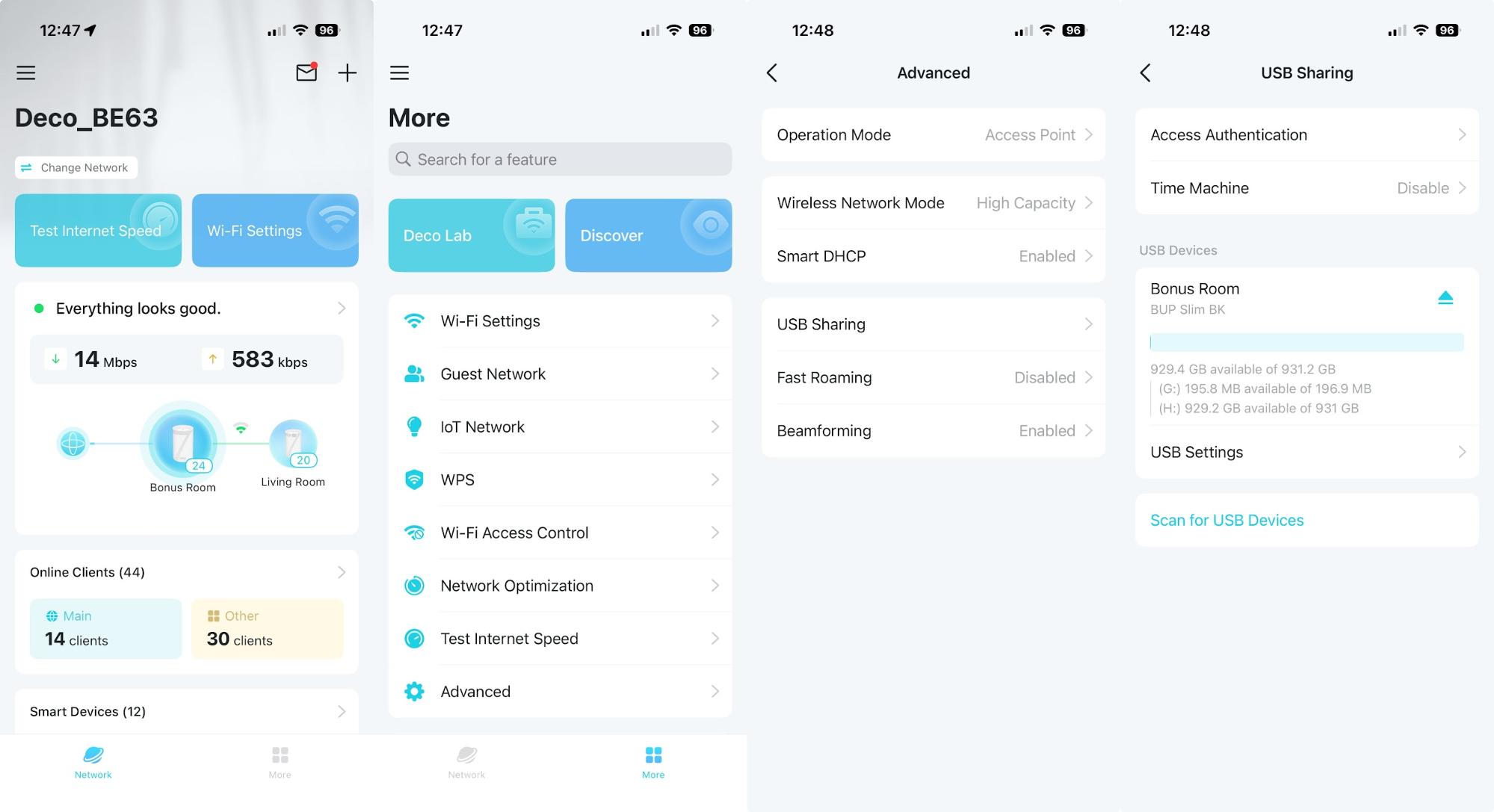
Access the router’s web interface by typing its IP address in your browser. Log in using your username and password. Find the Settingsor Administrationtab. Look for an option like Backupor Save Configuration. This is where you can save your current router settings.
Click on the backup option to download the configuration file. This file contains all your customized router settings. Keep this file safe; it helps restore settings after resets or updates.
Store the backup file in a secure place. Options include an external hard drive, USB stick, or encrypted cloud storage. Avoid saving it on shared or public devices. Protect the file with a strong password if possible.
Using Automated Backup Tools
Choosing the right backup softwareis key to keeping your router settings safe. Look for tools that support your router brand and offer easy setup. Some programs allow you to save backup files on your computer or in the cloud for extra security.
Setting up regular backup scheduleshelps protect your settings without extra work. You can pick daily, weekly, or monthly backups based on how often you change settings. Automated backups run quietly in the background, so you don’t forget.
If you need to restore your router settings, automated backups make it simple. Just select the backup file and follow the tool’s instructions. This saves time and avoids errors when restoring your network.
Credit: www.xda-developers.com
Best Practices For Router Backup
Keeping multiple backup versions helps avoid data loss. Store backups with clear dates or version numbers. This way, you can restore to an earlier setting if needed.
Securing backup files is very important. Use strong passwords and store files in safe places. Consider encrypting backups to protect sensitive information.
Updating backups after any changes ensures settings stay current. Save a new backup after modifying your router’s configuration. Regular updates keep your network running smoothly.
Troubleshooting Backup Issues
Common backup errors often arise from incorrect login credentialsor network issues. Always check your username and password before starting. Sometimes, the router’s firmware may be outdated, causing backup failures. Ensure the firmware is up to dateto avoid problems.
Fixing access problems usually means confirming the router is connected properly. Try restarting the router and your computer. Use a wired connection if the wireless signal is weak or unstable. Also, disable any firewall or antivirus temporarily, as they may block access.
Recovering lost settings can be tricky. If you saved a backup file, restore it through the router’s admin panel. If not, try resetting the router to factory settings and reconfigure manually. Always keep a copy of your backup file in a safe place.

Credit: dongknows.com
Frequently Asked Questions
How Do I Back Up Settings On A High-end Router?
To back up settings, log into your router’s admin panel. Find the backup option under system or administration settings. Export the configuration file and save it securely for future restoration.
Why Is Backing Up Router Settings Important?
Backing up router settings prevents loss during firmware updates or resets. It saves time by quickly restoring your network configurations and security settings.
How Often Should I Back Up My Router Settings?
It’s best to back up router settings after any significant change or update. Regular backups, like monthly, help protect against unexpected data loss.
Can I Restore Settings From Backup On Any Router Model?
No, backups are usually specific to your router model or firmware version. Using the wrong backup file can cause errors or failures.
Conclusion
Backing up your router settings is crucial. It prevents data loss. Simple steps can protect your network. Regular backups ensure peace of mind. Follow the guide to safeguard your settings. Always keep your backup files safe. Check them periodically for updates.
A little effort goes a long way. Secure your high-end router effectively. Protect your network today. Make sure your settings are always intact. Stay ahead of potential problems. Backing up is easy and important. Don’t wait for issues to arise.
Be proactive. Keep your network secure and efficient. Your router settings deserve protection.