Are you ready to take your online privacy and security to the next level? Using a VPN on a high-end router can protect your entire home network with just one simple setup.
Imagine streaming your favorite shows without worrying about hackers, or accessing content from anywhere in the world—all while keeping your data safe. This guide will show you exactly how to do it, step by step, so you can enjoy fast, secure internet on every device connected to your router.
Keep reading to unlock the full power of your high-end router with a VPN.

Credit: www.expressvpn.com
Choosing The Right Router
Choosing a router that supports VPN is very important. Some routers do not work with all VPN services. Check the router’s firmware to see if it supports VPN connections. Look for routers with strong processors to handle VPN encryption fast. Enough memory helps the router run smoothly with VPN on.
Many high-end routers come with built-in VPN clients. This makes setup easy and saves time. Make sure the router supports the VPN protocol your service uses, like OpenVPN or IPsec. Some routers allow you to install custom firmware for more VPN options.
Here is a simple table showing key features to check:
| Feature | Why It Matters |
|---|---|
| VPN Protocol Support | Ensures compatibility with your VPN service |
| Processor Speed | Faster encryption and smooth performance |
| Memory Size | Better handling of multiple connections |
| Built-in VPN Client | Easier VPN setup and management |
| Custom Firmware Support | More VPN options and features |
Selecting A Vpn Service
Selecting a VPN service for your high-end router means checking a few key things. The VPN should offer strong security featureslike encryptionand no-logs policy. Fast connection speedsmatter to avoid slow internet. Look for easy setupguides for routers. The VPN must support multiple devicesand have good customer support.
| VPN Provider | Router Support | Security Features | Speed | Ease of Use |
|---|---|---|---|---|
| ExpressVPN | Yes | Strong encryption, No logs | Fast | Easy setup |
| NordVPN | Yes | Double VPN, No logs | Fast | Simple guides |
| Surfshark | Yes | Encryption, No logs | Good | User-friendly |
- Strong encryptionkeeps your data safe.
- A strict no-logs policyprotects privacy.
- Fast serversavoid slow internet.
- Wide router supportensures easy setup.
- Reliable customer servicehelps with problems.
Preparing Your Router
Accessing your router’s settings is simple. Open a web browser and type the router’s IP address, usually something like 192.168.1.1. Enter the username and password. These are often on the router or in its manual. Once logged in, you can change important settings.
Updating the router’s firmware keeps it secure and working well. Check the firmware versionin the settings menu. Visit the router maker’s website to find the latest update. Download and install it carefully. This can fix bugs and add new features.
Configuring Vpn On Your Router
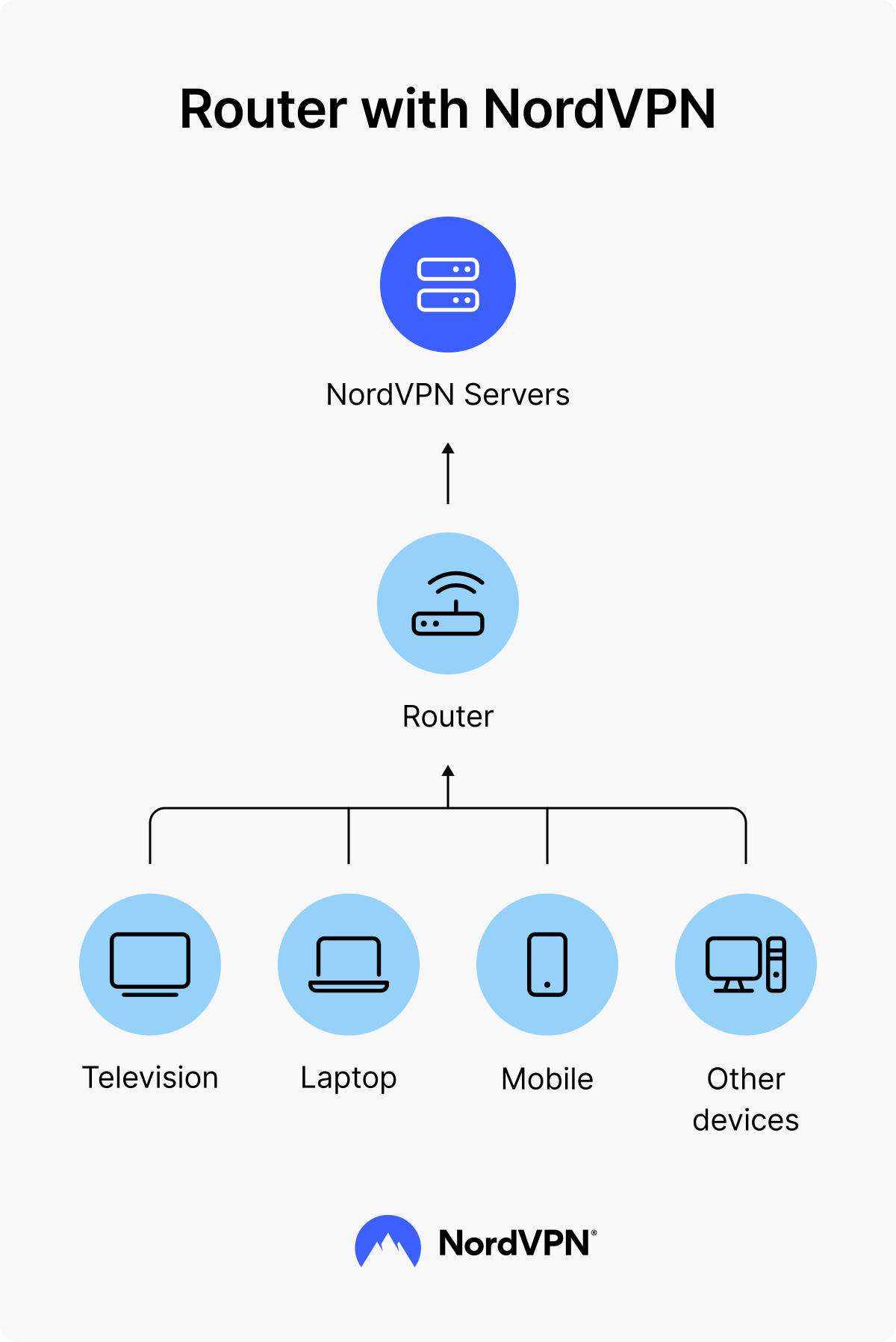
OpenVPN is a popular choice for router VPN setups. It uses strong encryption to keep data safe. Most high-end routers support OpenVPN through their control panel. Upload the VPN config file provided by your VPN service. Enter server address, port, and protocol details as needed. Enable the VPN client and save settings. This lets all devices on your network connect through the VPN.
L2TP/IPSec and PPTP are other VPN protocols routers may support. L2TP/IPSec is more secure than PPTP but can be slower. PPTP is faster but less secure. Choose the protocol supported by your VPN provider and router. Enter the VPN server’s IP address, your username, and password. Make sure to enable encryption options if available.
| VPN Credential | Description |
|---|---|
| Username | The name you use to log in to your VPN account. |
| Password | Your secret key to access the VPN service. |
| Server Address | The VPN server’s IP or domain name to connect to. |
| Pre-shared Key | Used with L2TP/IPSec for extra security during connection. |
Testing And Troubleshooting
To check the VPN connection, open your router’s status page. Look for the VPN section. It should show as connectedor active. You can also visit websites that show your IP address. The IP should match your VPN location, not your real one.
Common issues include slow internet, no connection, or VPN disconnecting often. Slow speed can happen if the VPN server is too far. Try a closer server. No connection often means wrong login details or server address. Double-check these settings.
| Issue | Possible Cause | Fix |
|---|---|---|
| Slow internet | Far VPN server | Choose a closer server |
| No VPN connection | Wrong login or server | Check username and server address |
| VPN disconnects often | Unstable internet or router | Restart router and check internet |
Credit: nordvpn.com
Optimizing Vpn Performance
Adjusting encryption settings can help balance securityand speed. Stronger encryption means better privacy but slower internet. Choose AES-128for a good mix of safety and fast connection. Some routers support different protocols like OpenVPNor WireGuard. WireGuard often offers faster speedswith strong encryption. Test your VPN speed after changing settings to find the best option.
Managing bandwidth is key to keep your connection smooth. Limit VPN use on devices that do not need it. This saves bandwidthfor important tasks. Use Quality of Service (QoS) settings on your router to prioritize VPN traffic. This keeps your games and video calls stable. Avoid running many devices on VPN at once to prevent slowdowns.
Advanced Vpn Features
Split tunnelinglets you choose which apps use the VPN. This saves bandwidth and speeds up your connection. You can keep some apps on your normal internet while others stay protected by the VPN. This feature is handy for gaming or streaming where you want less delay.
The VPN kill switchstops internet if the VPN drops. This keeps your data safe at all times. No internet means no leaks. It is important for privacy, especially when using public Wi-Fi.
| Feature | Purpose | Benefit |
|---|---|---|
| Split Tunneling | Choose apps using VPN | Save bandwidth, faster speeds |
| VPN Kill Switch | Blocks internet if VPN fails | Protects data from leaks |
Maintaining Vpn Security
Keeping your VPN secure on a high-end router means staying up to date. Regular firmware updatesfix bugs and close security holes. These updates help your router run smoothly and protect your data from hackers.
Changing VPN credentials often is also important. Use strong passwords and update them regularly. This makes it harder for anyone to guess or steal your login details.
- Firmware updates:Check for updates monthly or as recommended.
- VPN credentials:Change passwords every few months.
- Use strong passwords:Mix letters, numbers, and symbols.
- Backup settings:Save your router settings before updating.

Credit: www.expressvpn.com
Frequently Asked Questions
How Do I Set Up Vpn On A High-end Router?
To set up VPN, access your router’s admin panel. Enter VPN credentials provided by your VPN service. Enable VPN client mode and save settings. This secures all devices connected to your network with VPN protection.
Can All High-end Routers Support Vpn Connections?
Most high-end routers support VPNs, but check for VPN client compatibility. Look for routers with built-in VPN features or firmware like OpenWrt or DD-WRT. Ensure your router’s hardware can handle VPN encryption without slowing performance.
What Are The Benefits Of Using Vpn On A Router?
Using VPN on a router protects all connected devices simultaneously. It hides your IP address, encrypts data, and bypasses geo-restrictions. This enhances privacy and security across your entire home network without installing VPN on every device.
How Do I Choose The Best Vpn For My Router?
Choose a VPN with strong encryption, fast speeds, and good router compatibility. Verify it supports OpenVPN or WireGuard protocols. Also, check for reliable customer support and a no-logs policy to ensure privacy and smooth setup.
Conclusion
Setting up a VPN on a high-end router enhances online security. It ensures your data stays private while browsing. This guide simplifies the process for you. Follow each step carefully to secure your network. A VPN on your router protects every connected device.
Enjoy safe browsing without extra effort. This setup offers peace of mind in today’s digital world. Your online activities remain confidential and secure. Remember, a secure network is a smart choice. Stay protected and enjoy the internet safely.