Is your high-end router acting up, slowing down your connection, or refusing to connect your devices? You’re not alone.
Sometimes, the best way to fix these issues is to reset your router. But with advanced models, this process can feel tricky or overwhelming. Don’t worry—this guide will walk you through simple, clear steps to reset your high-end router safely and effectively.
By the end, you’ll have your network running smoothly again, without any guesswork or frustration. Ready to take control of your internet? Let’s dive in.
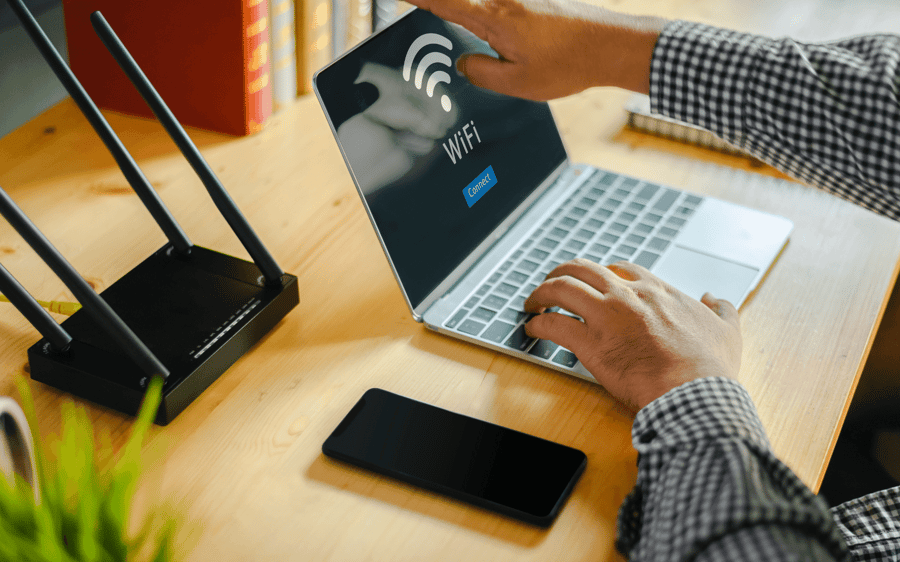
Credit: www.yolo.co.za
Reasons To Reset Your Router
Resetting a router can fix many performance issues. Slow internet or frequent disconnects often mean the router needs a reset.
Forgotten passwords block access to the router’s settings. Resetting restores default login info.
Firmware updates sometimes require a reset to apply new changes. This keeps the router secure and working well.
Types Of Router Resets
A soft resetrestarts the router without changing settings. It helps fix minor issues like slow connections or freezing. This reset clears temporary memory but keeps your network setup intact.
A hard resetrestarts the router and deletes some settings like passwords or customizations. It returns the device to default network settings but keeps the firmware and user data untouched. Use this to fix bigger problems.
A factory resetwipes all settings and restores the router to original factory conditions. It deletes passwords, user data, and customizations. Use this only if other resets don’t work or you want to start fresh.
Preparation Steps Before Reset
Backing up your router’s current settings is very important. This saves your Wi-Fi name, password, and other details.
Write down all the key settings before resetting. This helps to restore the router easily.
Check the power supply to make sure the router will not lose power during reset. A sudden power loss can cause problems.
- Save configuration file:Use the router’s software to export settings.
- Record network name:Note the SSID and password.
- Verify power source:Ensure stable electricity or use a UPS.
Step-by-step Reset Process
The reset buttonis usually small and recessed. Use a paperclip or pin to press it. You can find it at the back or bottom of the router.
A soft resetrestarts the router without changing settings. Just turn it off, wait 10 seconds, then turn it on again. This helps solve minor issues.
A hard resetrestores default settings but keeps some data. Press and hold the reset button for 10 to 15 seconds. Release it when lights blink or change.
A factory reseterases all settings and restores the router to original state. Hold the reset button for 30 seconds or more. The router will reboot with default settings.
Post-reset Setup
Restoring a backup is the fastest way to get your router settings back. It saves time and avoids mistakes. Locate your backup file, usually saved on your computer. Upload it through the router’s admin page. This brings back your old network names and passwords.
Reconfiguring network settings helps when no backup is available. Set your Wi-Fi name (SSID) and password again. Choose a strong password to keep your network safe. Adjust other settings like IP addresses or parental controls as needed.
Updating firmware keeps your router secure and fast. Check the router’s admin page for update options. Download and install the latest version carefully. Restart the router after updating to apply changes.

Credit: manuals.plus
Troubleshooting Common Issues
Reset Button Not Workingcan happen if the button is stuck or dirty. Gently press and hold the button for at least 10 seconds. Use a paperclip if the button is small. Make sure the router is plugged in and powered on during this process.
Router Not Responding After Resetmight mean the reset did not complete. Unplug the router for 30 seconds, then plug it back in. Wait a few minutes for it to restart. Check if the lights return to normal. If not, try resetting again or consult the manual.
- Connection Problemsoften occur after reset because settings are lost.
- Re-enter your Wi-Fi name and password in the router settings.
- Update your device’s network settings to connect to the new network.
- Restart your devices to refresh the connection.
Tips To Maintain Router Performance
Keeping your router working well needs some simple care. Regular firmware updatesfix bugs and add new features. These updates protect your router from security risks.
Secure password practicesstop others from using your network. Use a strong password with letters, numbers, and symbols. Change it often to stay safe.
Optimal placementhelps your router send a strong signal. Place it high and near the center of your home. Avoid walls and metal objects that block the signal.

Credit: www.familyhandyman.com
Frequently Asked Questions
How Do I Safely Reset A High-end Router?
To reset safely, first back up your settings. Press and hold the reset button for 10-15 seconds. Release when lights blink. This restores factory defaults without hardware damage.
When Should I Reset My High-end Router?
Reset your router if it’s slow, unresponsive, or has connectivity issues. Also reset after firmware updates or configuration errors.
Will Resetting Delete All My Router Settings?
Yes, a reset erases custom settings like passwords and network names. You must reconfigure your router after resetting.
How Can I Reset My Router Without Losing Settings?
Use the router’s web interface to reboot or restart. A full factory reset always erases settings.
Conclusion
Resetting a high-end router can fix many issues. Follow the steps carefully. Ensure you understand each process before proceeding. A reset restores factory settings and solves connectivity problems. Always backup important settings first. This practice saves time later. Resetting helps maintain smooth internet access.
Remember, patience is key during this process. Troubleshooting becomes easier with these simple steps. Your router performs better with regular resets. Staying informed makes tech tasks less daunting. Enjoy a seamless online experience with your well-functioning router.