Is your old router slowing down your internet or causing constant connection drops? Upgrading to a high-end router can transform your online experience, giving you faster speeds, stronger signals, and better security.
But replacing your router might seem confusing or technical. Don’t worry—you’re about to discover a simple, step-by-step way to swap out your old router with a powerful new one. By the end, you’ll enjoy smoother streaming, quicker downloads, and a network that truly keeps up with your needs.
Keep reading to make your upgrade effortless and effective!
Choosing The Right Router
Assess your network needsbefore buying a new router. Think about how many devices connect to your internet. Consider the size of your home or office. Faster internet plans need a router that supports higher speeds.
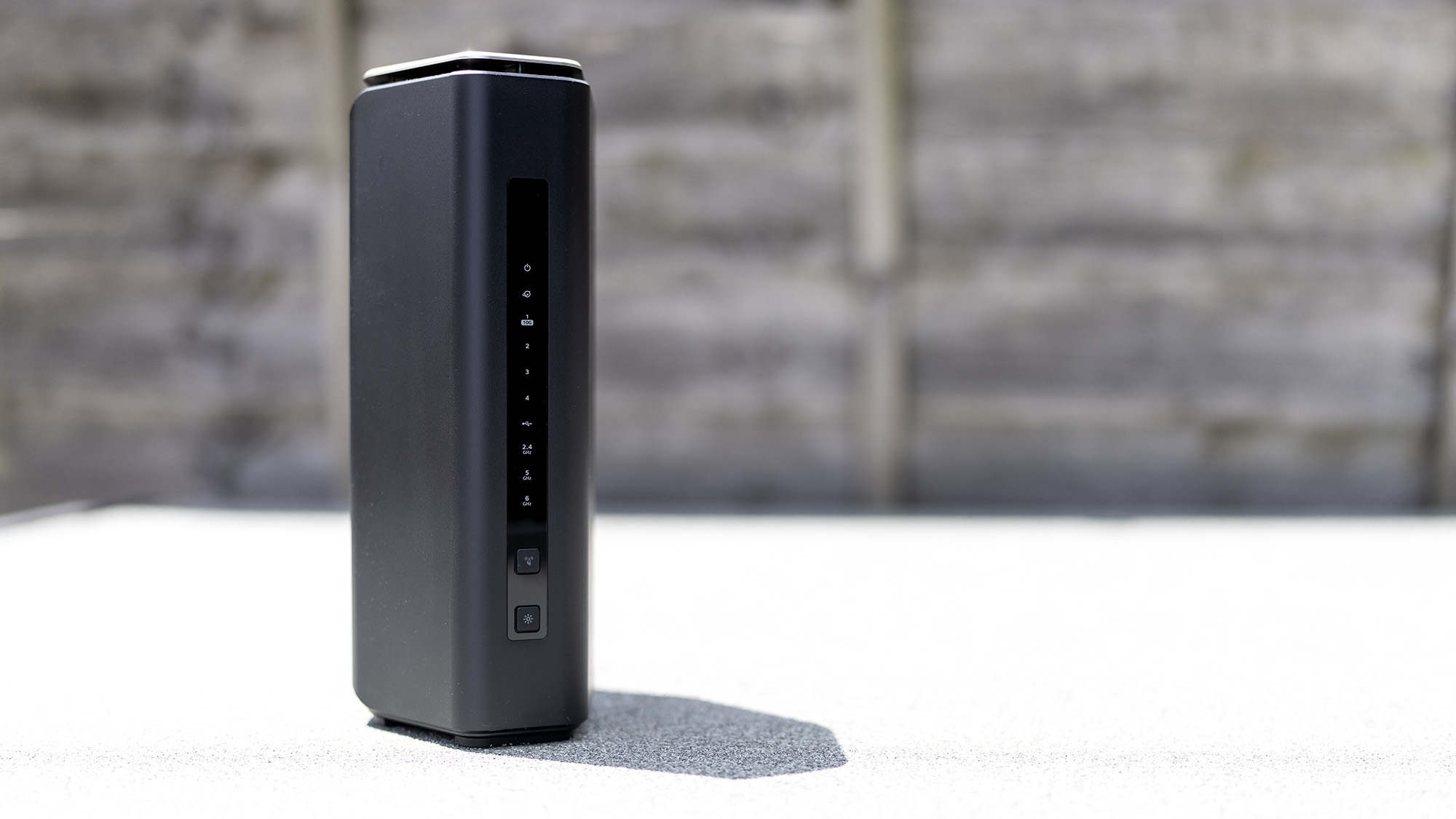
Look for key features like Wi-Fi 6 support, which offers better speed and range. Dual-band or tri-band routers help reduce interference. Gigabit Ethernet ports allow faster wired connections. Security features like WPA3 keep your network safe.
| Router Model | Wi-Fi Standard | Bands | Max Speed | Price Range |
|---|---|---|---|---|
| Model A | Wi-Fi 5 | Dual-Band | 1.3 Gbps | Low |
| Model B | Wi-Fi 6 | Dual-Band | 3 Gbps | Medium |
| Model C | Wi-Fi 6 | Tri-Band | 6 Gbps | High |
Credit: www.pcgamer.com
Preparing For The Upgrade
Backing up your current router settings saves time later. Access your router’s admin page through a web browser. Find the backup or export option and save the file on your computer. This file helps restore settings if needed.
Gather tools like a screwdriver, Ethernet cables, and your new router’s manual. These help during installation and setup. Keep them close for easy access.
| Compatibility Check | Details |
|---|---|
| Internet Type | Ensure the new router supports your internet connection (DSL, Cable, Fiber). |
| ISP Requirements | Check if your Internet Service Provider needs specific settings or devices. |
| Device Connections | Make sure the new router has enough ports for your devices. |
| Wi-Fi Standards | Look for support of the latest Wi-Fi standards (like Wi-Fi 6). |
Removing The Old Router
Begin by unplugging the router’s power cableto ensure safety. Avoid pulling cables forcefully to prevent damage. Hold the plug firmly and pull it out gently.
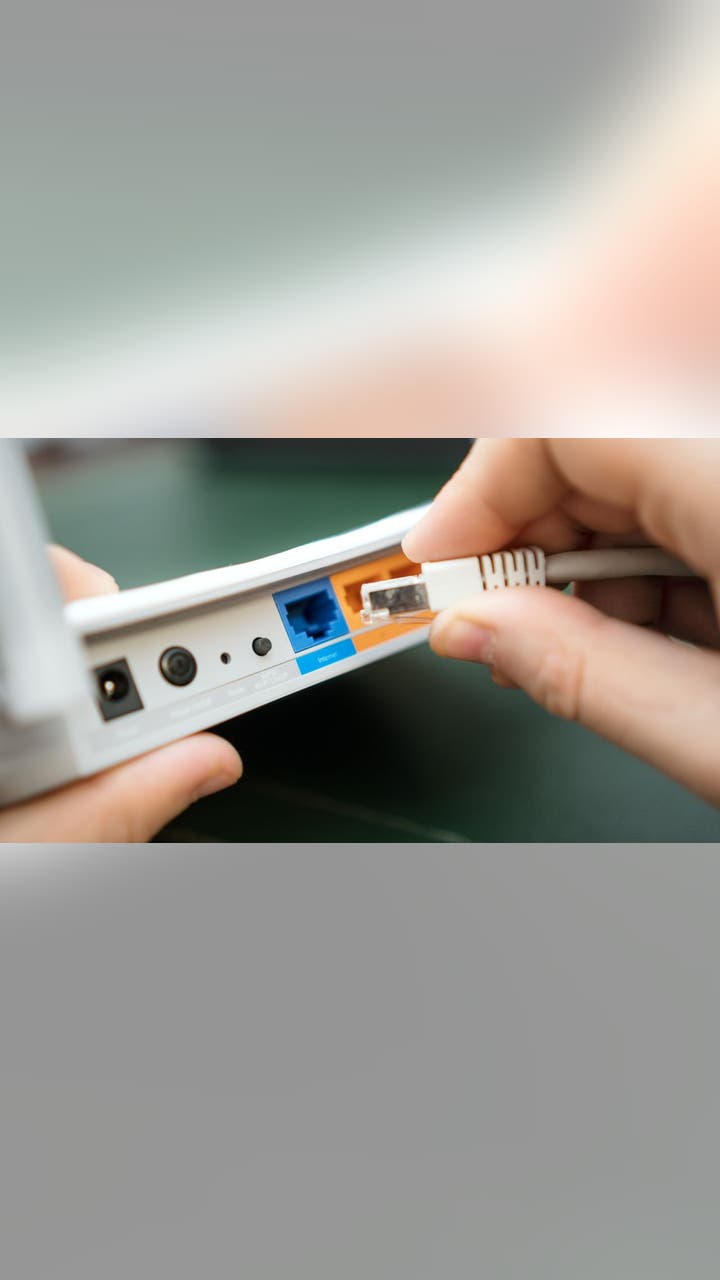
Next, disconnect all connected cables, such as Ethernet and phone lines. Keep track of where each cable was plugged in. This makes setting up the new router easier.
Turn off the router properly if it has a power button. This helps avoid electrical issues. Wait a few minutes before removing it from its place.
Handle the old router with care to avoid drops or damage. You might want to keep it as a backup or recycle it responsibly. Check local e-waste rules for disposal options.
Setting Up The New Router
Begin by connecting the new router to your modem using an Ethernet cable. Plug the power adapter into the router and then into a power outlet. Make sure all cables are snug and secure. Turn on the router and wait for the lights to stabilize. This shows the device is ready for setup.
Open a web browser on a connected device and enter the router’s default IP address. Use the login details found in the router’s manual to access the setup page. Follow the on-screen instructions to configure internet settings. Choose the type of connection your internet service provider uses.
- Change the default username and password to something strong.
- Set up a unique Wi-Fi network name (SSID).
- Create a secure Wi-Fi password using letters, numbers, and symbols.
- Enable WPA3 or WPA2 encryption for best security.
- Turn on the router’s firewall to block unwanted access.
Optimizing Router Performance
Updating firmwarekeeps your router secure and fast. Check the manufacturer’s website for the latest update. Install it carefully to avoid problems.
Adjusting settings can improve speed and performance. Change the Wi-Fi channel to avoid interference. Set the network name and password for safety. Enable Quality of Service (QoS) to prioritize important devices.
Positioning the router well helps cover your whole home. Place it high and central, away from walls and metal objects. Avoid placing it near microwaves or cordless phones. This reduces signal blockage and boosts coverage.
Troubleshooting Common Issues
Connectivity problemsoften come from weak signals or wrong settings. Move your router to a central spot in your home. Keep it away from walls and metal objects. Check if the cables are tight and not damaged.
Slow speedsmay happen if many devices use the internet at once. Close apps that use a lot of data. Update your router’s firmware to fix bugs. Changing your Wi-Fi channel can reduce interference from neighbors.
Resetting and reconfiguringcan solve many issues. Press the reset button for 10 seconds to start fresh. After resetting, log into the router’s settings page. Use the instructions to set up your network again.
Maintaining Your Router
Keep your router software up to date. Updates fix bugs and improve security. Check for updates regularly, at least once a month.
Watch your network for unusual activity. Strange slowdowns or unknown devices can mean security issues. Change passwords often to stay safe.
Consider upgrading your router again if you notice:
- Slow internet speeds despite good service.
- New devices that need better Wi-Fi support.
- Frequent connection drops or weak signals.
Credit: www.foxnews.com

Credit: www.expressvpn.com
Frequently Asked Questions
How Do I Choose The Best High-end Router?
Select a router based on speed, coverage, and features. Consider Wi-Fi 6 support and multiple antennas. Read reviews to ensure reliability and security options.
What Steps Are Involved In Replacing An Old Router?
Unplug the old router, connect the new one to your modem, and power it on. Configure settings via the router’s web interface or app.
How Can I Transfer Settings From My Old Router?
Export your old router’s settings if supported. Otherwise, manually input network names, passwords, and custom configurations on the new router.
Will A High-end Router Improve My Internet Speed?
Yes, a high-end router can boost speed by supporting faster Wi-Fi standards and better signal distribution. Actual speed depends on your internet plan.
Conclusion
Upgrading your router is a smart move for faster internet. It’s not hard to do. First, choose a router that fits your needs. Next, follow the setup steps in the manual. Connect cables as instructed. Test your new connection. Enjoy better speed and reliability.
A new router can improve your online experience. Streaming, gaming, and browsing become smoother. Troubleshooting becomes easier too. Your home network feels more modern and efficient. Now, you’re ready to explore the digital world with ease.