Are you tired of your devices constantly switching IP addresses and causing connection issues? Setting a static IP on your high-end router can solve this problem, giving you greater control and stability over your network.
Imagine never having to worry about dropped connections or complicated troubleshooting again. In this guide, you’ll learn exactly how to set a static IP step-by-step, even if you’re not a tech expert. Keep reading to take full control of your network and enjoy a smoother, more reliable internet experience.
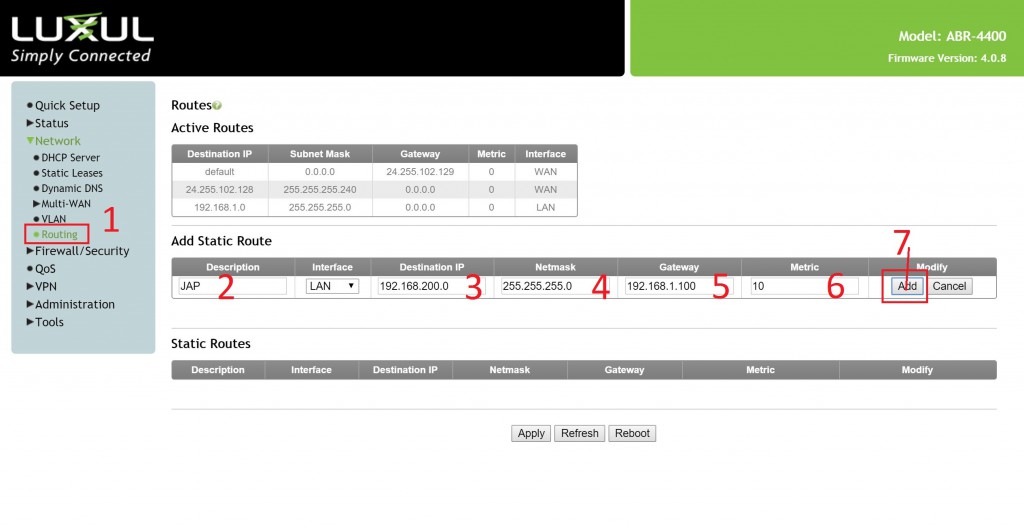
Credit: www.blackwiredesigns.com
Benefits Of Static Ip
Static IPhelps keep your network stable. Devices always get the same address. This stops connection problems caused by changing IPs. It means less downtime and smoother internet use.
Security gets better too. Static IP allows easy control over who connects. You can set rules for trusted devices only. This reduces risks of unwanted access.
- Improved network controlwith fixed addresses.
- Easier device trackingand management.
- Simplified setupof services like printers and cameras.
Preparing Your Router
Access the router by typing its IP addressinto a web browser. Common addresses include 192.168.1.1or 192.168.0.1. Use the admin username and passwordto log in. These details are often on the router label or in the manual.
Gather important info before setting the static IP. This includes:
- Current IP addressof your device
- Subnet mask(usually 255.255.255.0)
- Default gateway(router’s IP address)
- DNS server addresses(can be from your ISP or public ones like Google DNS)
Write down this information. It helps to avoid mistakes during setup.
Setting Static Ip On Router
Access the router’s web interface by typing its IP address in a browser.
Login using your username and password. Look for the LAN Settingsor similar section.
Choose the device or enter the IP address you want to set as static.
Type the desired static IP address. Make sure it is outside the DHCP range to avoid conflicts.
| Setting | What to Enter |
|---|---|
| Subnet Mask | Usually 255.255.255.0 |
| Gateway | The router’s IP address, often 192.168.1.1 |
Save the settings and restart the router if needed. The static IP will now be active.
Configuring Dns Settings
Choosing DNS serversis key for your router’s performance and security. Use reliable DNS providers like Google (8.8.8.8), Cloudflare (1.1.1.1), or OpenDNS (208.67.222.222). These servers help with faster and safer internet browsing.
Entering DNS informationusually happens in your router’s settings under the DNS or network section. Enter the primary and secondary DNS server addresses carefully to avoid connection issues.
| DNS Provider | Primary DNS | Secondary DNS |
|---|---|---|
| Google DNS | 8.8.8.8 | 8.8.4.4 |
| Cloudflare DNS | 1.1.1.1 | 1.0.0.1 |
| OpenDNS | 208.67.222.222 | 208.67.220.220 |
Saving And Testing Settings
After entering the static IP details, click on the Saveor Applybutton. This action stores the new settings into the router’s memory.
The router may reboot to activate the changes. Wait a few moments for it to restart fully.
To confirm the new IP is working, check your device’s network status. Look for the assigned static IP address under network settings.
Try opening a website or pinging a common address to test the internet connection.
- Ensure the device uses the static IP and connects without issues.
- Verify no IP conflicts with other devices on the network.
- Restart the device if the connection does not work immediately.
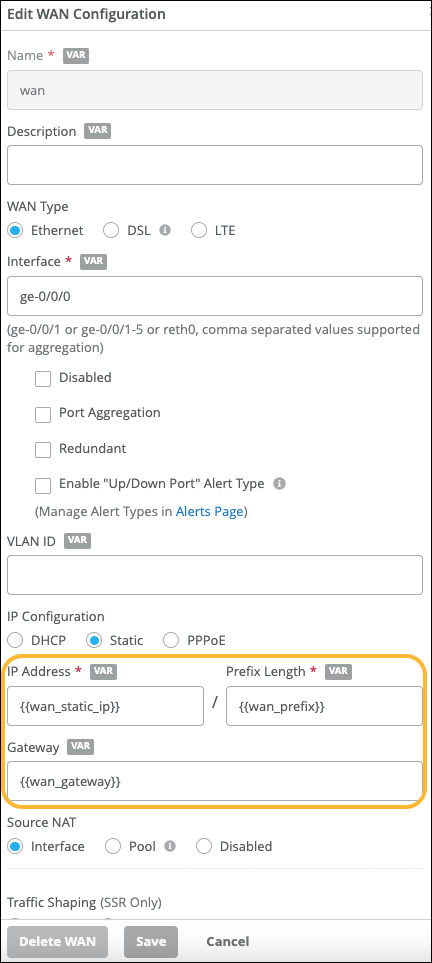
Credit: www.juniper.net
Troubleshooting Common Issues
IP conflictsoccur when two devices share the same static IP address. This causes network problems and connection drops. Check your router’s DHCP range and assign static IPs outside this range to avoid conflicts.
Connection failuresmay happen due to incorrect IP settings. Verify the subnet mask, gateway, and DNS addresses. Ensure the static IP matches your network’s address scheme.
Resetting router settings can fix persistent issues. This returns the router to factory defaults. Save your configuration before resetting, as all custom settings will be lost. After reset, reconfigure your static IP carefully.

Credit: pureinfotech.com
Frequently Asked Questions
What Is A Static Ip And Why Use It On High-end Routers?
A static IP is a fixed address assigned to a device. It ensures consistent network identification, improving remote access and device management on high-end routers.
How Do I Assign A Static Ip On My Router?
Access your router’s admin panel via a browser. Navigate to LAN settings, then manually enter the desired IP and MAC address. Save and reboot the router.
Can Static Ip Improve My Network Security?
Yes, static IPs allow better control over connected devices. They help restrict unauthorized access and simplify firewall and security rule management.
What Common Issues Arise When Setting Static Ips?
Conflicts occur if two devices share the same IP. Incorrect subnet masks or gateway addresses can disrupt network connectivity and access.
Conclusion
Setting a static IP on your high-end router is straightforward. It ensures stable and consistent network performance. Follow each step carefully to avoid errors. Secure and reliable connections are crucial for seamless internet usage. A static IP simplifies network troubleshooting and management.
It also enhances your online experience. Remember to double-check your settings for accuracy. Static IPs can help in many networking tasks. Make sure your router’s firmware is updated. This ensures compatibility and security. Enjoy a more efficient and stable network environment.
With practice, setting a static IP becomes second nature.