Are you struggling with weak WiFi signals in certain corners of your home? Frustrated because your streaming video buffers or your video calls drop?
You’re not alone. Many people face this issue, and the good news is there’s a simple fix: a dual-band WiFi extender. But what if your router doesn’t have a WPS button? Don’t worry; setting up a dual-band WiFi extender without WPS is easier than you might think.
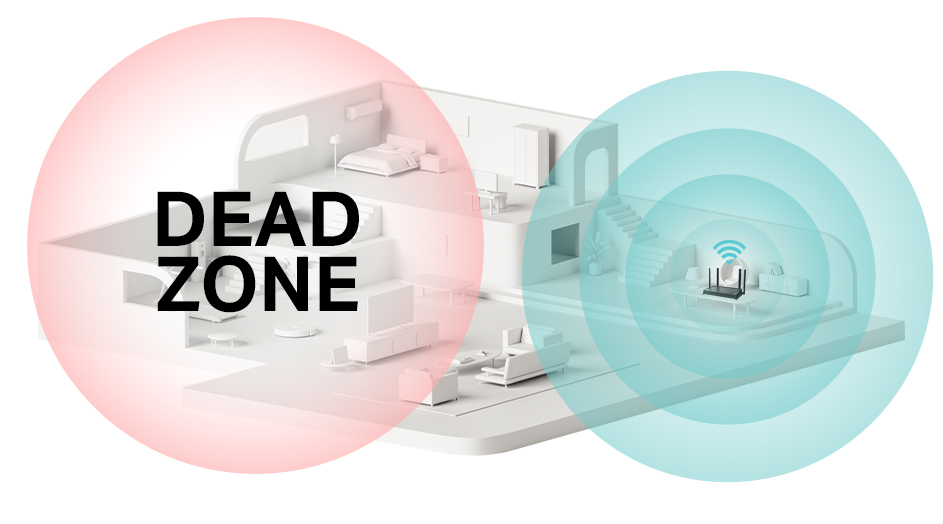
In this guide, you’ll discover straightforward steps to boost your WiFi signal, ensuring seamless connectivity across your entire home. Get ready to say goodbye to WiFi dead zones and hello to uninterrupted browsing. Dive in to find out how!
Choosing The Right Wifi Extender
Dual band wifi extendersuse two frequency bands: 2.4 GHz and 5 GHz. This helps in better coverageand faster speeds. Look for extenders that support both bands for flexible use. The 2.4 GHz band works well for long-range but slower speeds. The 5 GHz band is faster but covers a shorter distance.
Check if the extender supports the latest wifi standardslike 802.11ac or 802.11ax. These standards offer better performance and stability.
| Feature | Why It Matters |
|---|---|
| Dual Band Support | Allows use of both 2.4 GHz and 5 GHz frequencies |
| Wifi Standard | Ensures faster and stable connection |
| Compatibility | Works well with your existing router |
Compatibility with your routeris key. Match the extender’s wifi standard with your router’s. Check if your router supports dual band. Some extenders need specific settings or apps. Confirm these before buying. This avoids connection issues and ensures smooth setup.

Credit: m.youtube.com
Preparing For Setup
Place the extenderhalfway between your router and the area with weak WiFi. Avoid walls or large objects that block signals. Make sure the extender is near a power outlet.
Collect your network detailsbefore setup. This includes your WiFi name (SSID)and password. You will need this information to connect the extender to your network.
- Check your router’s WiFi name and password on a label or in settings.
- Have your extender’s default login info ready (usually in the manual).
- Ensure your device (phone or laptop) is connected to the main WiFi network during setup.
Connecting Without Wps
First, connect your computer or phone to the extender’s WiFi network. This network usually has the extender’s name or “EXT” at the end. Open a web browser and type the extender’s IP address into the address bar. Common IPs are 192.168.0.1or 192.168.1.1, but check your extender’s manual for the exact address.
A login screen will appear. Enter the default username and password. These are often “admin” for both fields. If unsure, look at the label on the extender or the user manual.
Once logged in, you can start setting up your extender. This method avoids the need for WPS and gives you full control over settings.
Credit: www.tp-link.com
Configuring Dual Band Settings
Select the 2.4 GHz networkfrom the extender’s settings page. This band covers a wider area but offers slower speeds. Make sure the network name (SSID) matches your main router’s 2.4 GHz band. Enter the correct password to connect securely. This ensures devices can communicate properly.
Choose the 5 GHz networknext for faster speeds but shorter range. This band is less crowded and good for high-speed tasks. Confirm the SSID matches your router’s 5 GHz network. Type in the correct password to link the extender to this band.
| Setting | Details |
|---|---|
| SSID | Set unique names for both 2.4 GHz and 5 GHz bands. |
| Password | Use strong passwords for both bands to secure your network. |
| Match Router | SSID and password should match the main router’s settings. |
Finalizing The Setup
Ensure both bands are connected to your main router’s network for stable signals. Check the extender’s settings to confirm proper configuration and test the connection speed. Adjust the placement for optimal coverage before completing the setup.
Saving Settings
After entering all network details, click the saveor applybutton on the extender’s setup page. This action stores your settings in the device. Wait a few moments as the extender reboots or updates its connection. Do not unplug the device during this time. Proper saving ensures the extender connects correctly to your main router.
Testing The Connection
Check if the extender’s WiFi is visible on your phone or computer. Connect to the extender’s network using the password you set. Open a website or stream a video to see if the internet works smoothly. Move around your home to test the signal strength in different areas. If the connection is weak, try repositioning the extender for better coverage.
Troubleshooting Common Issues
Extender Not Connecting to Routercan happen due to wrong network name or password. Check if the extender is within rangeof the router. Restart both devices to refresh their connection. Make sure the router’s SSID broadcastis on.
Slow Speeds on Extended Networkmay be caused by interference or distance. Move the extender closer to the router but not too close. Avoid walls and metal objects between devices. Use the 5GHz band for faster speeds if possible.
Resetting the Extenderclears old settings and fixes many issues. Find the reset button, usually a small hole. Press it with a pin for about 10 seconds until lights blink. After reset, set up the extender again from scratch.

Credit: www.youtube.com
Frequently Asked Questions
How To Connect Dual Band Wifi Extender Manually?
To connect manually, access the extender’s web interface via its IP address. Enter your main router’s WiFi name and password. Select both 2. 4GHz and 5GHz bands. Save settings and restart the extender to establish a stable connection without using WPS.
Can I Use An App To Setup Wifi Extender?
Yes, many extenders offer mobile apps. Download the app, connect to the extender’s network, and follow on-screen prompts. Input your router’s WiFi details manually. This method avoids WPS and simplifies dual band setup with clear step-by-step guidance.
Why Is Wps Not Recommended For Wifi Extenders?
WPS has security risks like easy hacking and unauthorized access. Many routers disable it for safety. Manual setup avoids these risks by requiring password entry. It ensures a more secure and stable connection for your dual band extender.
What If Extender Setup Page Is Not Loading?
Check if your device is connected to the extender’s network. Use the correct IP address, typically 192. 168. 0. 1 or 192. 168. 1. 1. Clear browser cache or try another browser. Restart the extender if needed. These steps help access the manual setup page successfully.
Conclusion
Setting up a dual band WiFi extender without WPS is simple and effective. Follow the steps carefully for a strong signal. This method helps improve your internet reach at home or office. No special tools or skills are needed. Stay patient and check each step for errors.
Enjoy better WiFi on all your devices. Keep your connection steady and fast. This guide makes extending WiFi easy and clear for everyone.