Is your long range WiFi extender not performing as well as it used to? Updating its firmware could be the simple fix you need.
Firmware updates improve speed, security, and stability, making your internet experience smoother and safer. But how do you update it without getting lost in complicated steps? You’ll discover an easy, step-by-step guide to updating your long range WiFi extender’s firmware quickly and confidently.
Keep reading to unlock the full potential of your device and enjoy a stronger, more reliable connection.
Preparing For Firmware Update
Check the current firmware version to know if an update is needed. This helps avoid installing the wrong update. Usually, the version appears in the extender’s settings page. Write it down or take a screenshot.
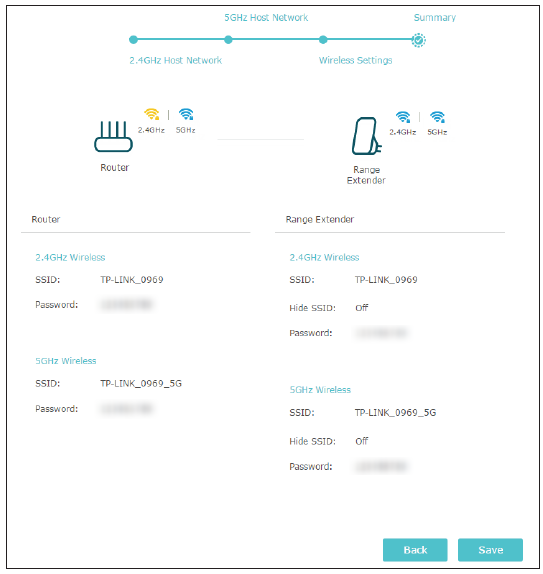
Backing up settings is very important. It saves your customized network details. If the update resets the extender, you can restore your settings quickly. Look for the backup option in the device’s control panel.
Make sure the power supply is stable during the update. A power loss can cause the firmware to fail or damage the device. Use a reliable power source or a UPS (uninterruptible power supply) if possible.
Credit: www.tp-link.com
Downloading The Firmware
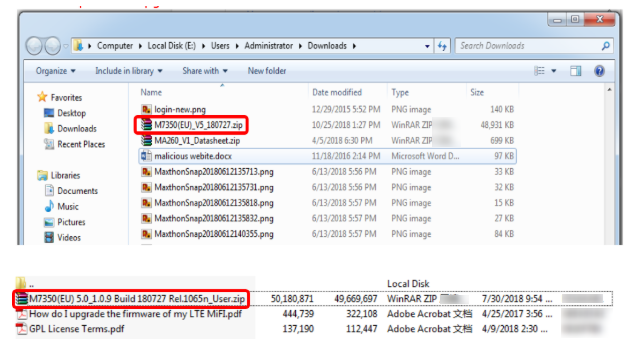
Go to the manufacturer’s official website. This is the safest place to find firmware updates.
Look for the support or downloads section. This area usually holds firmware files.
Check the model numberon your wifi extender. It must match the one on the website exactly.
Downloading firmware for the wrong model can cause problems.
Verify the firmware version is compatible with your device. Check the release notes or update details.
Use the table below to understand key points when choosing firmware:
| Criteria | What to Check | Why It Matters |
|---|---|---|
| Model Number | Exact match with your device | Ensures the firmware fits your extender |
| Firmware Version | Latest or recommended version | Provides security and performance fixes |
| Release Date | Check recent updates | Newer releases often fix bugs |
Accessing The Extender Interface
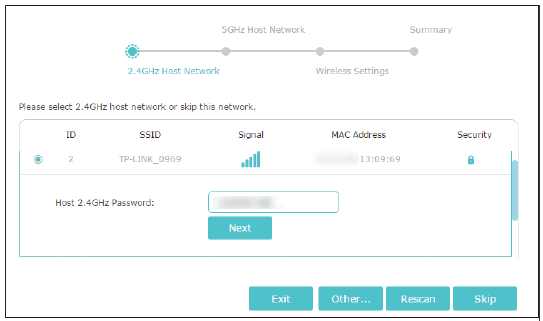
First, connect your device to the extender’s WiFi network. This network usually has a name similar to your main WiFi but with an extra label like “EXT” or “Repeater”. Use the WiFi settings on your phone or computer to join this network.
Open a web browser and enter the extender’s IP address in the address bar. Common addresses are 192.168.0.1or 192.168.1.1. You can find this IP in the extender manual or on a label on the device.
Once the login page appears, enter your admin username and password. Default credentials are often “admin” for both fields. Change these details after logging in for better security.
Credit: www.tp-link.com
Performing The Firmware Update
First, find the firmware file on your computer. It should match your extender model.
Use the extender’s setup page to upload this file. Click the “Upload” or “Browse” button, then select the file.
Start the update by clicking the “Update” or “Start” button. Make sure not to turn off the device.
Watch the progress bar or indicator. It shows how much of the update is done.
Wait patiently. The extender may restart automatically after finishing.
Do not unplug or close the page during the update. This can cause problems.
Post-update Steps
Restarting the extender helps apply the new firmware properly. Simply turn it off and wait for 10 seconds. Then, power it back on. This refreshes the device and clears any temporary glitches.
Restoring settings may be needed if the update resets them. Use your saved backup or re-enter your WiFi name and password. Check other settings like security and network mode to ensure they are correct.
Verifying the firmware installation confirms success. Access the extender’s control panel and look for the firmware version. It should match the latest update. Test the connection speed and range to see improvement.
Troubleshooting Common Issues
Update failures can happen due to poor internet or wrong files. Check your connection first. Use the correct firmware from the official website. Avoid interrupting the update process.
Resetting the extender clears old settings. Hold the reset button for 10 seconds until lights blink. This helps fix bugs and lets you try updating again.
Contacting support is helpful when problems persist. They can guide you step-by-step. Have your model number and firmware version ready. Support may offer extra tools or advice.
Credit: www.tp-link.com
Frequently Asked Questions
What Is Firmware On A Wifi Extender?
Firmware is the software embedded in your WiFi extender. It controls the device’s functions and operations. Updating firmware ensures your extender runs efficiently, fixing bugs and adding new features. Keeping it up-to-date can improve performance and security.
How Often Should I Update Firmware?
Update your firmware whenever a new version is released. Manufacturers provide updates to enhance performance and security. Regular updates ensure your device functions optimally. Check for updates every few months or subscribe to alerts from the manufacturer.
Can I Update Firmware Wirelessly?
Yes, you can update firmware wirelessly. Most extenders support over-the-air updates. Connect to your extender’s network, access its settings via a browser, and follow the update instructions. Ensure a stable connection to avoid interruptions during the process.
What Happens If I Don’t Update Firmware?
Not updating firmware can lead to security vulnerabilities and performance issues. Outdated firmware might have bugs or lack new features. Regular updates ensure your extender works efficiently and securely. Ignoring updates can compromise your network’s safety and functionality.
Conclusion
Updating firmware on your long range WiFi extender keeps it working well. It helps fix bugs and improve speed. Always check for the latest updates on the official website. Follow the steps carefully to avoid problems. A smooth update means better connection and fewer interruptions.
Make updating a regular habit to enjoy strong WiFi signals. Stay connected and keep your device running at its best. Simple steps, big benefits.