Are you tired of your long range WiFi extender losing signal or slowing down at the worst times? Interference can turn your carefully set-up network into a frustrating mess, making your connection weak or unstable.
But what if you could easily avoid this interference and enjoy a strong, reliable WiFi signal throughout your space? You’ll discover simple, effective tips to stop interference from ruining your extended WiFi range. Keep reading, and you’ll learn how to boost your connection so you can stream, work, and browse without interruptions.
Credit: www.tp-link.com
Causes Of Wifi Interference
Wifi interferenceoften comes from common devices at home. Microwaves, cordless phones, and baby monitors use similar frequencies. These devices create signal noisethat slows down your wifi.
Electronic deviceslike Bluetooth speakers and wireless cameras can also cause conflicts. They compete for the same wifi channels, which can reduce signal strength.
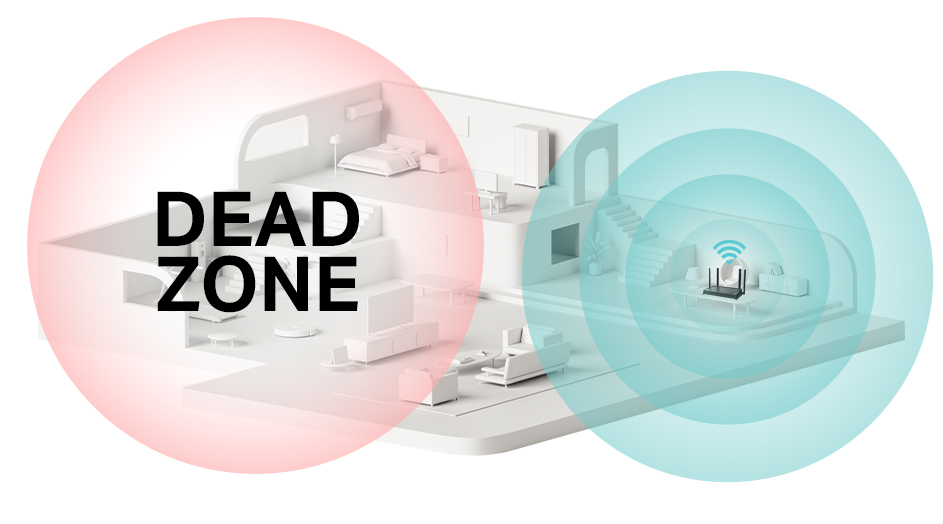
Physical objects block wifi signals. Thick walls, metal furniture, and floors weaken the wifi extender’s range. Signals lose power passing through these barriers.
| Cause | Effect on Wifi |
|---|---|
| Microwaves & Cordless Phones | Create signal noise, slow connection |
| Bluetooth Devices & Cameras | Channel conflicts, weaker signals |
| Walls, Floors, Metal Objects | Block signals, reduce range |
Credit: www.signalbooster.com
Choosing The Right Extender Location
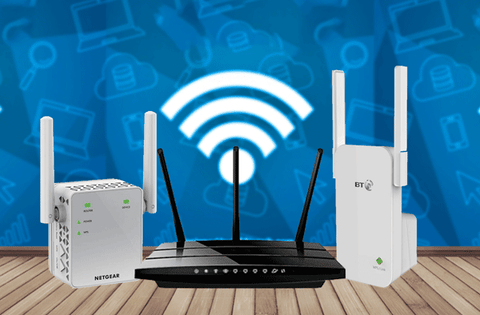
Choosing the right place for your long range WiFi extenderhelps avoid interference. Place it where the signal is still strong but far enough to extend coverage well.
Keep the extender away from thick walls, metal objects, and microwaves. These can block or weaken the signal.
- Choose a spot halfway between your router and the area needing better coverage.
- Higher places like shelves work better than floor level.
- Keep it clear of large furniture and appliances.
Balancing distance and coverage is key. Too close wastes the extender’s range. Too far means weak or no signal.
Frequency Band Selection
2.4 GHzband offers longer range but slower speed. It can pass through walls better. It is crowded with many devices like microwaves and Bluetooth. This crowd can cause more interference.
5 GHzband gives faster speeds and less interference. It has a shorter range and fewer devices use it. It is good for streaming and gaming.
Dual-band extenders use both 2.4 GHzand 5 GHz. They switch between bands to give better coverage and speed. Use dual-band extenders if you want both range and speed. They help reduce interference by picking the best band available.
Adjusting Extender Settings
Choosing the right channelhelps avoid interference with other networks. Use channels 1, 6, or 11for 2.4 GHz WiFi. These channels don’t overlap and reduce signal clash. For 5 GHz bands, pick channels with less traffic for better speed.
Adjust power outputto reduce interference. Lower power means less chance to disturb nearby devices. Higher power can cause noise and reduce signal quality. Find a balance that covers your area without causing problems.
| Setting | Tip | Effect |
|---|---|---|
| Channel Selection | Use 1, 6, or 11 for 2.4 GHz | Reduces signal overlap |
| Channel Selection | Pick less crowded channels for 5 GHz | Improves speed and stability |
| Power Output | Lower power for small areas | Less interference with neighbors |
| Power Output | Higher power for larger spaces | Better coverage but more noise |
Using External Antennas
Directional antennasfocus WiFi signals in one direction. This helps reduce interference from other devices. They increase signal strength over long distances. These antennas improve connection quality by sending signals where needed most.
Here are key benefits of directional antennas:
- Better signal reachto far devices
- Less interferencefrom unwanted signals
- More stable connectionin busy areas
- Improved speedfor long-range use
For best installation, place antennas away from metal objects. Point antennas toward the area where WiFi is needed. Keep devices higher and clear of walls. Avoid placing antennas near other electronics that cause interference.

Credit: www.amazon.ca
Minimizing Electronic Interference
Microwavesand Bluetooth devicesoften cause WiFi interference. Keep your WiFi extender away from microwaves. Bluetooth gadgets use the same 2.4 GHz band, so they can slow down your connection. Try to place your extender far from these devices. This simple step can boost signal quality.
Other wireless signals like cordless phones and baby monitors also create interference. Use a different WiFi channelto avoid overlap. Most extenders let you change channels easily. Choose a channel with less traffic for better performance.
- Move extender away from microwaves and Bluetooth devices
- Change WiFi channel to reduce overlapping signals
- Keep distance from cordless phones and baby monitors
- Check for less crowded channels using WiFi analyzer apps
Upgrading Firmware And Hardware
Firmware updatesfix bugs and improve device performance. They help your wifi extender work smoothly and avoid interference. Updating firmware keeps the extender compatible with new routers and security standards.
Check for updates regularly on the manufacturer’s website or app. Install updates carefully to prevent connection loss or errors.
| Signs to Replace Your Extender | Reasons |
|---|---|
| Frequent connection drops | Old hardware can’t handle new wifi signals well |
| Slow internet speeds | Device is too outdated for current internet plans |
| No firmware updates available | Manufacturer stopped supporting the device |
| Extender overheats often | Hardware is failing or damaged |
Testing And Monitoring Signal Quality
Wifi analyzer tools help check the signal strengthand quality. They show which channels are busyor clear. This lets you pick the best channel for your extender. Clear channels mean less interferenceand better performance.
Regular signal strength checks keep your network strong. Place the extender in different spots and test the signal. Look for weak spotsor dead zones. Move the extender to the place with the strongest signalfor best results.
| Task | Purpose | Benefit |
|---|---|---|
| Use Wifi Analyzer | Check channels and signal | Find clear channels, reduce interference |
| Test Signal Strength | Measure signal in different spots | Locate best extender position |
| Monitor Regularly | Keep track of network health | Maintain strong and stable connection |
Frequently Asked Questions
How Can I Reduce Wifi Interference At Home?
To reduce WiFi interference, position your extender away from electronic devices. Ensure it’s placed at a central location, not near walls. Use a less crowded WiFi channel. Avoid physical barriers like metal or brick. Regularly update your extender’s firmware for optimized performance and reduced interference.
Why Does My Wifi Extender Lose Signal?
Your WiFi extender might lose signal due to interference from other devices. Physical obstructions like walls and furniture can also weaken the signal. Ensure your extender is within the router’s range. Regularly check for firmware updates and position it strategically for optimal performance.
Can Other Devices Affect My Wifi Extender?
Yes, other devices can affect your WiFi extender. Microwaves, cordless phones, and Bluetooth devices can cause interference. Ensure your extender is positioned away from these devices. Use the 5GHz band, if available, to minimize interference and enhance performance.
What Is The Best Location For A Wifi Extender?
The best location for a WiFi extender is midway between your router and the area needing coverage. Avoid placing it near walls or electronic devices. Ensure it’s in an open space for optimal signal distribution. Regularly test different locations for the best performance.
Conclusion
Avoiding interference with your long-range WiFi extender improves signal strength. Place the extender away from walls and electronic devices. Choose channels with less traffic to reduce overlap. Regularly update your device’s firmware for better performance. Test different spots to find the best location.
A clear path means fewer obstacles and a stronger connection. Small changes can make a big difference in your WiFi quality. Stay patient and keep adjusting until you get the best signal. Strong WiFi means smoother browsing and better online experiences.