Are you frustrated with the sluggish performance of your dual band WiFi extender? You’re not alone.
Many people just like you are looking for ways to enhance their internet experience, and optimizing your WiFi extender is a fantastic place to start. Imagine a world where every corner of your home or office has blazing-fast internet, streaming videos without buffering, and smooth online gaming.
Sounds like a dream, right? But it’s not just a dream—it’s entirely achievable. You will discover practical tips and tricks that will transform your WiFi performance from snail-like to lightning-fast. Dive in to learn how you can maximize your extender’s potential and enjoy uninterrupted connectivity.

Credit: www.amazon.ca
Choosing The Right Location
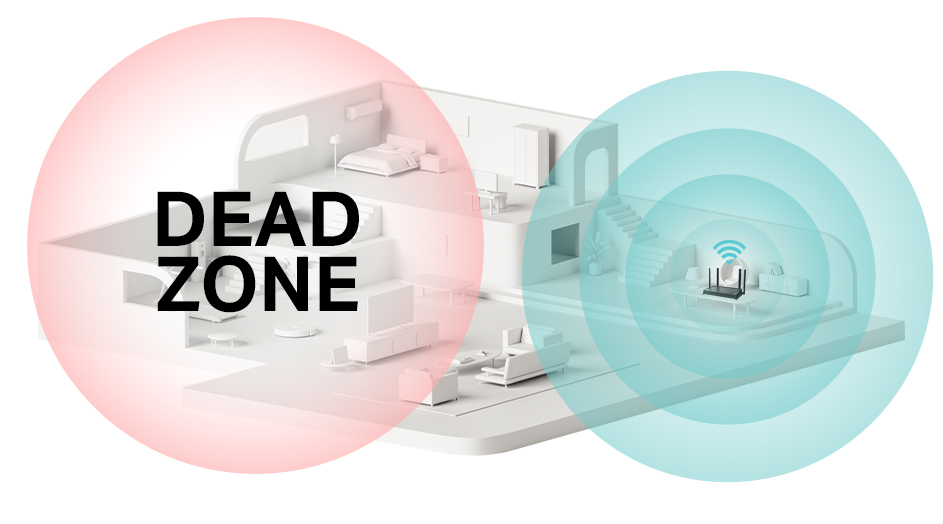
Placing a dual band wifi extender in the right spotis key for better signal. Choose a location where the extender gets good signal from the routerbut is still close enough to cover weak areas.
Avoid placing the extender near items that cause signal interferencelike microwaves, cordless phones, or thick walls. These can block or weaken the wifi signal.
| Factor | Tips |
|---|---|
| Distance | Keep the extender about halfway between router and weak signal areas. |
| Height | Place the extender high off the ground for better coverage. |
| Obstacles | Avoid walls, metal objects, and appliances that block signals. |
- Test different spots to find the best coverage.
- Use the extender’s signal strength indicator if available.
Configuring Extender Settings
Choosing the right frequency bandcan boost your extender’s speed and range. The 2.4 GHz band covers a larger area but is slower. The 5 GHz band is faster but works best nearby. Use 5 GHz for devices close to the extender and 2.4 GHz for farther ones.
Keep your extender’s firmware up to date. Updates fix bugs and improve performance. Check the manufacturer’s website or app to download the latest version. Regular updates help keep your connection stable and fast.
Adjusting channel settings can reduce interferencefrom other networks. Use channels that are less crowded. Many extenders have an auto-select feature to pick the best channel. This helps to avoid slow speeds and dropped signals.
Enhancing Network Performance
Quality of Service (QoS)helps manage your WiFi traffic. It lets you prioritizeimportant tasks like video calls or gaming. This way, these tasks get more bandwidth and run smoothly.
Limiting the number of devices connected to your extender can improve speed. Too many devices slow down the network. Keep only essential devices connected for better performance.
Prioritizing bandwidth for critical tasks ensures important work is not interrupted. Assign higher priority to tasks such as work meetings or streaming. This keeps your network stable and fast.

Credit: www.youtube.com
Improving Hardware And Connectivity
Upgrading antennascan greatly boost your dual band WiFi extender’s reach. Choose antennas with higher gain for better signal strength. Replace small antennas with larger, external ones to cover more area.
Using Ethernet backhaulhelps create a stable connection between your router and extender. Connect the extender to the router using an Ethernet cable. This reduces wireless interference and speeds up your network.
Ensuring a proper power supplyis key for consistent performance. Use the original power adapter or one with the same voltage and amperage. Avoid power strips that may cause fluctuations or weak power delivery.
Troubleshooting Common Issues
Signal dropsoften occur due to obstacles like walls or furniture. Place the extender in an open area for better coverage. Keep it away from microwaves and cordless phones that cause interference. Check the extender’s firmware and update it regularly to fix bugs.
Slow speedsmay result from many devices connected at once. Limit device connections or prioritize important devices in settings. Use the 5GHz band for faster speeds and less interference. Restart the extender and router to refresh the connection.
Resetting the extender clears old settings. Press the reset button for 10 seconds until lights blink. After reset, follow the setup guide to reconfigure the device. Use the app or web interface for easy setup. Double-check network names and passwords during configuration.
Credit: www.tp-link.com
Frequently Asked Questions
How To Position A Dual Band Wifi Extender For Best Performance?
Place your extender midway between your router and dead zones. Avoid walls and large metal objects. Ensure it receives a strong router signal to boost coverage effectively.
Which Band Should I Use For Better Wifi Extender Speed?
Use the 5GHz band for faster speeds and less interference. Choose 2. 4GHz for broader coverage but slower speeds. Dual band extenders allow both for optimal performance.
How Can I Reduce Interference Affecting My Wifi Extender?
Keep your extender away from microwaves, cordless phones, and Bluetooth devices. Change the WiFi channel in your router settings to avoid overcrowded frequencies.
What Firmware Updates Improve Dual Band Extender Performance?
Regularly update your extender’s firmware via the manufacturer’s website or app. Updates fix bugs, enhance speed, and improve security, ensuring smoother and more reliable connections.
Conclusion
Improving your dual band WiFi extender’s performance takes small, smart steps. Place the extender where the signal is strong and clear. Keep devices updated with the latest software. Reduce interference by moving away from other electronics. Regularly reboot your extender to keep it running smoothly.
Test your speed often to spot any issues early. These simple actions help you enjoy faster and more reliable WiFi. Better connection means less frustration and more productivity at home or work. Try these tips today and see the difference yourself.