Are you tired of weak WiFi signals that seem to vanish just when you need them the most? A tri-band WiFi extender might be the solution you’ve been searching for.
Imagine streaming your favorite shows, gaming online, or working from home without frustrating interruptions. With the right setup, your WiFi can reach every corner of your home, ensuring seamless connectivity and a better online experience. In this guide, you’ll discover how to set up a tri-band WiFi extender for long-range coverage.
It’s easier than you think and can make a big difference in your daily digital life. We’ll walk you through the steps, ensuring you avoid common pitfalls and get the most out of your investment. Ready to boost your WiFi and reclaim your online freedom? Let’s dive in!
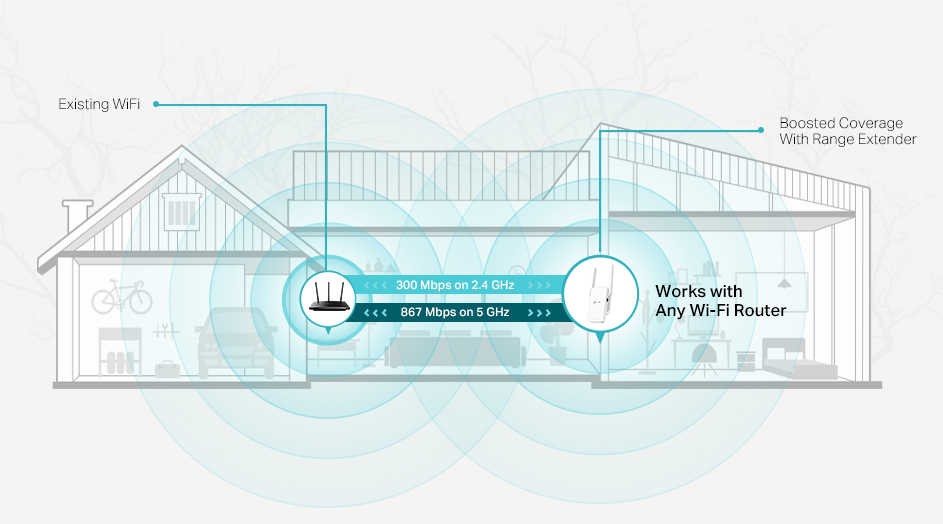
Credit: www.tp-link.com
Choosing The Right Tri Band Extender
Tri band technologyuses three separate WiFi bands. This helps reduce network congestion and boosts speed. Devices can connect to different bands for better performance.
Look for extenders with strong signal strength, easy setup, and good range. Features like Ethernet portsand smart band steeringcan improve your experience.
| Feature | Why It Matters |
|---|---|
| Tri Band | Supports more devices and reduces traffic |
| Range | Covers larger areas without losing signal |
| Setup | Should be simple for fast installation |
| Ethernet Port | Allows wired connection for stable speed |
Check if the extender works with your current router. Most extenders support common brands and standards like 802.11ac. Compatibility ensures smooth connection and easier setup.
Preparing For Installation
Place the WiFi extender where the signal is still strong but near the weak area. Avoid walls or metal objects that block signals. Higher spots often work better than low ones. Keep it away from microwaves or cordless phones that cause interference.
Check your router’s signal strength first. Use a phone or laptop to see how strong the WiFi is in different spots. This helps find the best place to install the extender.
Gather all needed equipment before starting. This includes:
- Tri-band WiFi extender
- Power adapter
- Ethernet cable (if required)
- Router login details
- Smartphone or computer for setup
Connecting The Extender
Wired setupuses an Ethernet cable to connect the extender to your router. This method is stable and fast but needs a cable long enough to reach the extender’s place. It works well if the extender is near the router.
Wireless setupconnects the extender to the router via WiFi. This is easier and needs no cables. The extender should be placed where the WiFi signal is still strong.
| Connection Type | Advantages | Disadvantages |
|---|---|---|
| Wired Setup | Stable, fast, less interference | Needs Ethernet cable, limited placement |
| Wireless Setup | Easy to install, no cables needed | Signal may weaken, slower speed |
Press the WPS button on your router. Then, press the WPS button on the extender within 2 minutes. The devices connect automatically. This is a quick way to link them without entering passwords.
Alternatively, open the extender’s setup page in a browser. Follow the instructions to choose your WiFi network. Enter the password if needed. Save settings to connect.

Credit: m.youtube.com
Configuring Settings For Long Range
Adjusting frequency bandshelps extend WiFi range effectively. The tri-band extender has 2.4 GHz and two 5 GHz bands. Use the 2.4 GHz band for longer distance but slower speed. Use 5 GHz bands for faster speed but shorter range. Switching between bands balances speed and coverage.
Channel selectionreduces interference from other networks. Choose channels with less traffic. For 2.4 GHz, use channels 1, 6, or 11 as they do not overlap. For 5 GHz, select channels with the least number of nearby networks. This improves connection quality and reduces signal drops.
Securing your network is important to protect data. Set a strong passwordusing letters, numbers, and symbols. Use WPA3 or WPA2 security type for better protection. Disable WPS to avoid easy access. Regularly update your extender’s firmware to fix security issues.
Testing And Troubleshooting
Check the signal coverageby moving around your home with a device. Notice where the WiFi is strong or weak. This helps to find the best place for your extender.
Try connecting different devices to test the range. A weak signal means the extender might be too far from the router or blocked by walls.
- Common issues:No connection, slow speed, or drops.
- Fixes:Move the extender closer to the router or remove obstacles.
- Restart the extender and router to refresh connections.
- Make sure devices connect to the extender’s network, not the router directly.
Keep the extender’s software updated. Firmware updates improve performance and fix bugs.
Visit the extender’s website or app to download the latest firmware. Follow instructions carefully to update.
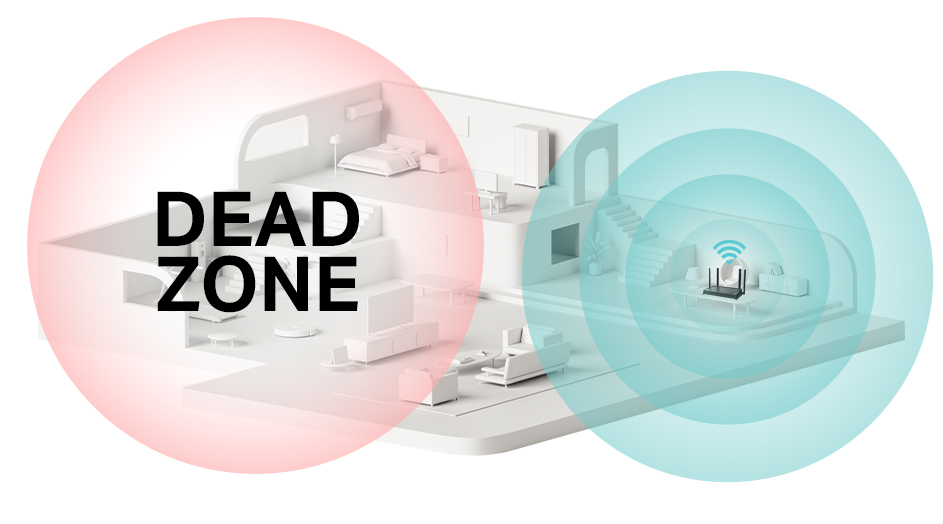
Credit: www.tp-link.com
Maximizing Performance
Placementis key to getting the best signal from your tri-band WiFi extender. Place it midwaybetween your router and the area with weak signal. Avoid walls or metal objects blocking the signal. Higher spots often work better than low ones.
Managing the number of connected deviceshelps keep your network fast. Too many devices can slow down your WiFi. Connect only the devices you need and disconnect unused ones.
| Type of Antenna | Benefit | Usage Tip |
|---|---|---|
| Internal Antennas | Easy to use and compact | Works well for small rooms |
| External Antennas | Stronger signal and longer range | Adjust direction to cover larger areas |
Frequently Asked Questions
How Do I Connect A Tri-band Wifi Extender?
To connect, plug in the extender near your router. Use the WPS button or web setup page. Follow the manufacturer’s instructions for seamless pairing. This ensures your tri-band extender boosts WiFi coverage effectively.
Can A Tri-band Extender Improve Wifi Speed?
Yes, tri-band extenders use a dedicated band for backhaul. This reduces congestion and increases speed. It provides faster and more stable connections over long distances.
Where Is The Best Location For A Tri-band Extender?
Place the extender halfway between your router and dead zones. Avoid walls and large obstacles. A central location maximizes signal strength and coverage.
How Do I Troubleshoot Tri-band Extender Connectivity Issues?
Restart your extender and router first. Check for firmware updates on the extender. Ensure the extender is within range of the router for strong signals.
Conclusion
Setting up a tri band WiFi extender improves your internet reach. It helps reduce dead zones in your home or office. Follow the steps carefully to get a strong signal. Place the extender where the main router signal is still good.
This keeps your connection fast and stable. Regularly check for updates to keep performance smooth. Enjoy better WiFi coverage and fewer interruptions. A good setup means better streaming, gaming, and browsing. Simple steps make a big difference in your WiFi experience.