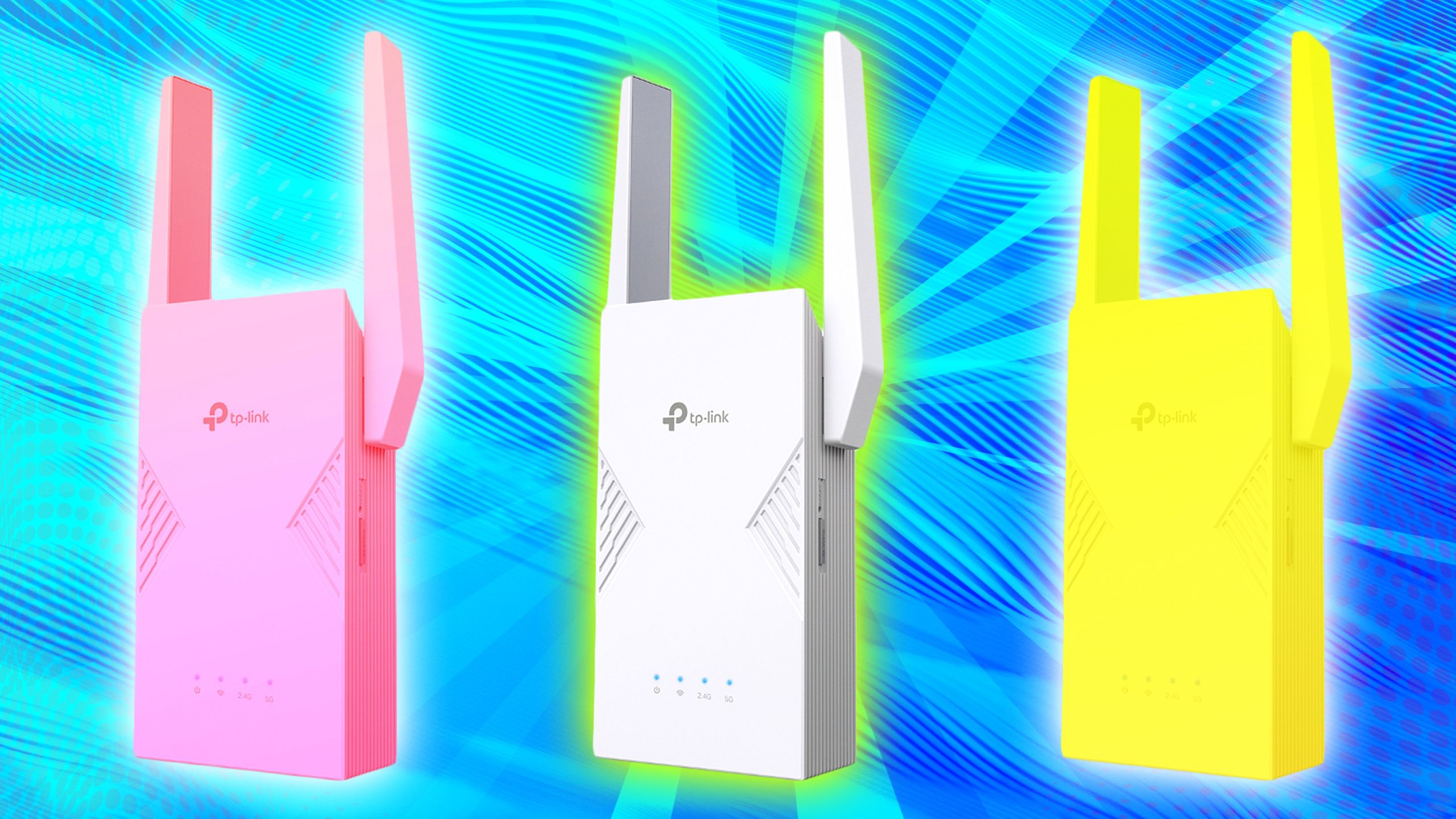
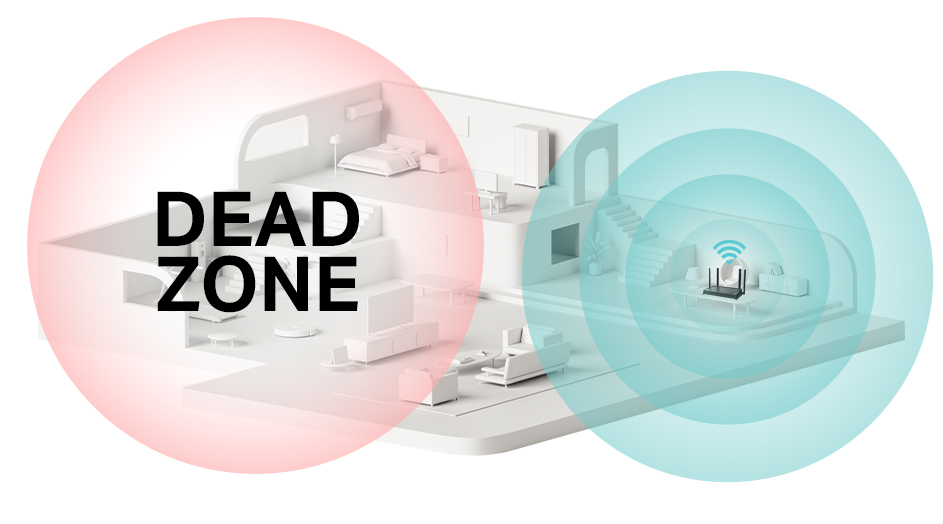
You’ve invested in a tri-band WiFi extender, hoping to eliminate those frustrating dead zones in your home or office. But are you getting the most out of it?
If you’re struggling with dropped connections or slow speeds, you’re not alone. Many people face similar issues, and the good news is that you can fix them. By optimizing your tri-band WiFi extender’s performance, you can enjoy seamless streaming, smoother online gaming, and a more reliable internet experience.
Imagine effortlessly browsing, streaming, and working without interruption. Sounds appealing, right? Stick around to discover how simple tweaks can make a huge difference in your connectivity, ensuring you get the full benefits of your tri-band WiFi extender.
Credit: www.pocket-lint.com
Choosing The Right Location
Place the tri-band WiFi extenderwhere it can catch a strong signal. Avoid walls, metal objects, and thick furniture that block signals. Keep it halfwaybetween your router and the area that needs coverage. This helps balance coverage and speed.
- Choose a spot high up, like on a shelf.
- Avoid corners or basements.
- Keep away from microwaves and cordless phones.
- Check if other WiFi networks cause interference.
Finding the right place means better speedand signal strength. Not too close, not too far. Just right for smooth internet.
Configuring Network Settings
Selecting optimal channelsreduces interference and improves WiFi speed. Use a WiFi analyzer app to find less crowded channels. Choose channels with the least traffic for all three bands (2.4 GHz, 5 GHz low, and 5 GHz high).
Adjusting bandwidth allocationhelps balance speed and coverage. Assign more bandwidth to bands with more devices connected. Narrow the bandwidth for less used bands to reduce interference.
| Band | Suggested Bandwidth | Notes |
|---|---|---|
| 2.4 GHz | 20-40 MHz | Good range, slower speed |
| 5 GHz Low | 40-80 MHz | Better speed, medium range |
| 5 GHz High | 80-160 MHz | Fastest speed, short range |
Setting up SSIDs and passwordsallows easy connection and security. Use different SSIDs for each band to know which one you connect to. Choose strong but simple passwords to keep your network safe.
Firmware Updates And Maintenance
Check your tri band WiFi extender for the latest firmware updates. This helps fix bugs and improve device speed. Most extenders allow easy update via their app or web page. Regular updates keep your device running smoothly and protect it from security risks.
Benefits of Latest Firmware:
- Improves signal strength and stability
- Fixes known software issues
- Enhances security features
- Supports new device compatibility
Scheduled Maintenancehelps keep the extender in good shape. Restart the device once a week to clear temporary glitches. Clean dust off vents to avoid overheating. Check connections and cables for damage. Small steps like these help maintain strong WiFi performance every day.
Credit: www.tp-link.com
Improving Signal Strength
External antennas help extend the wifi signalreach. They focus signal strength in specific directions. This boosts the connection quality in far rooms or floors.
Physical barriers like walls and furniture block wifi signals. Keep the extender away from thick walls and metal objects. Place it in an open space for better coverage.
Signal boosters can amplify weak wifi signals. They improve speed and reduce dropouts. Use boosters if your house is large or has many obstacles.
| Tip | Benefit |
|---|---|
| Using External Antennas | Stronger and focused wifi signals |
| Minimizing Physical Barriers | Less signal blockage and better range |
| Utilizing Signal Boosters | Amplified signals and fewer dropouts |
Managing Connected Devices
Prioritizing device traffichelps give important devices faster speeds. Use your extender’s settings to set priority for work or streaming devices. This makes sure they get more bandwidth and less lag.
Limiting bandwidth hogskeeps slowdowns away. Devices that download or upload a lot can make the network slow. Set limits on these devices to keep the network smooth for everyone.
Monitoring network usagelets you see which devices use most data. Check usage often to find and fix any issues. Some extenders have apps or web pages to show this information clearly.
Credit: www.screenbeam.com
Advanced Troubleshooting Tips
Network bottlenecksslow down your WiFi extender’s speed. Check devices using too much data. Heavy downloads or streams can cause lag. Use your router’s app or interface to see connected devices and data use. Move devices closer to the extender to improve signal strength. Avoid placing the extender near thick walls or metal objects. These block WiFi signals.
Resetting your extender clears settings and fixes bugs. Unplug the extender for 30 seconds. Plug it back in and wait for it to restart. Reconfigure settings carefully. Match your router’s network name and password exactly. Use the extender’s setup guide for help.
- Contact support if the extender won’t connect after resets.
- Seek help when speed stays slow despite changes.
- Ask for advice if setup steps seem confusing.
Frequently Asked Questions
How Do I Position A Tri Band Wifi Extender Correctly?
Place your tri band WiFi extender midway between your router and weak signal areas. Avoid obstacles like walls and metal objects. Elevate the extender for better signal reach. Proper positioning ensures optimal coverage and performance.
Why Is Tri Band Better For Wifi Extenders?
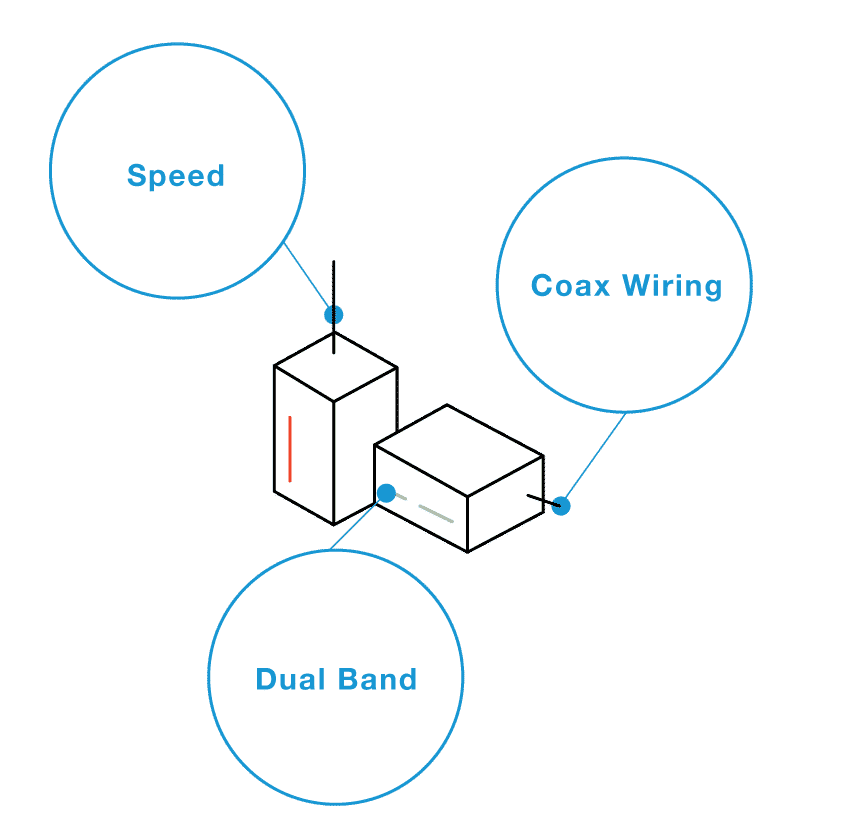
Tri band extenders offer one dedicated backhaul band for communication with the router. This reduces congestion and boosts overall speed. They provide faster, more stable connections compared to dual band extenders. This improves your network’s reliability and performance.
How Can I Update My Tri Band Wifi Extender Firmware?
Visit the extender manufacturer’s website to download the latest firmware. Access the extender’s admin panel via its IP address. Upload the firmware file and follow the update instructions. Regular updates enhance security and fix performance issues.
What Frequency Band Is Best For Tri Band Extenders?
The 5 GHz bands provide faster speeds and less interference than 2. 4 GHz. Use 5 GHz for bandwidth-heavy tasks like streaming and gaming. The 2. 4 GHz band offers better range but slower speeds. Balance usage based on your needs.
Conclusion
Optimizing your tri-band WiFi extender boosts your home internet experience. Place the extender where the signal is strong and steady. Keep the device firmware updated for smooth performance. Avoid physical obstructions like walls or large furniture. Choose the best channel to reduce interference.
Regularly check the signal strength to maintain speed. Small changes make a big difference in connection quality. Stay patient and test different setups. Enjoy faster, more reliable WiFi with these simple steps.