Are you struggling to change the SSID on your dual band WiFi extender? You’re not alone.
Many people find this task daunting, but the good news is that it’s simpler than you might think. In this guide, we’ll walk you through each step in a way that’s easy to follow, even if you’re not a tech expert.
Imagine having a seamless connection throughout your home, with no more confusing network names or dropped signals. Changing your SSID can enhance your WiFi experience, making it easier to connect all your devices effortlessly. Stick with us to learn how you can master this essential tech skill and boost your home network’s performance.
Dual Band Wifi Extender Basics
SSIDstands for Service Set Identifier. It is the name of your WiFi network. Devices use this name to find and connect to your WiFi. A dual band WiFi extender creates two SSIDs, one for the 2.4 GHz bandand one for the 5 GHz band. This helps separate devices based on speed and range needs.
The importance of SSIDlies in easy network identification. Changing the SSID helps avoid confusion with other nearby networks. It also improves security by making your network less obvious. With dual band extenders, setting clear SSIDs helps you know which band your device connects to. This can improve internet speedand reliability.
Preparing To Change Your Ssid
Before changing your SSID, gather some important details. You will need the IP addressof your extender. Also, know the default username and password. These help you log into the admin panel.
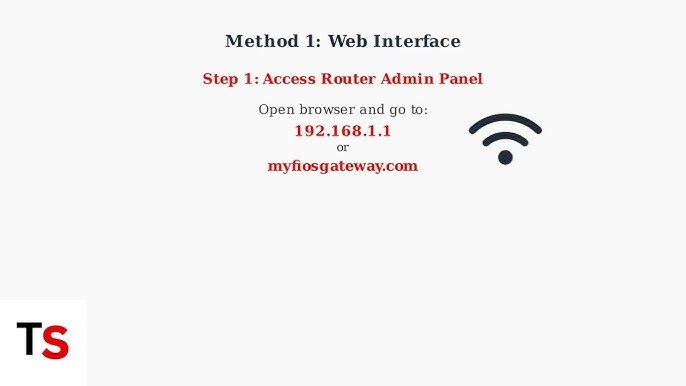
Accessing the extender’s admin panel requires a device connected to the extender. Open a web browser and enter the extender’s IP address in the address bar. Use the username and password to log in. This panel lets you change settings like the SSID.
Step-by-step Ssid Change Process
First, open a web browser and enter the extender’s IP address. This IP is usually on the label of the device or in its manual. Use your username and passwordto log in. These are often “admin” by default.
Next, find the Wireless Settingsor similar menu. This section controls the WiFi names and passwords. The interface may differ by brand but look for words like “Wireless” or “SSID.”
Change the SSIDfor the 2.4 GHz bandby typing a new name. Keep it simple and easy to recognize. This name will appear when you search for WiFi networks.
Do the same for the 5 GHz band. It can have a different name to tell both bands apart. This helps devices pick the right connection.
Finally, saveor applythe changes. The extender may restart to update settings. Wait for it to finish before using the new WiFi names.

Credit: device.report
Troubleshooting Common Issues
Forgotten login credentialscan block access to your extender’s settings. Try resetting the device to factory defaults by pressing the reset button for 10 seconds. This clears old usernames and passwords.
SSID not updatingmay happen if the extender does not save changes properly. Ensure the new SSID is entered correctly and click the save or apply button. Sometimes, refreshing the browser or restarting the extender helps.
Connectivity problems post-changeoccur when devices still try to connect to the old SSID. Forget the old network on your devices and reconnect to the new one. Check that both 2.4 GHz and 5 GHz bands broadcast the new SSID.
Tips For Ssid Naming And Security
Choose an SSIDthat is easy to remember but not too simple. Avoid using personal information like your name or address. A unique SSIDhelps you find your network quickly and stops confusion with nearby Wi-Fi.
Use clear names for the 2.4 GHz and 5 GHz bands to tell them apart. For example, add “_2.4G” or “_5G” at the end of the SSID. This way, devices connect to the right band easily.
Protect your networkby setting a strong password. Use a mix of letters, numbers, and symbols. Avoid common words or simple sequences like “1234” or “password.”
- Use at least 8 characters.
- Include uppercase and lowercase letters.
- Add numbers and special characters.
- Change passwords regularly.
Strong passwords keep your Wi-Fi safe from unwanted users. Always update your password after changing the SSID.

Credit: device.report

Credit: www.youtube.com
Frequently Asked Questions
How Do I Access My Dual Band Wifi Extender Settings?
To access your extender settings, connect to its network and enter the IP address in a browser. Login with your credentials to manage configurations.
Can I Change Ssid For 2.4 Ghz And 5 Ghz Separately?
Yes, most dual band extenders allow you to set different SSIDs for 2. 4 GHz and 5 GHz bands independently.
What Is The Default Ip For Wifi Extender Login?
Common default IPs are 192. 168. 0. 1 or 192. 168. 1. 1. Check your extender’s manual for the exact address.
Will Changing Ssid Affect My Current Devices?
Changing the SSID will disconnect devices until they reconnect using the new network name and password.
Conclusion
Changing the SSID on your dual band WiFi extender is simple. Just follow the steps clearly and take your time. This small change helps you identify your network easily. It also keeps your connection organized and secure. Remember to save your settings after updating the SSID.
Now, your WiFi extender works with a name you recognize. Enjoy better control over your home network. Stay connected without confusion or hassle.