Imagine this: You’re in the middle of an important Zoom call when suddenly, your screen freezes, and the audio cuts out. Frustrating, right?
If you’ve ever experienced this, you’re not alone. In our increasingly connected world, a stable internet connection is crucial, especially for video calls. This is where a dual-band WiFi extender comes into play. By boosting your WiFi signal, it ensures your Zoom calls are smooth and uninterrupted.
But how exactly do you make the most of this handy device? If you’re curious and eager to improve your video call experience, read on. This guide will show you how to use a dual-band WiFi extender to keep your Zoom calls glitch-free and reliable, so you can stay connected without a hitch.
Benefits Of Dual Band Wifi Extenders
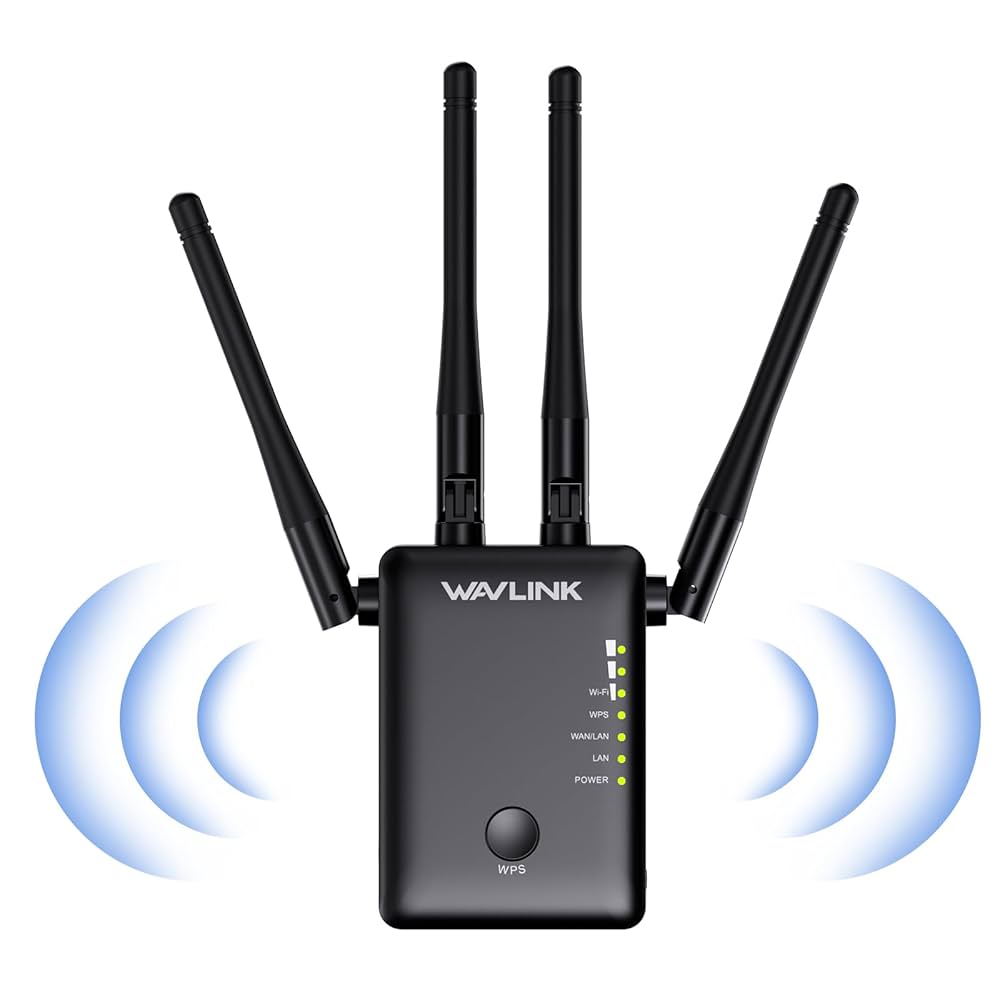
Dual band wifi extendershelp boost your wifi signal. They use two frequency bands: 2.4 GHz and 5 GHz.
The 2.4 GHz band covers a larger area but is slower. The 5 GHz band is faster but covers less space.
This setup gives you a stronger signaland better coverage for your Zoom calls.
- Improved Signal Strength:Extenders catch weak wifi signals and make them stronger.
- Reduced Interference:Dual bands avoid crowding, so fewer interruptions happen during calls.
- Enhanced Connection Speed:Faster 5 GHz band helps with smooth video and audio streaming.
Credit: www.amazon.ca
Choosing The Right Extender
Compatibility with your routeris very important for a dual band WiFi extender. The extender must work well with your router’s brand and model. This ensures a strong connection and fewer dropouts during Zoom calls.
Check the range and coverageof the extender. It should cover the area where you usually take Zoom calls. A good extender can reach far corners of your home or office without losing signal strength.
| Frequency Band | Use Case | Benefit |
|---|---|---|
| 2.4 GHz | Longer range, slower speed | Better coverage in big spaces |
| 5 GHz | Shorter range, faster speed | Less interference, clearer Zoom calls |
Choose an extender that supports both 2.4 GHz and 5 GHz bands. This gives you the best balance of speed and range for smooth Zoom meetings.
Setting Up Your Extender
Place the wifi extenderhalfway between your router and the Zoom call area. Avoid walls and metal objects that block signals. Keep it near a power outlet for easy setup.
Connect the extender to your main router using the WPS button or the extender’s app. This link creates a strong connection between devices.
| Band | Use | Tips |
|---|---|---|
| 2.4GHz | Longer range | Good for distant rooms, but slower speed |
| 5GHz | Faster speed | Best for nearby devices and clear calls |
Turn on both bands in the extender settings. Connect Zoom devices to the 5GHz band for better call quality. Use 2.4GHz for devices farther away.
Optimizing Zoom Calls With Dual Band Extender
Choosing the right band is key for smooth Zoom calls. The 2.4 GHz bandoffers better range but slower speed. The 5 GHz bandprovides faster speed with less interference but shorter range. For Zoom, prefer 5 GHzif you are near the extender. If far, use 2.4 GHzfor stable connection.
To keep Zoom clear, give it priority on your network. Many dual band extenders allow Quality of Service (QoS)settings. Use QoS to prioritize Zoom trafficover other apps. This reduces lag and dropouts during meetings.
Network congestion causes slow calls. Avoid many devices using the same band at once. Split devices between 2.4 GHzand 5 GHzbands to balance traffic. Keep the extender away from thick walls and microwaves to reduce interference.
Troubleshooting Common Issues
Connection dropscan interrupt Zoom calls. Check the extender’s placement first. Keep it close to your main routerbut not too far from your device. Avoid walls and metal objects that block signals. Restart the extender and router to refresh the connection. Use the extender’s app or web page to check signal strength.
Signal stabilityimproves with a clear line of sight. Move the extender to a higher spot if possible. Reduce the number of devices connected to the same network. Switch to the 5 GHz bandfor faster and less crowded connections. This helps keep your Zoom video clear and smooth.
| Firmware Updates | Maintenance Tips |
|---|---|
| Check for updates regularly on the extender’s website. | Clean the extender to avoid dust build-up which can cause overheating. |
| Update firmware to fix bugs and improve performance. | Restart the extender weekly to keep it running smoothly. |
| Follow manufacturer instructions carefully during updates. | Keep the extender away from heat sources and water. |

Credit: www.amazon.ca
Additional Tips For Stable Zoom Calls
Using a wired connectionis often more stable than WiFi. Connect your computer directly to the dual band extender with an Ethernet cable. This reduces interruptions and improves call quality.
Closing background appsfrees up internet and computer resources. Make sure no apps are downloading or streaming during your Zoom call. This helps keep your video and audio clear and smooth.
Regularly test your internet speedto know your connection quality. Use simple speed test websites before important meetings. This helps you spot issues early and fix them.

Credit: www.youtube.com
Frequently Asked Questions
What Is A Dual Band Wifi Extender?
A dual band WiFi extender boosts both 2. 4 GHz and 5 GHz signals. It improves coverage and reduces interference, ideal for stable Zoom calls.
How Does A Dual Band Wifi Extender Improve Zoom Call Quality?
It enhances signal strength and reduces lag by extending both frequency bands. This ensures smoother video and clear audio during Zoom meetings.
Where Should I Place My Wifi Extender For Best Zoom Calls?
Place it halfway between your router and Zoom device. Ensure it’s in an open area to avoid obstructions and maximize signal strength.
Can Dual Band Extenders Reduce Zoom Call Interruptions?
Yes, they minimize signal drops by providing stable connections on both bands. This reduces buffering and disconnections during important Zoom calls.
Conclusion
Using a dual band WiFi extender can improve your Zoom call quality. It helps reduce lag and keeps your connection stable. Place the extender where the signal is weak but still reachable. Choose the right band—2. 4 GHz for range, 5 GHz for speed.
Test your connection before important calls to avoid interruptions. A strong WiFi signal makes your meetings smooth and clear. Try these tips to enjoy better Zoom calls every time. Simple steps, big difference.