Are you tired of buffering videos and slow internet speeds when multiple devices are connected to your WiFi network? You’re not alone.
Many households struggle with maintaining a strong and reliable connection for all their gadgets. The good news is, a dual band WiFi extender might be the solution you need. Imagine streaming your favorite show, attending a virtual meeting, and downloading large files—all without a hitch.
Sounds great, right? In this guide, we’ll explore how you can effortlessly use a dual band WiFi extender to enhance connectivity for multiple devices. Stick around to discover how to transform your internet experience, and finally enjoy the seamless browsing you deserve.

Credit: m.tvcmall.com
Benefits Of Dual Band Wifi Extenders
Dual band WiFi extendershelp to increase the rangeof your WiFi signal. They use two frequency bands: 2.4 GHz and 5 GHz. This makes your connection strongerand covers more area.
The speedof your internet improves because devices can connect to the less busy band. This means faster downloads and smoother streaming.
Using two bands also means there is less interference. Signals from other devices like microwaves or Bluetooth gadgets cause less trouble. This keeps your internet stableand reliable.
Choosing The Right Extender
Choose an extender that works well with your router brand and model. Check if it supports the same WiFi standards (like 802.11ac or 802.11n). This ensures smooth connection and fewer dropouts. Dual band extenders offer two frequency bands: 2.4 GHzand 5 GHz. The 2.4 GHz band covers longer distances but is slower. The 5 GHz band is faster but works best nearby. Consider how far your devices are from the router.
Think about the area you want to cover. Extenders have different range limits. Also, check their speed ratings to match your internet plan. A slow extender can slow down your whole network. Pick one that supports enough speed for all your devices at once.
Setting Up Your Extender
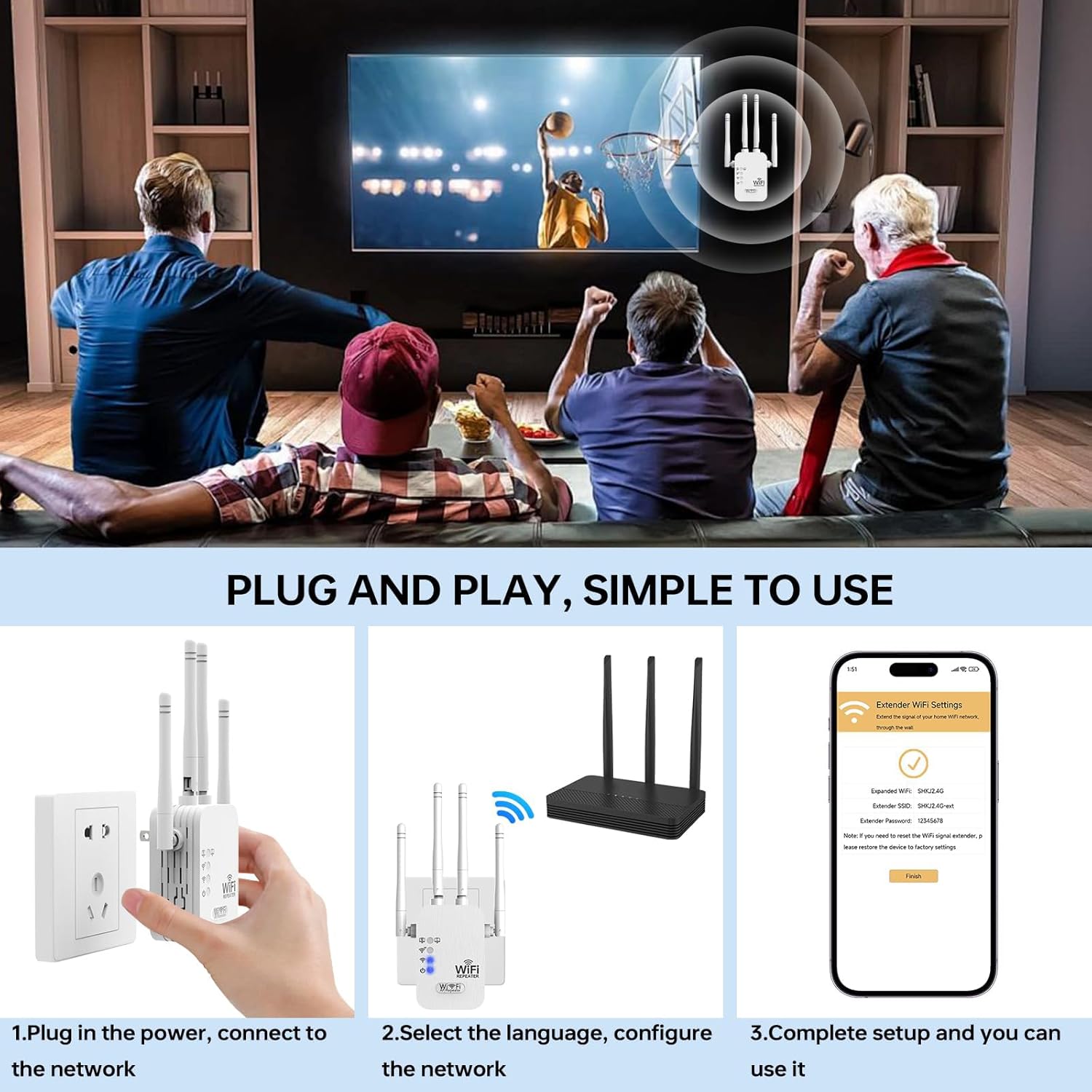
Place your WiFi extenderin a spot with a clear signal from the router. Avoid walls and large metal objects that block signals. The extender should be near the area where you want better coverage.
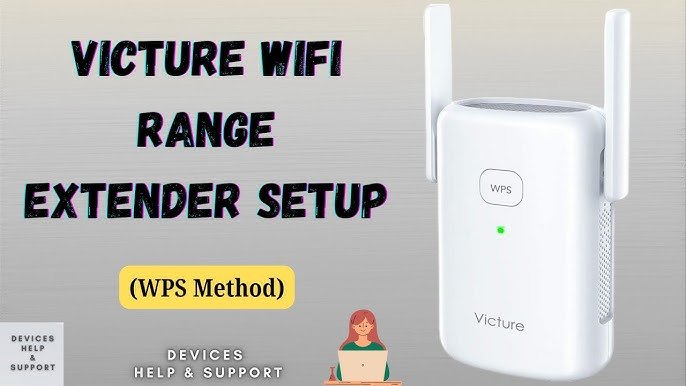
Connect the extender to your router using the WPS button or via the extender’s app. Make sure both devices are on the same network for smooth connection. Check the extender’s LED lights to confirm a strong link.
Set up both 2.4 GHzand 5 GHzbands on the extender. The 2.4 GHz band covers a larger area but is slower. The 5 GHz band is faster but covers less area. Use the 5 GHz band for devices needing speed. Use the 2.4 GHz band for devices far from the extender.
Credit: manuals.plus
Managing Multiple Devices
Device prioritizationhelps give faster internet to important devices. Assign higher priority to devices used for work or streaming. This makes sure they get better speed and less delay.
Load balancingspreads internet traffic across both 2.4 GHz and 5 GHz bands. This stops one band from getting too busy. It improves overall network speed and stability.
Avoiding congestionmeans placing the extender in a good spot. Keep it away from walls and other electronics. Too many devices on the same band cause slowdowns. Switching some devices to the less busy band helps a lot.
| Technique | Benefit |
|---|---|
| Device Prioritization | Faster speed for important devices |
| Load Balancing | Better overall network performance |
| Avoiding Congestion | Less slowdown and smoother connection |
Troubleshooting Common Issues
Signal dropsoften happen due to distance or obstacles. Place the extender closer to your router. Walls and furniture can block the signal. Keep the extender away from microwaves and cordless phones.
Slow speedscan be caused by many devices using the extender at once. Try to limit heavy activities like streaming or gaming. Restart the extender and router to clear temporary issues. Check for firmware updates to improve performance.
Connectivity problemsmay occur if the extender is not set up correctly. Make sure your device connects to the extender’s network, not the router’s. Forget the network on your device and reconnect. Reset the extender to factory settings if needed.
Maximizing Speed Effortlessly
Firmware updateskeep your dual band WiFi extender fast and secure. Check for updates often. Updated firmware fixes bugs and improves performance.
Channel selectionhelps avoid interference. Use the 2.4 GHz band for longer range and 5 GHz for faster speed. Pick channels with less traffic.
- Scan for less crowded channels using your extender’s app or software.
- Switch channels if your connection feels slow or unstable.
Regular maintenancekeeps your extender working well. Restart your device sometimes to clear memory. Clean dust off vents to avoid overheating.

Credit: www.youtube.com
Frequently Asked Questions
What Is A Dual Band Wifi Extender?
A dual band wifi extender boosts both 2. 4 GHz and 5 GHz signals. It improves internet range and speed for multiple devices simultaneously.
How To Connect Multiple Devices To A Wifi Extender?
Connect devices to the extender’s network name (SSID). Ensure the extender is properly synced with your main router for seamless connectivity.
Can A Dual Band Extender Improve Streaming Quality?
Yes, it reduces buffering by providing stronger signals on both bands. This ensures smooth streaming even with several devices connected.
Where Should I Place My Dual Band Wifi Extender?
Place it halfway between the router and devices. Avoid walls or obstructions for optimal signal strength and wider coverage.
Conclusion
Using a dual band WiFi extender helps connect many devices smoothly. It boosts signal strength and reduces dead zones in your home. Choose the right spot for the extender to get the best results. Keep your devices updated for faster and safer connections.
Enjoy steady internet on all your gadgets without interruptions. This simple tool makes your WiFi work better for everyone. Try these steps and feel the difference in your network today.


