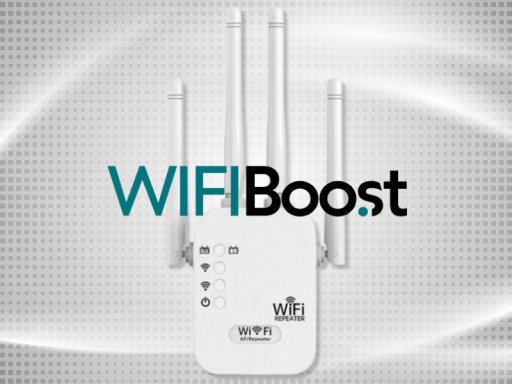
Are you tired of sluggish internet speeds when multiple devices are connected to your Wi-Fi? You’re not alone.
Many people experience this frustration, especially in homes bustling with gadgets, smart TVs, and laptops. But what if there was a way to ensure that your most important devices always get the fastest connection? Imagine streaming your favorite show without interruptions or enjoying seamless video calls without glitches.
The secret lies in learning how to prioritize devices on your dual-band Wi-Fi extender. This article will guide you step-by-step, making it easy to boost your internet experience and keep your network running smoothly. Stick around, because by the end of this read, you’ll have the power to transform your Wi-Fi woes into a thing of the past.

Credit: device.report
Benefits Of Prioritizing Devices
Prioritizing deviceson a dual band WiFi extender offers many benefits. It helps ensure that important devices get the best connection.
Improved streaming and gamingmeans fewer pauses and smoother video or gameplay. Devices used for movies or games get faster speeds.
Reduced latency for workkeeps video calls and online meetings clear. It lowers delays, making communication easier and more natural.
Optimized bandwidth usageprevents slowdowns by sharing internet fairly. It stops less important devices from using too much data.
Dual Band Wifi Extender Basics
2.4 GHzband covers longer distances but offers slower speeds. It works well through walls and obstacles. 5 GHzband provides faster speeds but covers a smaller area. It is best for devices close to the extender.
Dual band extenders use both frequencies to balance speed and range. This helps keep devices connected with strong signals.
Extenders grab the main router’s signal and send it further. This boosts WiFi coverage in hard-to-reach places like basements or large rooms.
Common features include:
- Separate 2.4 GHz and 5 GHz connections
- Easy setup with WPS button
- LED indicators for signal strength
- Support for multiple devices at once
- Option to prioritize devices by bandwidth needs
Accessing Extender Settings
First, connect your device to the extender’s WiFi network. This network name usually ends with “_EXT” or “EXTENDER”.
Open a web browser and type the IP addressof the extender in the address bar. This is often 192.168.1.1or 192.168.0.1. You can find the exact address in the extender’s manual.
Enter your username and passwordto log into the admin panel. The default login is often “admin” for both fields unless changed.
Once inside, look for the Device Priorityor QoS (Quality of Service)settings. These are usually under sections like “Advanced Settings” or “Network.”
- Select devices you want to prioritizefrom the list.
- Assign higher priority to important devices like work laptops or smart TVs.
- Save the changes to apply new settings.

Credit: device.report
Prioritizing Devices Step-by-step
First, check the list of devices connected to your dual band wifi extender. This list is usually found in the extender’s app or web page. Identify each device by its name or IP address. Knowing which device is which helps you set priorities correctly.
Next, assign priority levels to devices that need faster internet. For example, give high priority to work laptops or streaming devices. Lower priority can go to phones or smart home gadgets. This ensures important devices get more bandwidth.
Finally, save your changes and apply the new settings. The extender may restart to update the network. After saving, check if the prioritized devices have better internet speed and less lag.
Using Quality Of Service (qos)
Quality of Service (QoS)helps manage internet traffic on your network. It gives priority to devices or apps that need faster speeds. This makes sure important tasks like video calls or gaming do not slow down. QoS works by setting rules on your extender.
Enabling QoS usually requires logging into your extender’s settings. Find the QoS option and turn it on. This allows your extender to start managing device priorities automatically.
Configuring QoS means picking which devices get priority. You can do this by entering device names or IP addresses. Then assign high, medium, or low priority. High priority devices get the fastest connection. This way, your most important devices stay fast even if many devices are connected.
Tips For Effective Prioritization
Prioritize devices that use the most bandwidth. Streaming, gaming, and video calls need faster speeds. Assign these devices to the 5 GHz bandfor better performance. Less busy devices can connect to the 2.4 GHz band. This helps avoid slowdowns and keeps connections stable.
Balance devices across both bands to reduce network congestion. Avoid putting all devices on one band. Spread them evenly for smoother internet. This load balancingkeeps Wi-Fi fast for everyone.
Keep your extender’s firmware up to date. Updates fix bugs and improve speed. Check for updates regularly in the extender’s settings. Updated firmware helps the device work better and more securely.
Troubleshooting Common Issues
Devices may not show up if they are not connected properly to the extender. Check if the device is on the same network as the extender. Restarting the extender and the device can help. Make sure the extender firmware is up to date to avoid connection glitches.
Priority settings might not save due to browser cache or extender software bugs. Clear your browser cache and try again. Use a different browser or device to access the extender settings. Ensure you click the save button and wait for confirmation.
Slow speeds can happen even with prioritization if many devices use the network. Place the extender closer to the main router. Avoid walls or objects blocking the signal. Restart the extender to refresh connections. Check if other devices are downloading large files or streaming videos.

Credit: www.expressvpn.com
Frequently Asked Questions
How Do I Prioritize Devices On Dual Band Wifi Extender?
To prioritize devices, access your extender’s settings via its IP address. Use QoS (Quality of Service) options to assign higher priority to specific devices for better bandwidth and faster speeds. Save the settings to apply changes immediately.
Can Prioritizing Devices Improve Wifi Extender Performance?
Yes, prioritizing devices helps manage bandwidth effectively. It ensures critical devices get faster speeds and reduces lag during high network usage. This improves overall WiFi extender performance and user experience.
Which Devices Should I Prioritize On My Wifi Extender?
Prioritize devices used for streaming, gaming, or work. These applications need stable, fast connections. Lower priority can be given to less critical devices like smart home gadgets or phones not in active use.
Is Dual Band Better For Device Prioritization On Extenders?
Yes, dual band extenders offer separate 2. 4 GHz and 5 GHz bands. This allows more flexible device prioritization based on device compatibility and bandwidth needs, enhancing overall network efficiency and speed.
Conclusion
Prioritizing devices on your dual band WiFi extender helps improve internet speed. Focus on important devices like work laptops or streaming gadgets first. This reduces lag and keeps connections steady. Adjust settings in your extender’s app or web page quickly.
Small changes make a big difference in your network’s performance. Keep your home or office online without interruptions. Simple steps lead to better WiFi for everyone. Try these tips to enjoy smoother internet every day.


