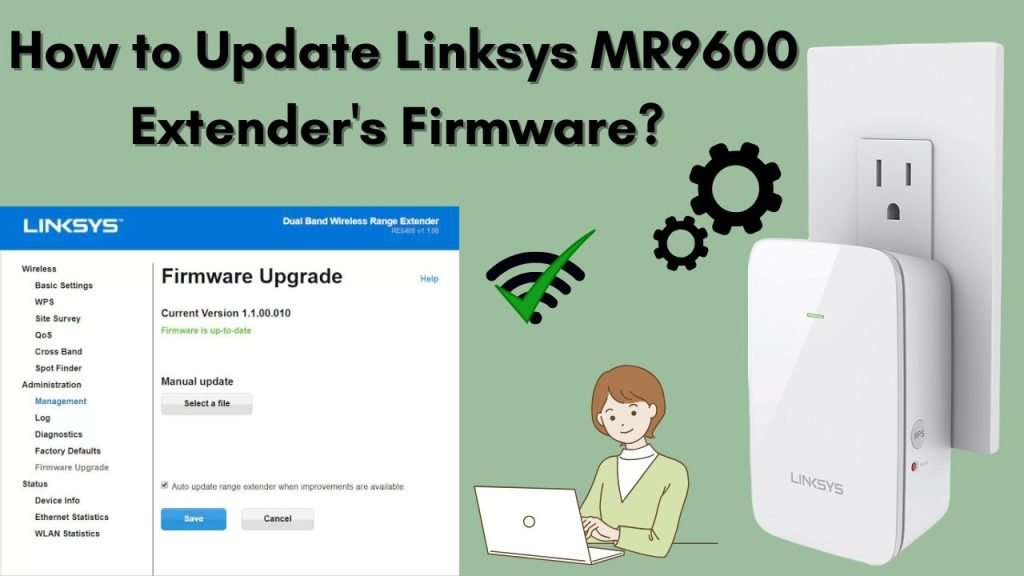
Are you struggling to get the most out of your dual-band WiFi extender? Do you feel like your internet speed isn’t living up to its full potential, even after investing in the latest technology?
You’re not alone. Many people face challenges when trying to update settings on their WiFi extenders. But here’s the good news: with just a few simple tweaks, you can unlock faster speeds and more reliable connections throughout your home. Imagine streaming your favorite shows without buffering or effortlessly connecting multiple devices without a hitch.
Intrigued? Let’s dive into how you can easily update your dual-band WiFi extender settings and transform your internet experience.
Preparing For The Update
Before updating, gather all important information. Check the model number and firmware version of your dual band WiFi extender. Visit the manufacturer’s website to find the latest update.
Make sure your extender is compatiblewith the update. Some updates only work on certain models or versions. Using the wrong update can cause problems.
Keep your extender plugged into a stable power sourceduring the update. A power loss can damage the device. Also, ensure your connection to the extender is strong and steady to avoid interruptions.

Credit: device.report
Accessing The Extender Interface
First, connect your device to the extender’s Wi-Fi network. This network usually has the extender’s name or model number. Use the Wi-Fi settings on your phone, tablet, or computer to find and join it.
Next, open a web browser and enter the extender’s IP address in the address bar. Common IPs include 192.168.0.1or 192.168.1.1. This will open the web configuration page where you can change settings.
You will be asked to enter login details. The default username and password are often adminfor both. Check the extender’s manual if these don’t work. Change these credentials after logging in to keep your network secure.
Navigating The Settings Menu
Access the extender’s settings through its IP address in a web browser. Use the login details found in the manual or on the device. Inside the menu, look for Wireless Settings. This section controls your WiFi bands.
Dual band extenders offer two frequency bands: 2.4 GHzand 5 GHz. Each band has unique benefits. The 2.4 GHz band covers longer distances but may be slower. The 5 GHz band is faster but covers less distance.
| Frequency Band | Range | Speed | Best Use |
|---|---|---|---|
| 2.4 GHz | Longer | Moderate | General browsing, devices far away |
| 5 GHz | Shorter | High | Streaming, gaming, close devices |
Choose the band you want to update. Change settings like SSID or password here. Save changes before leaving the page.

Credit: au.lifehacker.com
Updating Network Settings
Changing the SSIDand passwordhelps keep your network secure. Access the extender’s settings page using its IP address. Find the wireless settings section, then enter a new SSID name that you can easily recognize. Create a strong password with letters and numbers to protect your WiFi.
Selecting the frequency banddepends on your device needs. The 2.4 GHz band covers a larger area but offers slower speeds. The 5 GHz band has faster speeds but covers less distance. Choose the band that works best for your home or office environment.
| Frequency Band | Range | Speed | Best Use |
|---|---|---|---|
| 2.4 GHz | Long | Slower | Large area coverage |
| 5 GHz | Short | Faster | High-speed devices nearby |
Adjusting channel settingscan reduce interference. Choose a channel that has less traffic from nearby networks. This helps improve signal strength and speed. Use tools or apps to find the best channel available.
Saving And Applying Changes
After changing settings, click the Saveor Applybutton. This stores your new configuration. A confirmation message usually appears to confirm the update.
Restart the extender to activate the changes fully. Unplug it, wait 10 seconds, then plug it back in. This resets the device and applies new settings.
- Check your device’s WiFi list to see the extender network.
- Connect to both 2.4 GHz and 5 GHz bands to test stability.
- Use a speed test app to verify internet speed is steady.
- Move around your space to ensure consistent signal strength.
Troubleshooting Common Issues
Resetting the extendercan fix many common problems. Locate the reset button on the device. Use a paperclip to press and hold it for about 10 seconds. The extender will restart and return to default settings. This step helps clear any errors or conflicts.
Connection drops often happen due to interference or weak signals. Try placing the extender closer to your router. Keep it away from walls, microwaves, and cordless phones. Also, check if multiple devices are using the network at once. Reducing the number of devices can improve stability.
| Firmware Update Tips |
|---|
| Check the manufacturer’s website for the latest firmware version. |
| Download updates only from official sources to avoid risks. |
| Connect the extender to a stable power source during updates. |
| Follow the update instructions carefully to avoid errors. |
| Restart the extender after the update to apply changes. |
Optimizing Extender Performance
Choosing the best locationfor your dual band WiFi extender is key. Place it where the signal from your router is still strong. Avoid walls, metal objects, and microwaves as they cause interference. A spot halfway between your router and the area with weak signal works well.
Managing interference helps keep your connection stable. Keep the extender away from other electronic devices like cordless phones or baby monitors. These can disrupt the WiFi signal and slow down your internet speed.
- Check for firmware updates regularly.
- Restart the extender every few days to clear its memory.
- Clean the device to avoid dust build-up on vents.
- Reset settings if the connection drops often.

Credit: www.youtube.com
Frequently Asked Questions
How Do I Access My Dual Band Wifi Extender Settings?
To access settings, connect to the extender’s network. Open a browser and enter the extender’s IP address or URL. Login using default credentials. This opens the configuration page to update settings easily.
Can I Change Both 2.4ghz And 5ghz Bands?
Yes, you can update settings for both bands separately. Each band has its own SSID and password options. Adjust settings based on your network needs for optimal performance.
What If I Forget My Extender’s Login Password?
Reset the extender to factory settings using the reset button. This restores default username and password. Then, log in with default credentials to update settings again.
How Often Should I Update My Wifi Extender Settings?
Update settings whenever you change your router or network requirements. Regular updates improve security and performance. Check settings every few months for best results.
Conclusion
Updating your dual band WiFi extender settings keeps your network strong. It helps improve speed and coverage in your home. Always check the manual before making changes. Use simple steps to avoid confusion or errors. Regular updates ensure better connection and fewer dropouts.
Stay connected with ease and enjoy smooth internet access. Small changes make a big difference in your WiFi experience. Keep your extender settings updated for the best results.


