Are you tired of buffering screens and sluggish streaming on your smart TV? We’ve all been there.
You finally settle down to enjoy your favorite show, only to be interrupted by that frustrating spinning wheel. The solution? Connecting your smart TV to a dual band WiFi extender. This simple setup can transform your viewing experience, giving you the fast and seamless connection you’ve always wanted.
Imagine watching your favorite movies and series without any interruptions, all because of a quick adjustment. In this guide, you’ll discover how to effortlessly connect your smart TV to a dual band WiFi extender, ensuring that every viewing experience is as smooth as possible. Get ready to say goodbye to buffering and hello to uninterrupted entertainment.
Prepare Your Devices
Check if your Smart TVsupports dual band WiFi. Most modern TVs connect to 2.4 GHz or 5 GHz networks. Look in the TV’s network settings or manual to confirm. Some older models only work with 2.4 GHz, which may limit speed.
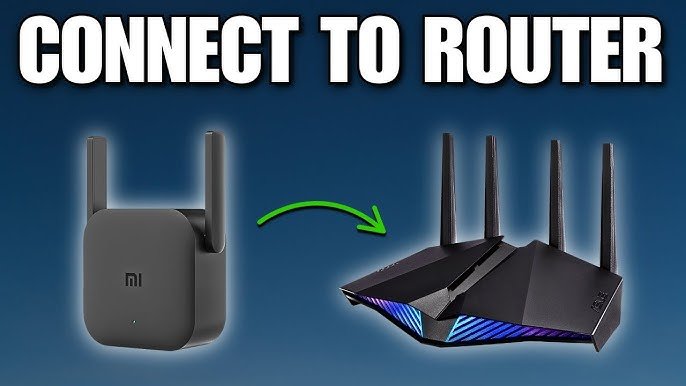
Place your dual band WiFi extenderclose to your router first. This helps it get a strong signal to share. Follow the extender’s setup guide carefully. Connect it to your home WiFi network using the 2.4 GHz and 5 GHz bands. Wait until the extender shows a stable connection light.
- Turn on the extender and router.
- Use the extender app or web page to connect.
- Choose both 2.4 GHz and 5 GHz networks.
- Save settings and wait for the extender to restart.
Configure Wifi Extender Settings
Start by opening a browser on a device connected to your extender’s network. Enter the extender’s IP address or URL to reach the admin panel. Log in using the default username and password, often found on the device or manual. This panel lets you change settings easily.
Choose between the 2.4 GHzand 5 GHzbands based on your needs. The 2.4 GHz band covers more distance but is slower. The 5 GHz band is faster but covers less area. Select the band that best fits your room size and device type.
Protect your network by setting a strong password. Use WPA2 or WPA3 security options if available. Avoid simple passwords like “12345678.” A secure network keeps your data safe and stops unauthorized access.
Connect Smart Tv To Extender
First, turn on your Smart TV and open the network settings menu. Scan for available Wi-Fi networksnearby. Look for the name (SSID) of your dual band Wi-Fi extender. It usually looks similar to your main Wi-Fi but ends with “_EXT” or “_5G_EXT.”
Next, select the extender’s network and enter the Wi-Fi password. Make sure to type it correctly to avoid connection problems. Use the remote control or on-screen keyboard for input.
After connecting, test the connection strength. Check for a strong signalor good speed on your TV. If the signal is weak, try moving the extender closer or repositioning your TV for better reception.

Credit: www.youtube.com
Optimize Streaming Performance
Place the wifi extenderwhere the signal is strong but near your smart TV. Avoid walls and metal objects that block signals. A clear line of sight helps maintain a steady connection.
Control network use to keep streaming smooth. Limit other devices using heavy data like downloads or games. This reduces lag and buffering on your smart TV.
Keep the extender’s firmware up to date. Updates fix bugs and improve performance. Check the manufacturer’s website or app for new updates regularly.
Troubleshoot Common Issues
Resetting the extender and TV often fixes many connection problems. Unplug both devices from power for 30 seconds. Then plug them back in and wait for full startup. This can clear temporary glitches.
Slow speeds can happen due to distance or interference. Move the extender closer to the main router. Avoid walls or large objects between devices. Check other devices using the network, as they may slow down speeds.
Connection drops may occur if the extender’s firmware is outdated. Check for updates on the extender’s app or website. Restarting the TV’s Wi-Fi can also help. Make sure the TV is set to connect to the extender’s network, not the main router.

Credit: m.tvcmall.com

Credit: m.tvcmall.com
Frequently Asked Questions
How Do I Connect My Smart Tv To A Dual Band Wifi Extender?
To connect, first link your Smart TV to the extender’s WiFi network. Use your TV’s network settings to select the extender’s 2. 4GHz or 5GHz band. Enter the password you set on the extender. This boosts your TV’s internet speed and range effectively.
Can A Dual Band Wifi Extender Improve Smart Tv Streaming?
Yes, dual band WiFi extenders enhance streaming by providing stronger signals. They reduce buffering and improve video quality on your Smart TV. Using both 2. 4GHz and 5GHz bands helps maintain stable connections even in crowded networks.
Why Won’t My Smart Tv Connect To The Wifi Extender?
Check if your TV is within the extender’s range and connected to the correct band. Restart both devices and ensure the extender’s firmware is updated. Also, confirm your TV’s network settings match the extender’s WiFi credentials.
Which Band Is Better For Smart Tv: 2.4ghz Or 5ghz?
Use 5GHz for faster speeds and less interference if your Smart TV is close to the extender. Choose 2. 4GHz for longer range but slightly slower speeds. Dual band extenders let you pick the best option based on your setup.
Conclusion
Connecting your smart TV to a dual band WiFi extender improves your internet signal. This helps you enjoy smoother streaming and faster downloads. Setting up the connection is simple and saves you from buffering issues. Just follow the steps carefully and check your network settings.
A strong WiFi signal makes watching shows and movies much better. Keep your devices updated for the best performance. Now, enjoy your smart TV with reliable internet anywhere in your home.


