Imagine this: you’re ready to unwind after a long day, your smart home is set to make your evening perfect, but Alexa just won’t connect to your new dual-band WiFi extender. Frustrating, right?
You’re not alone. Many people face this hurdle and miss out on the seamless smart home experience they desire. But don’t worry, because you’re about to discover the simple steps to connect Alexa to your dual-band WiFi extender effortlessly. By the end of this article, you’ll transform your tech challenges into a smooth-running, voice-activated haven.
Keep reading, and let’s make Alexa work for you!

Credit: www.amazon.ca
Alexa And Dual Band Extenders
Alexais a smart voice assistant made by Amazon. It can play music, answer questions, and control smart home devices. Alexa listens to your voice commands and helps with daily tasks. You just say the “wake word,” and Alexa starts working.
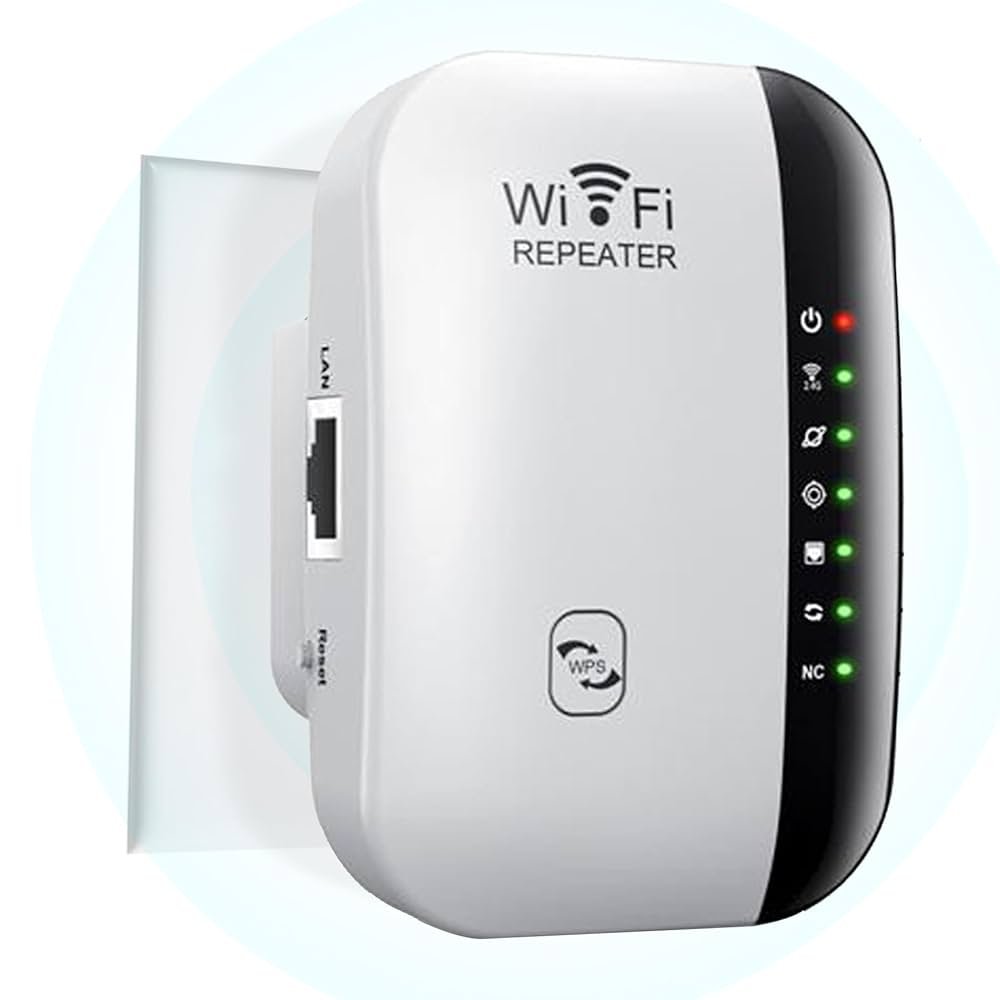
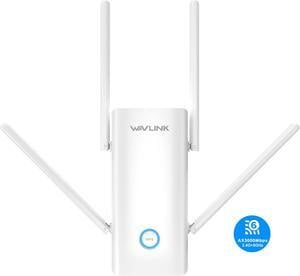
Dual band WiFi extendersboost your internet signal on two frequencies: 2.4 GHz and 5 GHz. This helps devices like Alexa connect better without losing speed or range.
- Better coverage:Extends WiFi to reach far corners of your home.
- Improved speed:Dual bands reduce interference and keep connections fast.
- More reliable:Devices switch between bands for steady internet.
- Supports many devices:Perfect for homes with many smart gadgets.
Credit: m-grill.com
Preparing Your Devices
Check if your Alexa device supports dual band WiFi. Most newer models do, but older ones may only work with 2.4 GHz networks. Confirm this in the device manual or on the Amazon website.
Place the WiFi extender near your router for better signal strength. Plug it in and follow the extender’s instructions to connect it to your home network. Use the app or web interface provided by the extender brand for setup.
Make sure your dual band extender is broadcasting two networks: one at 2.4 GHz and one at 5 GHz. Give them different names (SSID) to easily identify each band.
| Step | Action | Tip |
|---|---|---|
| Check Alexa | Verify device supports dual band WiFi | Look for model info in manual or online |
| Set Up Extender | Place near router and power on | Use app or web interface for setup |
| Configure Networks | Ensure 2.4 GHz and 5 GHz bands are active | Assign different SSIDs to each band |
Connecting Alexa To Wifi Extender
Open the Alexa appon your smartphone. Make sure your phone is connected to the same Wi-Fi networkas your Alexa device. This helps the app find your device quickly.
In the app, go to the Devicessection. Select your Alexa device from the list. Tap on Wi-Fi Networksettings to start changing the connection.
- Choose the dual band Wi-Fi extendernetwork from the list of available networks.
- Make sure you select the correct band (2.4 GHz or 5 GHz) based on your extender’s setup.
Enter the network passwordcarefully. Double-check for any typos to avoid connection errors. Once the credentials are entered, tap Connect.
The Alexa device will try to connect to the extender. Wait a moment for the connection to establish. You will see a confirmation message once connected.
Troubleshooting Connection Issues
Common connection problems include Alexa not finding the extenderor poor network speed. Sometimes, Alexa may connect but drops frequently. These issues usually happen due to signal interference or wrong network settings.
Resetting devices can fix many problems. Unplug both Alexa and the WiFi extender. Wait for about 30 seconds, then plug them back in. This simple step often clears temporary glitches and refreshes the connection.
Improving signal strength helps keep Alexa connected smoothly. Move the extender closer to your router but not too close. Avoid walls or large objects between devices. Also, place Alexa within good range of the extender. This reduces signal loss and boosts speed.
Optimizing Alexa Performance
Placing your wifi extendernear Alexa helps boost signal strength. Avoid walls or metal objects that block the signal. Keep the extender halfway between your router and Alexa device. This ensures a strong connection for both devices.
Keep your extender and Alexa firmwareup to date. Updates fix bugs and improve device performance. Check settings regularly for new updates. Use the app or device website for easy updates. This keeps your network stable and fast.

Credit: www.youtube.com
Frequently Asked Questions
How Do I Connect Alexa To A Dual Band Wifi Extender?
To connect Alexa, first link the extender to your router’s WiFi. Then, connect Alexa to the extender’s network via the Alexa app. Ensure both devices are on the same 2. 4GHz or 5GHz band for stable connection.
Can Alexa Work With Both 2.4ghz And 5ghz Wifi Bands?
Yes, Alexa supports both 2. 4GHz and 5GHz bands. Dual band extenders improve connection strength. Choose the band with better signal for Alexa to ensure smooth performance.
Why Is Alexa Not Connecting To My Wifi Extender?
Alexa may fail to connect if the extender’s network is unstable or password is incorrect. Restart both devices, check extender settings, and ensure Alexa is within range of the extender’s signal.
Do I Need To Reset Alexa When Switching Wifi Networks?
It’s recommended to reset Alexa or update its WiFi settings when switching networks. Use the Alexa app to connect to the new extender network without factory resetting the device.
Conclusion
Connecting Alexa to a dual band WiFi extender is simple and useful. It helps Alexa get a stronger signal in your home. Just follow the steps carefully for a smooth setup. A good connection means Alexa works faster and better.
Enjoy clearer responses and fewer interruptions. Keep your devices updated to avoid issues. This small change makes your smart home more reliable. Try it today and feel the difference.


