Imagine having a home where every room enjoys a strong, uninterrupted WiFi signal. Sounds like a dream, right?
If you’re tired of buffering videos and dropped connections, you’re in the right place. Discover how to use a dual-band WiFi extender as an access point, unlocking robust internet access throughout your home. This simple yet effective tweak could be the game-changer you’ve been searching for.
With clear steps and practical tips, you’ll soon enjoy seamless connectivity. Ready to optimize your internet experience and say goodbye to dead zones? Let’s dive in and transform your home’s WiFi network!
Benefits Of Dual Band Wifi Extenders
Dual band wifi extendersimprove your home or office internet coverage. They use two frequencies, 2.4 GHz and 5 GHz, to boost speed and reduce signal dropouts. This helps devices connect faster and more reliably.
Using both bands also reduces interferencefrom other wireless devices nearby. The 5 GHz band is less crowded, so it faces fewer disruptions. This means fewer slowdowns and better connections for streaming or gaming.
Flexible network managementlets you control how your wifi works. You can choose which band to use for certain devices. This helps balance the load and keeps your network running smoothly, even with many devices connected.

Credit: www.youtube.com
Choosing The Right Dual Band Extender
Choosing a dual band wifi extendermeans checking its compatibility with your router. Most extenders work with common router brands. Look for models that support both 2.4 GHz and 5 GHz bands. This helps reduce interference and keeps your connection stable.
Consider the range and signal strength. A stronger signal covers more space and connects devices farther away. Check the extender’s maximum coverage area in its specs. Place it where the signal from your router is still strong.
- Easy setup options like WPS button
- Ethernet ports for wired connections
- Indicators to show signal quality
- Support for latest wifi standards (like Wi-Fi 5 or Wi-Fi 6)
Extra features can improve your experience. Choose an extender with simple controls and good customer support.
Setting Up As An Access Point
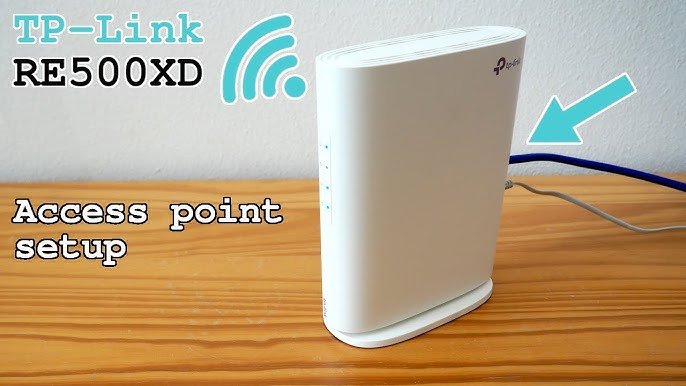
Wired connectionuses an Ethernet cable to link the extender to the main router. This setup offers a stable and fastconnection. It reduces interference and helps cover larger areas.
Wireless connectionconnects the extender to the router via WiFi. It is easier to set up and needs no cables. But the speed may be slower and signal weaker.
The main router must be connected first. Use the router’s IP address to access its settings. Enter the extender’s MAC address to allow connection.
Assigning an IP addressto the extender is important. Use an address outside the router’s DHCP range. This avoids IP conflicts. Set a static IP to keep the extender reachable.
Configuring Network Settings
Set the SSIDand passwordfor both 2.4 GHz and 5 GHz bands. Use the same SSID for both bands to make switching easier. Choose a strong password with letters, numbers, and symbols. Avoid simple passwords like “12345678”.
Select different channels for each band to reduce interference. Common channels for 2.4 GHz are 1, 6, and 11. For 5 GHz, pick any less crowded channel. This helps keep the connection stable and fast.
Use WPA2or WPA3security protocols. They protect your network from intruders. Avoid older protocols like WEP. Keep your firmware updated to support the latest security features.
Optimizing Performance
Place the dual band WiFi extenderwhere the main router’s signal is still strong. Avoid walls or metal objects that block signals. Higher spots often give better coverage. Keep it away from microwaves and cordless phones to reduce interference.
Allocate bandwidth by prioritizing devices that need fast internet. Streaming and gaming devices usually need more bandwidth than phones or tablets. Some extenders let you set limits on each band. Use this feature to balance load between the 2.4 GHz and 5 GHz bands.
Regularly check for firmware updates. Updates fix bugs and improve performance. Follow the manufacturer’s instructions to update safely. Clean the extender and keep it dust-free to avoid overheating. Restart the device occasionally to keep it running smoothly.

Credit: m.tvcmall.com
Troubleshooting Common Issues
Connection dropsoften happen due to interference from other devices. Move the extender away from microwaves, cordless phones, or thick walls. Check for firmware updates to keep the device stable. Restart the extender and router to refresh connections.
Slow speedson the extended network can result from being too far from the main router. Place the extender halfway between the router and the area with weak signal. Avoid placing it near metal objects or large furniture. Use the 5 GHz band for faster speeds but shorter range, and 2.4 GHz for longer range but slower speeds.
Access point not respondingmay need a reset. Press the reset button for 10 seconds to restore factory settings. Make sure the extender is connected to the router with the correct IP address. Check cables and power supply for issues.

Credit: www.youtube.com
Frequently Asked Questions
What Is A Dual Band Wifi Extender?
A dual band WiFi extender boosts wireless signals on both 2. 4 GHz and 5 GHz bands. It improves coverage and reduces network congestion, providing faster, more reliable internet in larger spaces.
How To Set Up A Wifi Extender As Access Point?
Connect the extender to your router via Ethernet. Then, configure it in access point mode using its web interface. This creates a new WiFi hotspot with improved coverage and stable connectivity.
Can A Dual Band Extender Improve Network Speed?
Yes, dual band extenders reduce interference by using two frequencies. This balances load and enhances overall speed, especially for multiple devices streaming or gaming simultaneously.
Is Access Point Mode Better Than Repeater Mode?
Access point mode provides a wired backhaul for stable connections. It avoids signal loss common in repeater mode, resulting in faster and more reliable WiFi coverage.
Conclusion
Using a dual band WiFi extender as an access point helps spread your internet better. It creates a strong signal in hard-to-reach areas of your home or office. Setting it up is simple and saves money on extra devices. You get faster speeds and less interruption while online.
This way, all your gadgets stay connected without trouble. Try these steps to make your WiFi work smarter and reach farther. Enjoy a smoother internet experience every day.


