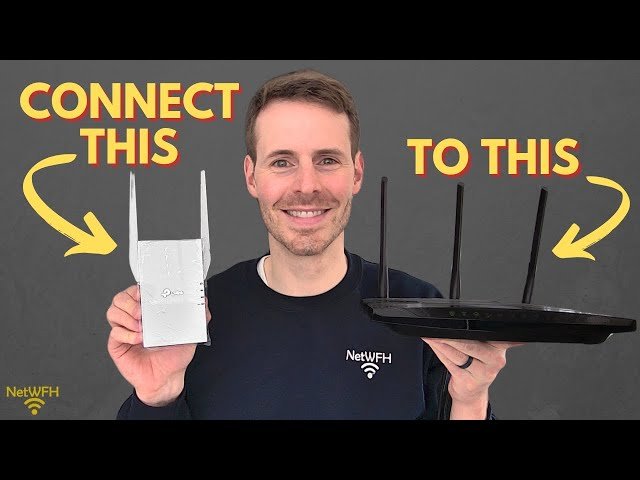
Are you tired of spotty internet connections and dead zones in your home? Imagine seamless streaming and smooth browsing in every corner of your house.
If you’ve been struggling with weak Wi-Fi signals, the solution might just lie in linking two tri-band Wi-Fi extenders. By doing so, you can amplify your wireless network’s coverage, ensuring that every device in your home gets the strong connection it deserves.
In this guide, you’ll discover the simple steps to connect these powerful extenders, transforming your internet experience. Ready to unlock the full potential of your Wi-Fi network? Let’s dive in and explore how easy it is to link your two tri-band Wi-Fi extenders.

Credit: www.youtube.com
Benefits Of Linking Tri Band Extenders
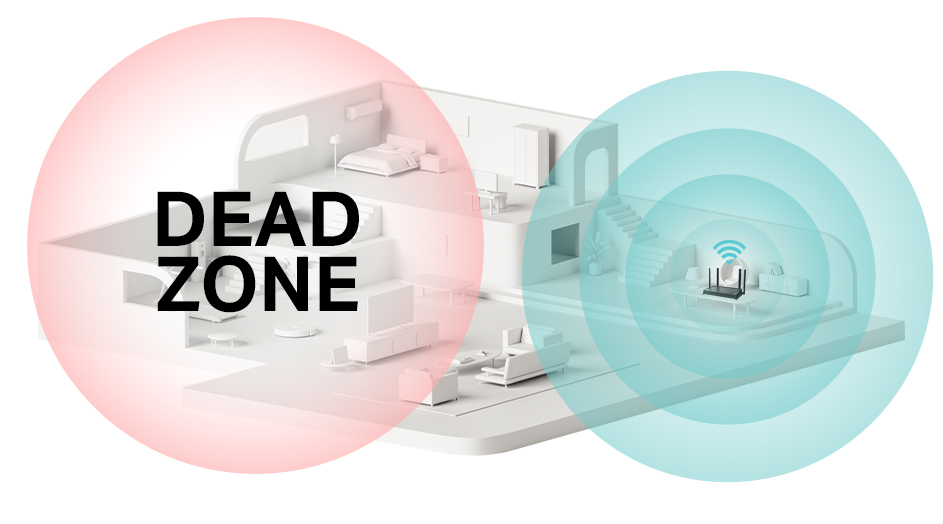
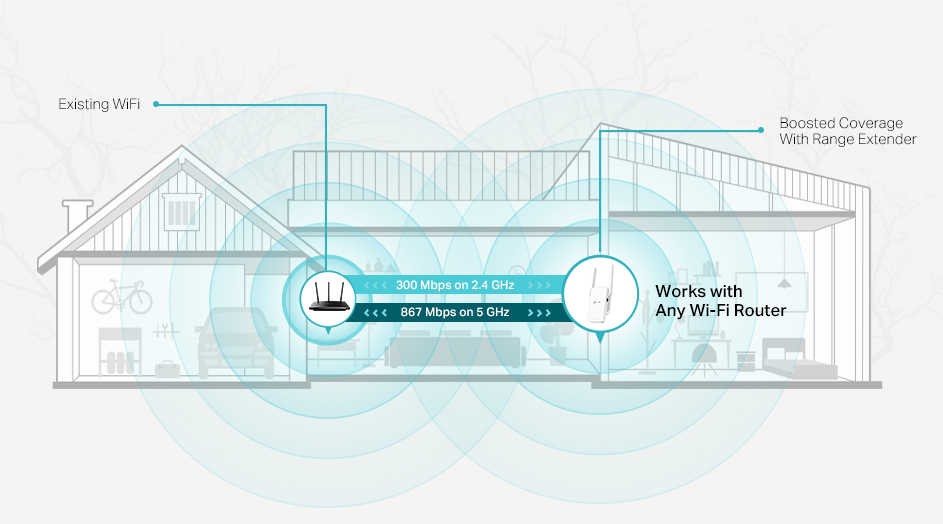
Linking two tri-band WiFi extendersboosts your home network. It spreads WiFi signals over a larger area. This reduces dead zoneswhere WiFi is weak or absent.
Using two extenders together improves internet speedand stability. It balances the load across three bands, reducing network traffic jams. This setup is great for homes with many devices.
- Stronger WiFi signalin every room
- Better connectionfor streaming and gaming
- More devicesconnected without slowing down
- Easy roamingbetween extenders without losing connection
Requirements Before Linking
Ensure both tri band WiFi extenders support the same wireless standards. This helps them connect smoothly.
Check that both extenders are compatiblewith your main router’s brand or model. Compatibility avoids connection issues.
- Place extenders within clear rangeof the main router and each other.
- Make sure extenders have fresh firmware updatesinstalled for best performance.
- Have your WiFi network name (SSID)and passwordready for setup.
- Prepare a device like a smartphone or laptop to access extender settings.
- Power sources should be stable and close to the extenders during setup.
Preparation Steps
Check compatibilitybetween the two tri-band WiFi extenders. Both should support the same frequency bands and network standards. Using different brands or models might cause connection issues.
Place extenders strategicallyin your home. Each extender should be close enough to the main router and each other for a strong signal. Avoid walls and metal objects that block WiFi signals.
Power on devicesand wait until they fully boot up. Make sure all lights show normal status. This step ensures the extenders are ready to connect to each other and the main router.
Connecting Extenders Manually
Access the extender’s settings page through a web browser. Enter the IP address shown in the extender’s manual.
Locate the option to connect to a network, usually under “Wireless Settings” or “Network.”
- Select the main WiFi network you want to extend from the list.
- Enter the network’s username and password carefully to avoid errors.
Save the settings and wait for the extender to connect to the main network.
Repeat this for the second tri-band extender to link both devices manually.
Using Wps Button For Quick Setup
Locate the WPS buttonson both tri-band WiFi extenders. These buttons are usually on the side or back. Pressing them starts the connection process.
Initiate connection by pressing the WPS button on the first extender. Then, within two minutes, press the WPS button on the second extender. This allows them to pair without entering a password.
Confirm a successful link by checking the LED lights. A steady or blinking light usually means the extenders are connected. Test the WiFi signal to ensure both extenders work well together.
Credit: www.tp-link.com
Optimizing Extender Placement
Place the extenders away from devices that cause interference. Common culprits include microwaves, cordless phones, and baby monitors. Keep them at least 3 feet away to reduce signal disruption.
Keep the extender close enough to the main router to maintain a strong connection. Too far, and the signal weakens. Too close, and coverage won’t extend effectively.
| Task | Tip |
|---|---|
| Avoid Interference | Place extenders away from electronics and thick walls. |
| Maintain Signal Strength | Keep extenders within good range of the router. |
| Test Network Coverage | Use a smartphone or laptop to check WiFi in different rooms. |
Troubleshooting Common Issues
Connection dropsoften happen due to weak signals or interference. Check if the extenders are too far from the main router. Walls and other objects can block the signal. Place extenders closer to the router or in open spaces for better coverage.
Slow speedsmight result from many devices using the network at the same time. Restarting the router and extenders can help. Also, avoid placing extenders near microwaves or cordless phones, as they cause interference.
Resetting extenderscan fix many issues. Use a pin to press the reset button for 10 seconds. This clears old settings and lets you start fresh. After reset, follow the setup steps again to link the extenders to the main WiFi.
Tips For Better Network Performance
Updating the firmwarekeeps your extenders running smoothly. It fixes bugs and adds new features. Check the manufacturer’s website often for updates. Install them following the instructions carefully. This can improve speed and connection stability.
Secure network settingsprotect your WiFi from outsiders. Use a strong password with a mix of letters and numbers. Enable WPA3 or WPA2 encryption on your router and extenders. Turn off WPS to avoid easy hacking. This keeps your data safe.
Regular maintenancehelps avoid slowdowns. Restart extenders every few days to clear memory. Clean dust from devices to prevent overheating. Place extenders away from walls and metal objects for better signal. Check connections and cables often to ensure they are tight.
Credit: www.tp-link.com
Frequently Asked Questions
How Do I Link Two Tri Band Wifi Extenders?
To link two tri band WiFi extenders, connect the first extender to your router. Then, place the second extender within range of the first. Use the WPS button or the extender’s web interface to sync them for seamless coverage.
Can I Improve Wifi Speed By Linking Two Tri Band Extenders?
Yes, linking two tri band extenders can boost WiFi speed. They create a stronger mesh network and reduce dead zones. Proper placement and configuration are essential for optimal performance and faster internet speeds throughout your home.
What Is The Best Placement For Dual Tri Band Extenders?
Place the first extender near your router for a strong signal. Position the second extender halfway between the first extender and the area with weak WiFi. Avoid physical obstructions to maximize coverage and maintain stable connections.
Are Tri Band Extenders Compatible With All Routers?
Tri band extenders are mostly compatible with modern routers supporting dual or tri band frequencies. Check your router’s specifications for compatibility. Using extenders from the same brand as your router can simplify setup and improve performance.
Conclusion
Linking two tri-band WiFi extenders boosts your home’s internet reach. It helps reduce dead zones and keeps your devices connected. Just follow the steps carefully and check each connection. A strong, stable signal means smoother streaming and faster downloads. You don’t need to be a tech expert to do this.
With patience, your WiFi will cover every corner of your space. Keep your network simple and reliable for better daily use.


