Imagine having a security system that never misses a beat. No more frustrating buffering or dropped connections just when you need them the most.
By learning how to connect your security cameras to a tri-band WiFi extender, you can achieve seamless, reliable surveillance coverage throughout your entire property. This guide is here to help you do just that, in a way that’s easy to understand and simple to implement.
You’ll discover how a tri-band WiFi extender can boost your network’s range and stability, ensuring your security cameras remain online and functional. Say goodbye to those annoying dead zones and hello to a more secure, connected home. With clear instructions and helpful tips, this article will empower you to enhance your security setup effortlessly. Keep reading to unlock the secrets to a safer, more reliable home security network.
Choosing The Right Tri Band Wifi Extender
Choose a tri band WiFi extenderthat works well with your security cameras. Check the WiFi standardsit supports, such as 802.11ac or ax, as most cameras need strong signals. The extender should have good rangeto cover your camera locations.
Look for features like low latencyand stable connections. These help your cameras stream video without lag or drops. Also, see if the extender supports multiple devicesat once to avoid slowdowns.
| Feature | Why It Matters |
|---|---|
| Compatibility with Camera WiFi | Ensures connection without issues |
| Signal Strength | Keeps video clear and steady |
| Device Capacity | Supports many cameras smoothly |
| Security Protocols | Keeps your network safe |

Credit: wasserstein-home.com
Preparing Your Security Cameras
Check the network settingsof your security cameras before connecting. Ensure the cameras support the WiFi bandsused by the tri-band extender. Most cameras work best on the 2.4 GHz banddue to better range. Confirm the IP addresssettings are set to automatic (DHCP)or manual based on your network plan. Verify the WiFi passwordmatches the extender’s network for a smooth connection.
Updating the camera’s firmwareis important for security and compatibility. Visit the camera manufacturer’s website or use their app to check for updates. Apply the latest firmware to fix bugs and improve performance. This helps the camera work well with the latest tri-band extender technology.
Setting Up The Tri Band Wifi Extender
Place the Tri Band Wifi Extenderwhere it gets a strong signal from your main router. Avoid thick walls or metal objects that block the signal. An open area, like a hallway or near a window, works best.
To connect the extender to your main router, plug it in and turn it on. Use your phone or computer to find the extender’s network name. Open a browser and enter the extender’s setup address. Follow the simple steps to link it to your router’s wifi.
- Keep the extender halfway between the router and your security cameras.
- Make sure the extender’s lights show a good connection.
- Use the same wifi password for easier connection with cameras.
Connecting Security Cameras To The Extender
Open the camera’s setup interface using its app or web browser. Connect to the camera’s default Wi-Fi first. Find the Wi-Fi settings within the camera menu. Select the tri-band Wi-Fi extender’s network from the list.
Enter the extender’s network name (SSID) carefully. Type the correct password to connect. Check for any typos to avoid connection errors. Save the settings and wait for the camera to connect.
Once connected, the camera will show as online in the app. This lets you watch live video from anywhere. Repeat for each camera to extend coverage in your home or office.
Troubleshooting Connection Issues
Resetting devices often solves many connection problems quickly. Start by unplugging the security cameraand the tri-band WiFi extender. Wait about 30 seconds before plugging them back in. This simple step refreshes the network and clears temporary errors.
Sometimes, the camera or extender might freeze or stop responding. A reset helps both devices find each other again. Ensure the extender is within range of your main router for a strong signal. Also, check that the camera’s firmware is up to date.
- Unplug both devices and wait 30 seconds
- Plug them back in and wait for full startup
- Verify the extender connects to your main router
- Check camera settings and firmware version
- Place the camera closer if the signal is weak

Credit: www.backstreet-surveillance.com
Optimizing Performance
Adjusting extender settingshelps improve camera connection quality. Access the extender’s control panel through its IP address or app. Change the channel settingsto avoid interference from other devices. Use the 5 GHz bandfor faster speeds and less congestion, but check that your camera supports it. Set a strong passwordto protect your network and devices. Update the extender’s firmwareregularly to fix bugs and improve performance.
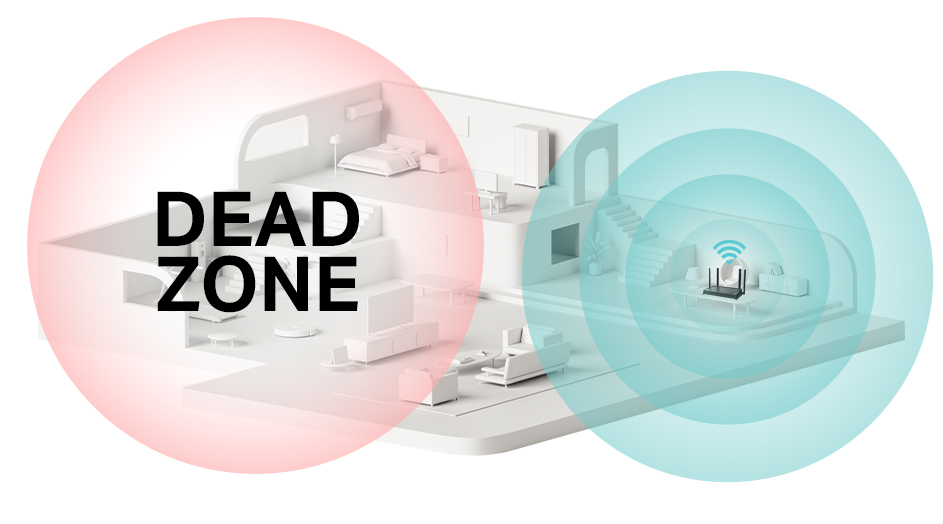
Ensuring stable signal strengthis key for smooth video streaming. Place the extender midwaybetween the router and cameras to boost the signal. Keep it away from walls, metal objects, and microwaves that block WiFi signals. Use a WiFi analyzer app to find the best spot. Avoid too many obstacles for better signal flow. Check signal strength often to prevent camera disconnections or delays.
Credit: www.tp-link.com
Frequently Asked Questions
How Do I Connect A Security Camera To A Tri-band Wifi Extender?
To connect, first power on the camera and extender. Use the extender’s app to add the camera. Select the correct WiFi band for stable connection, usually 5GHz for better speed and range. Follow on-screen instructions to complete setup.
Can Tri-band Wifi Extenders Improve Security Camera Performance?
Yes, tri-band extenders reduce network congestion by separating devices on different bands. This ensures smoother video streaming and faster data transmission for security cameras, minimizing lag and interruptions.
Which Wifi Band Is Best For Security Cameras?
The 5GHz band is generally best for security cameras. It offers higher speed and less interference compared to 2. 4GHz, but with a shorter range. Use 2. 4GHz if your camera is far from the extender.
What Should I Do If My Camera Won’t Connect To The Extender?
Restart both the camera and extender. Check the WiFi password and signal strength. Ensure the camera supports the extender’s WiFi bands. Reset the camera and try the setup process again.
Conclusion
Connecting security cameras to a tri-band WiFi extender improves your home’s safety. It helps cameras get a stronger and faster signal. This means clearer video and fewer connection drops. Setting up is simple with the right steps. Check your extender’s settings and camera instructions carefully.
Keep your network secure with a strong password. Regularly test your cameras to ensure they work well. A reliable connection gives peace of mind. Stay safe and watch over your space easily every day.


