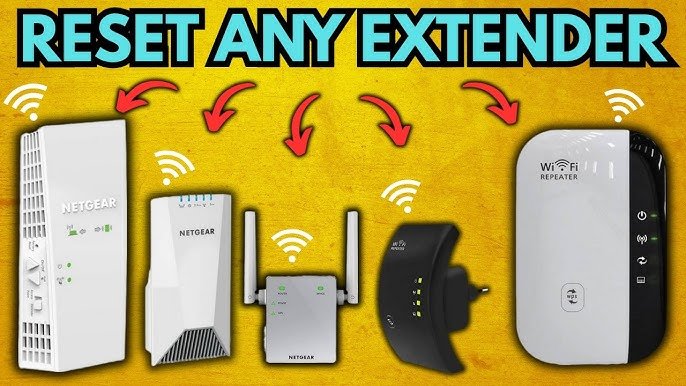
Are you struggling with your long-range WiFi extender? Does it feel like your internet connection is playing hide and seek, leaving you frustrated and disconnected?
You’re not alone. Many people face challenges with their WiFi extenders, and resetting them often brings the solution you need. But, how do you reset a long-range WiFi extender effectively without getting tangled in technical jargon? You’ll discover a simple, step-by-step guide that will help you reset your WiFi extender and restore your internet’s reach and reliability.
Stay tuned to reclaim your seamless browsing experience with just a few easy steps.
Credit: topictrick.medium.com
Reasons To Reset Your Wifi Extender
Signal interferencecan cause your wifi extender to perform poorly. Devices like microwaves, cordless phones, and other routers may block the signal. Resetting the extender can clear these issues and improve connection quality.
Slow internet speedsoften happen when the extender has outdated settings or software glitches. A reset refreshes the device and can restore faster speeds by removing temporary errors.
Connectivity dropsmake it hard to stay online. Frequent disconnections might be due to network conflicts or software bugs. Resetting the extender helps to fix these problems and keeps your connection steady.

Credit: www.amazon.ca
Types Of Wifi Extender Resets
Soft Resetrestarts the extender without changing any settings. It helps fix minor glitches. Usually done by unplugging the extender, waiting 10 seconds, and plugging it back in. No loss of saved WiFi info.
Hard Resetclears some settings and resets the device to basic defaults. Press and hold the reset button for about 10-15 seconds. This removes custom WiFi names and passwords but keeps some internal settings.
Factory Resetwipes all settings and returns the extender to its original state. Press and hold the reset button for 30 seconds or follow the extender’s app instructions. All saved data, passwords, and custom settings will be lost.
| Reset Type | Description | Effect on Settings |
|---|---|---|
| Soft Reset | Simple restart without changing settings | No changes |
| Hard Reset | Resets to basic defaults, clears some settings | Removes custom WiFi info |
| Factory Reset | Full reset to original state | All settings erased |
Step-by-step Reset Guide
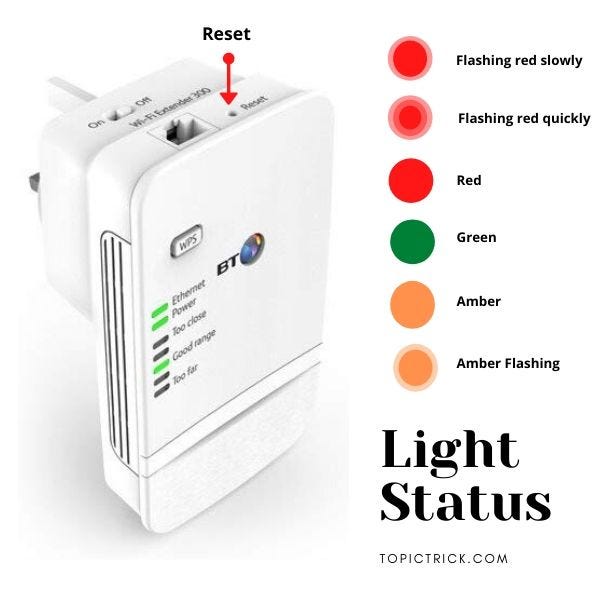
The reset buttonis usually small and recessed. It may need a pin or paperclip to press. Find it on the back or bottom of your wifi extender.
A soft resetrestarts the device without changing settings. Unplug the extender, wait 10 seconds, then plug it back in. This can fix minor issues quickly.
A hard resetrestores default settings but keeps your network saved. Press and hold the reset button for about 10 seconds. Release when the lights blink or change color.
A factory resetwipes all custom settings. Press and hold the reset button for 20-30 seconds. Wait for the extender to reboot. You will need to set it up again after this.
Reconfiguring Your Extender After Reset
Access the setup page by connecting your device to the extender’s Wi-Fi network. Open a web browser and enter the extender’s IP address, usually found on the device label or manual. Login using the default username and password. This page allows you to change settings easily.
Connect the extender to your main router for internet access. Select your router’s network from the list of available Wi-Fi signals. Enter the router’s password carefully to ensure a stable connection. This step links the extender to your home network.
Customize network settings like the extender’s name (SSID) and password. Choose a unique name to avoid confusion with the router’s network. Set a strong password to keep your connection secure. Save all changes before exiting the setup page.
Tips To Boost Long Range Wifi Signal
Place the extenderin an open area, away from thick walls and metal objects. The signal travels better with fewer obstacles.
Keep the extender midway between your router and the farthest device. This helps the signal reach farther without losing strength.
- Avoid walls, mirrors, and large furniturethat block the signal.
- Stay away from microwaves and cordless phones as they cause interference.
- Keep the extender higheroff the ground for better coverage.
Check for new firmware updates often. Updates fix bugs and improve performance.
Go to the extender’s settings page and look for the update option. Follow simple steps to install the latest software.
Troubleshooting Common Issues
Reset button not workingcan mean the button is stuck or the extender needs power. Try pressing it with a pin for 10 seconds. If still no response, unplug the device and plug it back in. Check if the button moves freely.
Extender not connecting after resetmight happen if settings are lost. Re-enter your Wi-Fi name and password carefully. Move the extender closer to the router to improve signal during setup.
Persistent signal weaknessoften happens due to walls or distance. Place the extender in an open area, away from thick walls or metal objects. Make sure the extender firmware is updated for best performance.
Credit: topictrick.medium.com
Frequently Asked Questions
How Do I Reset My Long Range Wifi Extender?
Press and hold the reset button on your extender for 10-15 seconds. Release when the LED lights blink. This restores factory settings and clears previous configurations.
When Should I Reset My Wifi Extender?
Reset your extender if it loses connection or runs slowly. It helps resolve network issues and restores optimal performance quickly.
Will Resetting Erase My Wifi Extender Settings?
Yes, resetting deletes all custom settings. You must reconfigure your extender with your network name and password after the reset.
How To Reset Wifi Extender Without A Reset Button?
Unplug the extender, wait 30 seconds, then plug it back in. This soft reset can fix minor connectivity issues without losing settings.
Conclusion
Resetting your long range WiFi extender helps fix many connection problems. It clears old settings and allows fresh setup. Follow the steps carefully to avoid mistakes. A quick reset can improve your WiFi signal and speed. Keep your extender updated for the best performance.
Simple actions like these save time and frustration. Try resetting whenever your connection feels slow or unstable. Stay connected with ease and enjoy better internet at home or work.


