Are you concerned about the security of your home network and looking for a way to make it more private? Hiding the SSID on your tri-band WiFi extender might just be the solution you need.
By keeping your network name under wraps, you can add an extra layer of security, making it harder for unwanted guests to find and access your WiFi. But how exactly do you do this without getting lost in technical jargon?
Don’t worry—this guide will walk you through the process step by step, ensuring that you can safeguard your network with ease. Ready to take control of your online security? Let’s dive in and discover how you can hide your SSID with confidence.

Credit: www.reddit.com
Benefits Of Hiding Ssid
Hiding the SSID on a tri-band WiFi extender improves network privacy. It stops your network name from showing to others nearby. This makes it harder for strangers to find and connect to your WiFi.
It also helps reduce unauthorized access. Without the SSID visible, fewer people try to join your network. This lowers the risk of someone stealing your internet or data.
Another benefit is minimized network interference. Fewer visible networks mean less signal clash. This can help your WiFi run smoother and faster.
Credit: www.tp-link.com
Preparing Your Tri Band Wifi Extender
Find the IP addressof your tri band wifi extender to start. This is usually on the device label or in the user manual. You can also check your router’s connected devices list for the extender’s IP.
Open a web browser and type the IP address in the address bar. This opens the admin panelof your extender. Use the login details provided with the extender to sign in.
Before making changes, it is smart to back up current settings. Look for a backup option in the admin panel. Save the backup file to your computer. This helps you restore settings if needed.
Steps To Hide Ssid On Tri Band Extender
Access the extender’s web interface using its IP address.
Log in with your username and password.
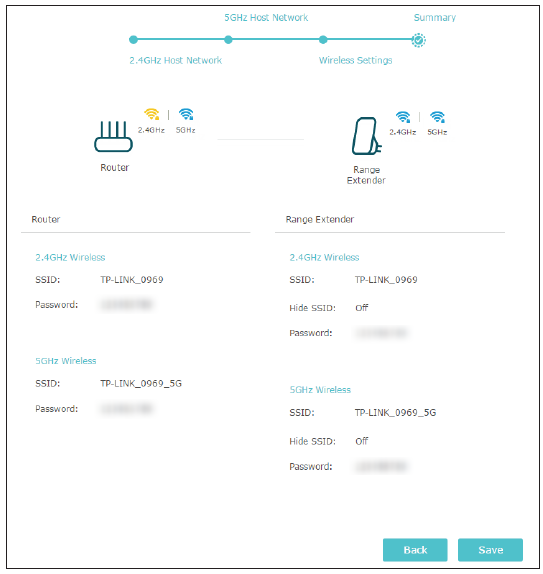
Find the Wireless Settingssection in the menu.
Locate the option called SSID Broadcastor Enable SSID.
Toggle the setting to disablethe SSID broadcast.
This stops your network name from showing on devices.
Click on Saveor Applyto keep changes.
The extender may restart to update settings.
Check your devices to ensure the SSID is hidden.
Credit: support.keenetic.com
Connecting Devices To Hidden Ssid
To connect to a hidden SSID on Windows, open the Wi-Fi settings. Click “Add a network”. Enter the network name (SSID)exactly as it is hidden. Choose the security typeand enter the password. Check “Connect automatically”if you want your device to connect in the future.
On macOS, open System Preferencesand go to Network. Click Wi-Fiand then “Join Other Network”. Type the hidden network’s SSID, select the security type, and enter the password. Click Jointo connect.
- On mobile devices, go to Wi-Fi settings.
- Choose Add Networkor Other.
- Type the hidden SSIDand select the security type.
- Enter the passwordand save.
- Make sure the device is set to connect automatically.
Troubleshooting Common Issues
Hidden networks do not show up in the list of available Wi-Fi networks. Connect by manually entering the SSIDand password on your device.
Connection drops may happen because some devices do not support hidden SSIDs well. Ensure your extender firmware is up to date. Try moving the extender closer to your router to improve signal strength.
Resetting the extender clears all settings and can fix many issues. Use the reset button for about 10 seconds until the lights blink. After reset, set up the extender again, including the SSID hidingoption.
Additional Security Measures
Strong encryption protocolsprotect your wifi from hackers. Use WPA3if your extender supports it. If not, WPA2 is still good. Avoid older protocols like WEP because they are easy to break.
Change all default passwordson your wifi extender. Use a password with letters, numbers, and symbols. Avoid simple words or easy numbers like “1234”. This makes it hard for others to guess.
Keep the extender’s software fresh with regular firmware updates. Updates fix security bugs and add new features. Check for updates on the official website or app. Update your device as soon as a new version is available.
Frequently Asked Questions
How Do I Hide Ssid On A Tri-band Wifi Extender?
To hide the SSID, log into your extender’s settings via its IP address. Find the wireless settings, then disable the SSID broadcast option. Save changes, and your network name will no longer be visible to nearby devices.
Why Hide Ssid On A Tri-band Extender?
Hiding the SSID enhances network security by making your WiFi less visible to unauthorized users. It reduces the risk of unwanted connections and helps protect your data from casual scanning or hacking attempts.
Can Devices Connect If Ssid Is Hidden?
Yes, devices can connect to a hidden SSID by manually entering the network name and password. However, users must know the exact SSID since it won’t appear in the available networks list.
Will Hiding Ssid Improve Wifi Performance?
No, hiding the SSID does not improve WiFi speed or performance. It only prevents the network name from being broadcast publicly, without affecting signal strength or bandwidth.
Conclusion
Hiding your SSID on a tri-band WiFi extender keeps your network more private. It stops others from easily seeing your WiFi name. This simple step adds an extra layer of security at home or work. Just follow the easy setup instructions carefully.
Your devices will still connect as usual. Keep your network safe and less visible to strangers. Small actions like this help protect your online space. Stay secure with a hidden SSID on your tri-band extender. It’s a smart, simple way to guard your WiFi.


