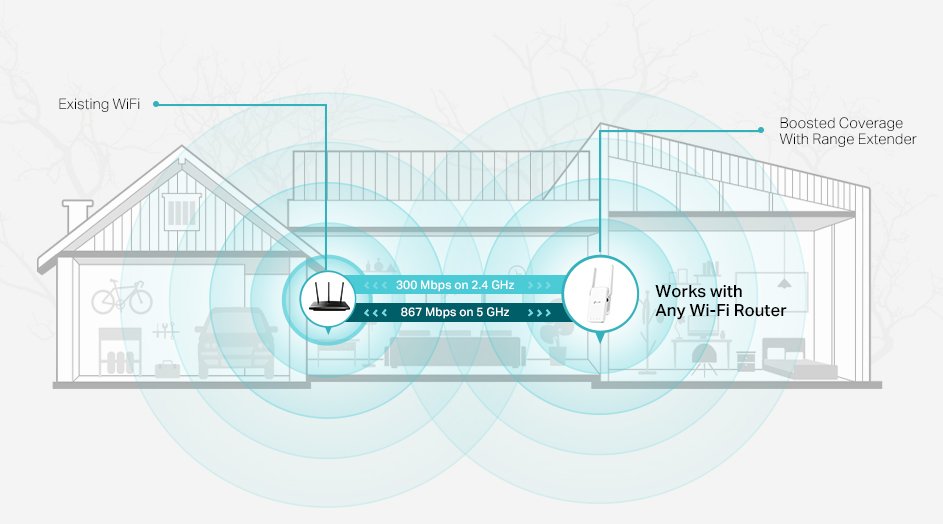
Struggling with weak WiFi signals in some parts of your home? You’re not alone.
A Tri Band WiFi Extender can be the perfect solution, but connecting it to your mesh network might seem tricky. Don’t worry—this guide will walk you through every step, making the process simple and clear. By the end, you’ll enjoy faster, more reliable WiFi everywhere.
Keep reading to unlock the full potential of your network!
Tri Band Wifi Extender Basics
A Tri Band Wifi Extenderuses three separate bands to boost your wifi signal. It connects to your main router and spreads the internet to hard-to-reach places. One band links with the router, while the other two serve your devices.
This setup reduces traffic on each band, so your internet stays fast. It is great for busy homes with many devices, like phones, laptops, and smart TVs.
| Benefits of Tri Band Technology | Details |
|---|---|
| Improved Speed | Less interference, faster internet for all devices |
| Better Coverage | Extends wifi to far rooms and corners |
| Stable Connection | Reduces drops and slowdowns during use |
| Supports More Devices | Handles many users without slowing down |

Credit: www.reddit.com
Mesh Network Essentials
A mesh network uses multiple devices to spread WiFi signals evenly. Each device, called a node, talks to others to form one big network. This helps cover large areas with strong WiFi. Devices switch nodes smoothly without losing connection.
Traditional WiFi uses one router to send signals. It can leave weak spots or dead zones in bigger spaces. Mesh networks fill those gaps by adding nodes where needed.
- Better coverage:Mesh spreads WiFi over a wider area.
- Strong signals:Nodes connect directly to boost signal strength.
- Easy setup:Nodes work together automatically without complex settings.
- Seamless roaming:Devices connect to the best node as you move.
- Flexibility:Add more nodes to improve your network anytime.
Compatibility Check
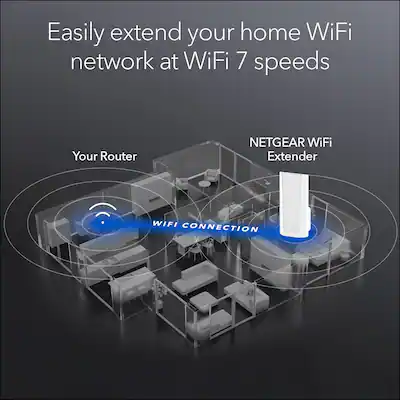
Check if the tri-band WiFi extendersupports mesh networks. Some extenders only work with traditional routers, not mesh systems. Compatibility ensures a smooth connection and better signal strength.
Match the brandswhen possible. Extenders from the same brand as your router often work best in a mesh network. Look for extenders that list mesh compatibilityon their packaging or manual.
| Feature | Router | Extender |
|---|---|---|
| Mesh Support | Yes | Must be Yes |
| WiFi Bands | Tri-band | Tri-band |
| Brand | Same or Compatible | Same or Compatible |
| Firmware | Updated | Updated |
- Check for latest firmware updateson both devices.
- Use extenders designed for mesh networking.
- Confirm the extender supports the tri-bandfeature.
Credit: www.bestbuy.com
Setup Preparation
Choose a central locationfor the tri-band extender. It should be near your main router but not too close. This ensures a strong signalto both the router and devices.
Avoid placing the extender near walls, metal objects, or thick furniture. These can block the WiFi signaland reduce performance.
Gather these details before setup:
- SSID(network name) of your mesh network
- WiFi passwordfor your mesh
- Access to the extender’s admin pageor app
- Device to connect (phone, tablet, or laptop)
Connecting Extender To Mesh
Press the WPS buttonon the mesh router. Within two minutes, press the WPS button on the tri-band extender. The devices will connect automatically. This method is fast and easy. It works well if both devices support WPS.
Access the extender’s web page through a browser. Enter the IP address found in the manual. Login with the default username and password. Select the wireless settingsmenu. Choose the mesh network name (SSID). Enter the mesh network password carefully. Save the settings and wait for the extender to connect. This method gives more control but takes more time.
Download the extender’s app from the app store. Open the app and follow on-screen instructions. Connect your phone to the extender’s WiFi. The app will find the mesh network and connect the extender. This method is user-friendlyand guides you step-by-step.
Optimizing Network Performance
Choosing the best channelhelps avoid interference from other networks. Use your extender’s app or web interface to scan for free channels. Select a channel with low trafficfor better signal strength and speed.
Bandwidth allocationlets you share internet fairly among devices. Prioritize devices that need fast speeds like streaming or gaming gadgets. Limit bandwidth for less important devices to keep the network stable.
- Select channels with less interference.
- Use 5 GHz band for faster speeds.
- Reserve bandwidth for high-demand devices.
- Adjust settings in the extender’s control panel.
- Regularly check network performance and make changes.
Troubleshooting Tips
Common connection issues include weak signals and device compatibility problems. The extender may not sync properly if placed too far from the main router. Interference from walls or other electronics can also block the signal.
Resetting the extender clears old settings that might cause issues. Use a small pin to press the reset button for 10 seconds. After resetting, reconfigure the device using the setup guide. Make sure to connect the extender to the correct mesh network name.
- Place the extender within range of the main router.
- Check that the firmware is up to date.
- Use the same WiFi name and password as the mesh network.
- Restart both the router and extender if connection fails.

Credit: www.youtube.com
Security Considerations
Updating firmwarehelps fix bugs and improve security. Check the extender’s website for the latest version. Download and install updates regularly. This keeps your network safe from threats.
Securing your extended networkis key. Change default passwords to strong, unique ones. Use WPA3 or WPA2 encryption for better protection. Disable remote management unless needed. Turn off WPS to avoid easy hacking. Place your extender in a safe spot to reduce physical tampering.
Frequently Asked Questions
How Do I Connect A Tri-band Extender To Mesh Wifi?
First, place the extender near your mesh router. Use the WPS button or app to sync them. Ensure both devices support tri-band connections for best performance.
Can A Tri-band Extender Improve Mesh Network Speed?
Yes, a tri-band extender adds a dedicated backhaul band. This reduces congestion and boosts overall mesh network speed and stability.
What Is The Best Placement For A Tri-band Extender?
Place the extender halfway between the router and weak signal areas. Avoid walls or large metal objects to ensure a strong connection.
Will A Tri-band Extender Work With Any Mesh System?
Most tri-band extenders work with popular mesh systems. However, check compatibility to ensure seamless integration and optimal performance.
Conclusion
Connecting a tri-band WiFi extender to your mesh network is simple. With the steps outlined, your home will have better coverage. Enjoy seamless browsing and streaming throughout your space. Remember to place your extender strategically for optimal performance. Test the network to ensure strong signals in every corner.
A well-connected home network means fewer interruptions. For any issues, refer to your device’s manual. Stay connected and enjoy a stable internet experience. This setup enhances your internet without complicated procedures. Happy surfing!


