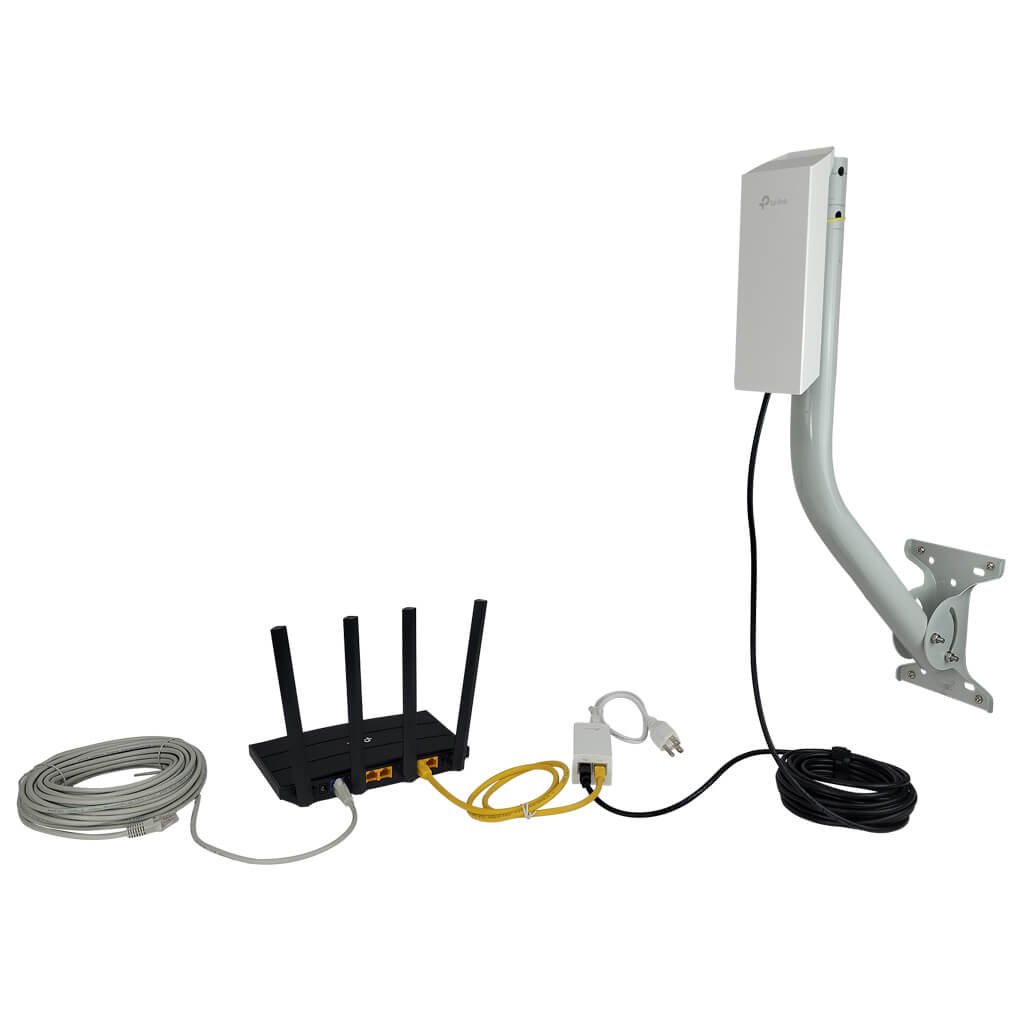
Are you struggling with your long range WiFi extender not working as it should? You rely on it to boost your signal and keep you connected, but when it fails, frustration quickly sets in.
Don’t worry—you’re not alone, and fixing it might be easier than you think. This guide will walk you through simple, effective steps to troubleshoot your WiFi extender and get your connection back on track. Keep reading, because a stronger, smoother WiFi experience is just a few fixes away.
Common Long Range Wifi Issues
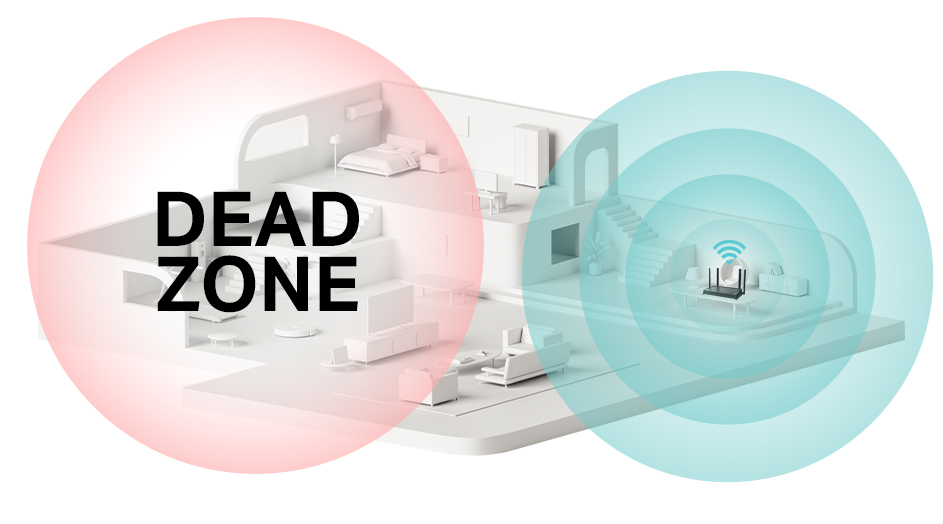
Signal dropsand weak connectionsoften happen due to distance or obstacles. Walls, floors, and large objects block signals. Moving the extender closer to the main router can help. Also, check if the extender is placed too far from devices.
Slow internet speeds can result from network congestionor poor signal strength. Many devices using the same network at once lower speed. Restarting the extender or router sometimes fixes this. Upgrading firmware can also improve speed.
Device compatibility problemsoccur when some gadgets don’t work well with the extender. Older devices might use outdated WiFi standards. Checking for updates or using devices compatible with your extender helps avoid issues.
Interference and obstruction effectscome from other electronics like microwaves or cordless phones. These devices use the same frequency and cause disturbances. Keeping the extender away from such electronics reduces interference.
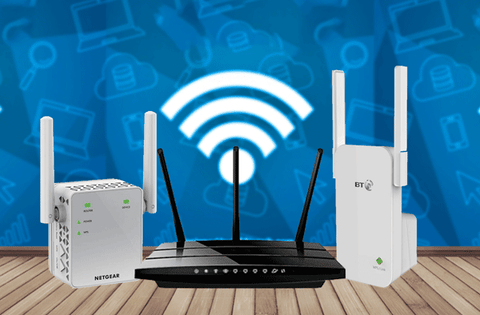
Credit: www.signalbooster.com
Initial Setup Checks
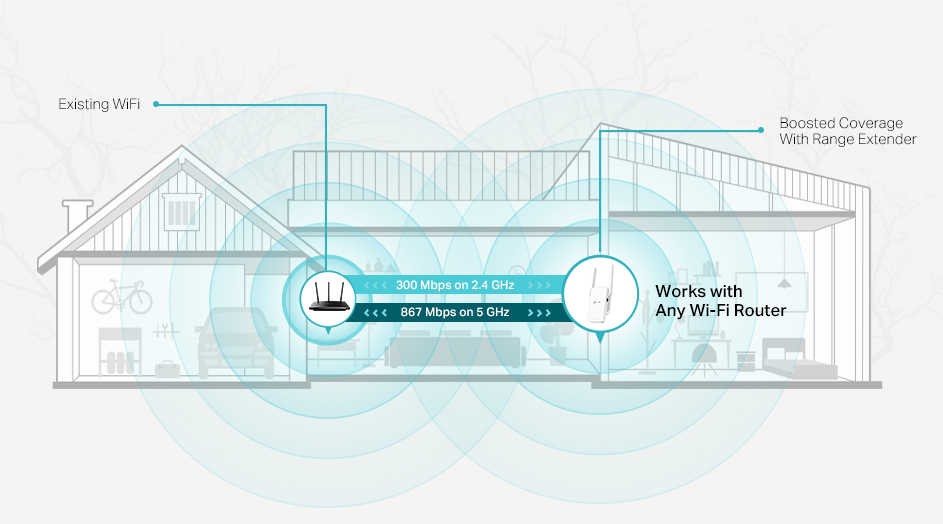
Place the extender halfway between the router and the area with weak signal. Avoid walls, metal objects, and large appliances that block signals. Keep it at a height for better coverage.
Check if the extender connects to the correct WiFi network. Use the same network name (SSID) as your router. Enter the right password. Ensure the extender uses the right frequency band (2.4 GHz or 5 GHz) for your needs.
Keep the extender’s software updated. Updates fix bugs and improve performance. Visit the extender’s website or app to download the latest firmware. Follow the instructions to install updates safely.
Turn off the extender and router. Wait 30 seconds. Turn them on again. This helps clear temporary glitches. Repeat if connection problems continue.
Improving Signal Strength
External antennascan boost your WiFi extender’s signal. Choose antennas with higher gain for better coverage. Position antennas to face the area that needs more signal. This helps in sending and receiving signals over longer distances.
Frequency bandsaffect signal strength. The 2.4 GHz band covers a larger area but is slower. The 5 GHz band is faster but covers less distance. Switch between these bands to find the best balance for your space.
Physical barrierslike walls and furniture block WiFi signals. Move the extender away from thick walls and metal objects. Keep it in open spaces to reduce signal loss.
Choosing the right channelcan reduce interference from other networks. Use a WiFi scanner app to find less crowded channels. Set your extender to those channels to improve speed and connection stability.
Advanced Troubleshooting Techniques
Resetting to factory settingscan fix many issues. It clears old data and restores default options. Use a pin to press the reset button for 10 seconds. Wait for the extender to reboot fully before testing it again.
Analyzing network logshelps find connection errors or interruptions. Access the extender’s admin panel to view logs. Look for repeated error messages or disconnect times. This data shows what caused the problem.
Using WiFi analyzersreveals network strength and interference. These tools scan nearby WiFi channels. Choose a less crowded channel for better signal and speed. Apps are available for phones or laptops.
Testing with different deviceschecks if the problem is device-specific. Connect multiple devices to the extender. If only one device has issues, update its WiFi driver or restart it. This helps isolate the problem source.
Preventive Measures For Stability
Regular maintenance helps keep your WiFi extenderstable. Clean dust and dirt from the device often. Place the extender in a spot with good airflow. This stops overheating and signal loss.
Secure your network by using a strong password. Change default usernames and passwords. This protects your network from unwanted access.
Avoid overloading extenders by connecting only necessary devices. Too many devices slow down the connection. Spread devices across different networks if possible.
Schedule firmware updates regularly. Firmware fixes bugs and improves performance. Check the manufacturer’s website or app for updates.
Credit: www.tp-link.com
Credit: www.tp-link.com
Frequently Asked Questions
How Do I Reset My Long Range Wifi Extender?
Press and hold the reset button on your extender for 10 seconds. This restores factory settings and clears errors. After resetting, reconfigure your extender for optimal performance.
Why Is My Wifi Extender Signal Still Weak?
Weak signals often result from distance or obstacles like walls. Place your extender closer to the router. Avoid interference from devices like microwaves or cordless phones.
How Can I Update My Wifi Extender Firmware?
Visit the manufacturer’s website to download the latest firmware. Access your extender’s admin panel via its IP address, and upload the update. Firmware updates improve performance and fix bugs.
What Causes Frequent Disconnections On Wifi Extenders?
Interference, outdated firmware, or network congestion often cause drops. Ensure your extender is updated and positioned properly. Limit the number of connected devices for better stability.
Conclusion
Troubleshooting your long-range WiFi extender can be simple. Start with basic checks. Ensure the device is plugged in and powered. Restart both the router and extender. Check for firmware updates regularly. Move the extender to a better location if needed.
Avoid walls and metal objects nearby. Test the connection with different devices. Consult the manual for specific instructions. Experiment with different channels for better performance. Reach out to support if problems persist. With patience, you can resolve most issues. Enjoy better WiFi coverage at home or office.


