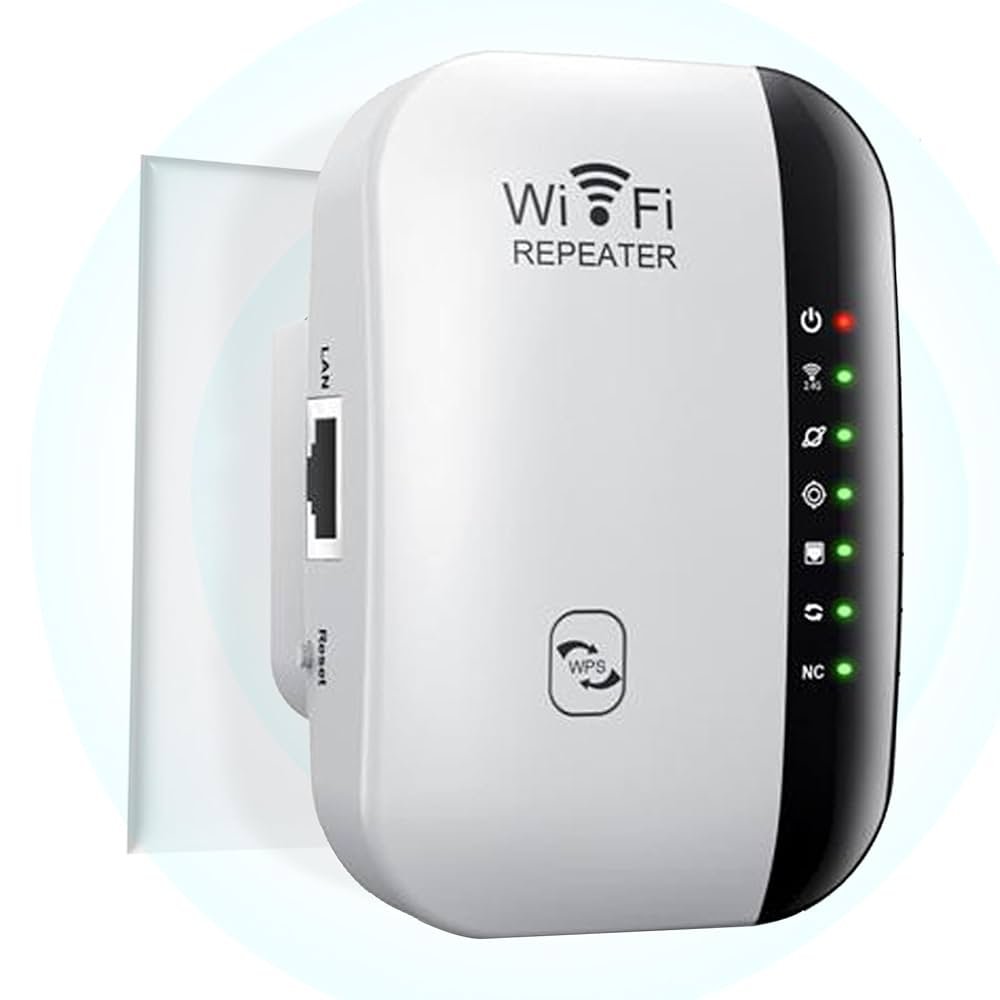
Are you tired of weak WiFi signals in some corners of your home? Imagine boosting your internet without any complicated setup.
With a tri band WiFi extender paired with Alexa, you can do just that—effortlessly. This powerful combo not only expands your WiFi coverage but also lets you control your network using simple voice commands. In this guide, you’ll learn exactly how to connect and use your tri band WiFi extender with Alexa to enjoy fast, seamless internet everywhere.
Keep reading, and take control of your WiFi like never before!
Tri Band Wifi Extender Basics
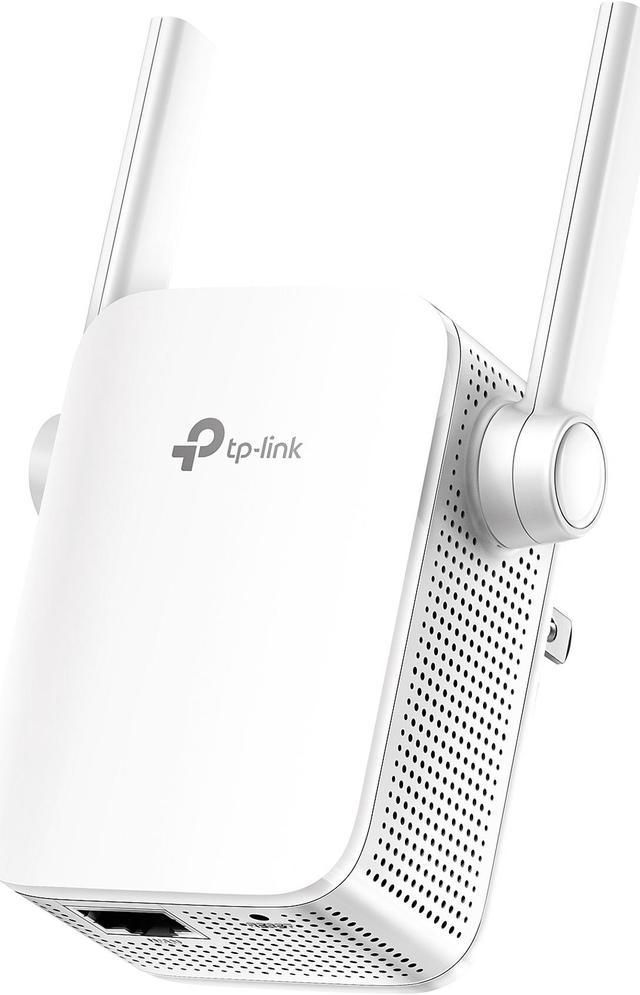
A Tri Band Wifi Extenderuses three separate bands to boost your internet. It connects to your router and spreads the signal farther. This helps cover large homes or offices with better wifi.
Tri Band technologyhas one band for devices and two for backhaul. This means one band connects to your router, while the other two handle your devices. It reduces traffic jams on the network.
Wifi coverage improves by using three bands to avoid slow speeds. Devices get a stronger, more stable connection even far from the router. This makes streaming and gaming smoother.
Credit: www.newegg.ca
Alexa Compatibility
Many Alexa deviceswork well with tri-band WiFi extenders. These extenders boost your WiFi signal across your home. Alexa can connect to them to improve voice command response.
- Echo Dot
- Echo Show
- Echo Plus
- Echo Studio
To connect Alexa to your network, open the Alexa app. Go to Devices > Echo & Alexa. Select your device and tap Changeunder WiFi Network. Choose your tri-band extender’s networkand enter the password.
This setup helps Alexa find a stronger signal. It reduces voice command delays. Your smart home devices stay connected more easily.
Setup Requirements
To set up a Tri Band WiFi Extenderwith Alexa, some hardware and apps are essential. A compatible Tri Band WiFi Extenderis needed. Alexa device, like an Echo, must be connected to the same network.
The WiFi extender appor the manufacturer’s app is required. It helps manage the extender settings. The Alexa app should be installed on your smartphone or tablet to link devices.
Before setup, check the network:
- Ensure the main router works and has a stable internet connection.
- Confirm the extender is within the router’s WiFi range.
- Make sure the Alexa device is connected to WiFi.
- Verify the extender and Alexa use the same 2.4 GHz or 5 GHz band if needed.
Step-by-step Setup
Place the tri-band WiFi extender near a power outlet. Plug it in and wait for the power light to turn solid. Use the extender’s app or web page to start setup. Follow on-screen prompts to begin installation.
Connect the extender to your main router’s WiFi network. Enter your router’s WiFi name and password when asked. The extender will link and boost the signal strength. Wait until the extender shows a strong connection.
- Open the Alexa app on your smartphone or tablet.
- Go to Devices, then select Add Device.
- Choose WiFi Extender or similar device type.
- Follow Alexa’s instructions to discover the extender.
- Link the extender to your Alexa account for voice control.
Configuring Alexa Commands
Start by opening the Alexa app on your smartphone. Search for the WiFi skillthat matches your tri-band extender brand. Tap to enable it and follow the simple instructions to link your WiFi extender account with Alexa.
Once connected, Alexa can control your WiFi extender with simple voice commands. Use phrases like:
- “Alexa, turn on the WiFi extender.”
- “Alexa, check the WiFi extender status.”
- “Alexa, restart the WiFi extender.”
- “Alexa, connect to the 5GHz band.”
These commands help manage your WiFi extender hands-free. Make sure your tri-band extender is powered on and connected to your router for smooth operation.
Troubleshooting Tips
Common setup issues include weak signals and device compatibility. Ensure the extenderis placed within range of the main router. Check that the WiFi bandsare properly selected for your devices.
Alexa may not connect if the network name or password changes. Reset the extender and re-link it to Alexa using the app. Confirm Alexa has permission to access the WiFi network.
- Verify the extender’s firmware is up to date.
- Restart the router, extender, and Alexa device.
- Use the 5 GHz band for faster speeds and less interference.
- Check for physical obstructions blocking the signal.
Fixing connectivity problems often involves simple steps. Move the extender to a better spot. Restart all devices. Double-check passwords and network names. Reset the extender if needed.
Optimizing Performance
Place the extenderwhere the WiFi signal is still strong but near the area with weak coverage. Avoid walls and metal objects that block signals. Higher spots often work better. Keep the extender away from microwaves and cordless phones to reduce interference.
Adjust the extender’s settings for the best speed. Use the extender’s app or web page to connect to the fastest WiFi band available. The 5 GHz bandis faster but covers less area than 2.4 GHz. Choose the right band based on where you need better WiFi.
Set up the extender to auto-switchbands if possible. This helps devices use the best band without manual changes. Restart the extender after changes to apply new settings.

Credit: www.amazon.ca

Credit: www.youtube.com
Frequently Asked Questions
How Do I Connect A Tri Band Wifi Extender To Alexa?
To connect, first set up your tri band WiFi extender. Then, enable its skill in the Alexa app. Link your account, and Alexa will detect the extender for voice commands.
Can Alexa Control My Tri Band Wifi Extender?
Yes, Alexa can control your tri band WiFi extender. Use voice commands to manage WiFi settings or check connection status after linking the device in the Alexa app.
What Voice Commands Work With Tri Band Wifi Extenders?
Common commands include enabling/disabling the extender, checking signal strength, or rebooting the device. Commands vary by brand, so check your extender’s Alexa skill for specifics.
Is Alexa Setup Required For Tri Band Wifi Extender Use?
Alexa setup is optional. The extender works independently but linking with Alexa enables convenient voice control and easier management through smart home integration.
Conclusion
Using a tri-band WiFi extender with Alexa can boost your internet. It ensures your devices stay connected without interruptions. Follow the steps to set it up easily. Place the extender at the right spot. Connect it to your network. Then, link with Alexa for voice control.
This will enhance your smart home experience. Enjoy seamless streaming and browsing. No more dead zones or weak signals. Experience a smarter, connected home with ease. Simple steps lead to better connectivity. Try it today for an improved internet experience.
Your smart home awaits transformation.


