Are you tired of dealing with weak or unreliable Wi-Fi signals, especially when you’re trying to stay connected in those hard-to-reach areas of your home or office? If you’ve invested in a long-range Wi-Fi extender, you’re already on the right path to boosting your internet experience.
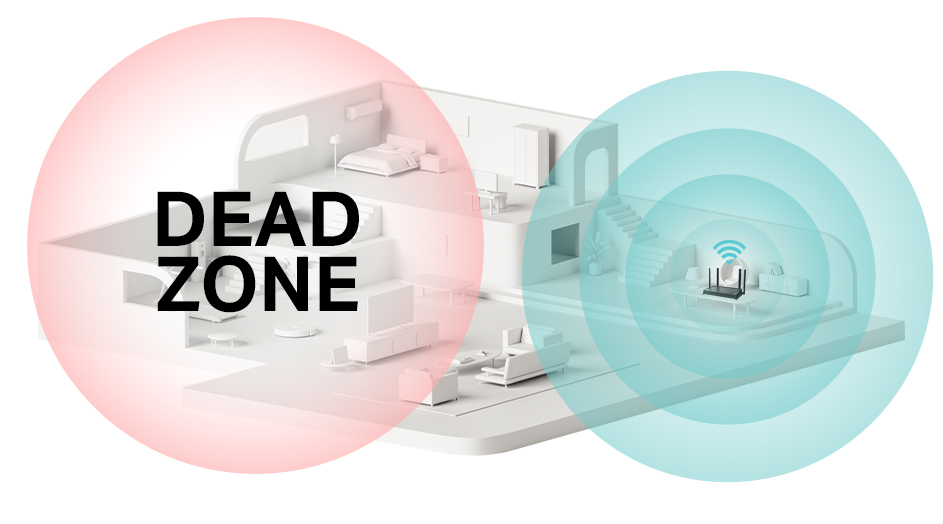
But how do you ensure it’s working at its best? Checking the signal strength of your Wi-Fi extender is crucial to maximizing its performance and keeping those frustrating dead zones at bay. In this guide, we’ll walk you through easy steps to assess and optimize your extender’s signal strength, ensuring that you always enjoy seamless connectivity.
Stay with us, and you’ll learn how to transform your Wi-Fi woes into a thing of the past.
Credit: www.tp-link.com
Basics Of Wifi Signal Strength
Signal strengthshows how strong your WiFi connection is. It tells how well your device can receive the WiFi signal. Good signal means faster internet and fewer drops. Signal strength is measured in dBm (decibels milliwatts). Numbers closer to 0 are better. For example, -30 dBm is very strong, while -90 dBm is weak.
Many factors affect signal strength:
- Distance from the WiFi extender. More distance means weaker signal.
- Walls and floors. Thick walls block signals a lot.
- Interference from other devices like microwaves or cordless phones.
- WiFi channel congestion. Many users on the same channel cause slow speed.
- The power of the WiFi extender itself. Some models have stronger signals.
Tools To Measure Wifi Signal
Many devices have built-in WiFi signal meters. These help check the signal strength quickly. On smartphones, tablets, or laptops, you can see signal bars. More bars mean a stronger connection. Some devices also show signal strength in decibels (dBm)for better accuracy.
Third-party apps and software offer detailed info. They show signal strength, speed, and coverage maps. Some popular apps include:
- NetSpot: Visual heatmaps for WiFi strength.
- WiFi Analyzer: Easy to use for Android devices.
- inSSIDer: Great for Windows and Mac users.
These tools help find the best spot for your long-range WiFi extender. They also show interferencefrom other networks or devices. Use them to improve your WiFi signal and avoid weak zones.
Checking Signal Strength On Different Devices
Windows PC:Click the Wi-Fi icon on the taskbar. Look for the signal bars next to your network name. More bars mean stronger signal. For detailed info, open Command Prompt and type netsh wlan show interfaces. Check the “Signal” percentage.
Mac OS:Hold the Option key and click the Wi-Fi icon on the menu bar. A dropdown will show signal details like RSSI and noise. Lower RSSI means weaker signal. Higher number means better connection.
Android Devices:Go to Settings > Wi-Fi. Tap your connected network. Signal strength is shown with bars. Apps like “WiFi Analyzer” can give more details about signal quality and strength.
iOS Devices:Open Settings > Wi-Fi. Signal strength appears as bars next to the network name. For more info, use apps like “Network Analyzer” to check signal strength and quality.
Interpreting Signal Strength Results
Signal strength results show how well your long range WiFi extender connects to your device. Strong signals mean better internet speed and fewer dropouts. Check the signal bars or use a WiFi analyzer app for clear readings.
Signal Bars Vs. Dbm Levels
Signal bars show strength as a picture, easy to see. More bars mean a stronger signal. But bars can be different on each device. dBm is a number that tells exact signal strength. It is measured in negative numbers. Closer to zero is stronger. For example, -30 dBm is very strong. -90 dBm is very weak.
Ideal Signal Ranges For Performance
| Signal Range (dBm) | Performance Level | Description |
|---|---|---|
| -30 to -50 | Excellent | Strong signal, very good connection |
| -51 to -60 | Good | Stable signal, good for most uses |
| -61 to -70 | Fair | Signal okay, may slow down sometimes |
| -71 to -80 | Poor | Weak signal, slow or dropped connection |
| -81 and below | Very Poor | Connection often lost or unusable |
Improving Weak Wifi Signals
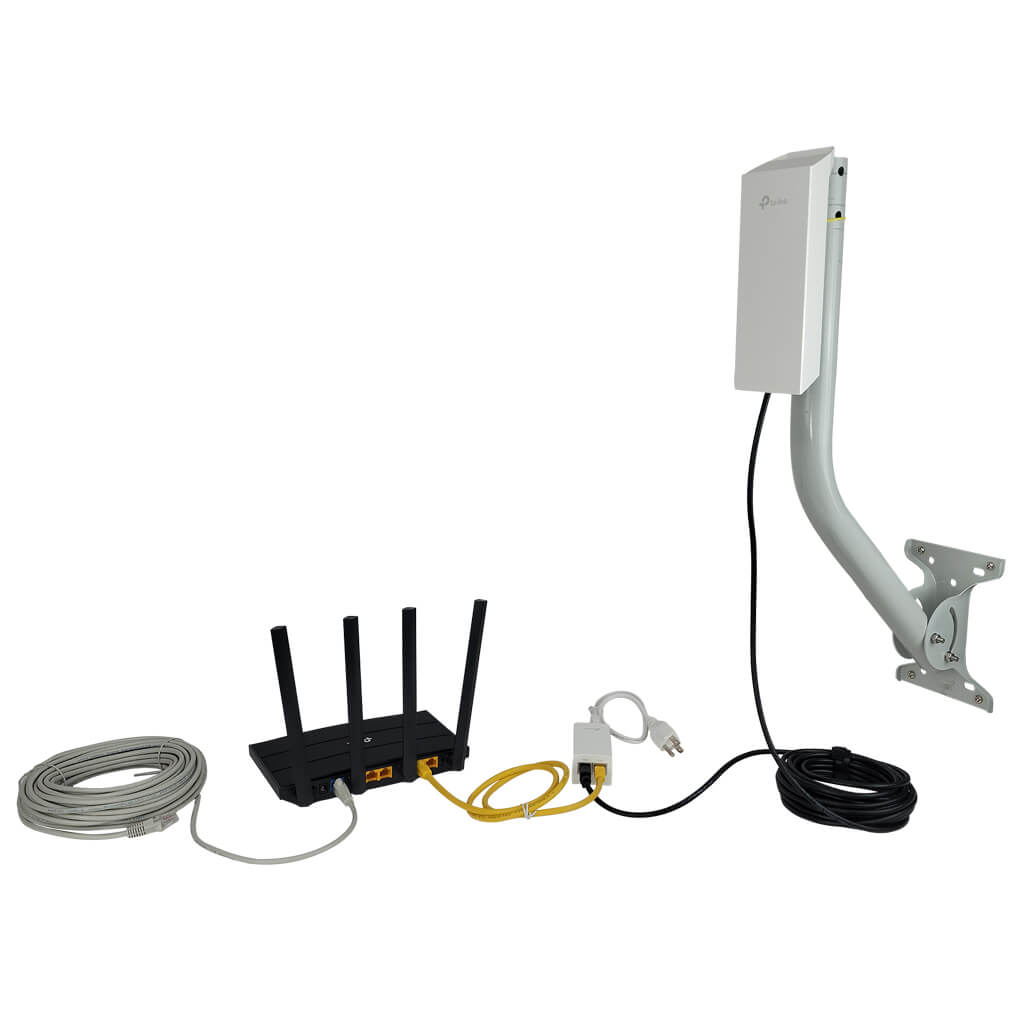
Placing the wifi extender in a central locationhelps cover more area. Avoid walls and metal objects that block signals. Keep it away from microwaves and cordless phones to reduce interference. Check the signal strength using a wifi analyzer app to find the best spot.
Interference from other devices can weaken your wifi. Move the extender away from devices that use the same frequency. Try switching between 2.4 GHz and 5 GHz bands for better performance. Less interference means stronger and faster wifi.
Updating the extender’s firmware can fix bugs and improve signal quality. Access the extender settings through its app or web page. Look for the update optionand follow the instructions. Adjusting settings like channel and transmit power can also help.
Credit: simplewifi.com
Testing Signal Strength Over Time
Use monitoring toolsto track your long range WiFi extender’s signal strength. These tools show how strong the signal is at different times of the day. Some popular apps and software can log signal data automatically.
Watching signal strength over days helps find stability problems. Sudden drops or slow speeds may mean interference or hardware issues. Comparing data points can reveal patterns or times when the signal weakens.
| Monitoring Tool | Feature | Benefit |
|---|---|---|
| WiFi Analyzer | Signal strength graph | Easy to see signal changes over time |
| NetSpot | Heatmaps and reports | Visualize coverage and weak spots |
| InSSIDer | Network scanning | Detect interference and channel overlap |
Check the signal at different times and places. Note any signal dropsor slow speeds. This helps keep your network steady and reliable.
Credit: www.pocket-lint.com
Frequently Asked Questions
How Do I Check Signal Strength On A Long Range Wifi Extender?
You can check signal strength using the extender’s app or web interface. Look for signal bars or dBm values. Strong signals usually show -30 to -60 dBm. Lower values indicate weaker signals.
What Tools Help Measure Wifi Extender Signal Strength?
Use apps like NetSpot, WiFi Analyzer, or inSSIDer. These tools display signal strength, quality, and channel interference. They help optimize extender placement for better coverage.
Why Is Wifi Extender Signal Strength Important?
Strong signal strength ensures stable internet and faster speeds. Weak signals cause buffering and dropped connections. Checking strength helps maintain a reliable long-range WiFi network.
Can I Improve Signal Strength Of My Wifi Extender?
Yes, by repositioning the extender closer to your router. Avoid obstacles like walls or metal objects. Updating firmware and choosing optimal channels also enhance signal strength.
Conclusion
Checking the signal strength of your long range WiFi extender helps keep your connection steady. Use simple tools or apps to measure the signal in different spots. Move the extender if the signal feels weak. Strong signals mean faster internet and fewer drops.
Regular checks save time and frustration. Stay connected without hassle. Easy steps lead to better WiFi every day.