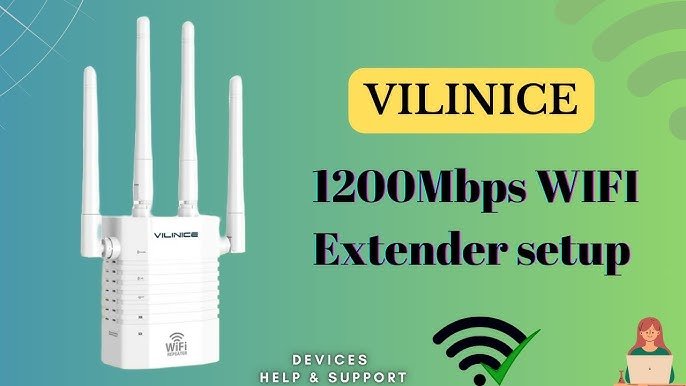
Are you tired of dead zones in your home where Wi-Fi signals just can’t reach? Do you find yourself constantly searching for a better connection, only to be disappointed?
You’re not alone. Many people face this frustrating issue, but the good news is there’s a simple solution: a dual-band Wi-Fi extender. This handy device can boost your signal strength and extend coverage, giving you the fast and reliable internet connection you deserve.
In this guide, you’ll learn how to install a dual-band Wi-Fi extender with ease, ensuring every corner of your home is filled with strong, seamless connectivity. Stick around, and you’ll discover just how easy it is to enhance your internet experience.

Credit: www.youtube.com
Choosing The Right Extender
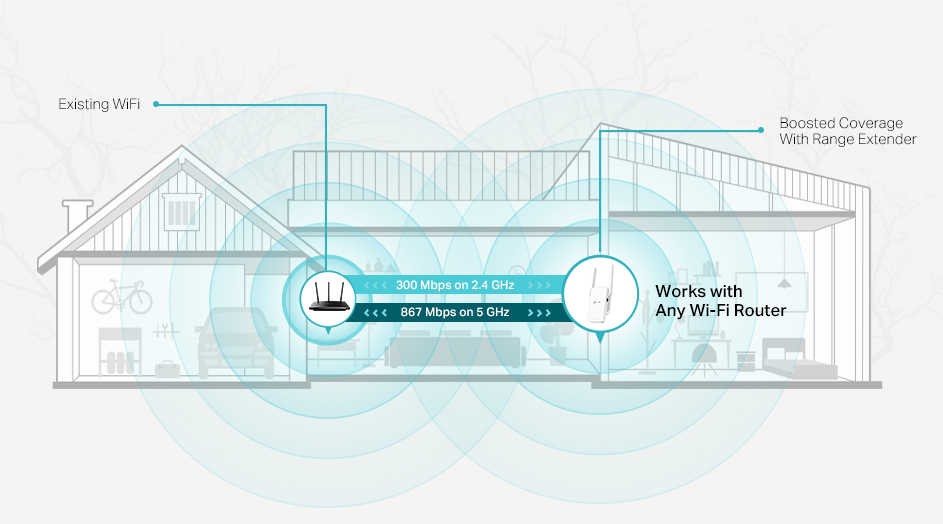
Dual band wifi extendersuse two frequency bands: 2.4 GHz and 5 GHz. The 2.4 GHz band covers larger areas but is slower. The 5 GHz band is faster but covers a smaller area. Choose an extender that supports both bands to get the best speed and coverage.
Check if the extender is compatible with your router. Most extenders work with popular brands, but some may need specific models. Read the product details or manual to confirm compatibility.
Consider the coverage areayou need to extend. Measure the space or rooms where WiFi is weak. Pick an extender that can cover this area fully to avoid dead zones.
Preparing For Installation
Open the box carefully and check all parts. Make sure the wifi extender, power adapter, and user manual are included. Look for any damages or missing pieces before starting.
Choose a spot that is close to your router but still reaches the area with weak wifi. The location should have a strong wifi signalfrom your main router. Avoid walls or large metal objects that can block the signal.
- Power outlet near the chosen location
- Smartphone or computer for setup
- Optional: Ethernet cable if you want a wired connection
- User manual for quick reference
Connecting The Extender
Plug the dual band WiFi extender into a power outlet near your router. Wait for the power light to turn on. This means the device is ready to connect.
- Press the WPS button on your router.
- Within two minutes, press the WPS button on the extender.
- Wait for the extender’s light to show a stable connection.
Open a web browser on a device connected to the extender’s network.
Enter the extender’s IP address or URL in the address bar.
Log in using the default username and password (found in the manual).
Follow the on-screen instructions to select your WiFi network and enter the password.
Save the settings and wait for the extender to reboot.
Credit: www.tp-link.com
Configuring Network Settings
The dual band WiFi extendersupports both 2.4 GHz and 5 GHz bands. Choose the band that fits your needs. The 2.4 GHz band covers a larger area but is slower. The 5 GHz band is faster but covers less distance.
Set a unique SSID(network name) so you can easily identify the extender. Use a strong passwordto keep your network secure. Avoid simple passwords like “12345678”.
Adjust security optionsto protect your network. Use WPA2 or WPA3 encryption if available. These offer better security than older options.
Testing And Troubleshooting
Check the signal strengthnear the extender. Move closer to the main router to see if the signal improves. A weak signal means the extender might be too far away. Try placing it halfway between the router and the area with poor WiFi.
- Restart the extenderif it does not connect properly.
- Make sure the extender is plugged in and the power light is on.
- Check if the extender is connected to the correct WiFi network.
- Remove old WiFi profiles on your device and reconnect.
| Issue | Possible Fix |
|---|---|
| Extender not connecting | Restart device and check WiFi password |
| Slow internet speed | Move extender closer to router |
| Frequent disconnections | Update extender firmware |
Keep the extender firmware up to date. Visit the manufacturer’s website for updates. Download and install updates carefully. Firmware updates fix bugs and improve performance.
Maximizing Extender Performance
Placethe extender near your router for best signal boost. Avoid walls and metal objects that block signals. Keep it at least 3 feet off the groundto spread WiFi better.
Interferencefrom other devices can slow down your WiFi. Keep the extender away from microwaves, cordless phones, and baby monitors. Choose a channel with less traffic on your router settings.
Check your extender often. Restart itif the connection feels slow. Update the firmwarefrom the extender’s website to fix bugs and improve speed. Clean dust off vents to prevent overheating.
Credit: www.youtube.com
Frequently Asked Questions
What Is A Dual Band Wifi Extender?
A dual band WiFi extender boosts both 2. 4 GHz and 5 GHz signals. It improves coverage and reduces interference for better internet speed and reliability.
How Do I Set Up A Dual Band Wifi Extender?
Plug in the extender near your router. Connect to its network, access the setup page, and follow instructions to link it to your WiFi.
Where Should I Place My Dual Band Wifi Extender?
Place it halfway between your router and the weak signal area. Avoid obstacles and interference for optimal WiFi coverage and performance.
Can Dual Band Extenders Improve Slow Wifi Speeds?
Yes, they enhance WiFi speeds by extending both bands. This reduces dead zones and allows devices to connect on the best frequency.
Conclusion
Installing a dual band WiFi extender can boost your internet signal. Place it where your WiFi starts to weaken. Follow the steps carefully for a smooth setup. You will enjoy faster and more stable connections. No more dead zones or slow speeds.
Keep your devices connected easily across your home. Enjoy better streaming, gaming, and browsing without interruptions. A strong WiFi signal helps everyone stay online. Simple tools and clear instructions make the process easy. Give your network a helpful boost today.


