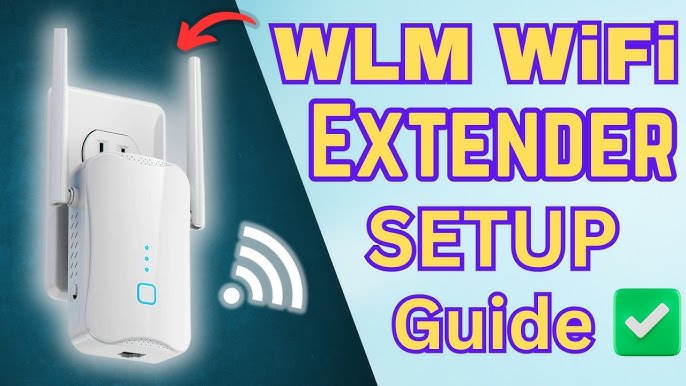
Are you struggling to get your smart TV connected to your tri-band WiFi extender? You’re not alone.
A weak or unstable connection can ruin your streaming experience, leaving you frustrated with buffering and poor picture quality. But don’t worry—setting up your smart TV with a tri-band WiFi extender can boost your signal strength and give you smooth, uninterrupted entertainment.
In this guide, you’ll discover simple, step-by-step instructions to connect your smart TV to your tri-band WiFi extender quickly and easily. Keep reading, and you’ll be watching your favorite shows without a hitch in no time.
Prepare Your Devices
Check if your Smart TV supports Wi-Ficonnection. Most modern TVs do, but some older models need a Wi-Fi adapter. Look in the TV settings for network options. Confirm it can connect to a 5 GHz band, as tri-band extenders often use this.
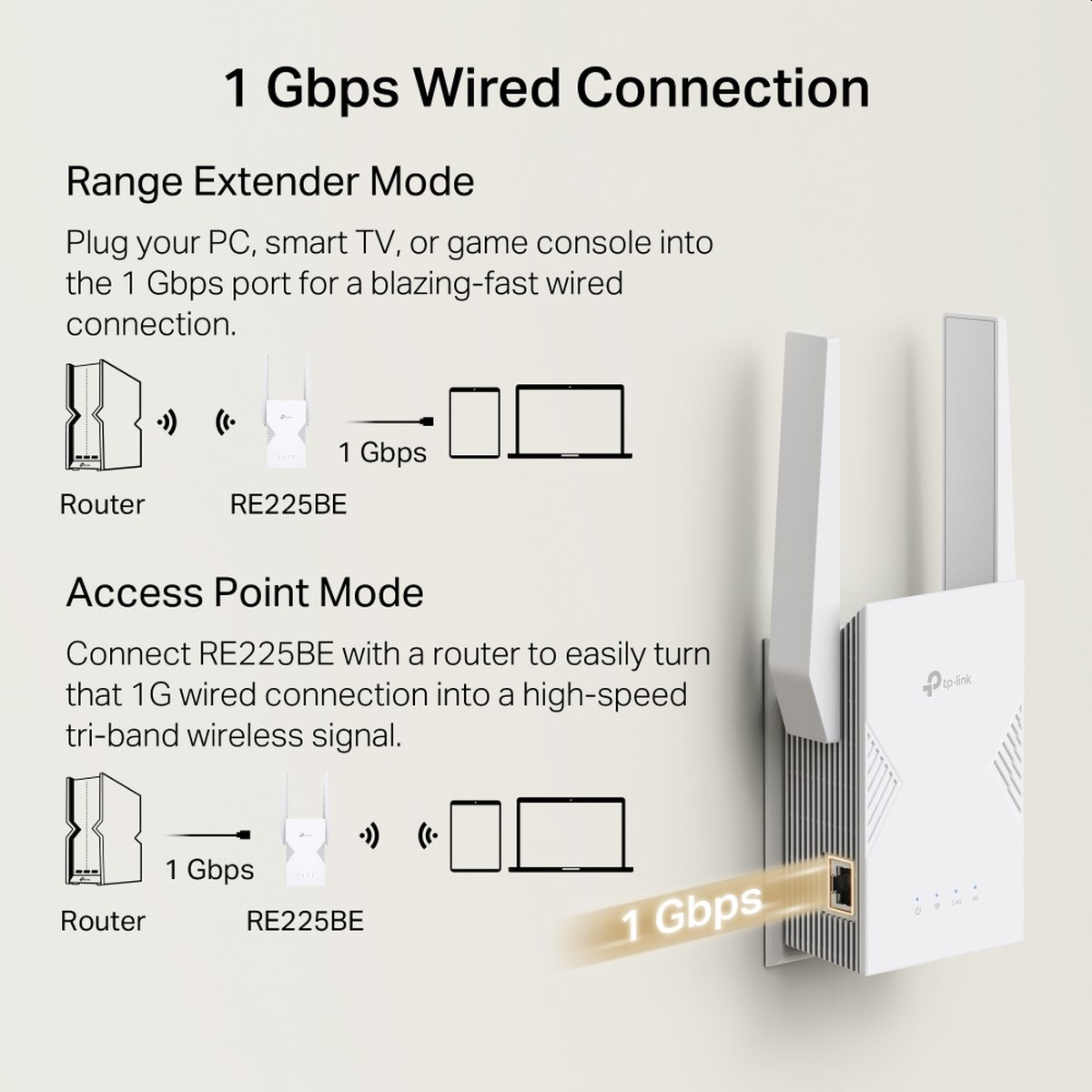
Place the Tri Band WiFi Extendernear the router but where it can still reach the TV. Avoid walls and large metal objects that block signals. The extender should be in a central locationfor best coverage.
Make sure the extender is plugged into a stable power source. Use an outlet that does not switch off often. A strong power supply helps the extender work without interruptions.

Credit: www.youtube.com
Access Wifi Extender Settings
First, connect your device to the extender’s WiFi network. This network usually has the extender’s name in it.
Open a web browser and type the IP addressof the extender to access the configuration page. Common IPs are 192.168.0.1or 192.168.1.1.
Enter the admin username and passwordto log in. These details can be found on the extender label or manual.
Once logged in, you can change settings or check connection status.
Connect Extender To Main Router
Choose the main router’s Wi-Fi networkfrom the extender’s setup page or app. This step links the extender to your main internet source.
Enter the router passwordcarefully. This is the same password used to connect your other devices to Wi-Fi.
Wait a few moments for the extender to connect. Check the connection statuson the extender’s interface to be sure it is linked properly.
- The extender should show a strong signalfrom the main router.
- Look for a “connected”message or green light on the extender.
- If connection fails, re-enter the password or move the extender closer to the router.
Credit: www.discomp.cz
Link Smart Tv To Extender Network
Start by opening the network settingson your Smart TV. This is where you control all Wi-Fi connections.
Next, scan for available networks. Your Tri Band WiFi Extender’s network should appear in the list.
Select the SSIDof your extender carefully. This is the name of your extender’s Wi-Fi.
Enter the Wi-Fi passwordexactly as it was set on the extender. Check for uppercase and lowercase letters.
After entering the password, your TV will try to connect. Wait a few moments for the connection to complete.
Test Connection And Optimize
Test the connection by running a speed check on your Smart TV. Use an app or website to see the download and upload speeds. This helps ensure your Tri Band WiFi Extender is working well.
Adjust the extender’s placement if speeds are slow. Move it closer to the TV or a clear spot where signals are strong. Avoid walls or metal objects that block WiFi signals.
Keep the extender’s firmware updated. Check the manufacturer’s website or app for updates. New firmware can fix bugs and improve performance.

Credit: manuals.plus
Troubleshooting Tips
Resetting the WiFi extender can fix many connection problems. Unplug it, wait 30 seconds, then plug it back in. This clears old settings and helps the device work fresh.
Forgetting and reconnecting the network on your smart TV often solves connection issues. Go to the TV’s network settings, select your WiFi, and choose “Forget.” Then, reconnect by entering the password again.
- Keep the extender away from microwaves and cordless phones.
- Avoid placing it near thick walls or metal objects.
- Interference can cause weak or dropped signals.
If problems continue after these steps, contact customer support for help. They can guide you with advanced fixes or replacement if needed.
Frequently Asked Questions
How Do I Connect My Smart Tv To A Tri Band Wifi Extender?
To connect, first power on your WiFi extender and Smart TV. Then, search for the extender’s network on your TV’s WiFi settings. Select the extender’s SSID and enter the password. Your TV will now use the extender’s improved signal for internet access.
Why Use A Tri Band Wifi Extender For Smart Tv?
A Tri Band WiFi Extender offers three separate channels, reducing network congestion. This ensures faster, more stable WiFi for streaming on your Smart TV. It improves coverage in large areas, minimizing buffering and enhancing your viewing experience.
Can All Smart Tvs Connect To A Tri Band Wifi Extender?
Most Smart TVs support WiFi connections and can connect to a Tri Band Extender. Ensure your TV’s WiFi standards match the extender’s capabilities. Check compatibility in the TV’s manual if you face connection issues.
What Should I Do If My Smart Tv Won’t Connect?
Restart both your Smart TV and the WiFi extender. Double-check the network name and password. Ensure your extender is within range and broadcasting. If issues persist, reset the extender and try reconnecting your TV.
Conclusion
Connecting your smart TV to a tri-band WiFi extender enhances streaming. It ensures a smoother viewing experience with fewer interruptions. Follow simple steps to enjoy seamless connectivity. Start by placing the extender close to the TV. Use the WiFi settings on your TV to connect.
Choose the correct network from the list. Enter the password, and you’re set. This setup reduces buffering and improves video quality. Enjoy your favorite shows and movies without hassle. With this connection, your entertainment becomes more enjoyable and convenient. Stay connected and enjoy a smooth streaming experience every time.


