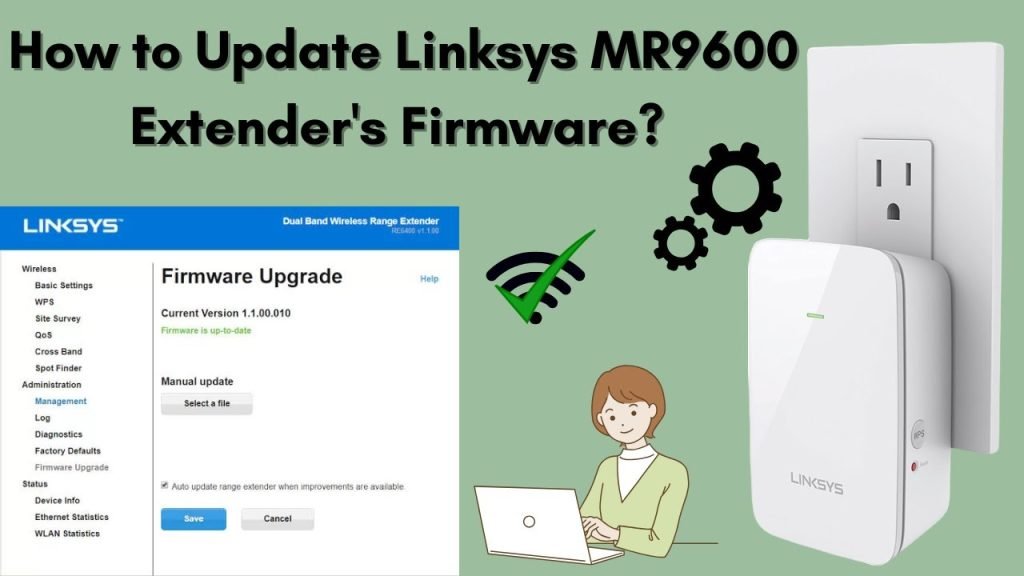
Is your tri band WiFi extender not performing as well as it should? Updating your extender’s firmware can boost its speed, improve security, and fix bugs that slow it down.
But how do you update it without messing things up? In this guide, you’ll find simple, step-by-step instructions to get your firmware up to date quickly and safely. Keep reading to make sure your WiFi extender works at its best and keeps your connection smooth and reliable.
Check Extender Model And Firmware Version
Check the model numberon your Tri Band WiFi extender. It is usually on a label at the back or bottom. The label also shows the serial numberand other details.
To find the current firmware version, connect to the extender’s network. Open a browser and enter the IP address or URL given in the manual. Log in using your username and password.
Once logged in, look for the firmware informationin the settings or system section. Note the version number to compare with the latest update available on the manufacturer’s website.

Credit: www.reddit.com
Download Latest Firmware
Visit the official websiteof your Tri Band WiFi extender’s manufacturer. Look for the Supportor Downloadssection. There, you can find the latest firmware updatesfor your device.
Select the correct firmware fileby matching your extender’s model number. Download the file that fits your exact model and version. Using the wrong file can cause problems.
- Check the model number on the extender label.
- Compare it with the firmware listing on the website.
- Download the firmware with the newest date.
Prepare For Firmware Update
Make sure the extenderis close to your computer. Use an Ethernet cablefor a stable connection. Avoid Wi-Fi to stop interruptions during the update.
Open your browser and type the extender’s IP address. Log in using your username and password. This gives you access to the extender’s settings.
Before starting, save your current settings. This helps if the update causes problems. Look for the backup optionin the settings menu. Download and store the backup file safely.

Credit: www.netgear.com
Update Firmware Via Web Interface
Open your web browser and enter the extender’s IP address. Use the admin username and passwordto log in. This brings you to the extender’s control panel.
Find the Firmware Updatesection in the menu. It may be under Settingsor System. This area lets you manage software updates.
Click on Upload Firmware. Choose the correct file from your computer. The file must match your extender model for safety.
Press the Start Updatebutton. The extender will update its software. Do not turn off or unplug the device until done.
After Update Steps
After the firmware update, the extender will reboot automatically. Wait patiently for this process to finish. It may take a few minutes. Avoid turning off the device during reboot. This ensures the update installs correctly.
Check the firmware versionto confirm the update. Log in to the extender’s admin page. Find the firmware or system information section. The displayed version should match the latest one you installed. This step confirms the update success.
Sometimes, settings may reset after updating. Restore your saved settings if needed. Use the backup file you created before updating. This keeps your network working as before. If no backup exists, reconfigure settings manually.
Troubleshooting Common Issues
Update failures can happen due to poor internet connection or power loss. Try to check your WiFi connectionand ensure your extender is plugged in properly. Sometimes, the update file may be corrupted. Download the firmware again from the official website.
Resetting the extender restores factory settings and removes errors. Press and hold the reset button for 10 seconds using a paperclip or pin. This clears old settings and prepares the device for a fresh update. Remember, you will need to set up the extender againafter resetting.
Contacting support helps when problems persist. Have your model number and purchase details ready. Support can guide through complex issues or provide special firmware versions. Use official support channels for safe and quick assistance.
Tips For Smooth Firmware Updates
Use a stable power sourceto prevent sudden shutdowns during updates. Power loss can damage the firmware and make the extender unusable.
Avoid interruptions like unplugging or restarting the device while updating. Interruptions can cause errorsand require restarting the process.
- Set a regular update scheduleto keep the device secure and fast.
- Check for updates monthly or as recommended by the manufacturer.
- Keep the extender close to the router for a strong signal during updates.

Credit: sg.news.yahoo.com
Frequently Asked Questions
How Do I Check Tri Band Wifi Extender Firmware Version?
Access your extender’s web interface via its IP address. Locate the firmware version in the system or status section. This helps you confirm if an update is needed for optimal performance.
Where Can I Download Tri Band Wifi Extender Firmware?
Visit the official manufacturer’s website and navigate to the support or downloads section. Always download firmware from trusted sources to avoid security risks and ensure compatibility.
What Steps Are Involved In Updating Firmware?
Log into the extender’s admin panel, select the firmware update option, upload the downloaded file, and initiate the update. Ensure the device stays powered on and connected during the process.
Why Should I Update Tri Band Wifi Extender Firmware?
Firmware updates fix bugs, improve security, and enhance device performance. Keeping firmware current ensures your extender runs efficiently and supports the latest network protocols.
Conclusion
Updating your tri band WiFi extender firmware is crucial. It ensures better performance and security. Always check for updates regularly. Follow the steps carefully for a smooth process. Updating doesn’t take much time. It’s simple with the right guidance. Keep your device manuals handy.
They help in case of confusion. A well-updated extender boosts internet speed. It enhances your online experience. Don’t ignore firmware updates. They keep your network safe. Stay informed and connected. Enjoy seamless internet access at home.


