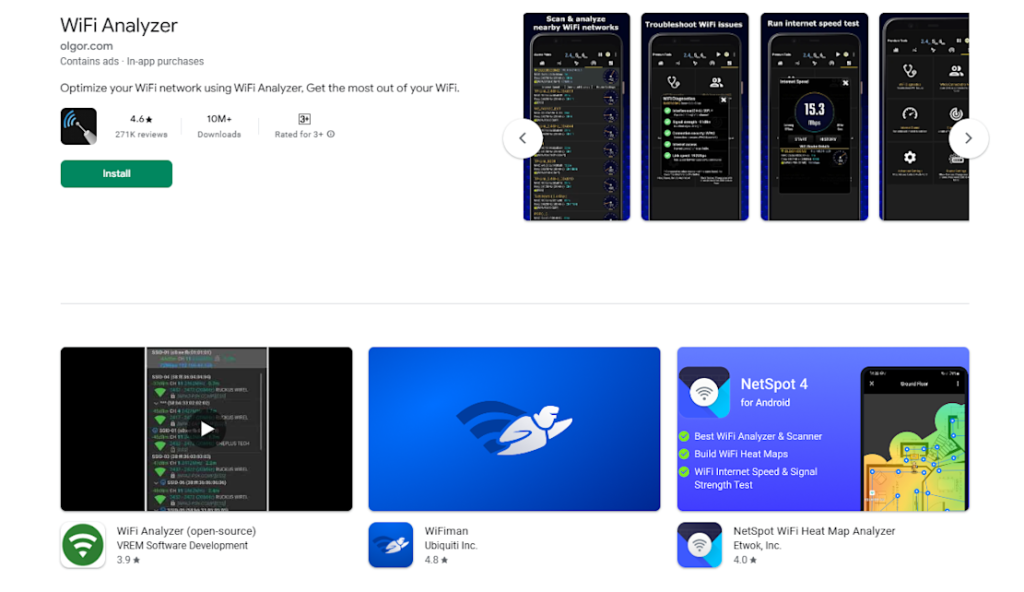
Are you worried about your WiFi network being visible to everyone nearby? Hiding your SSID (network name) on your long range WiFi extender is a smart step to boost your home or office security.
When your network name is hidden, it becomes harder for unwanted users to find and connect to your WiFi. You’ll discover simple, clear steps to hide your SSID quickly and easily. By the end, you’ll have a safer, more private wireless network that only you and your trusted devices can access.
Keep reading to take control of your WiFi security right now.
Benefits Of Hiding Ssid
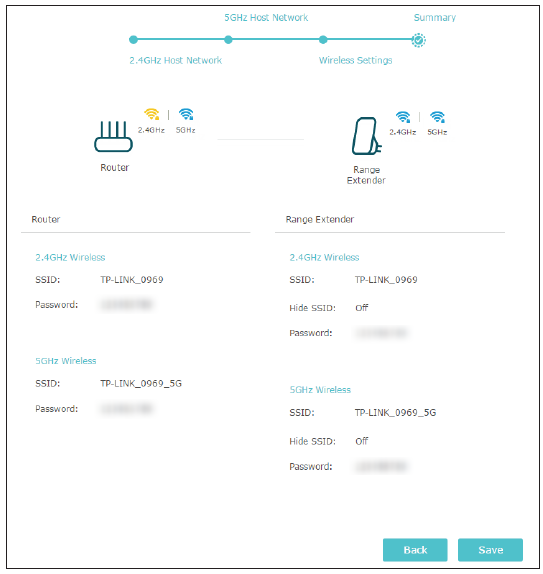
Hiding your SSIDhelps keep your network private. It stops others from seeing your WiFi name easily. This makes your network less likely to be targeted by unauthorized users.
By hiding the SSID, you reduce chances of unwanted access. Only people who know the network name can try to connect. This adds a simple layer of security.
Hiding SSID also helps in minimizing signal interference. Other nearby devices will not try to connect or interfere with your signal. This can improve your WiFi performance, especially in crowded areas.
Credit: www.tp-link.com
How Long Range Wifi Extenders Work
Long range wifi extenders help spread wifi signals farther. They catch the main wifi signal and send it out again. This makes the wifi cover more space.
Signal boostingmeans making the wifi signal stronger. Extenders use antennas to catch and boost the signal. This helps devices stay connected even far from the router.
The SSIDis the network name. Extenders show the SSID so devices can find the network. Hiding the SSID makes the network invisible to others. This adds a layer of privacy.
| Feature | Description |
|---|---|
| Dual Band | Supports 2.4 GHz and 5 GHz frequencies for better speed |
| Easy Setup | Simple steps to connect with your main router |
| Signal Indicator | Shows signal strength to help find best location |
| Security | Supports WPA/WPA2 encryption to keep network safe |
Preparing To Hide Your Ssid
Access the extender’s settings page using its IP address. This is usually found in the user manual or on the device label. Enter the username and passwordto log in. These are often set to default values like “admin” and “password”.
Save a copy of your current settings before making changes. This backup helps restore your network if anything goes wrong. Look for an option like “Backup”or “Export Configuration”in the settings menu.
| Network Credential | Description |
|---|---|
| SSID | The name of your WiFi network that devices see |
| Password | Key used to connect securely to your network |
| Admin Username | Used to log into your extender’s settings page |
| Admin Password | Protects access to your extender’s settings |

Credit: beambox.com
Step-by-step Ssid Hiding Process
Access the extender’s interface by typing its IP address into your web browser. Enter your username and password to log in. This information is usually on the extender’s label or manual. Use a device connected to the extender’s network for easy access.
Find the wireless settings section in the interface menu. This area controls your WiFi network options. Look for terms like “Wireless,” “WiFi,” or “Network” to locate it quickly.
Look for the option labeled “SSID Broadcast” or “Enable SSID.” Disable this option to hide your network name. This stops your extender from showing your WiFi name to others.
Save the changes by clicking the “Apply,” “Save,” or similar button. The extender may restart to apply the new settings. After this, your SSID will be hidden from nearby devices.
Troubleshooting Hidden Ssid Issues
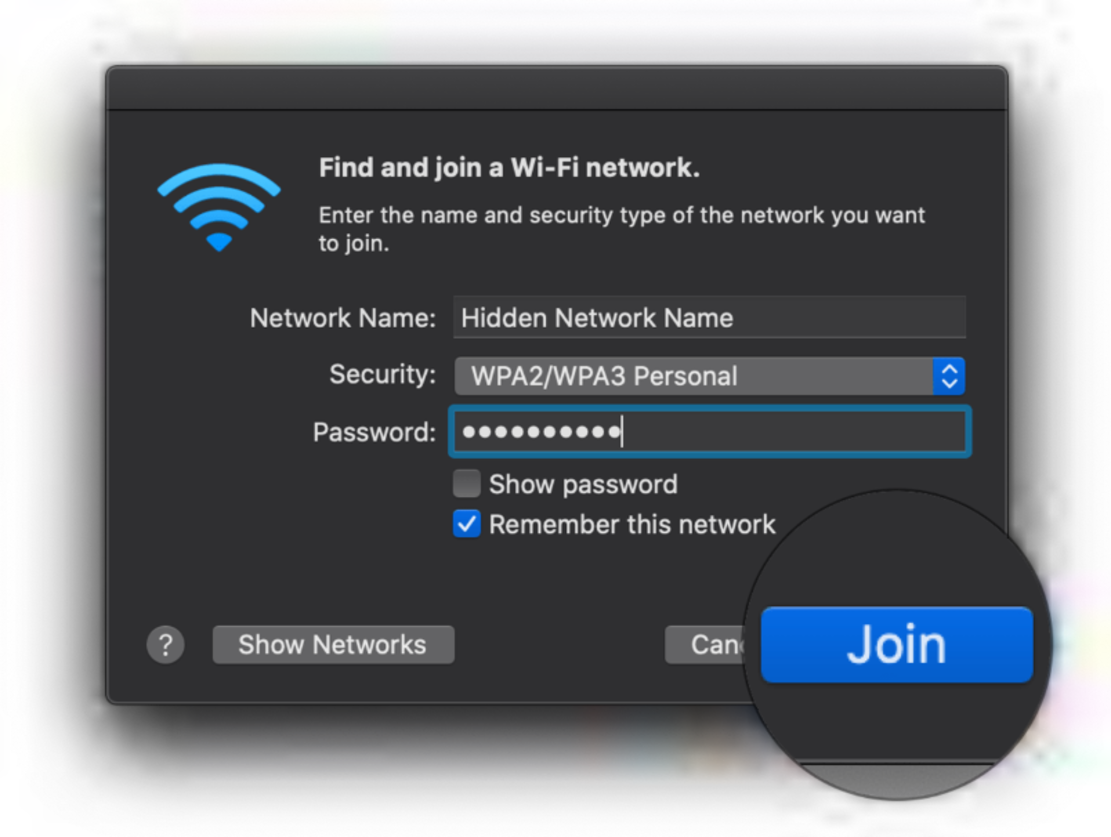
Connecting devices to a hidden SSIDrequires entering the exact network name manually. Devices may not see the network in the list. This can cause confusion or failed connections.
- Ensure the SSID and password are typed correctly.
- Check device compatibility with hidden networks.
- Manually add the network on your device settings.
- Restart the device after adding the hidden network.
Common connection problems include devices not remembering the network or showing limited access. Signal interference or extender placement can also affect connectivity.
| Issue | Possible Cause | Solution |
|---|---|---|
| Cannot find hidden SSID | SSID not manually added | Add SSID manually in WiFi settings |
| Limited or no internet | Weak signal or wrong password | Check signal strength, re-enter password |
| Device forgets network | Device settings or software bug | Update device software or reset network settings |
Resetting extender settings can fix many hidden SSID problems. It clears errors and restores defaults. After reset, set the hidden SSID again carefully.
Credit: beambox.com
Additional Privacy Measures
Strong encryptionkeeps your network safe. Use WPA3 or WPA2 security types. These protect your data from hackers. Avoid WEP as it is weak and easy to break.
Change default passwords on your wifi extender and router. Default passwords are easy targets. Create a new password with letters, numbers, and symbols. This step adds an important layer of security.
- MAC address filteringlimits which devices can connect.
- Each device has a unique MAC address.
- Add allowed devices to the extender’s settings.
- This blocks unknown devices from joining your network.
When Not To Hide Ssid
Hiding your SSID may cause connection issues with some devices on a long-range WiFi extender. Devices might struggle to find the network quickly or at all. Keeping the SSID visible helps maintain stable and easy connections.
Impact On Network Accessibility
Hiding SSIDcan make it harder for devicesto find your network. This may cause connectivity problemsfor users. Some devices do not supportconnecting to hidden networks easily. It can lead to more connection errorsand frustration.
Compatibility Concerns
Older devices and some smart gadgets may fail to connectif SSID is hidden. This creates compatibility issues. Not all devices can handle hidden networks. This may result in lost connectionsor slow speeds.
Alternative Privacy Strategies
- Use strong passwordsinstead of hiding SSID.
- Enable network encryptionlike WPA3.
- Limit access by MAC addressfiltering.
- Turn off guest network visibilityif available.
Frequently Asked Questions
How Do I Hide Ssid On A Long Range Wifi Extender?
To hide SSID, access your extender’s admin panel via its IP address. Find the wireless settings and disable the SSID broadcast option. Save changes and restart the device. This prevents the network name from appearing publicly, enhancing your WiFi security.
Will Hiding Ssid Improve My Wifi Security?
Hiding your SSID adds a basic layer of security by making your network less visible. However, it’s not foolproof. Skilled attackers can still detect hidden networks. Use it alongside strong encryption like WPA3 and a strong password for better protection.
Can Devices Connect To Hidden Ssid Networks?
Yes, devices can connect to hidden SSIDs but require manual setup. You must enter the exact network name and password. This can be less convenient but helps reduce unauthorized access by making the network less visible.
Does Hiding Ssid Affect Wifi Extender Performance?
Hiding SSID does not impact your WiFi extender’s performance or speed. It only prevents the network name from showing in the available networks list. Your extender will function normally while keeping the network discreet.
Conclusion
Securing your WiFi is crucial. Hiding your SSID helps maintain privacy. It prevents unauthorized users from accessing your network. Follow the steps we’ve outlined. Your long-range WiFi extender will be more secure. Remember to change your password regularly. Keep your network safe from potential threats.
With these tips, enjoy a safer internet experience. Simple actions can make a big difference. Stay connected, stay secure. Your online safety matters. Implement these measures today. Protect your digital space effectively. Consistency is key to maintaining WiFi security.


