If you want the smoothest, fastest gaming experience on your Nintendo Switch, connecting it to a gaming modem is a smart move. But how do you do it right?
You might feel overwhelmed by all the cables, settings, and tech jargon. Don’t worry—this guide breaks it down step-by-step, so you can get your Switch online quickly and enjoy lag-free gaming. Keep reading to discover simple tips that will boost your connection and take your gameplay to the next level.
Choosing The Right Gaming Modem
Choosing the right gaming modem is essential for a smooth gaming experience on your Nintendo Switch. A good modem reduces lag and keeps your connection stable. Picking the best device ensures fast internet speeds and reliable gameplay. Focus on features that support gaming needs and match your Switch’s requirements.
Key Features To Look For
- Low latency for quick response times
- High download and upload speeds
- Stable connection with minimal drops
- Quality of Service (QoS) to prioritize gaming traffic
- Gigabit Ethernet ports for wired connections
- Compatibility with latest Wi-Fi standards (Wi-Fi 5 or Wi-Fi 6)
Compatibility With Switch
The Nintendo Switch supports both wired and wireless connections. The modem must allow a stable Wi-Fi connection or support Ethernet adapters. Some modems have built-in features that work well with gaming consoles. Ensure your modem supports the IP and DNS settings used by the Switch. Check if the modem allows easy port forwarding for online games.
Popular Gaming Modems
| Modem Model | Speed | Key Feature |
|---|---|---|
| Netgear Nighthawk CM1200 | Up to 2 Gbps | Multi-gig Ethernet ports |
| ARRIS SURFboard SB8200 | Up to 1 Gbps | Reliable DOCSIS 3.1 support |
| Motorola MB7621 | Up to 650 Mbps | Compact and easy setup |
Preparing Your Switch For Connection
Preparing your Nintendo Switch for connection to a gaming modem is essential for smooth gameplay. This process ensures the device communicates well with your network. Taking time here avoids connection problems and lag during gaming sessions.
Checking Network Settings
Start by accessing the Switch’s network settings. Open the System Settings menu, then select “Internet.” Review the current connection status. Confirm the Switch recognizes your modem’s Wi-Fi or Ethernet connection.
Check the IP address and DNS settings. They should be set to automatic unless your modem requires manual entry. Testing the connection here helps find any issues early.
Updating Firmware
Keep your Switch’s firmware updated for better network compatibility. Go to System Settings, then “System,” and select “System Update.” Download and install any available updates.
Firmware updates fix bugs and improve device performance. Updated firmware supports new network protocols your modem might use.
Necessary Accessories
Some connections need extra accessories. For wired connections, a USB to Ethernet adapter is often required. Ensure it is compatible with the Switch.
You might also need a USB hub if your adapter requires extra power. Using official or well-reviewed accessories ensures stable connections.
- USB to Ethernet adapter
- USB hub (if needed)
- High-quality Ethernet cable
Connecting Modem To Switch
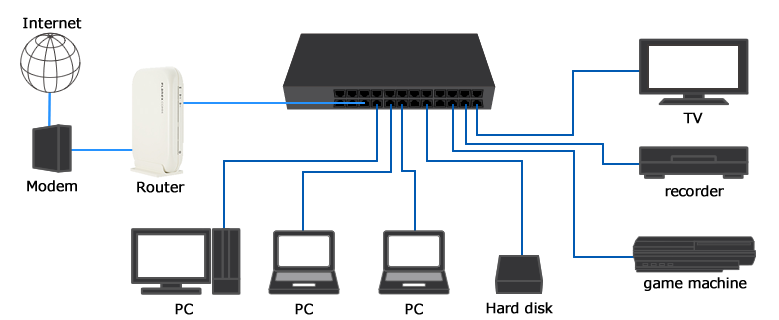
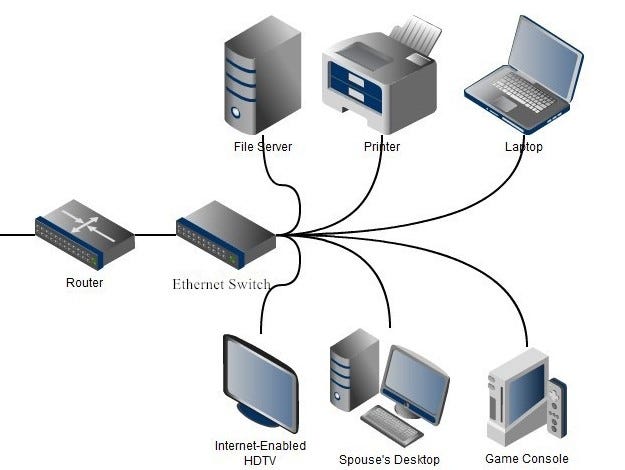
Connecting your gaming modem to a network switch is a straightforward task that can boost your gaming setup’s performance. This connection allows multiple devices, including your Nintendo Switch, to access the internet through a stable and fast wired or wireless network. Understanding the setup options and how to fix common issues will help you get your system online quickly and keep your gameplay smooth.
Wired Connection Setup
A wired connection offers the most reliable and fastest network performance. To set this up, connect an Ethernet cable from your modem’s LAN port directly to one of the switch’s ports.
Next, use another Ethernet cable to link the switch to your Nintendo Switch dock’s LAN port. This creates a dedicated pathway for data, reducing lag during online play.
Make sure your modem’s DHCP is enabled to assign IP addresses automatically, so devices connected to the switch receive proper network configurations. If you’ve ever experienced random disconnects in multiplayer games, this wired setup can significantly reduce that frustration.
Wireless Connection Setup
If running cables is inconvenient, a wireless connection to your switch is possible with a Wi-Fi-enabled network switch or a wireless bridge device. First, configure the wireless switch to connect to your modem’s Wi-Fi network by entering the correct SSID and password.
Once connected, the switch will broadcast the network to your Nintendo Switch and other devices. This setup keeps your gaming area clutter-free but may introduce slight latency compared to wired connections.
Consider placing your modem and switch closer together to maintain a strong wireless signal. Have you noticed slower speeds or interruptions when gaming far from your router? This approach helps minimize those issues.
Troubleshooting Connection Issues
Connection problems can disrupt your gaming experience, but many issues have simple fixes. First, check all Ethernet cables for damage or loose connections—sometimes a cable swap is all it takes.
Verify that your modem and switch have power and that indicator lights show active connections. If your Nintendo Switch can’t connect, try restarting the modem, switch, and the console itself.
Another tip is to ensure your modem’s firmware is up to date. Outdated firmware can cause compatibility problems with newer network devices. If issues persist, resetting network settings on your Switch can help clear any configuration conflicts.
Credit: medium.com
Optimizing Network Performance
Optimizing network performance is key to enjoying smooth gameplay on your Nintendo Switch. A fast and stable connection reduces interruptions and enhances your gaming experience. Small adjustments can make a big difference in speed and reliability.
Adjusting Modem Settings
Access your modem’s settings through its IP address in a web browser. Change the Wi-Fi channel to one with less traffic. Enable Quality of Service (QoS) to prioritize gaming data. Update your modem’s firmware for better performance and security. Disable unused features that may slow down the connection.
Improving Wi-fi Signal Strength
Place your modem in a central, open area away from walls. Keep it elevated, not on the floor. Avoid interference from devices like microwaves and cordless phones. Use a Wi-Fi extender if the signal is weak in your gaming area. Switching to a 5 GHz band can reduce interference and boost speed.
Reducing Latency And Lag
Connect your Switch using an Ethernet adapter for a wired connection. Wired connections offer lower latency than Wi-Fi. Close background apps on your Switch and other devices. Limit the number of devices using the network during gameplay. Restart your modem regularly to clear any connection issues.
Testing Your Connection
Testing your connection ensures smooth gameplay and minimal lag. It helps identify issues early before they affect your gaming experience. A reliable connection means faster response times and fewer interruptions. Use simple tests to check speed, stability, and overall performance. This section guides you through easy ways to verify your gaming modem’s link to your Switch.
Running Speed Tests
Speed tests measure your internet’s download and upload rates. Use trusted websites or apps designed for gaming connections. Run tests at different times to see if speeds stay consistent. Faster speeds reduce game lag and improve multiplayer sessions. Aim for speeds that meet your game’s minimum requirements.
Checking Stability During Gameplay
Stable connections keep your game running without sudden drops. Play online games for a while and watch for lag spikes or disconnections. Note any freezes or delays affecting your actions. Consistent ping times indicate stable links. If your game stutters or disconnects often, your connection needs adjustment.
Using Diagnostic Tools
Diagnostic tools help spot network problems quickly. Many gaming modems have built-in diagnostics accessible via their control panel. These tools check signal strength, latency, and packet loss. Use them to understand your modem’s health and fix issues. Some apps also monitor connection quality during gameplay for real-time feedback.

Credit: device.report
Maintaining Your Gaming Network
Maintaining your gaming network keeps your connection stable and fast. A smooth network avoids lag and disconnections during gameplay. Small efforts can protect your devices and improve overall performance. Focus on key areas like updates, hardware, and security.
Regular Firmware Updates
Keep your gaming modem and router firmware up to date. Updates fix bugs and improve network speed. Check the manufacturer’s website or app often for new firmware. Install updates promptly to avoid security risks and connection issues.
Routine Hardware Checks
Inspect your modem, router, and cables regularly. Look for loose wires or damaged parts that can cause signal loss. Clean dust from vents to prevent overheating. Restart your modem and router sometimes to refresh the connection.
Security Best Practices
Protect your network from unauthorized access. Use a strong, unique password for your Wi-Fi. Enable network encryption like WPA3 or WPA2. Disable remote access if you do not need it. Monitor connected devices to spot unknown users quickly.
Credit: medium.com
Frequently Asked Questions
How Do I Connect A Gaming Modem To A Nintendo Switch?
To connect a gaming modem to a Nintendo Switch, use an Ethernet adapter. Plug the adapter into the Switch’s USB-C port. Connect the Ethernet cable from your modem to the adapter. This ensures a stable wired internet connection for better gaming performance.
Can I Use Wi-fi Instead Of A Wired Modem Connection?
Yes, the Nintendo Switch supports Wi-Fi. However, a wired modem connection via Ethernet adapter offers lower latency and more stable speeds. Wired connections reduce lag, which is crucial for online gaming performance.
What Type Of Ethernet Adapter Works With Nintendo Switch?
Choose a USB-C to Ethernet adapter compatible with the Nintendo Switch. Look for adapters supporting 10/100 Mbps or higher speeds. Reliable brands ensure stable connections and better gaming experiences.
Do I Need To Configure Modem Settings For Switch Connectivity?
Usually, no special modem settings are required. The Switch automatically detects the Ethernet connection. If problems arise, check DHCP settings or restart your modem and Switch for fresh connections.
Conclusion
Connecting your gaming modem to a switch is simple. First, gather your equipment. Next, plug in the modem and switch. Use an Ethernet cable for connection. Ensure both devices are powered on. Check all connections for security. A stable internet connection improves your gaming experience.
Troubleshoot if any issues arise. Adjust settings as needed for optimal performance. With these steps, enjoy smoother gaming sessions. Remember, a solid setup makes gaming more fun. Follow these tips for success. Happy gaming!