Are you tired of lag ruining your gaming sessions? Setting up the right gaming modem can make all the difference between smooth gameplay and frustrating delays.
In this guide, you’ll learn simple steps to get your gaming modem up and running quickly. Whether you’re a beginner or just want to optimize your connection, this article will help you boost your speed, reduce lag, and dominate every game you play.
Keep reading to discover how easy it is to transform your gaming experience!
Choosing The Right Gaming Modem
Choosing the right gaming modem is crucial to get the most out of your online gaming experience. It’s not just about speed; it’s about stability, low latency, and compatibility with your setup. Picking the wrong modem can lead to frustrating lag and dropped connections, even if you pay for a fast internet plan.
Key Features To Look For
Look for modems that support the latest DOCSIS standards, ideally DOCSIS 3.1. This ensures faster speeds and better handling of multiple devices. Low latency is a must—some modems have built-in Quality of Service (QoS) features that prioritize gaming traffic.
Also, consider modems with multiple Ethernet ports if you want to connect your gaming console and PC directly for the best connection. A good modem should handle your internet plan’s maximum speed without bottlenecks. Don’t overlook easy firmware updates; they keep your modem secure and optimized.
Compatibility With Your Isp
Not every modem works with every Internet Service Provider (ISP). Check your ISP’s approved modem list before buying. Using an unsupported modem can result in no connection or poor performance.
Sometimes your ISP rents you a modem-router combo, which might not be ideal for gaming. You can replace it with your own modem, but make sure it’s fully compatible. Contact your ISP’s support or visit their website to confirm compatibility.
Budget Considerations
High-end gaming modems can be expensive, but you don’t always need the top model. Match the modem’s capabilities with your internet speed and gaming needs. Spending more than your internet plan’s max speed won’t improve performance.
Look for modems that offer the best balance between price and features. Sometimes last year’s model gives you almost the same performance at a lower cost. Ask yourself: Are you a casual gamer or a competitive player? Your budget should reflect that.

Credit: www.ign.com
Preparing For Setup
Preparing for the setup of a gaming modem ensures smooth installation and better performance. It involves gathering all the right tools, checking your internet connection, and making sure the modem’s software is current. Taking these steps reduces troubleshooting later and helps you enjoy faster gaming speeds.
Gathering Necessary Equipment
Collect all items needed before starting. This includes the gaming modem, power adapter, Ethernet cables, and your computer or console. Keep your internet service provider (ISP) details handy for easy reference. Having everything ready saves time and frustration.
Checking Network Requirements
Verify your internet plan supports gaming speeds. Check the minimum download and upload speeds recommended for your games. Ensure your ISP allows modem use and supports the device model. A stable and fast connection improves your gaming experience.
Updating Firmware
Check the modem’s firmware version before setup. Visit the manufacturer’s website or use the modem’s admin panel to find updates. Installing the latest firmware fixes bugs and enhances performance. Keep the device connected to power during the update to avoid issues.
Connecting Your Gaming Modem
Connecting your gaming modem correctly sets the foundation for a smooth and lag-free gaming experience. This process involves more than just plugging in cables; it requires careful attention to ensure every connection supports optimal performance. Let’s walk through how to make these connections with confidence and precision.
Physical Connections
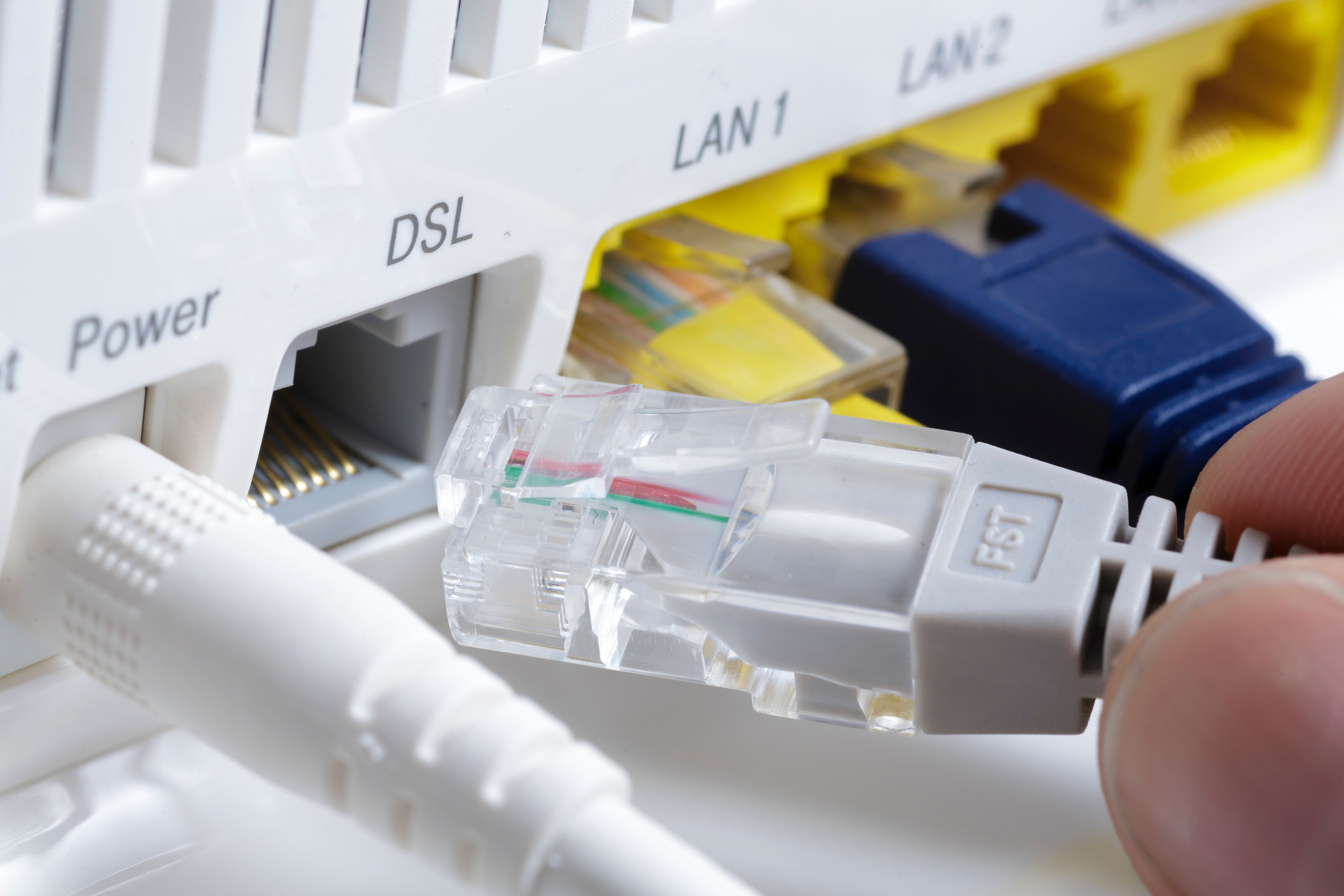
Start by locating the modem’s ports—these usually include power, Ethernet, and coaxial or DSL input. Connect the coaxial or DSL cable from your internet service provider directly to the modem’s input port. Next, plug an Ethernet cable from your modem to your gaming router or directly to your PC for the best connection speed.
Double-check that all cables fit snugly. Loose connections can cause interruptions during critical gaming moments. Have you ever lost a match because your internet dropped unexpectedly? Proper physical connections prevent that frustration.
Powering On And Initialization
After all cables are connected, plug in your modem’s power adapter and switch it on. The modem will begin its initialization process, indicated by flashing lights on the front panel. Wait patiently for the lights to stabilize—this usually takes a few minutes.
If the lights don’t settle or show error signals, try unplugging the modem for 30 seconds and powering it back on. This reset often clears minor glitches. Do you know which lights mean your modem is ready? Refer to the manual to decode them quickly.
Verifying Internet Connection
Once your modem shows a stable connection, test your internet speed using online tools. Connect your gaming device and run a speed test to confirm that you’re getting the expected bandwidth and low ping. This step is crucial because a fast connection doesn’t always guarantee low latency.
If speeds are slow or connection drops occur, check the cables again or contact your ISP. Sometimes, the issue lies beyond your setup. How often do you verify your connection before a gaming session? Making it a habit can save you from unexpected interruptions.
Credit: www.polygon.com
Optimizing Modem Settings
Optimizing your modem settings can make a significant difference in your gaming experience. Simple tweaks can reduce lag, improve connection stability, and give you an edge over your opponents. Let’s look at how you can adjust your modem settings for peak gaming performance.
Accessing The Modem Interface
To start, you need to access your modem’s interface. Open a web browser and enter your modem’s IP address—often something like 192.168.0.1or 192.168.1.1. You can find this address on the modem label or in the user manual.
Next, log in using your username and password. If you haven’t changed these, the default credentials are usually “admin” for both fields. Once inside, you’ll see the control panel where all settings are available.
Configuring Qos For Gaming
Quality of Service (QoS) prioritizes gaming traffic over other internet activities. This means your game data gets sent first, reducing lag even if others are streaming or downloading.
Look for the QoS settings in your modem interface. You can prioritize your gaming device by its MAC address or by specific game ports. Setting this properly ensures smoother gameplay, especially during peak internet usage times.
Setting Up Port Forwarding
Many games require open ports to connect smoothly to servers and other players. Port forwarding tells your modem to allow this traffic directly to your gaming device.
Find the port forwarding section in your modem. Add the ports your game uses, which you can find on the game’s support site or forums. Enter your device’s IP address to direct the traffic correctly.
- Common ports include TCP and UDP ranges depending on the game.
- Double-check that your device has a static IP to avoid losing these settings.
Enabling Dmz For Low Latency
Enabling DMZ (Demilitarized Zone) can improve latency by forwarding all incoming traffic to your gaming device. This bypasses some security checks but can reduce delays.
Use this setting carefully—only enable DMZ for trusted devices like your gaming console or PC. You’ll find the DMZ option in your modem’s advanced settings; just input your device’s IP address to activate it.
Have you noticed lag spikes during intense gameplay? Testing DMZ might reveal if it helps your connection stay stable when it matters most.
Testing And Troubleshooting
After setting up your gaming modem, it’s crucial to test its performance and troubleshoot any issues. This ensures you get the smoothest gaming experience possible without frustrating lags or disconnects. Let’s dive into how you can measure key metrics, fix common problems, and know when to reach out for help.
Measuring Ping And Latency
Ping and latency are the heartbeat of your gaming connection. You want these numbers to be as low as possible to avoid delays. Use tools like ping testsor websites such as Speedtest.net to check your connection speed and responsiveness.
Run multiple tests at different times to get a clear picture. Spotting spikes in latency can help you identify peak usage times or interference. Have you noticed your game freezing just before a big move? That could be a latency issue.
Fixing Common Connection Issues
If you face frequent disconnects or slow speeds, start with simple fixes. Restart your modem and router first; it often clears up temporary glitches. Check that all cables are securely connected and not damaged.
Interference from other devices can also cause problems. Try moving your modem away from cordless phones, microwaves, or other electronics. Updating your modem’s firmware can improve stability—check the manufacturer’s website for the latest version.
Sometimes adjusting your modem’s Quality of Service (QoS) settings prioritizes gaming traffic over other activities. This tweak can reduce lag when multiple devices are online.
When To Contact Support
If your connection issues persist despite your efforts, it might be time to call in the pros. Contact your internet service provider if you suspect line problems or outages in your area. Keep a record of error messages and the steps you’ve tried to speed up the process.
Also, reach out to your modem’s manufacturer if you think the device itself is faulty. They can guide you through advanced troubleshooting or arrange a replacement if needed. Remember, persistent lag or frequent dropouts aren’t just annoying—they can signal deeper network issues worth professional attention.

Credit: www.amazon.com
Advanced Tips For Lag-free Play
Getting the most out of your gaming modem means going beyond the basics. You want smooth, lag-free gameplay that keeps you competitive and immersed. The tips below focus on practical ways to reduce lag by optimizing your setup and environment.
Using Wired Connections
Relying on Wi-Fi can introduce delays due to signal drops or interference. Connecting your gaming device directly to the modem with an Ethernet cable provides a stable and faster connection.
I’ve noticed a significant drop in ping times once I switched to wired connections during intense multiplayer matches. If you can’t run a cable directly, consider Powerline adapters that use your home’s electrical wiring to transmit data.
Reducing Interference
Wireless signals can get disturbed by other electronics, walls, or even your neighbor’s Wi-Fi. Position your modem away from devices like microwaves, cordless phones, and Bluetooth gadgets to minimize interference.
Try changing your modem’s Wi-Fi channel to one less crowded. Many modems have an auto-scan feature to pick the best channel, which can improve your wireless performance.
Regular Maintenance
Just like any tech, your modem needs regular upkeep to perform well. Restart your modem every few days to clear any memory leaks or temporary glitches.
Keep your modem’s firmware updated to benefit from performance improvements and security patches. Also, cleaning dust from your modem’s vents can prevent overheating, which sometimes causes connection drops.
Frequently Asked Questions
What Is A Gaming Modem And Why Is It Important?
A gaming modem optimizes internet speed and reduces latency for smoother gameplay. It prioritizes gaming traffic to prevent lag and disconnections, enhancing your online gaming experience significantly.
How Do I Connect My Gaming Modem To The Internet?
Connect your gaming modem to the ISP’s cable or DSL line. Then, link it to your router or PC using an Ethernet cable for stable internet access.
What Settings Improve Gaming Performance On A Modem?
Enable Quality of Service (QoS) to prioritize gaming data. Update firmware regularly and use a wired connection to minimize lag and packet loss during gaming.
Can I Use Any Modem For Gaming Purposes?
Not all modems are built for gaming. Gaming modems offer low latency and traffic prioritization, essential for competitive and smooth online gameplay.
Conclusion
Setting up a gaming modem is straightforward with the right steps. Follow the instructions carefully. Ensure all cables are connected securely. Configure settings to match your internet needs. Test the connection for any issues. A stable setup enhances your gaming experience.
Troubleshoot if you face any problems. Consult the modem’s manual for specific guidance. With patience, anyone can set it up. Enjoy faster gameplay with a stable connection. Happy gaming!